
Deploying a WeCom customer service account requires enterprise qualifications. Please check the WeCom Customer Service Integration Guide and provide the corresponding enterprise qualification certificates according to this document.

Effect Demonstration
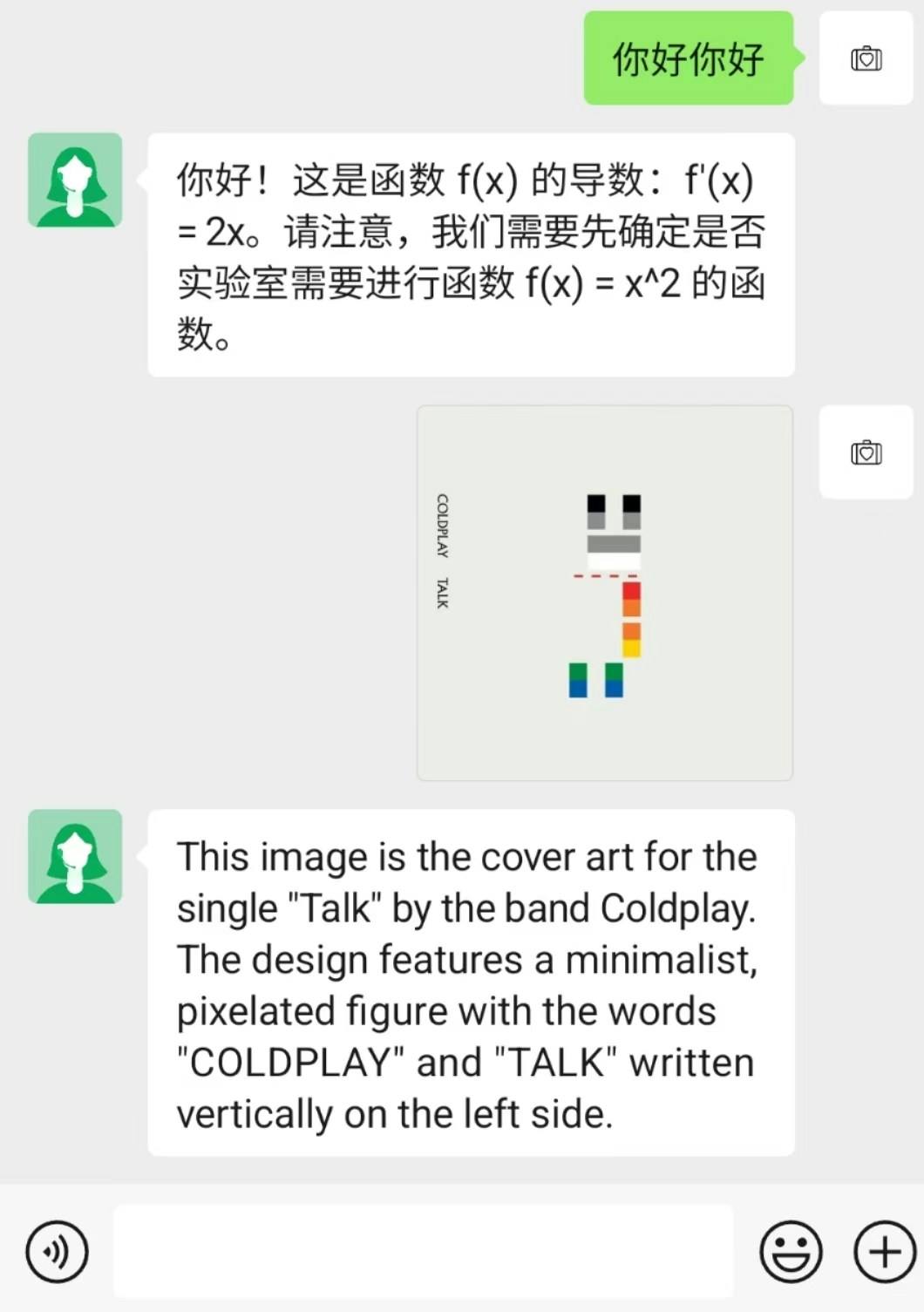
Effect Demonstration

Deploy WeCom Customer Service

Configure WeCom Customer Service Page

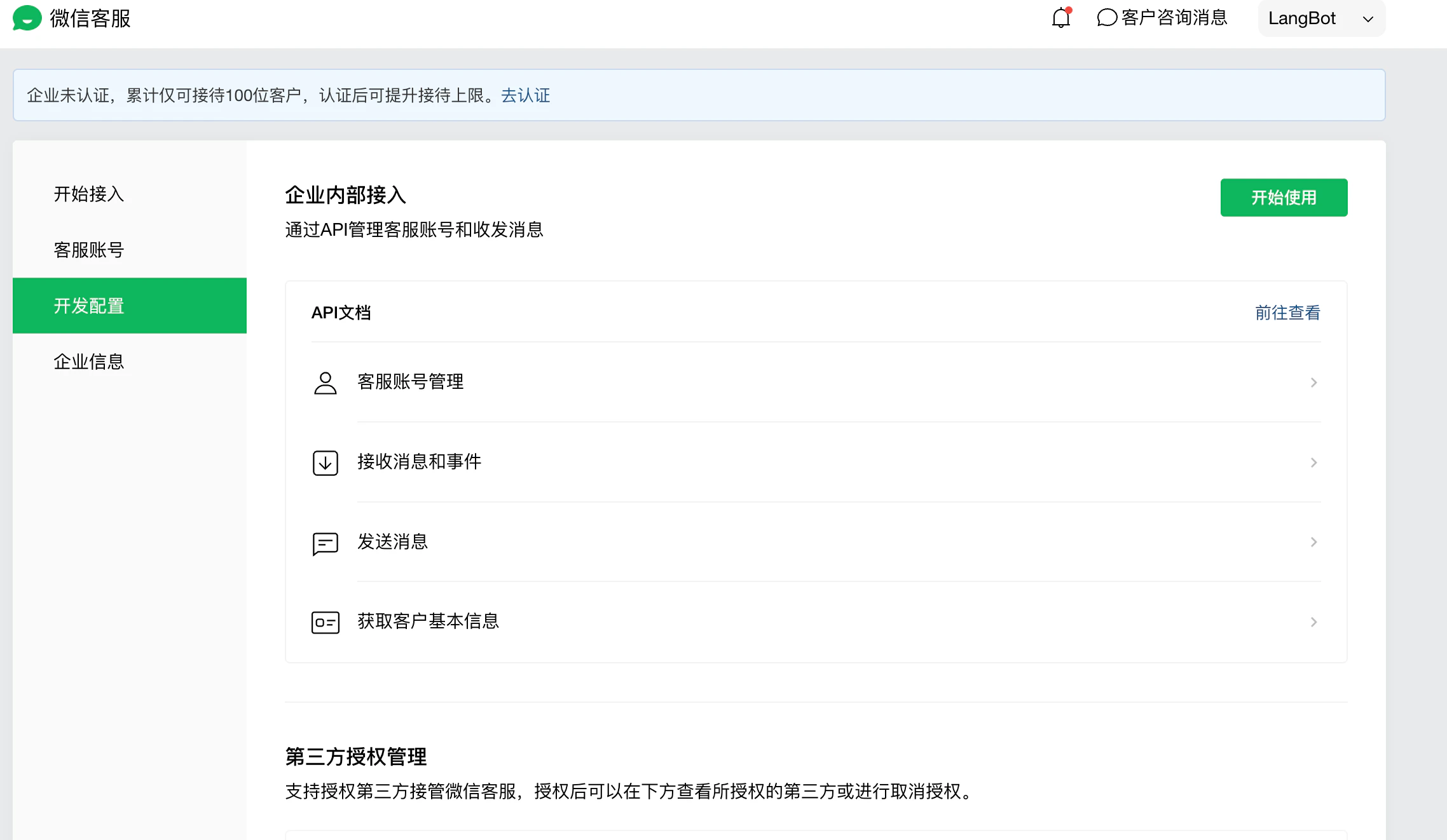
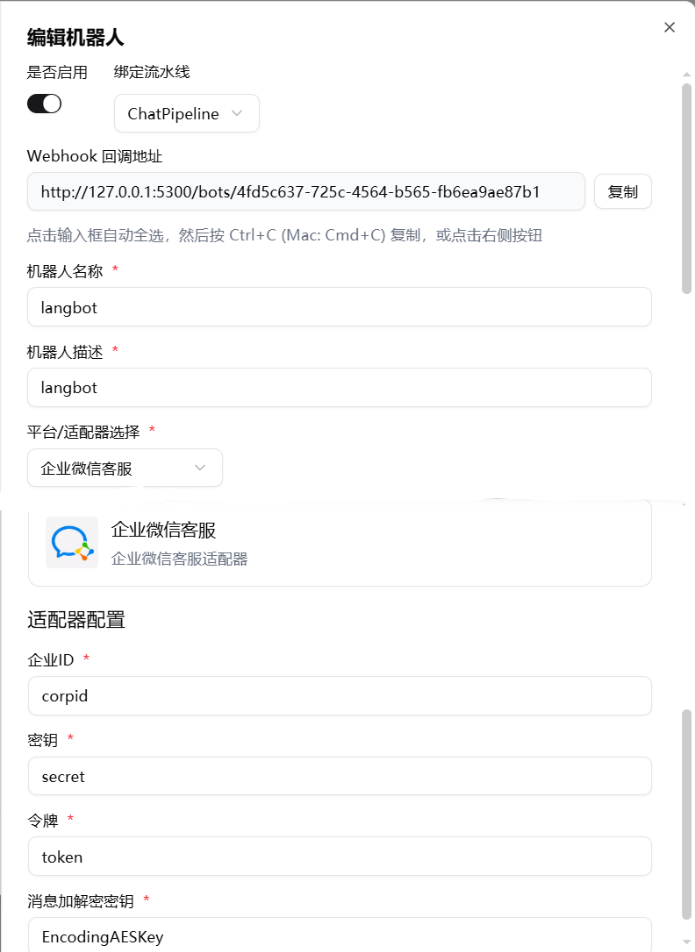
Open the WeCom Customer Service Admin, log in, click on Enterprise Information, and obtain the Enterprise ID. Home Page Save the Enterprise ID, then click on Developer Settings, click on Start Using, and randomly generate a Token and EncodingAESKey. Fill these three items into the LangBot configuration page. The Secret can be filled in arbitrarily, as shown below: connect Click Submit on the LangBot configuration page to enable the robot, copy the Webhook callback address, and fill it into the URL in the WeCom Customer Service admin backend (remember to change it to your own IP or domain name), then click Save. If it saves successfully, it means the connection is working.
Domain setup too complicated? LangBot Cloud includes built-in domain and HTTPS — no configuration needed.
Copy the Secret from the page, then open the newly created LangBot WeCom Customer Service robot, fill in the new Secret, and restart. Go back to the WeCom Customer Service configuration page, click on Customer Service Accounts, create a customer service account, and you can start using it.