Documentation Index

Fetch the complete documentation index at: https://docs.langbot.app/llms.txt

Use this file to discover all available pages before exploring further.

Embed a LangBot chat widget into any website with a single script tag.

Create Bot

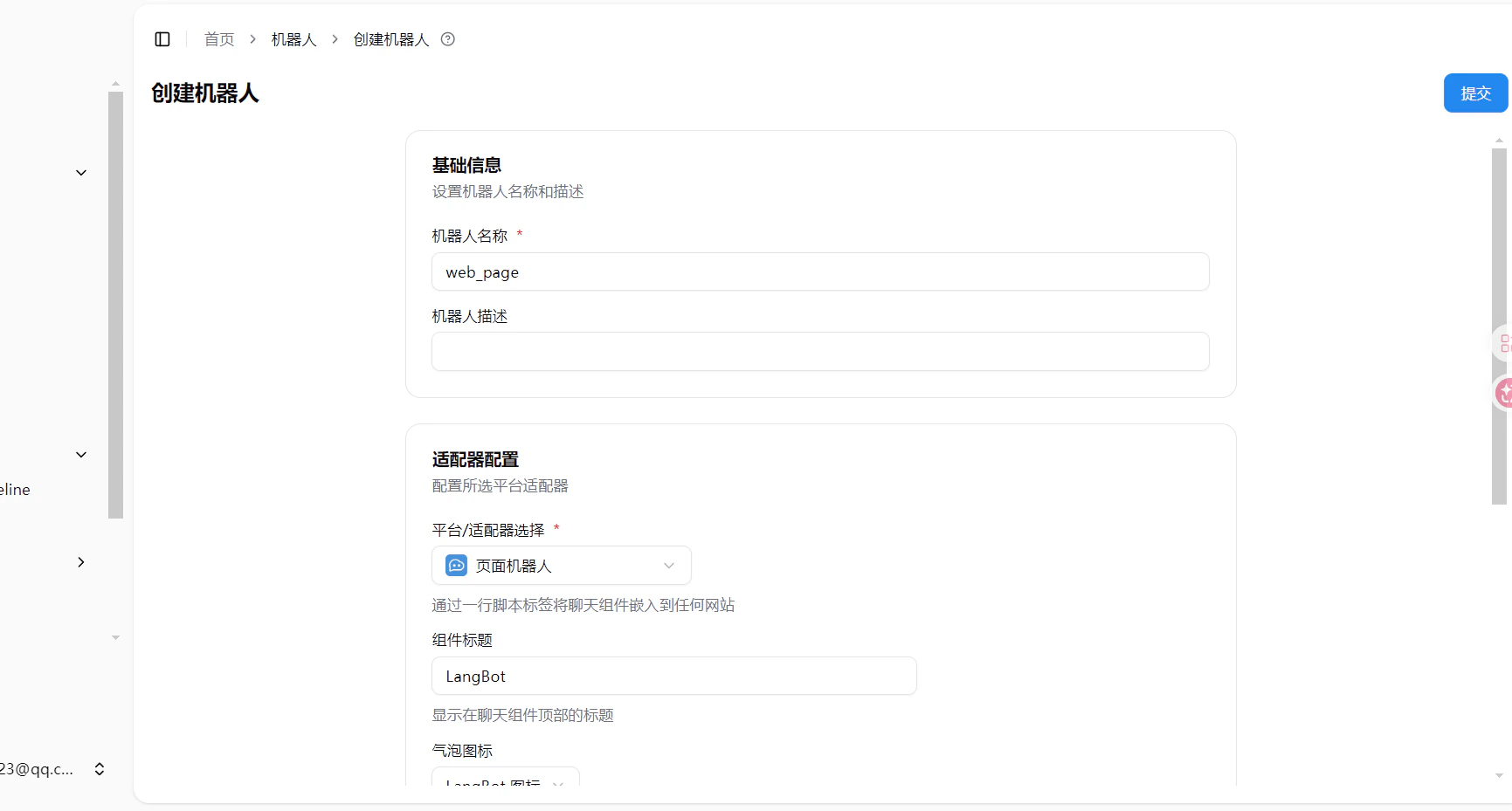
Open LangBot WebUI, go to Bots > Create Bot, enter a bot name, and select Web Page Bot as the platform/adapter. Create Web Page Bot

Configuration

OptionDescription
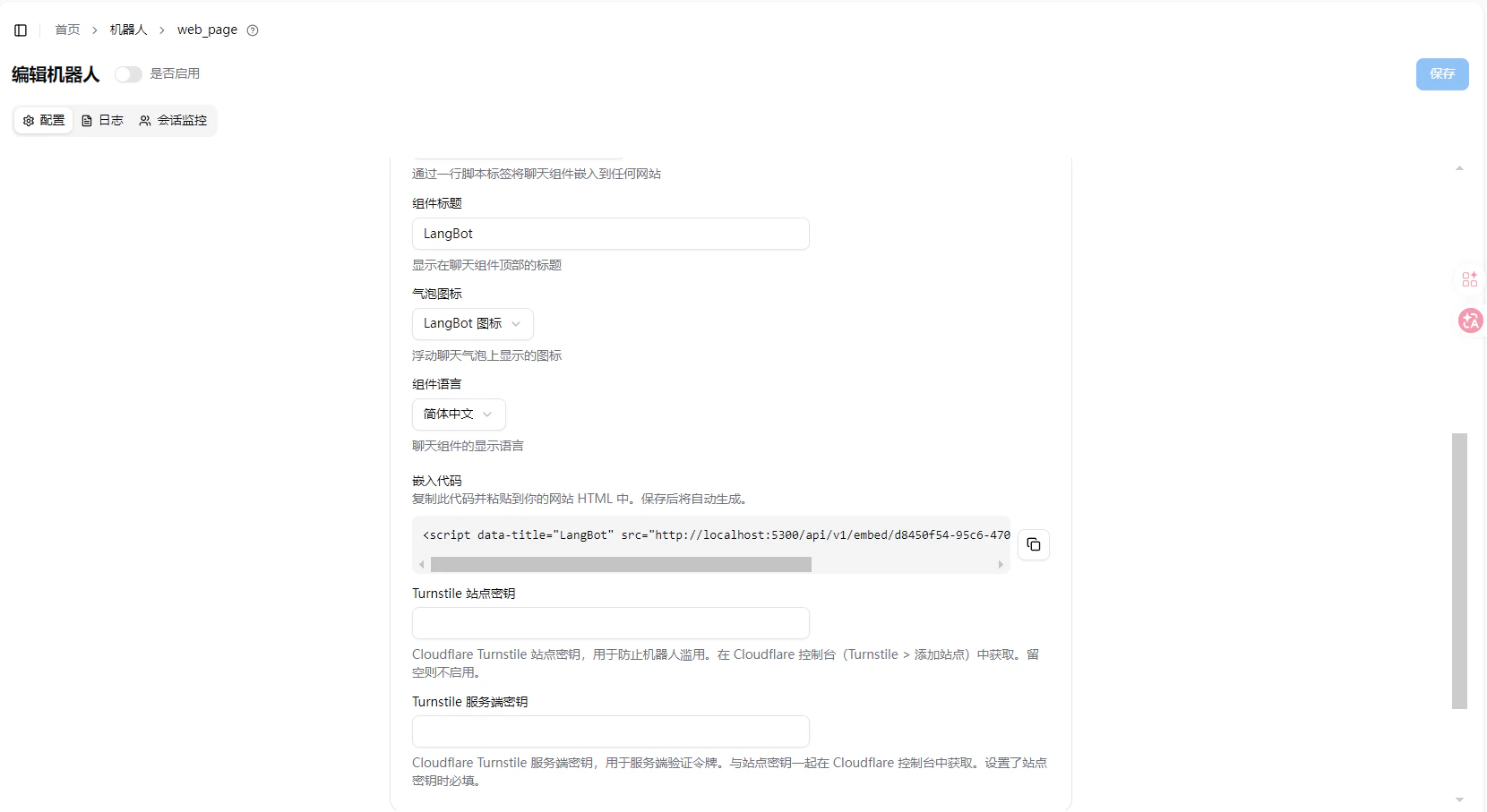
Component TitleTitle displayed at the top of the chat widget, defaults to LangBot
Bubble IconIcon displayed on the floating chat bubble
Component LanguageDisplay language for the chat widget (Simplified Chinese, English, etc.)
Turnstile Site KeyCloudflare Turnstile site key for anti-abuse protection. Leave empty to disable
Turnstile Secret KeyCloudflare Turnstile secret key, obtained together with the site key from Cloudflare console. Required when site key is set

Get Embed Code

After creating and saving the bot, an auto-generated <script> tag will appear in the Embed Code section of the bot configuration page. Embed Code Copy this code and paste it into your website HTML (typically before </body>). A chat bubble will appear at the bottom-right corner of the page, allowing visitors to chat with your bot.
<script data-title="LangBot" src="http://localhost:5300/api/v1/embed/xxxxxxxx-xxxx-xxxx-xxxx-xxxxxxxxxxxx"></script>
The embed code URL defaults to localhost. If your LangBot is deployed on a server, replace localhost:5300 with your actual address.

Anti-Abuse (Optional)

To protect against abuse, you can enable Cloudflare Turnstile:
  1. Go to Cloudflare Turnstile > Add Site
  2. Get the Site Key and Secret Key
  3. Fill them into the corresponding fields in the LangBot Web Page Bot configuration
  4. Save to take effect

Start Using

After adding the embed code to your website, visitors can click the chat bubble at the bottom-right corner to start chatting with your bot.