
One-Click Setup (Recommended)
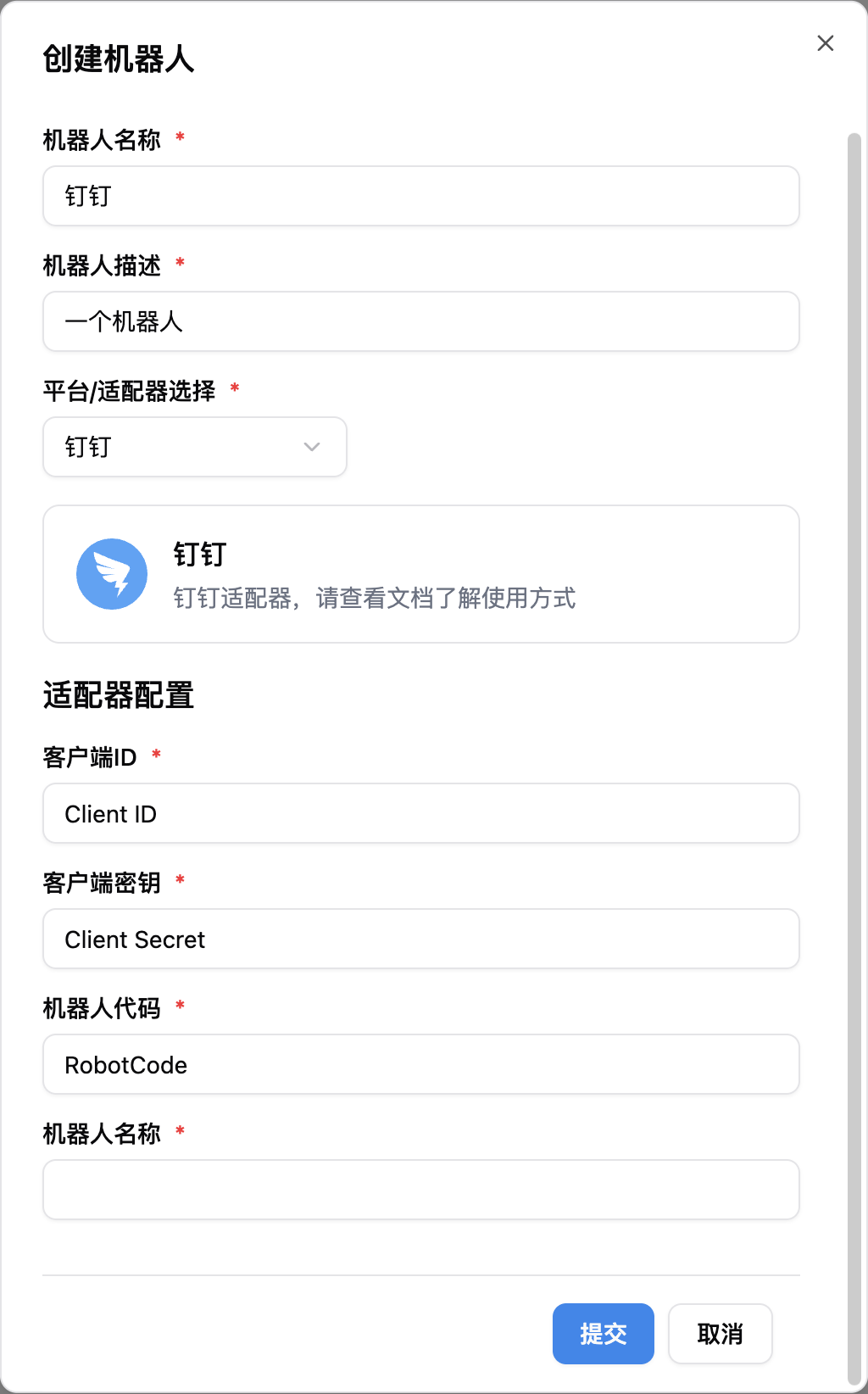
LangBot supports one-click DingTalk app creation with automatic credential filling — no manual copy-paste needed.- Open LangBot WebUI, go to Bots > Create Bot
- Enter a bot name, select
DingTalkas the platform/adapter - In the One-Click Create App section that appears, click the Start button
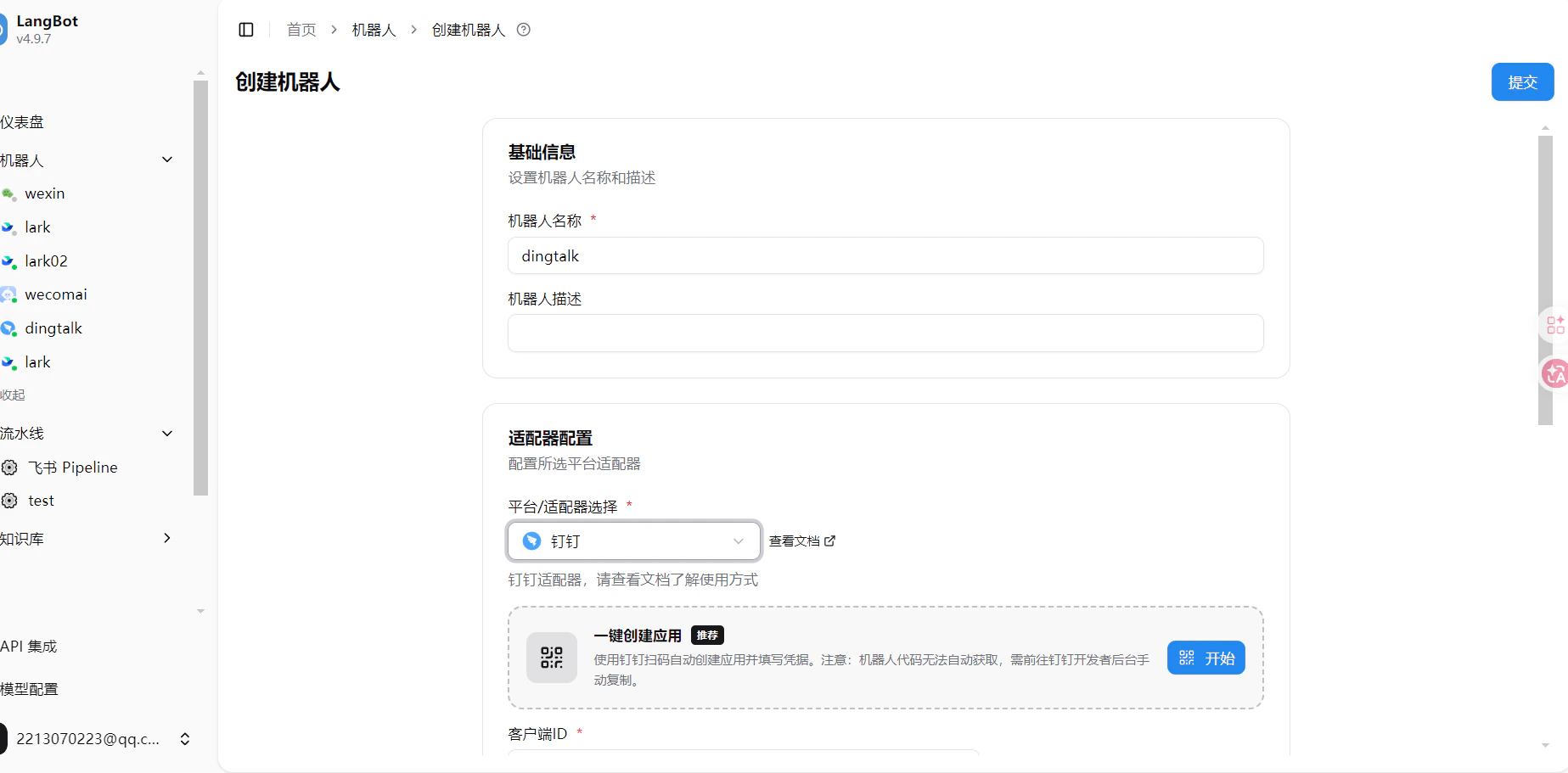
- Scan the QR code with the DingTalk app. On your phone, select the organization to create the bot in
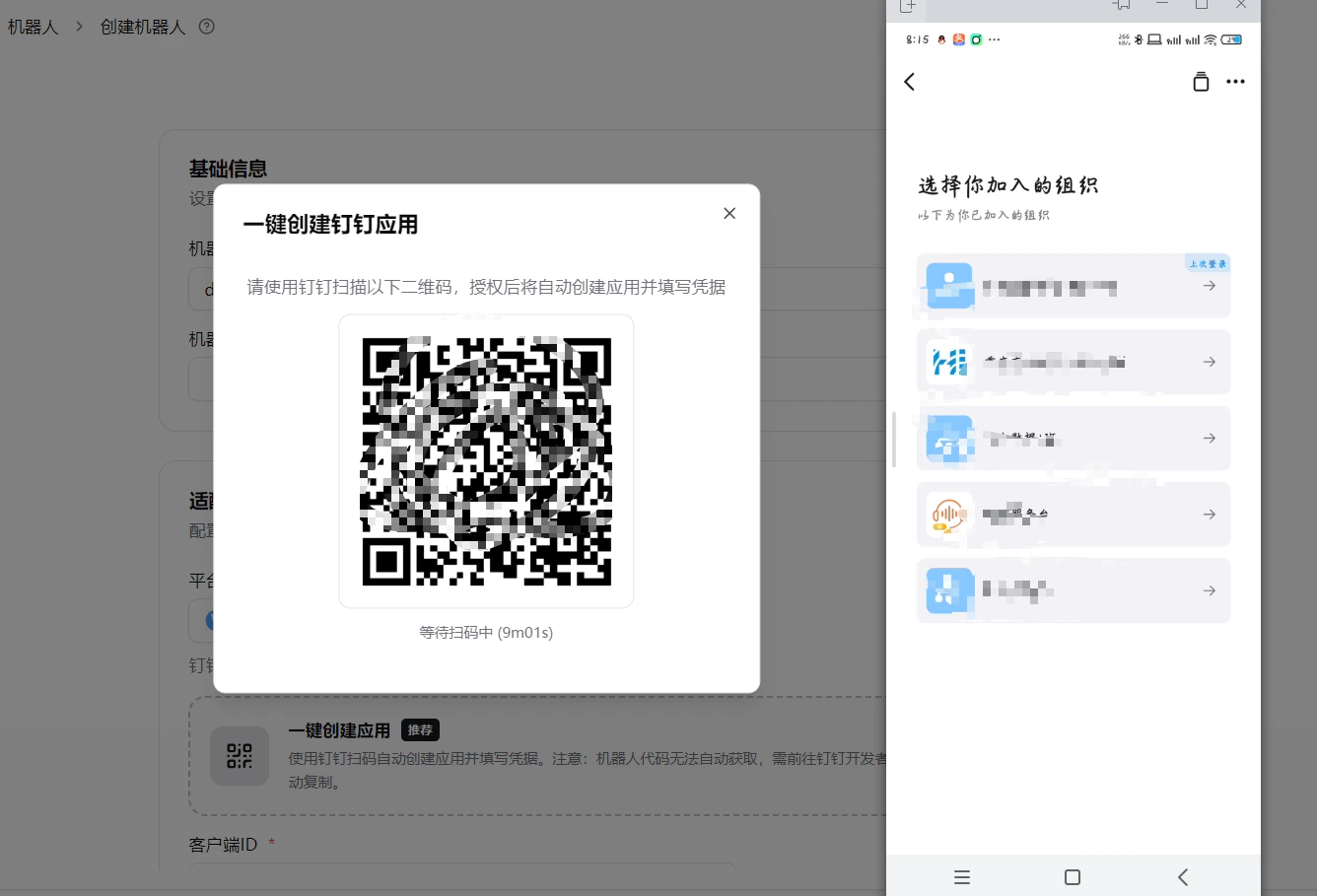
- Choose to create a new bot or select an existing one
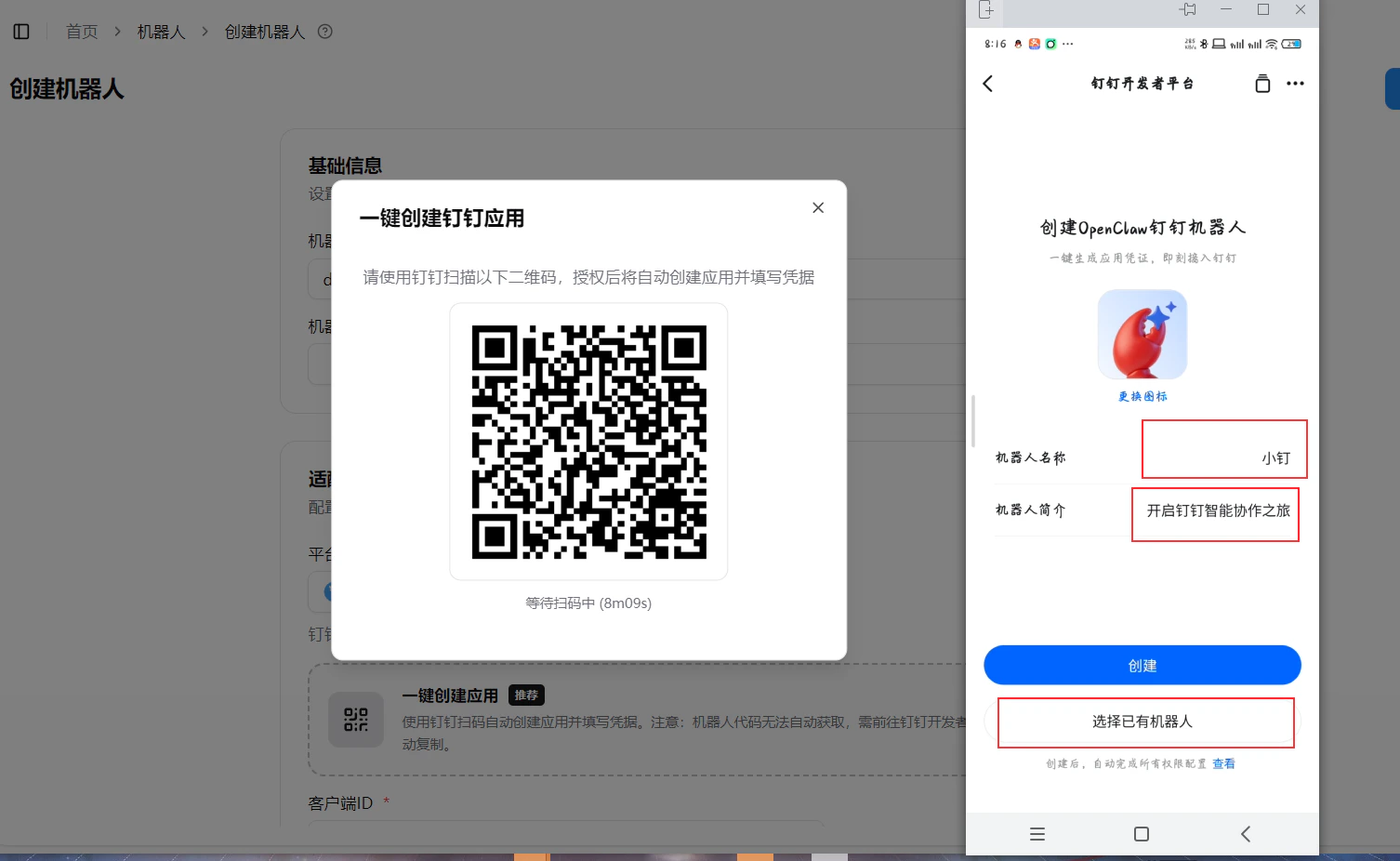
- After authorization, the phone will show “Configuration Successful”, and Client ID / Client Secret will be auto-filled in the LangBot WebUI
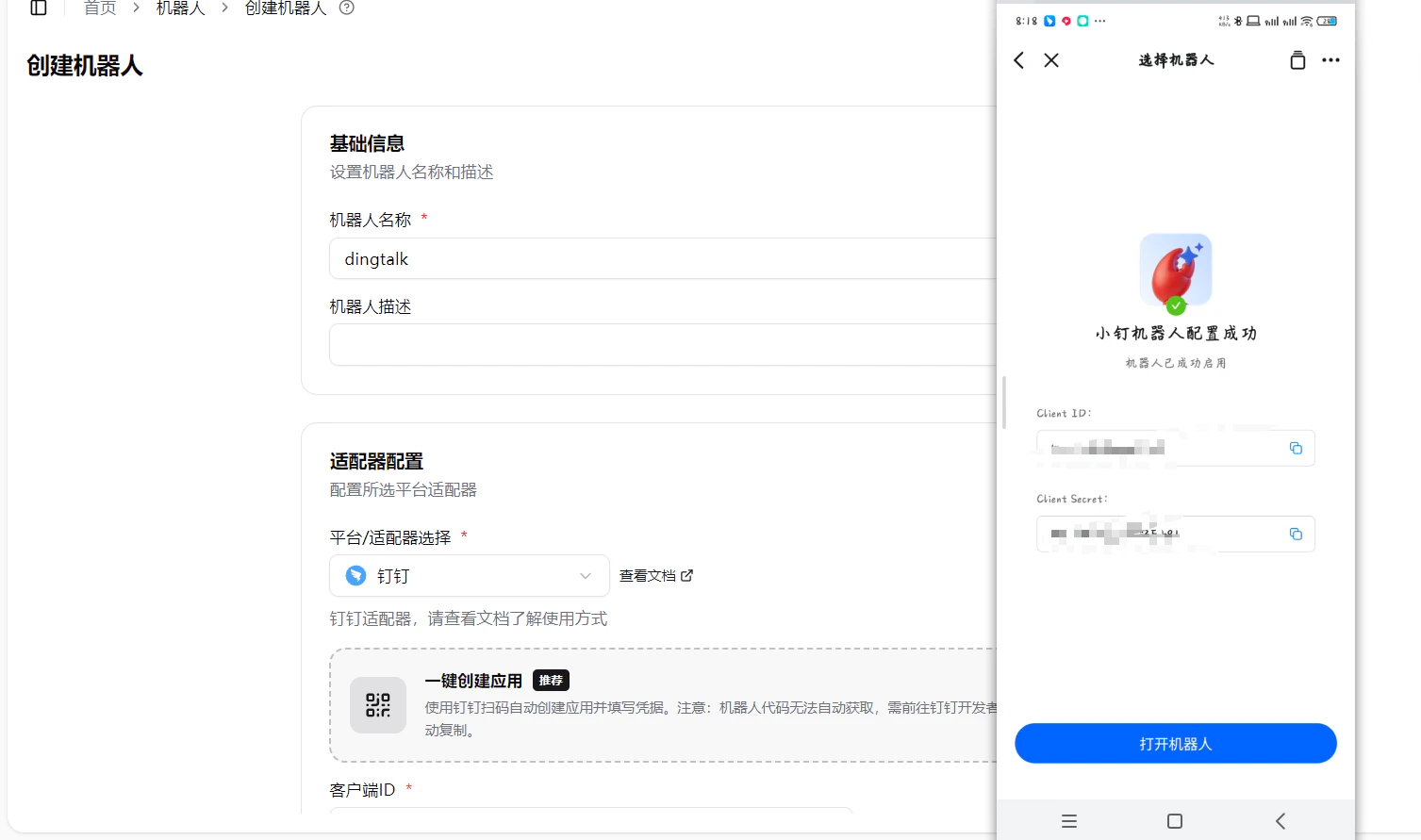
- Manually fill in the bot name (must match the DingTalk bot name), and the Robot Code (required for image/file features — get it from DingTalk Developer Console > Bot Configuration)
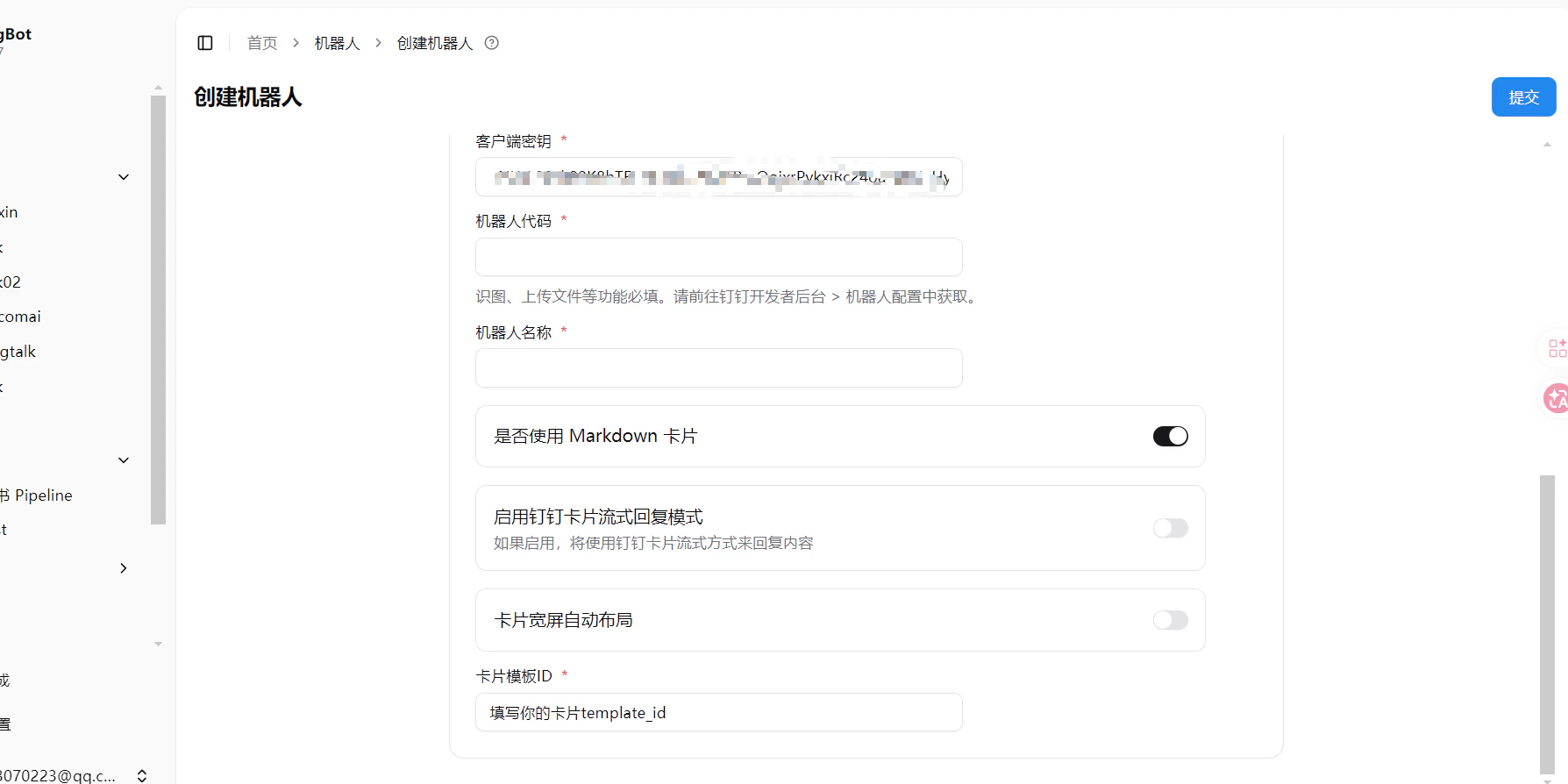
- Click Submit to complete
Manual Configuration
Create Bot
Enter the DingTalk Developer Backend, log in and enter the organization. After successful login, enter the open platform, which looks like this: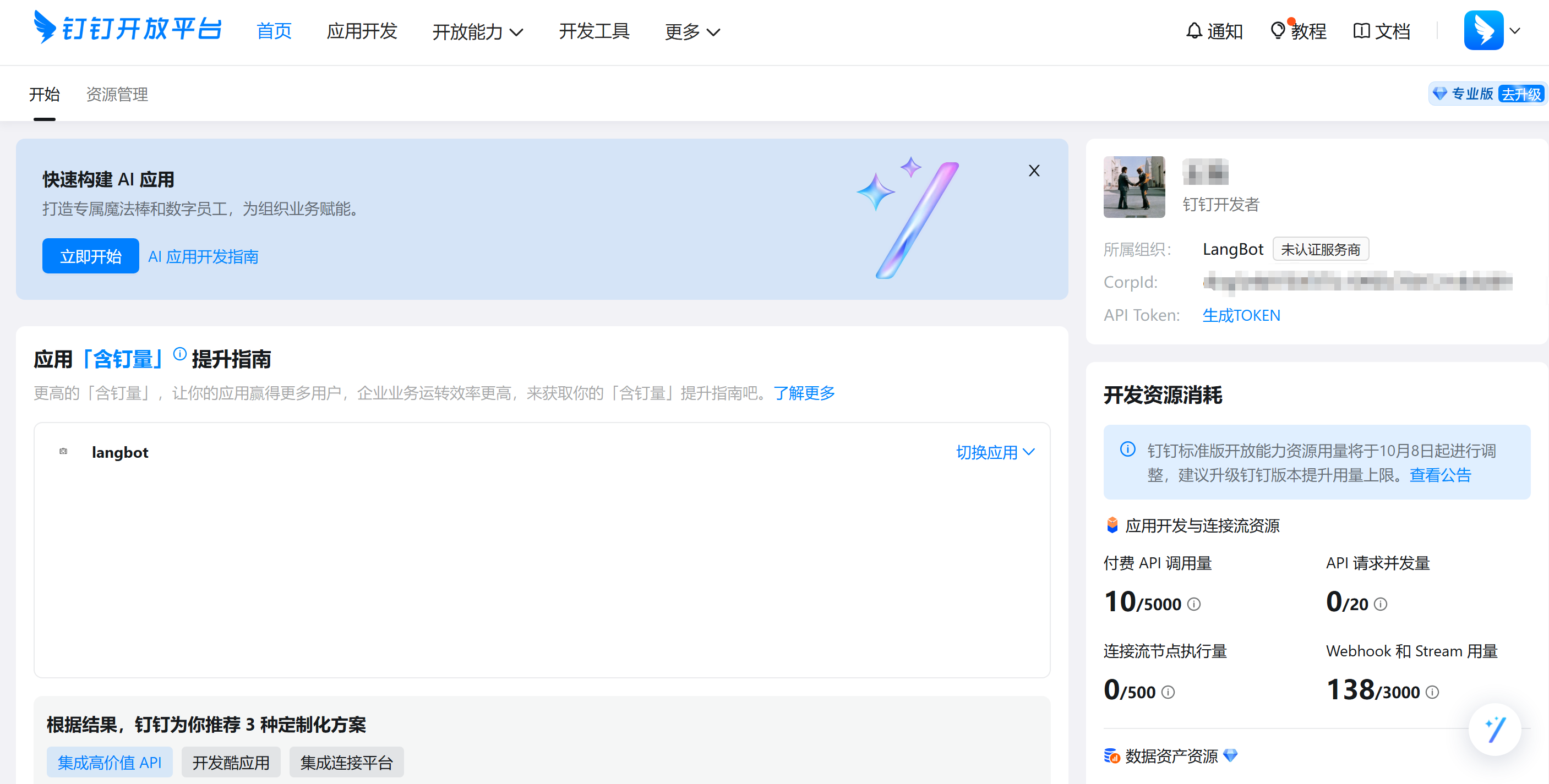
Application Development at the top, then click the blue button Create Application on the right, fill in the basic information of the bot, and click save.
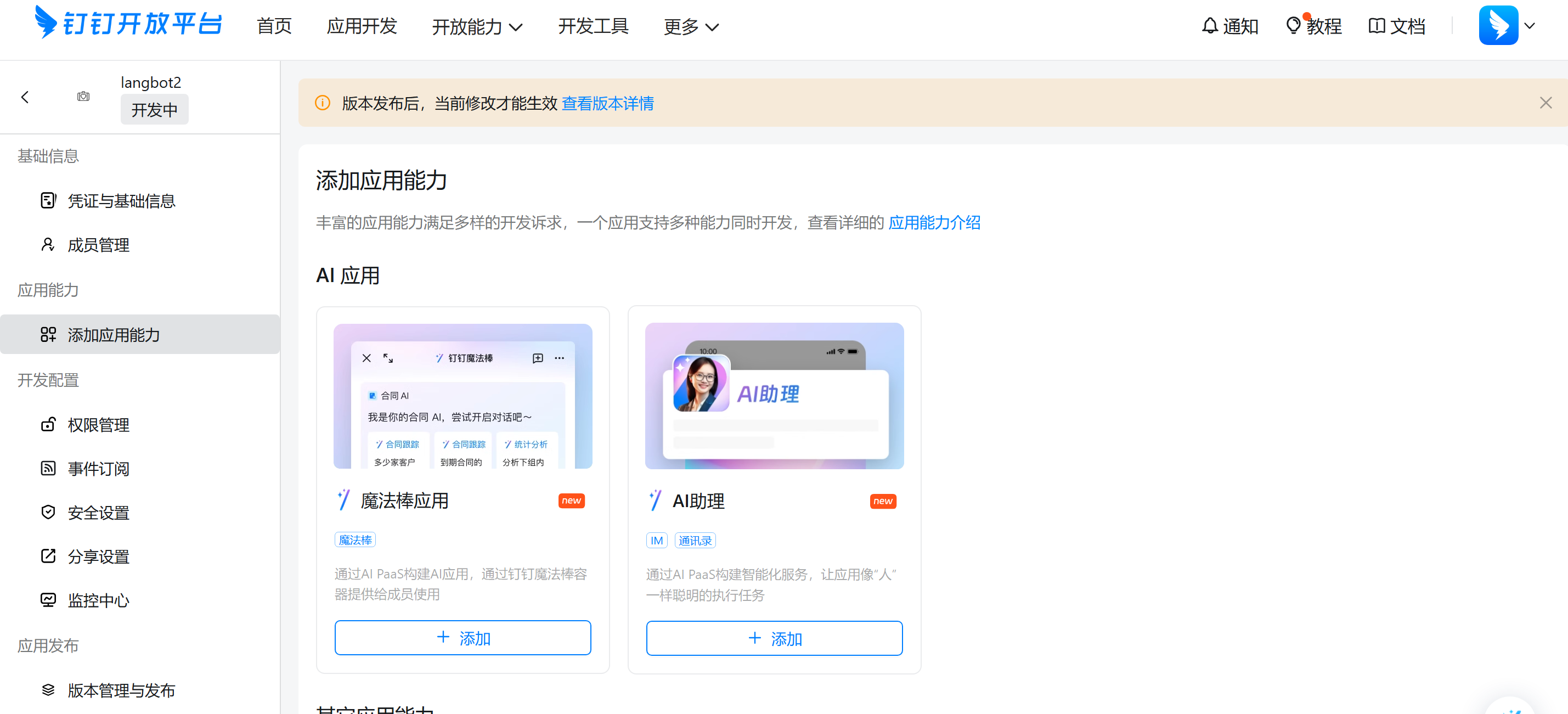
Enter the bot’s backend, for example, if we have a bot named langbot2, its management page looks like this:
Configure Bot
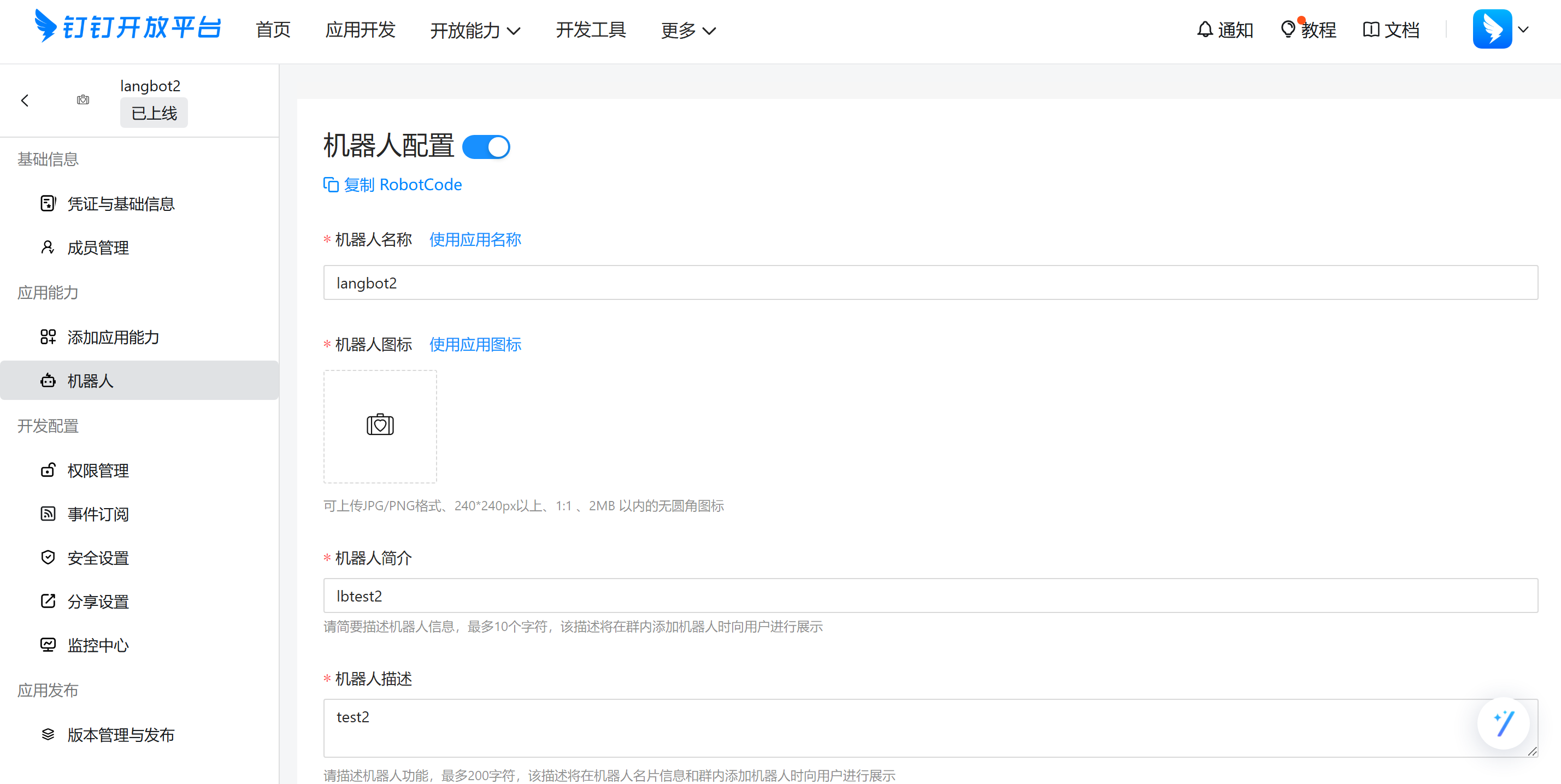
ClickAdd Application Capability, Other Application Capabilities, Configure in Robot, click configure and fill in the information, as shown below:
Publish at the bottom of the page, after successful publication, click Version Management and Publishing at the bottom left of the bot page, as shown:
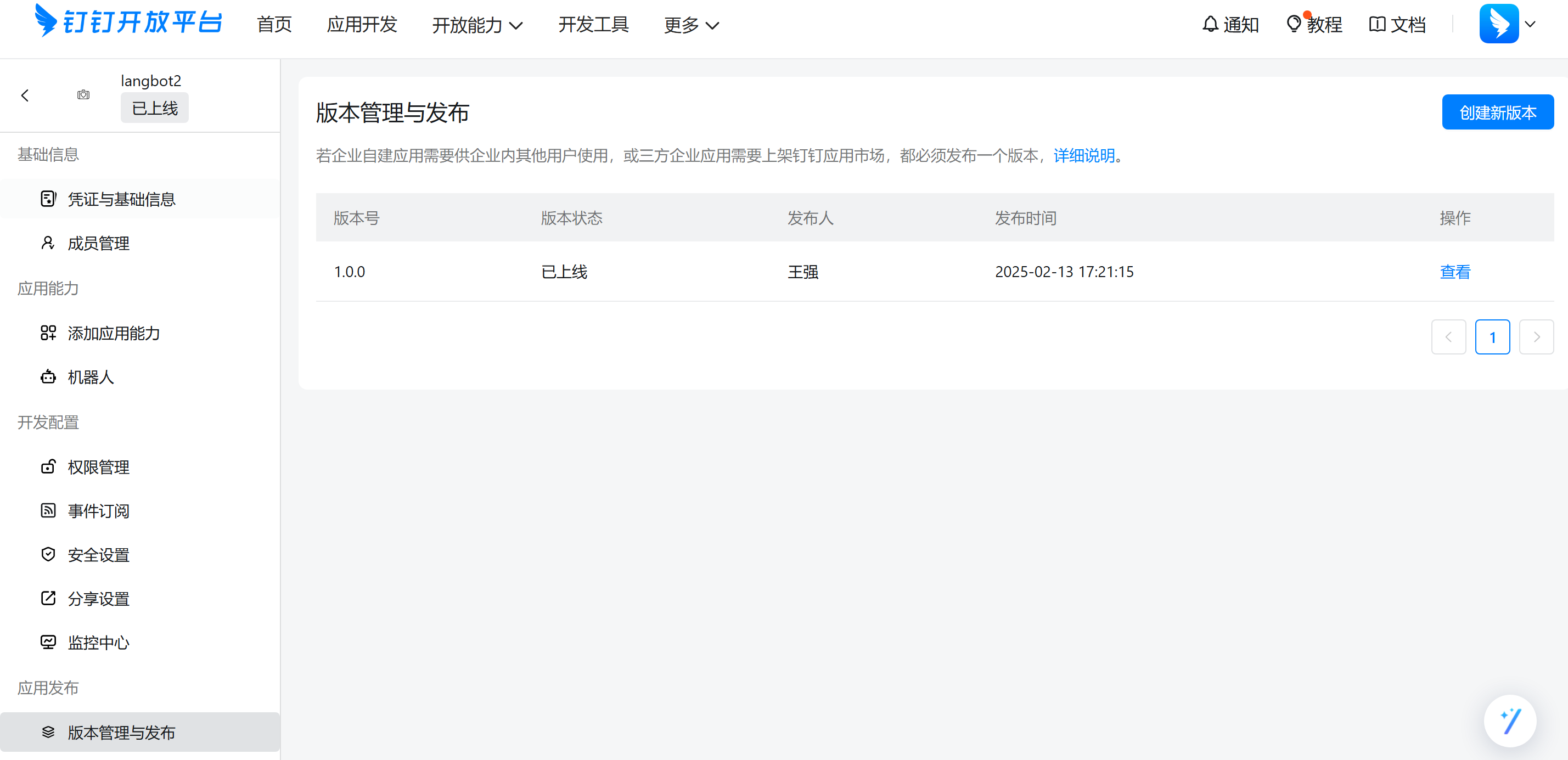
Create New Version, set information in it, then set Application Visibility Range, and click save.
Click Event Subscription, change the push method to Stream Mode Push.
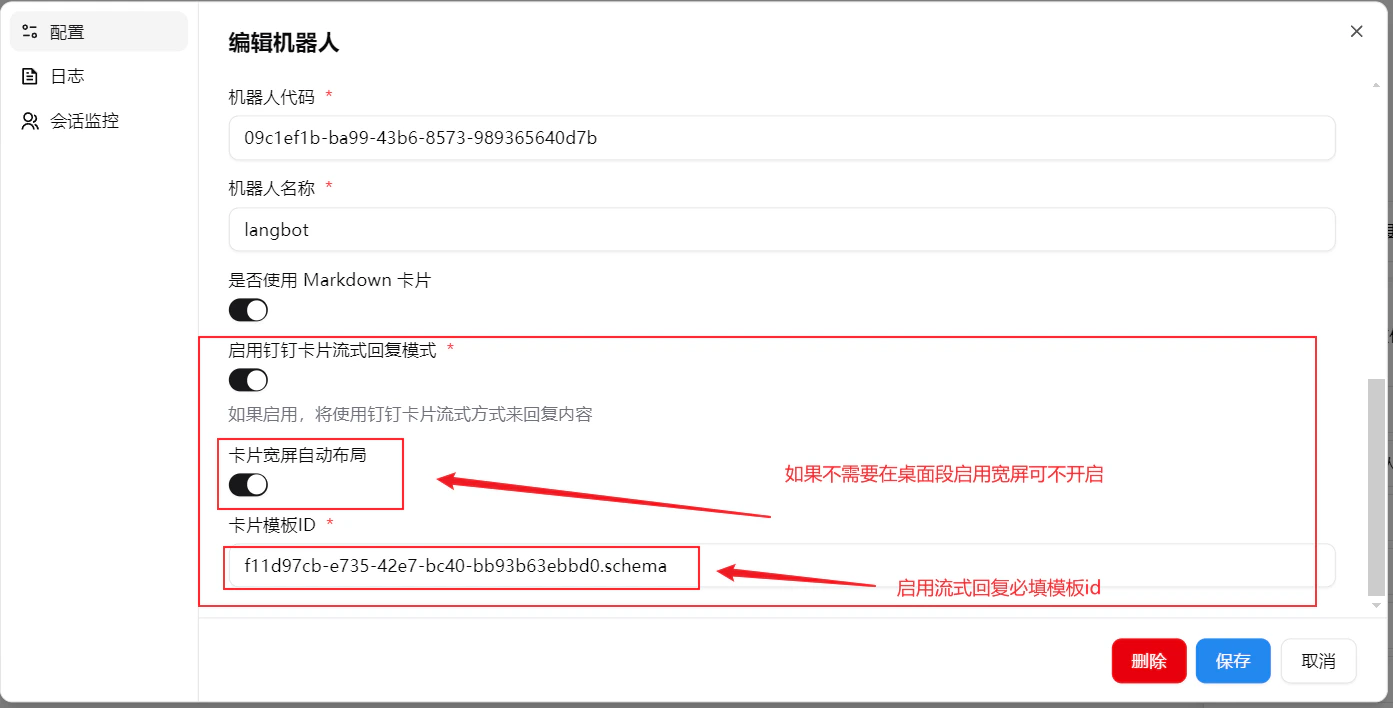
If card streaming is needed, you must apply for card permissions in the permission management, as shown:
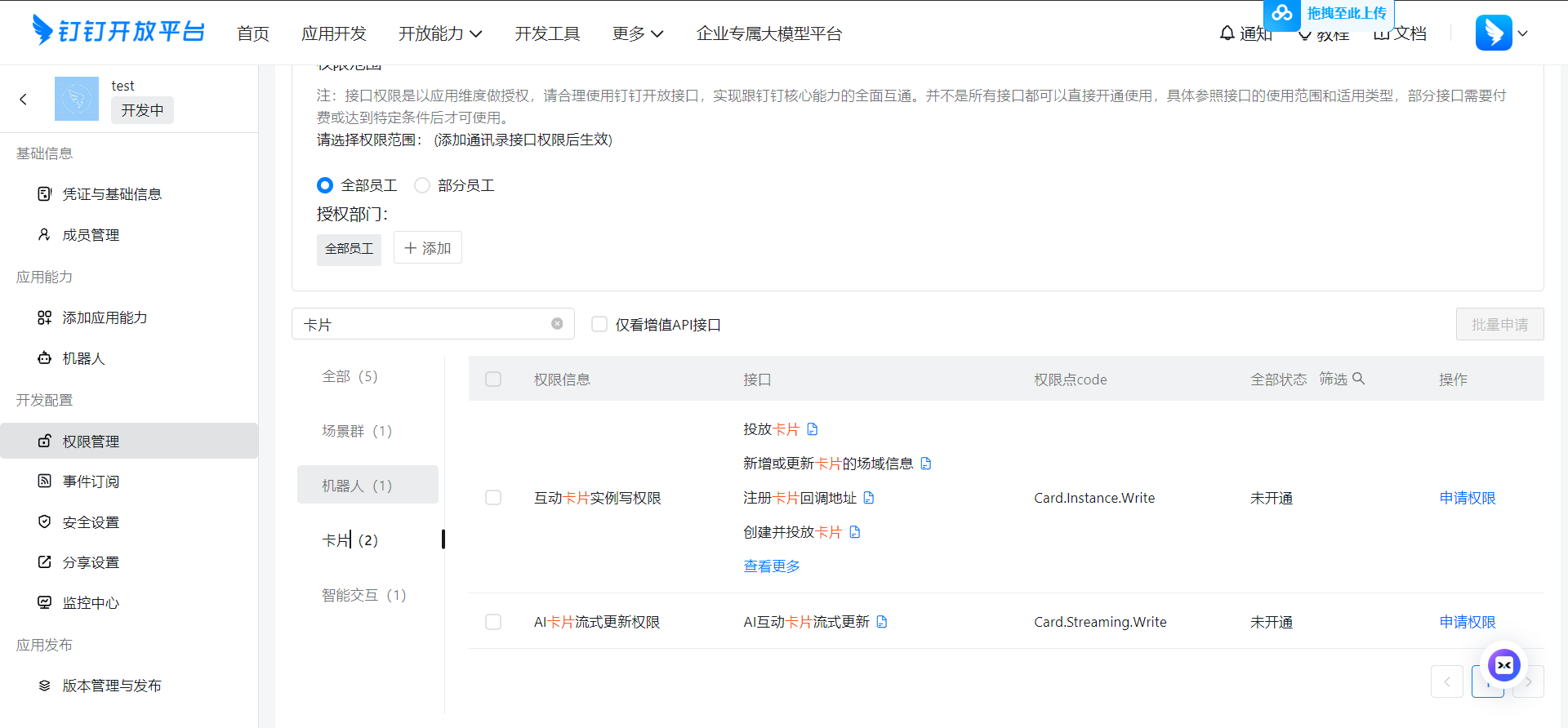
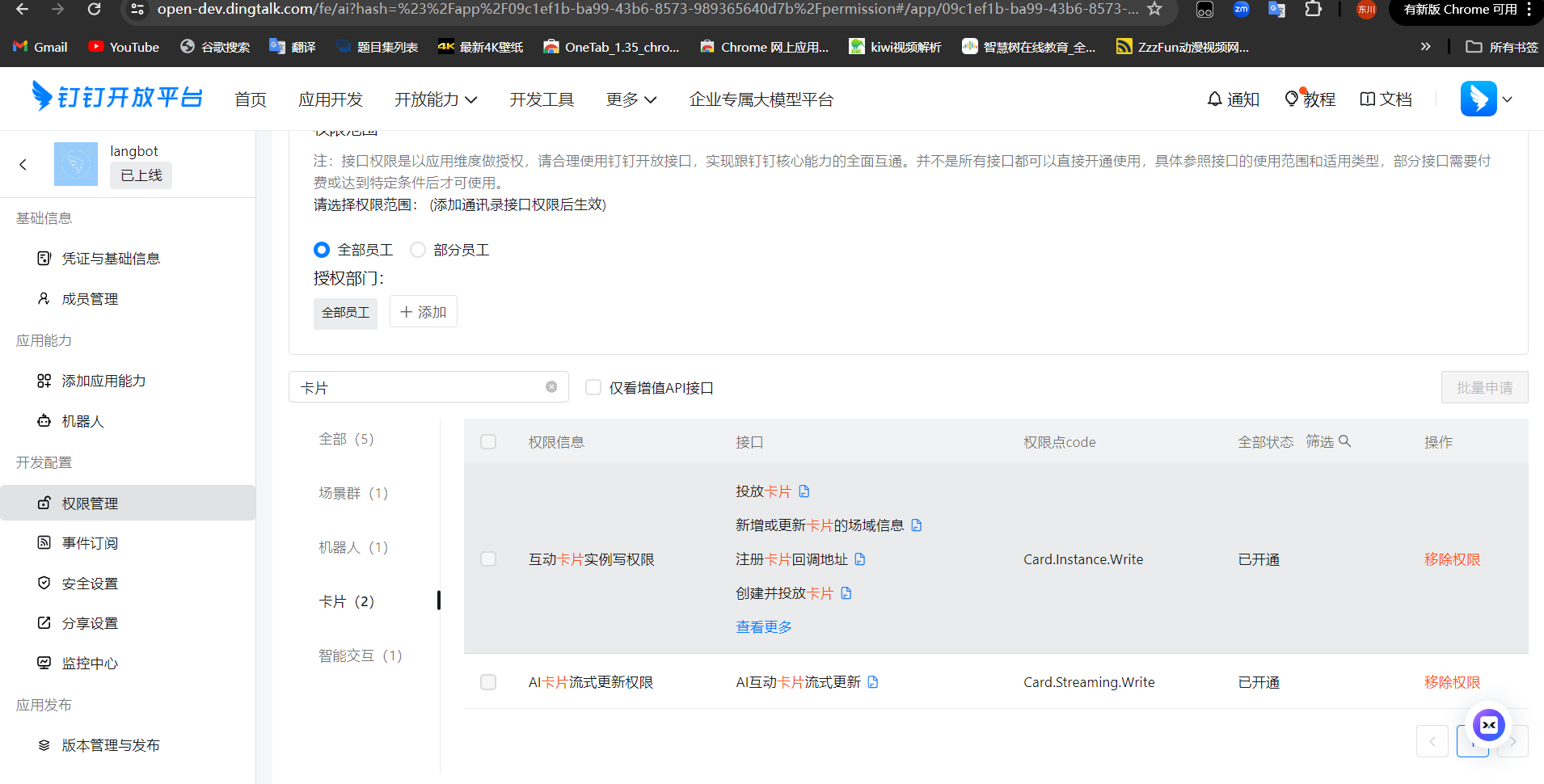
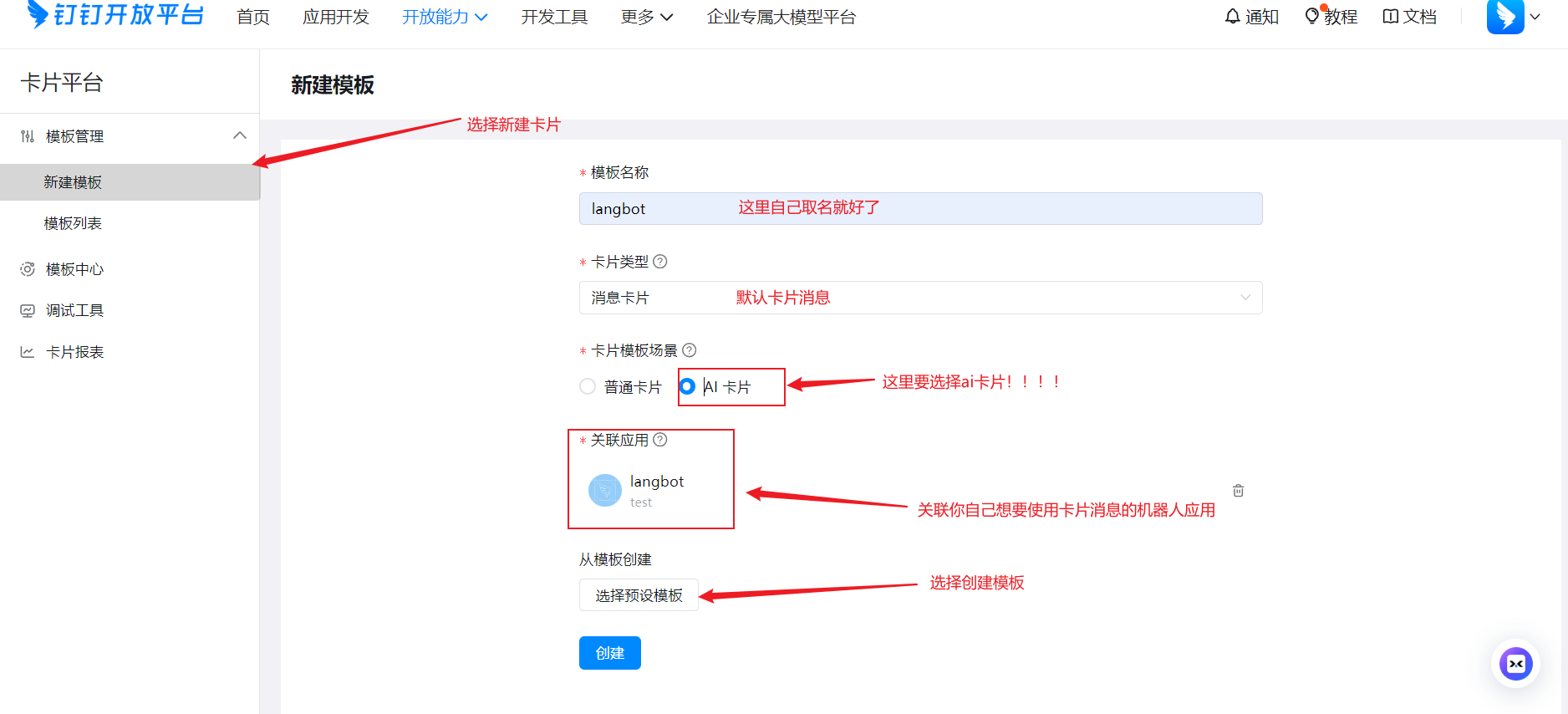
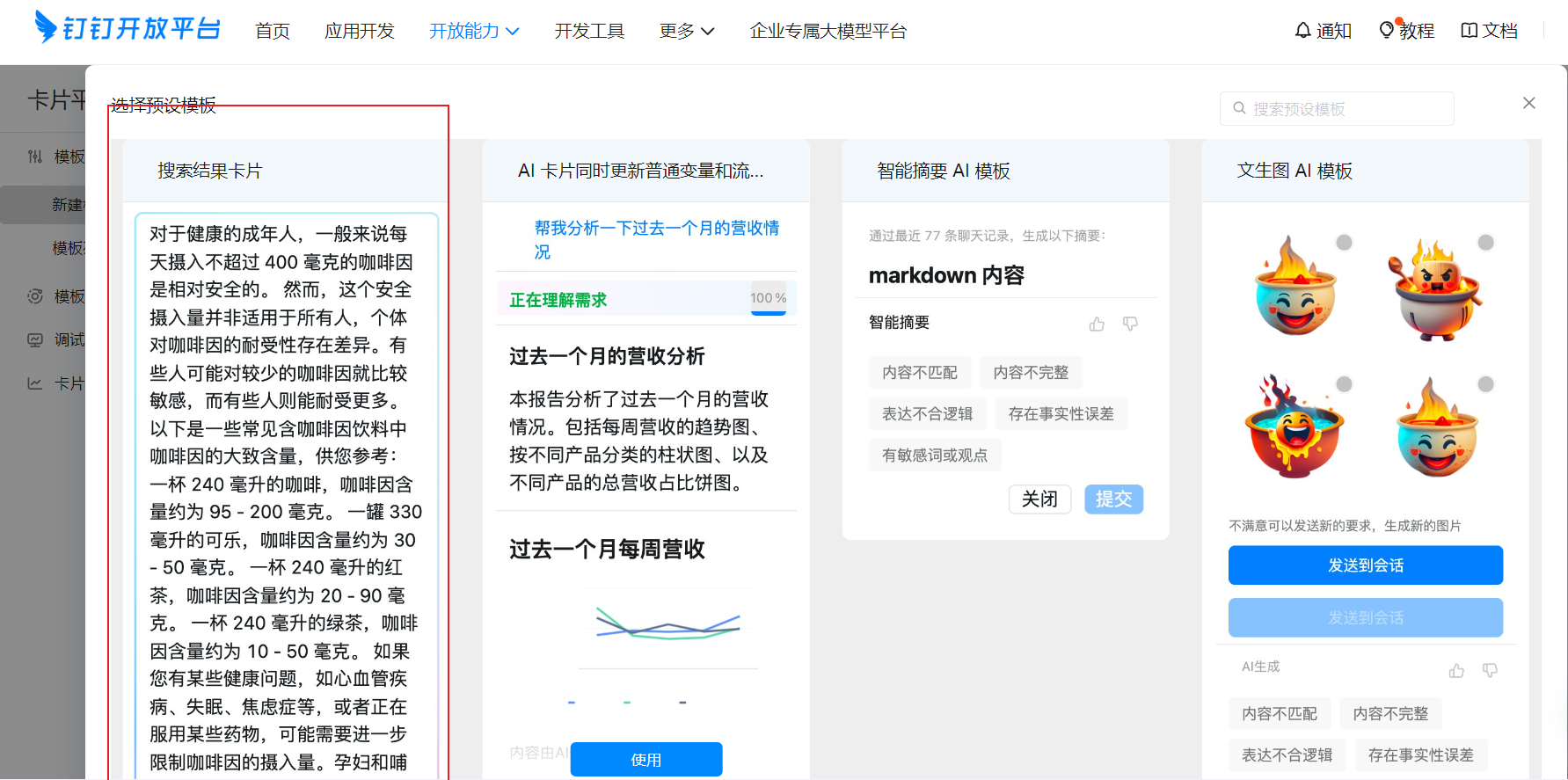
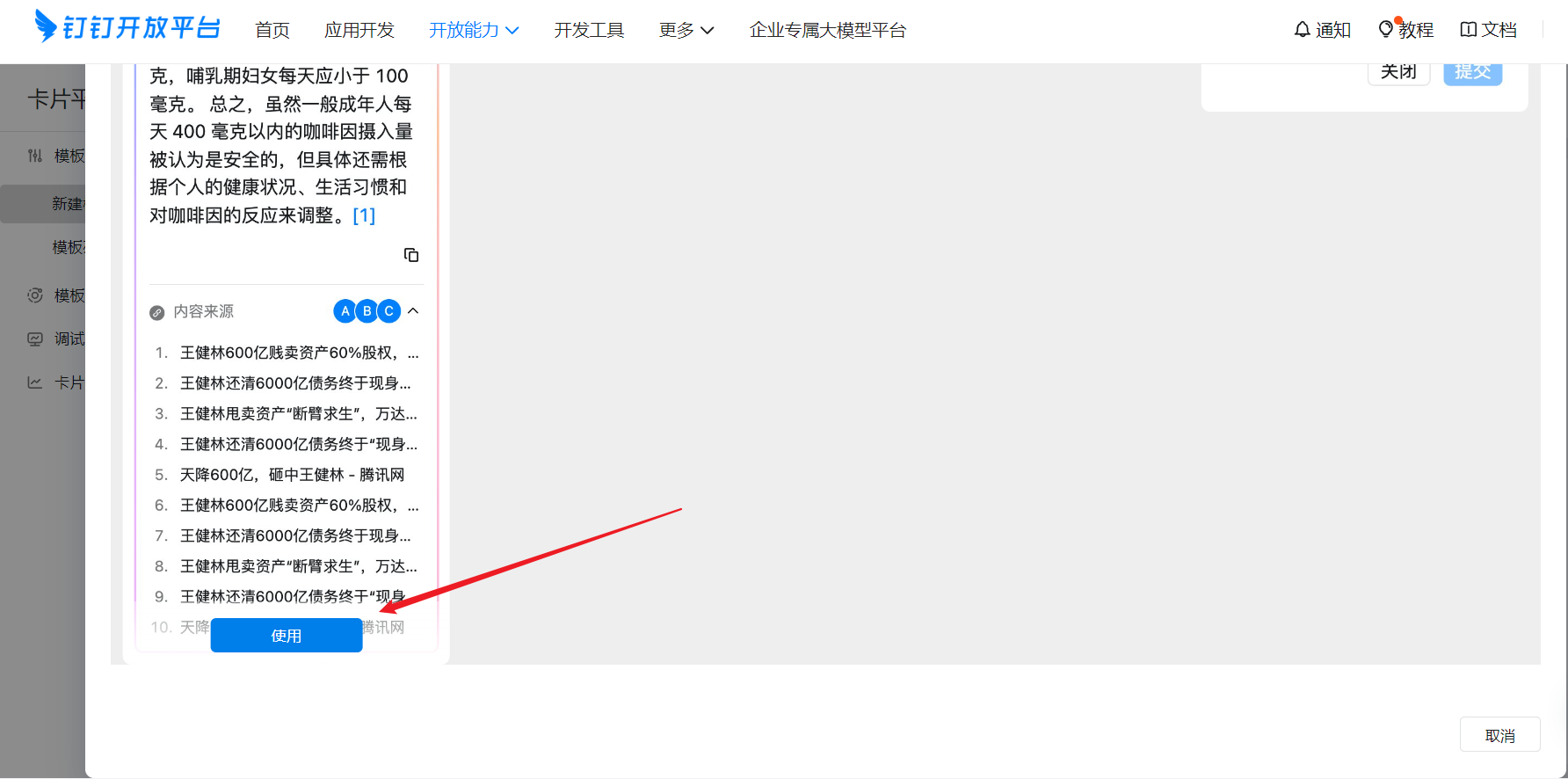
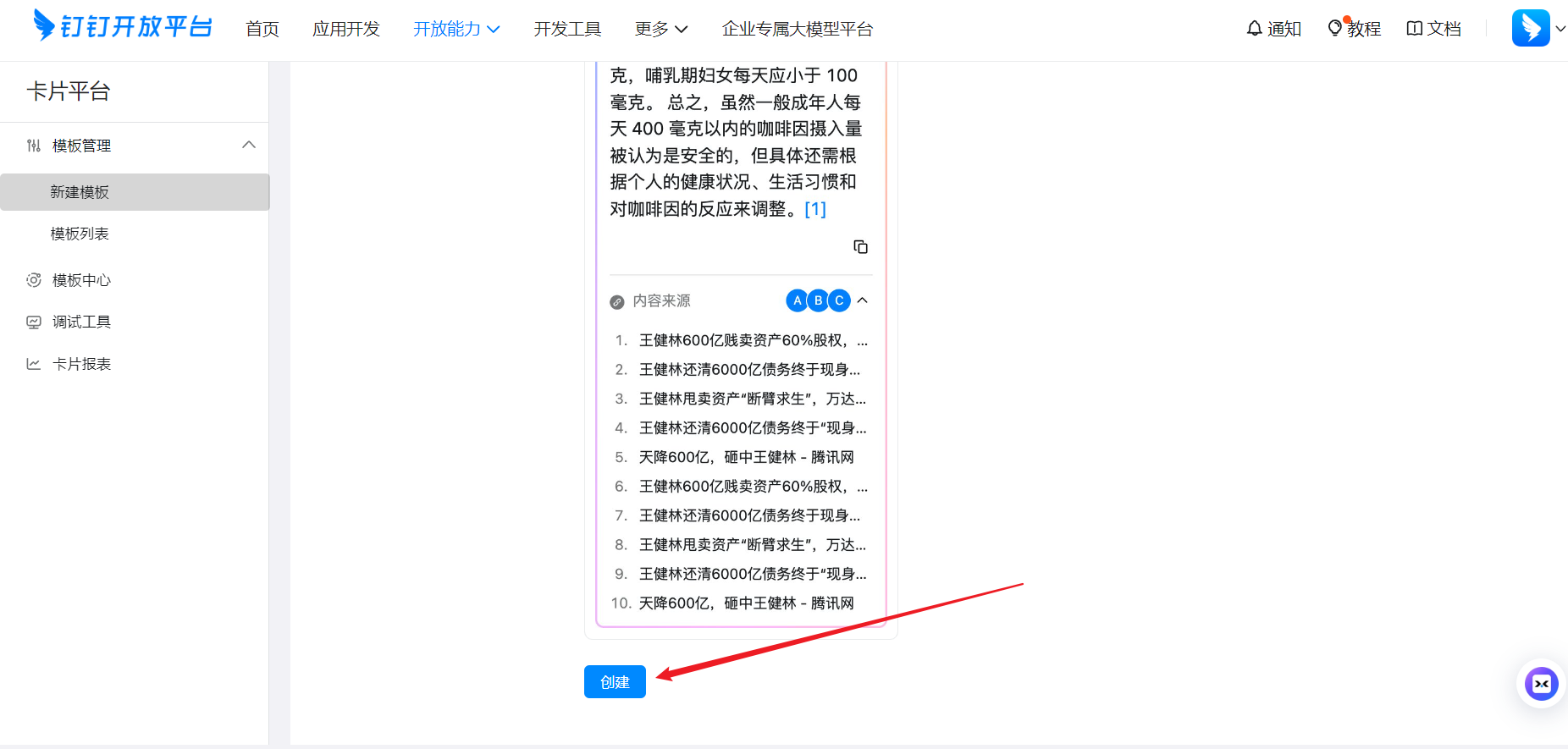
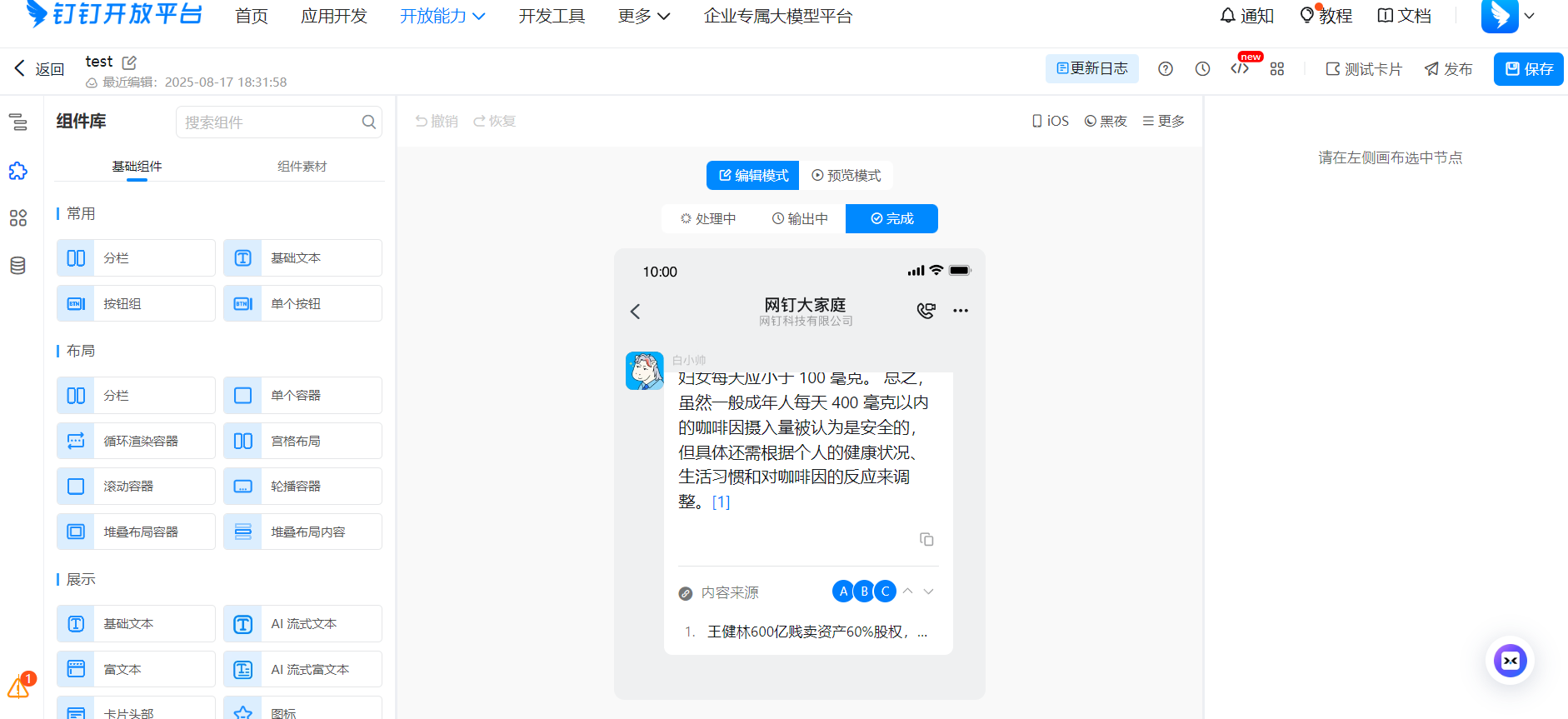
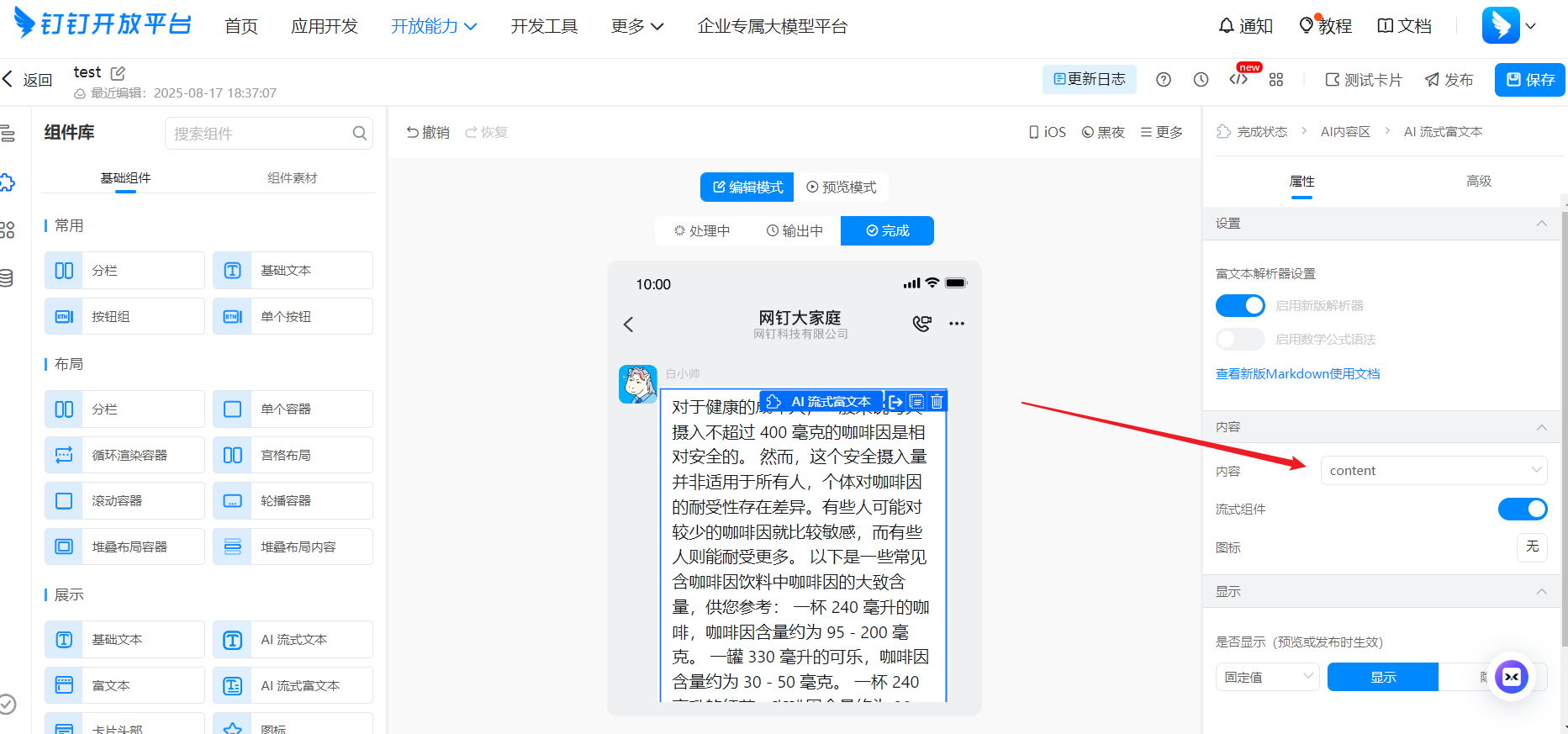
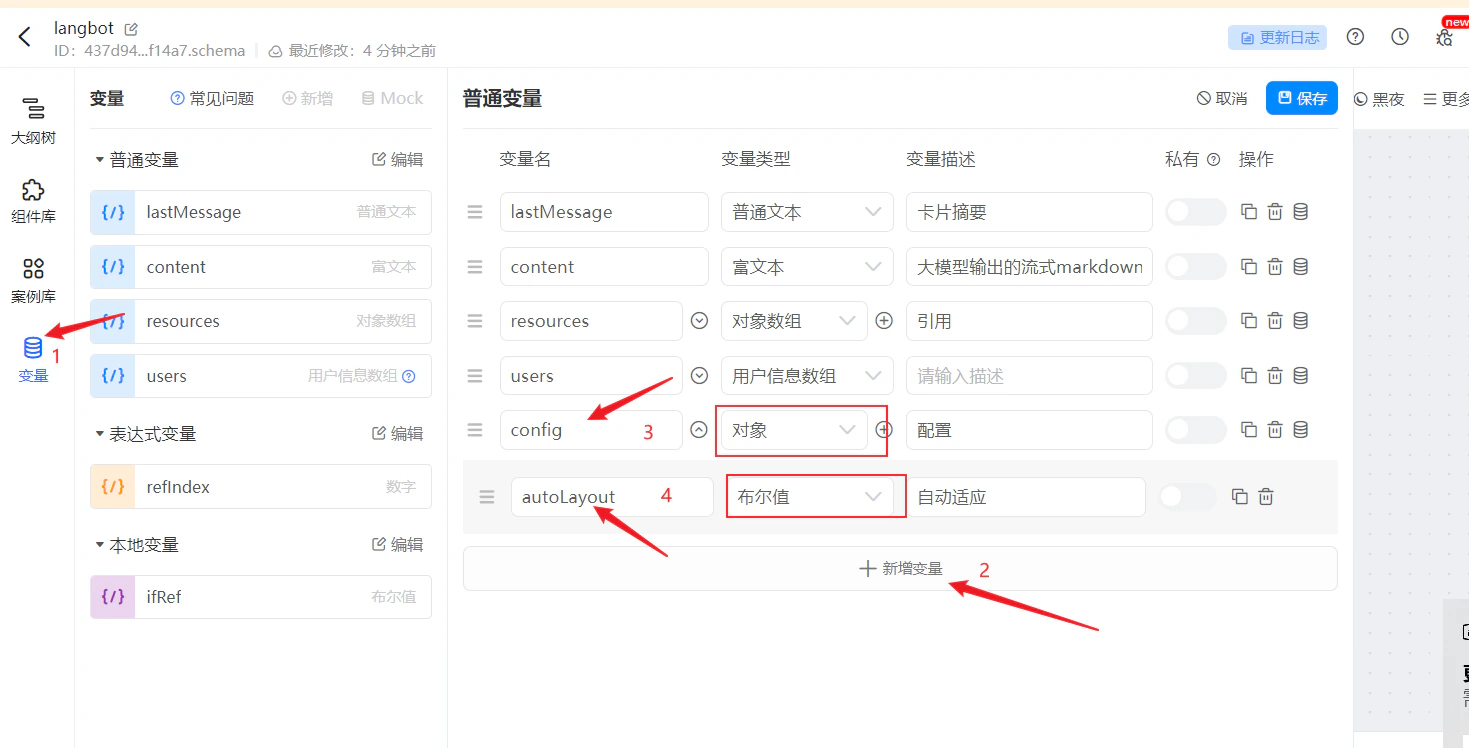
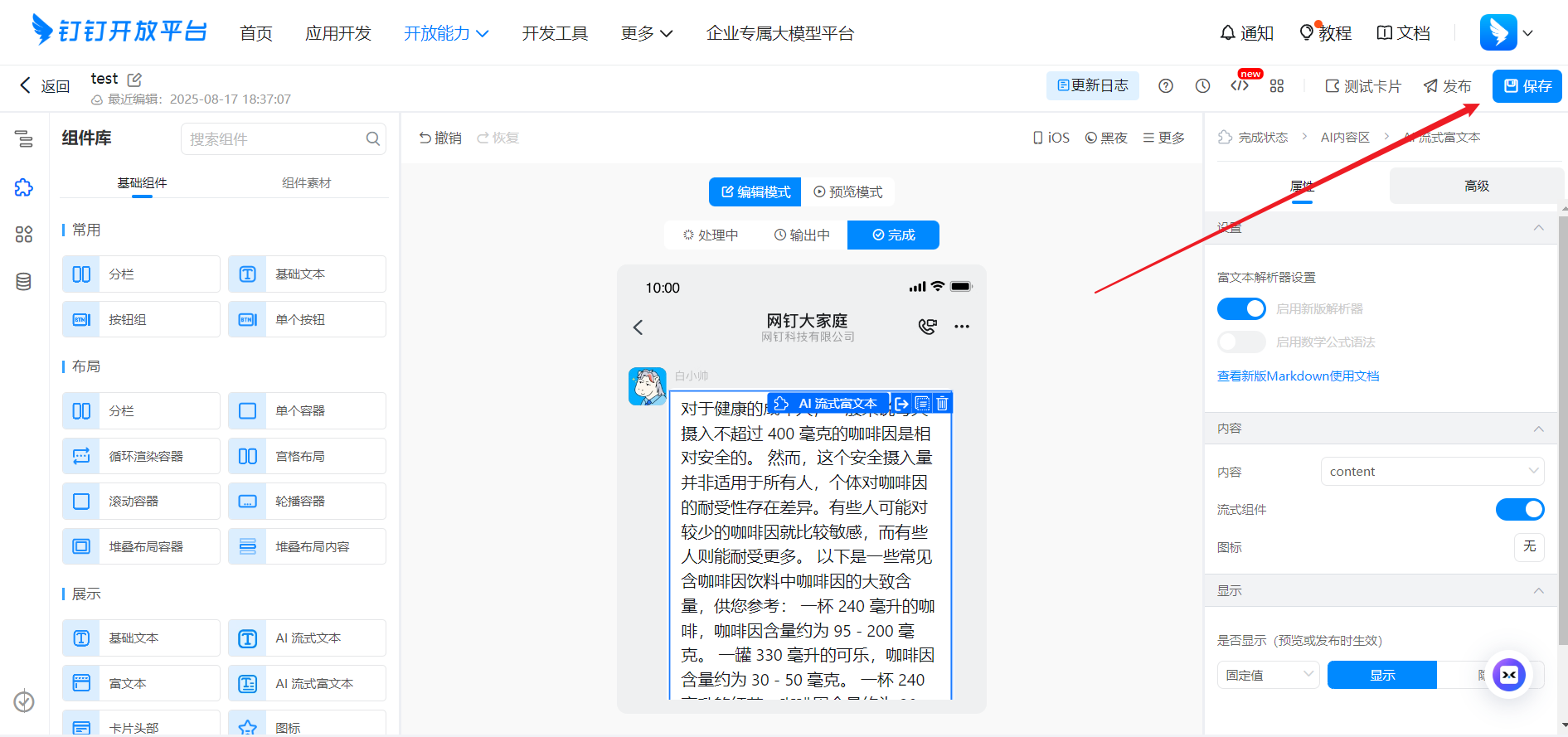
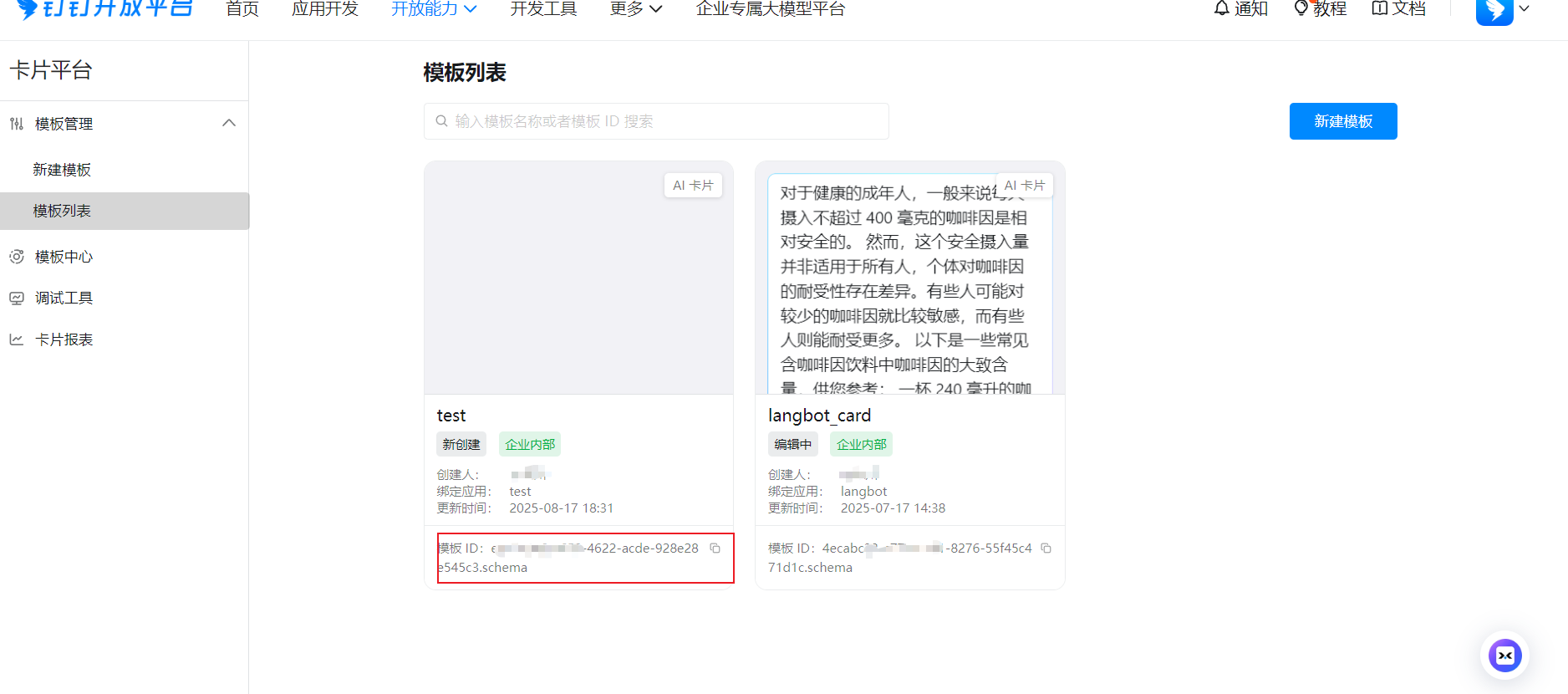
The card content template ID can be obtained by logging into the developer backend > Card PlatformFill in information when creating a new template, as shown:
Fill in Configuration Information
ClickCredentials and Basic Information, record Client ID and Client Secret,
Click Application Capabilities, Robot, record the RobotCode and Robot Name.
markdown_card is whether to enable Markdown form replies. When this configuration item is disabled, the @Sender configuration switch will not take effect.
Record the above configuration items and fill them in the LangBot bot configuration form
Click Card Platform, copy the corresponding bound template ID from the template list, and fill it into the card template ID field.
Add Bot
This article uses DingTalk Windows desktop version as an example, clickSearch at the top, Features, then enter the name of the bot you just created, as shown:
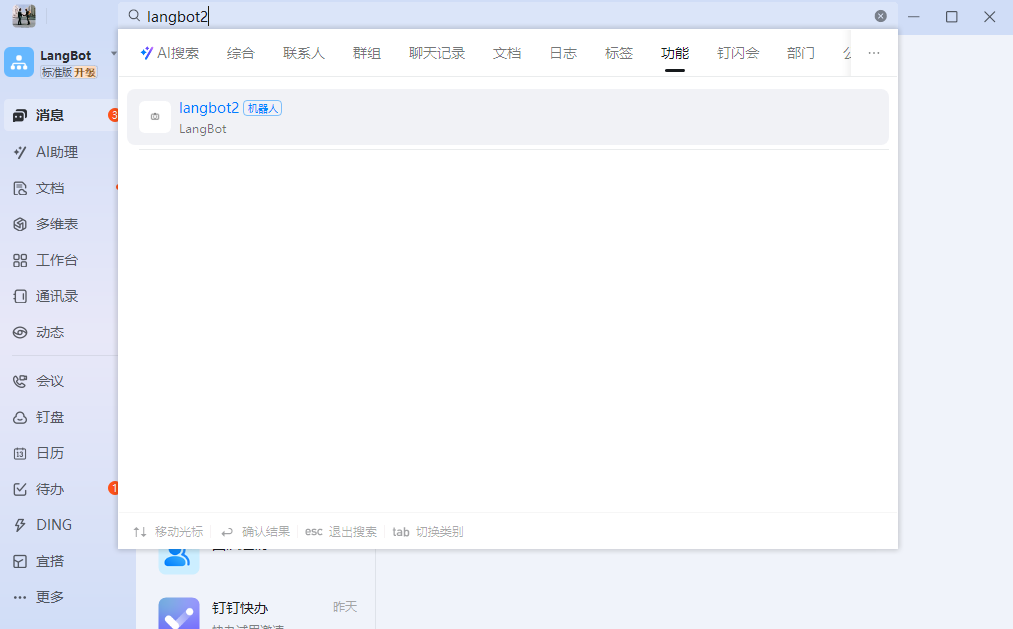
Group Management, Robots, Add Robot in the DingTalk group, then search for the bot name to use it in the group.