





Deploy the WeCom (Enterprise WeChat) bot to integrate with LangBot.Documentation Index
Fetch the complete documentation index at: https://docs.langbot.app/llms.txt
Use this file to discover all available pages before exploring further.
- The WeCom callback address requires a public IP and domain name. We recommend you first follow Configure HTTP Reverse Proxy to configure the LangBot callback address.
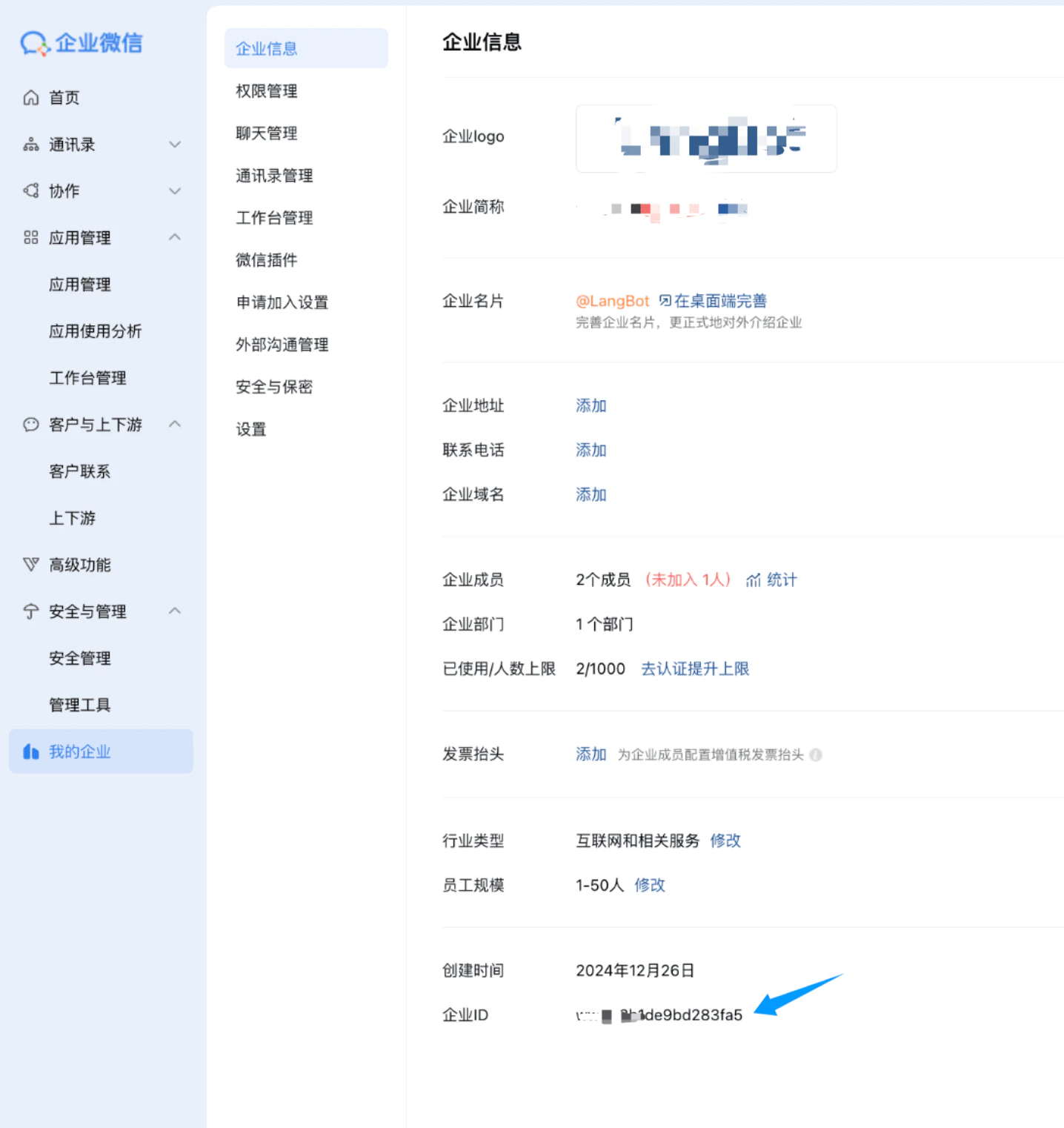
Record Corporate ID
Open the WeCom Admin Portal, clickMy Enterprise, and record the Corporate ID at the bottom.
Create Bot
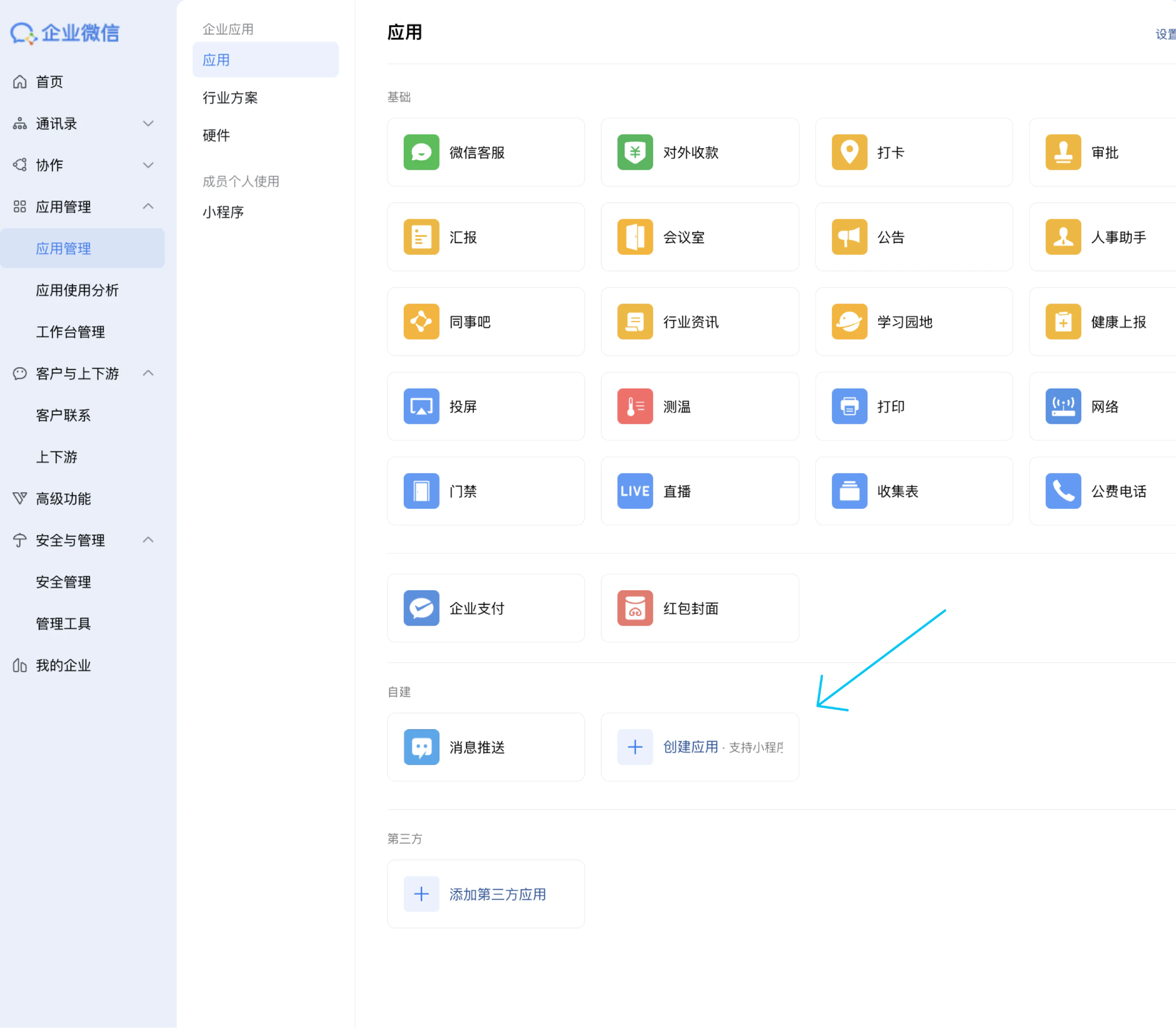
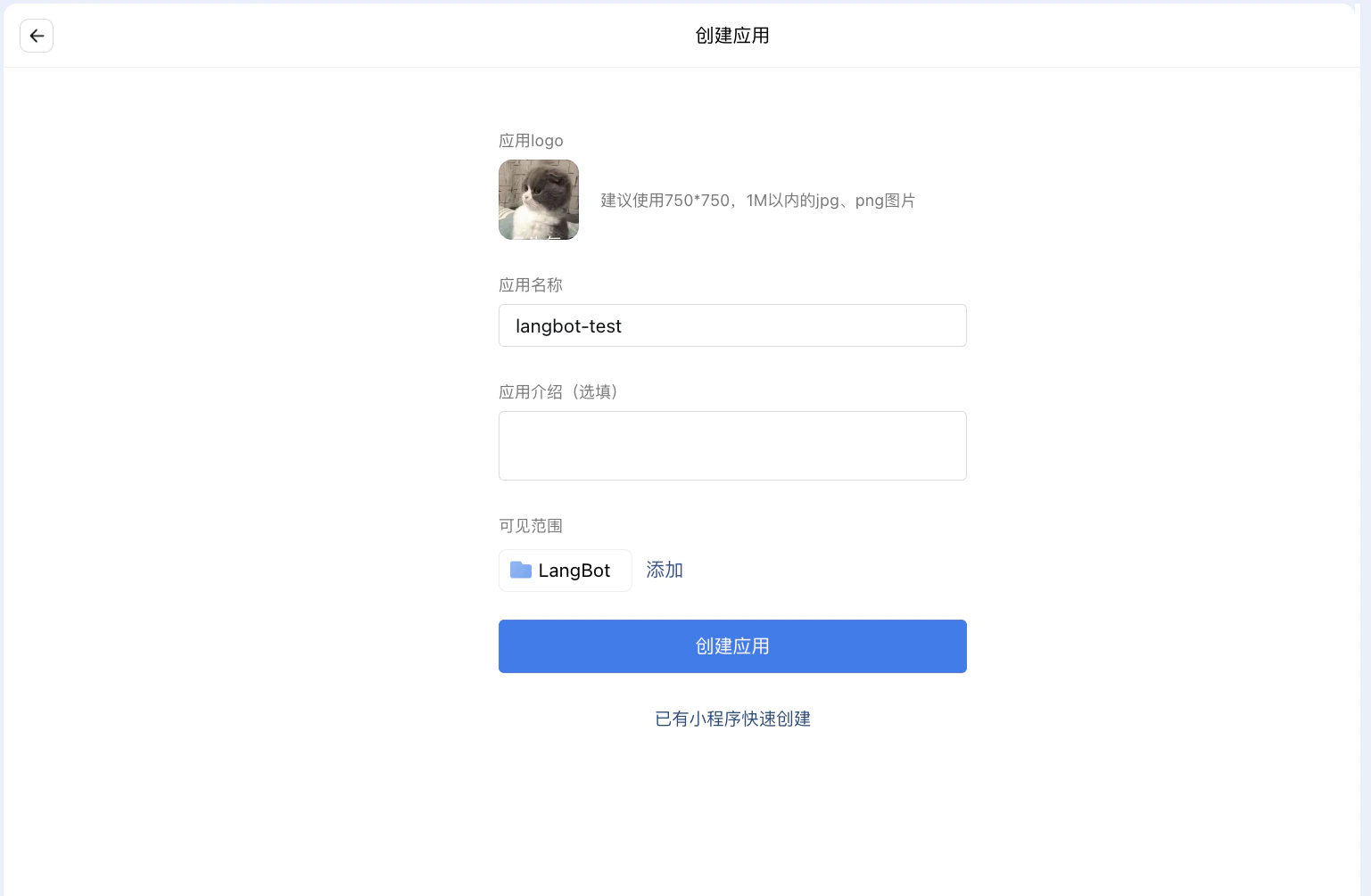
ClickApp Management, then Build Your Own, and click Create App.
Enable Contact Sync Permission
- This feature has not been implemented yet as LangBot is still under development.
- This field can be filled with any random characters, but cannot be empty.
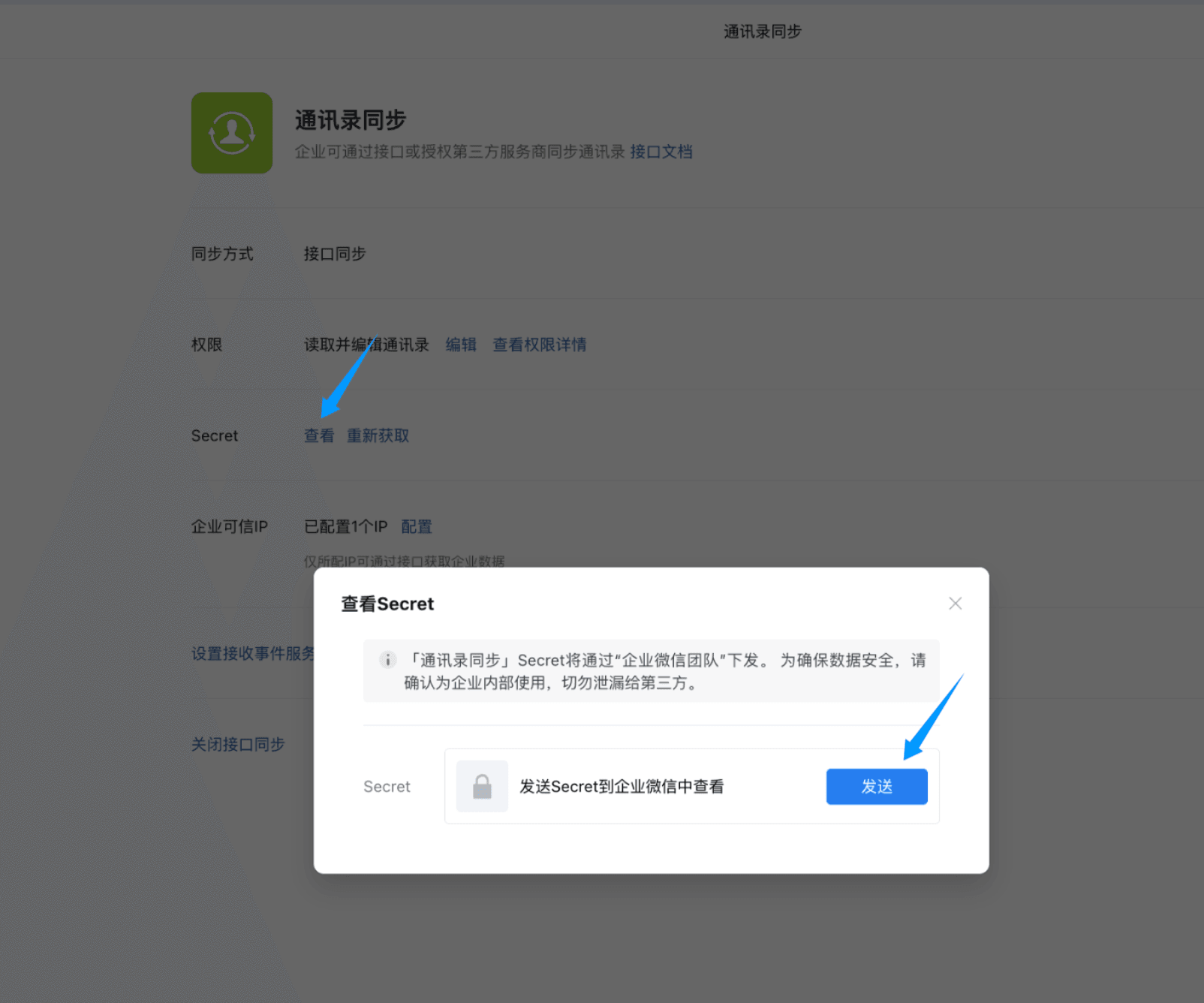
Security and Management, then Management Tools, Contact Sync; configure the trusted IP by adding the IP address of the server where LangBot is deployed.
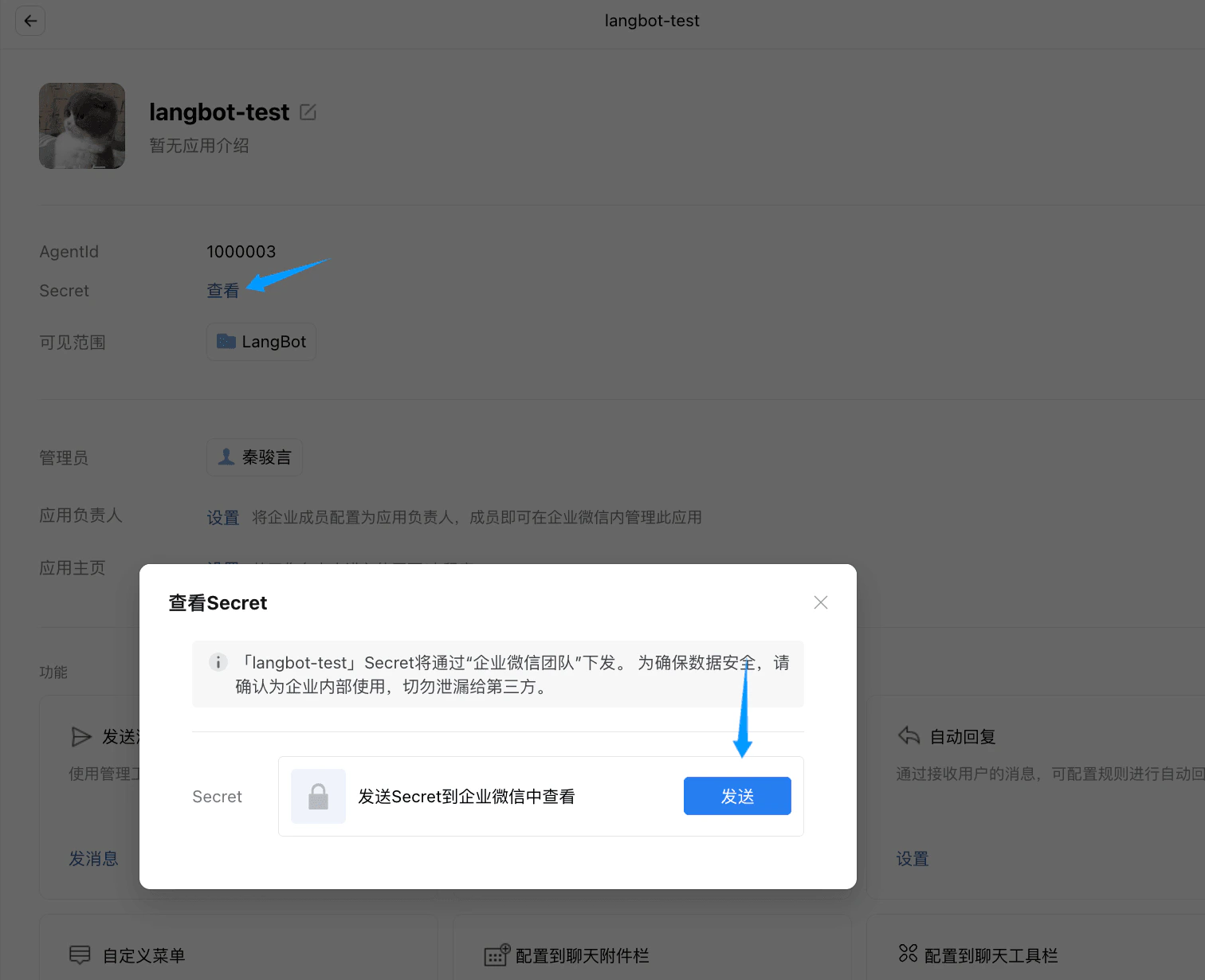
Click View Secret and record it - this is the contacts_secret (Contact Sync Secret).
Create Bot on LangBot
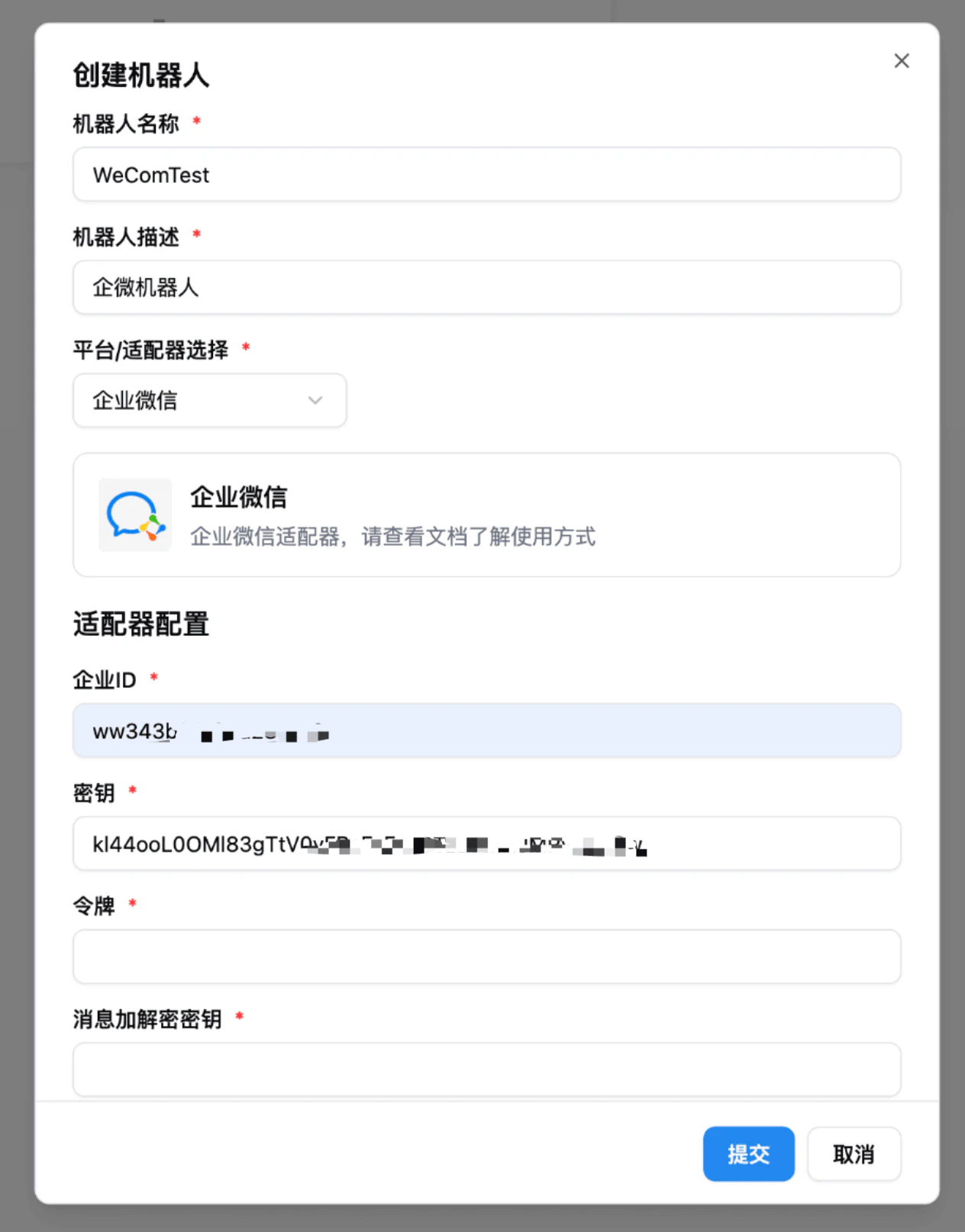
On the LangBot bot page, clickCreate Bot, enter a name, select WeCom, and fill in the Corporate ID, Bot Secret, and Contact Sync Secret.
Set Callback Address
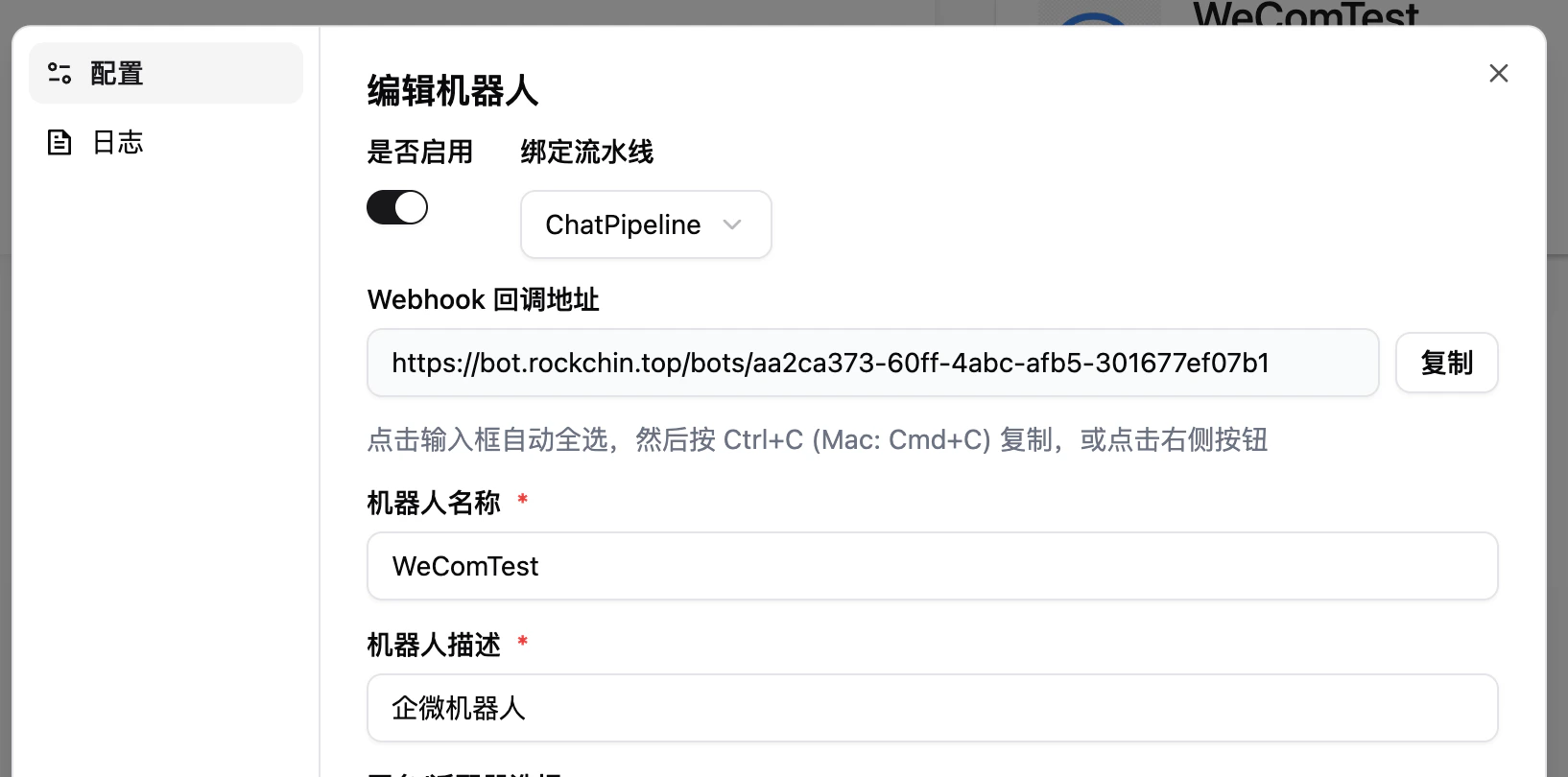
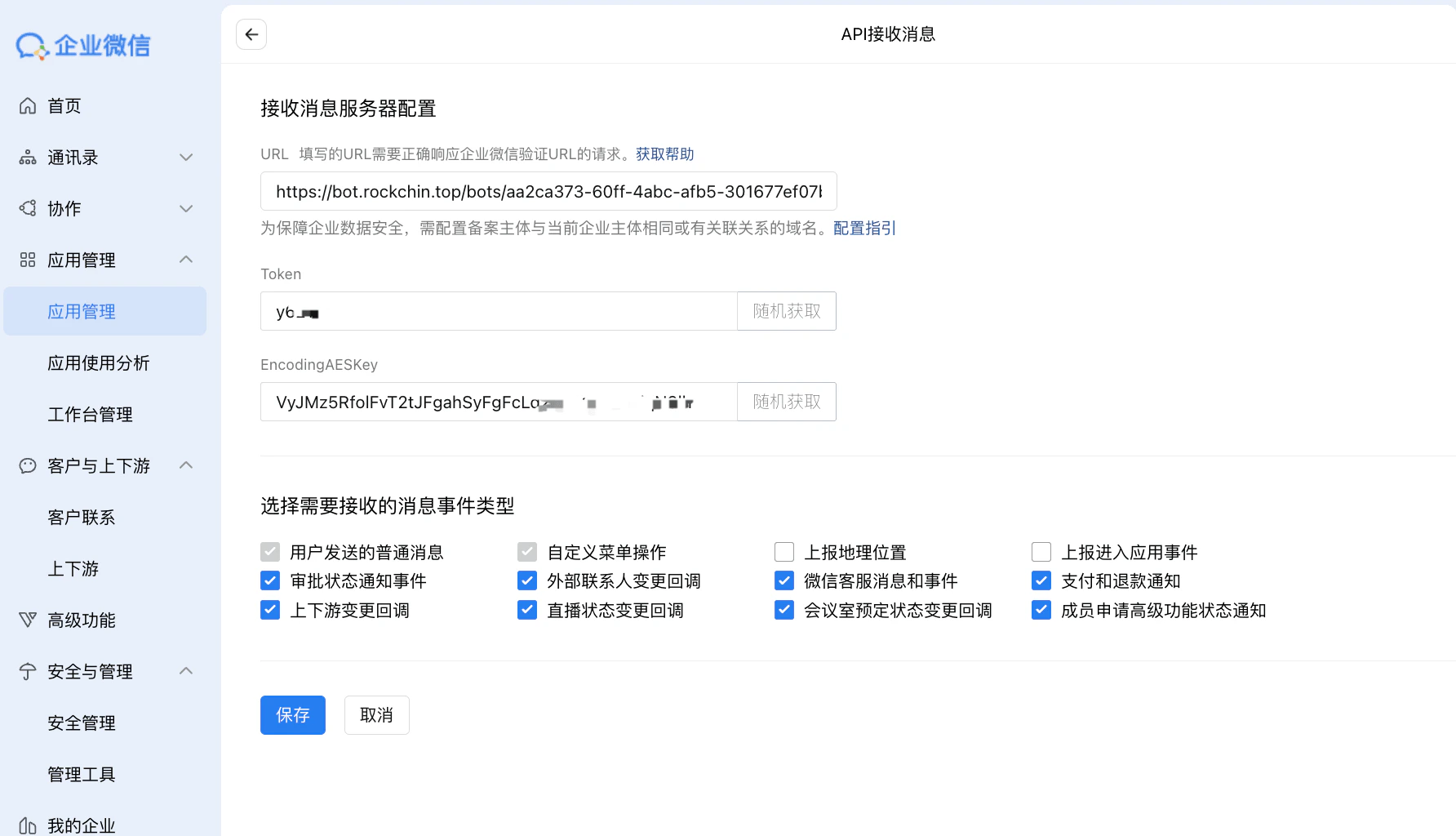
Return to the WeCom bot admin page, clickReceive Messages, Set API Reception, and paste LangBot’s Webhook callback address into the URL field:
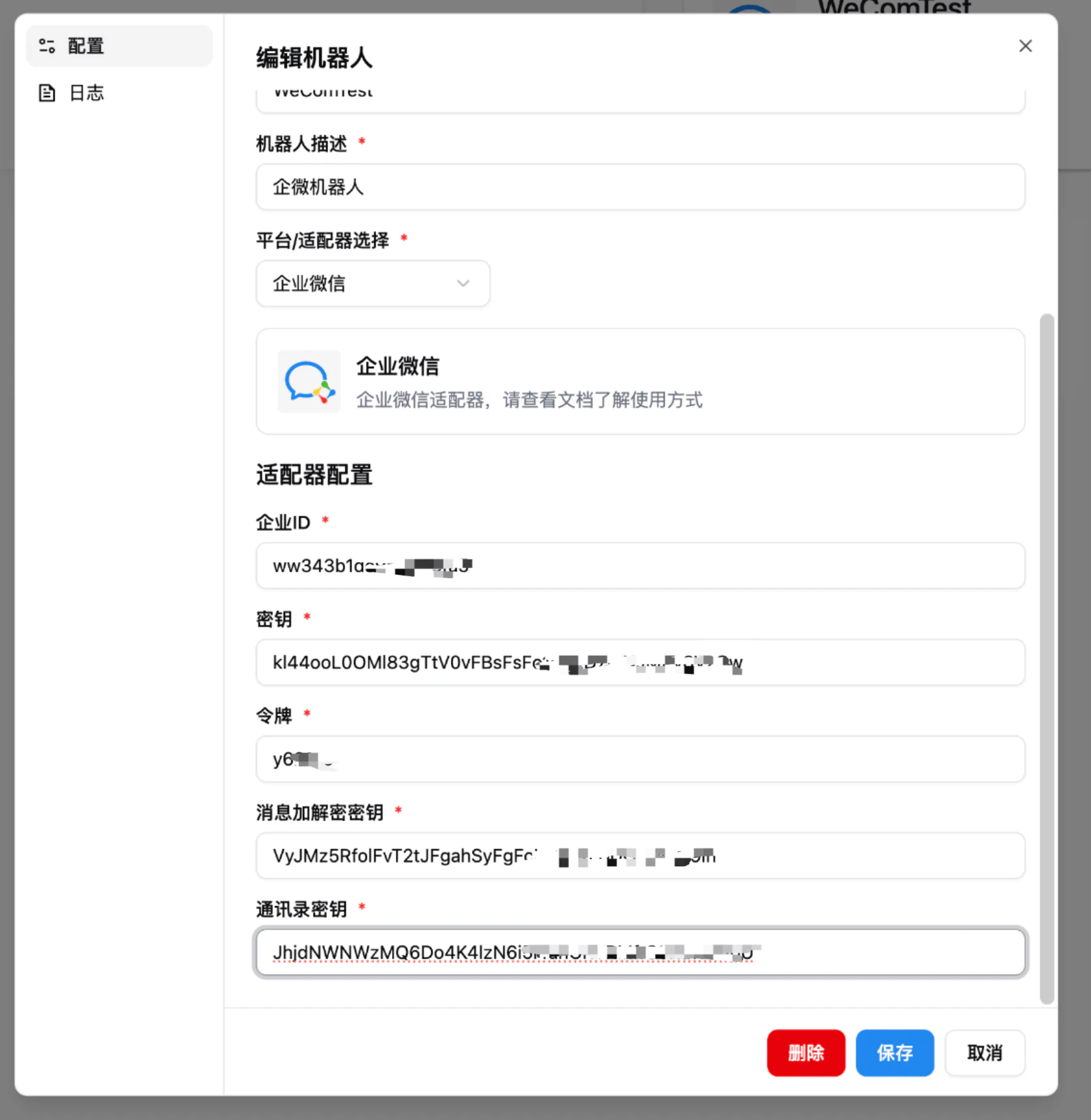
Configure Corporate Trusted IP
Go back to this application’s admin page, findEnterprise Trusted IP at the bottom, and add the IP address of your LangBot deployment server.
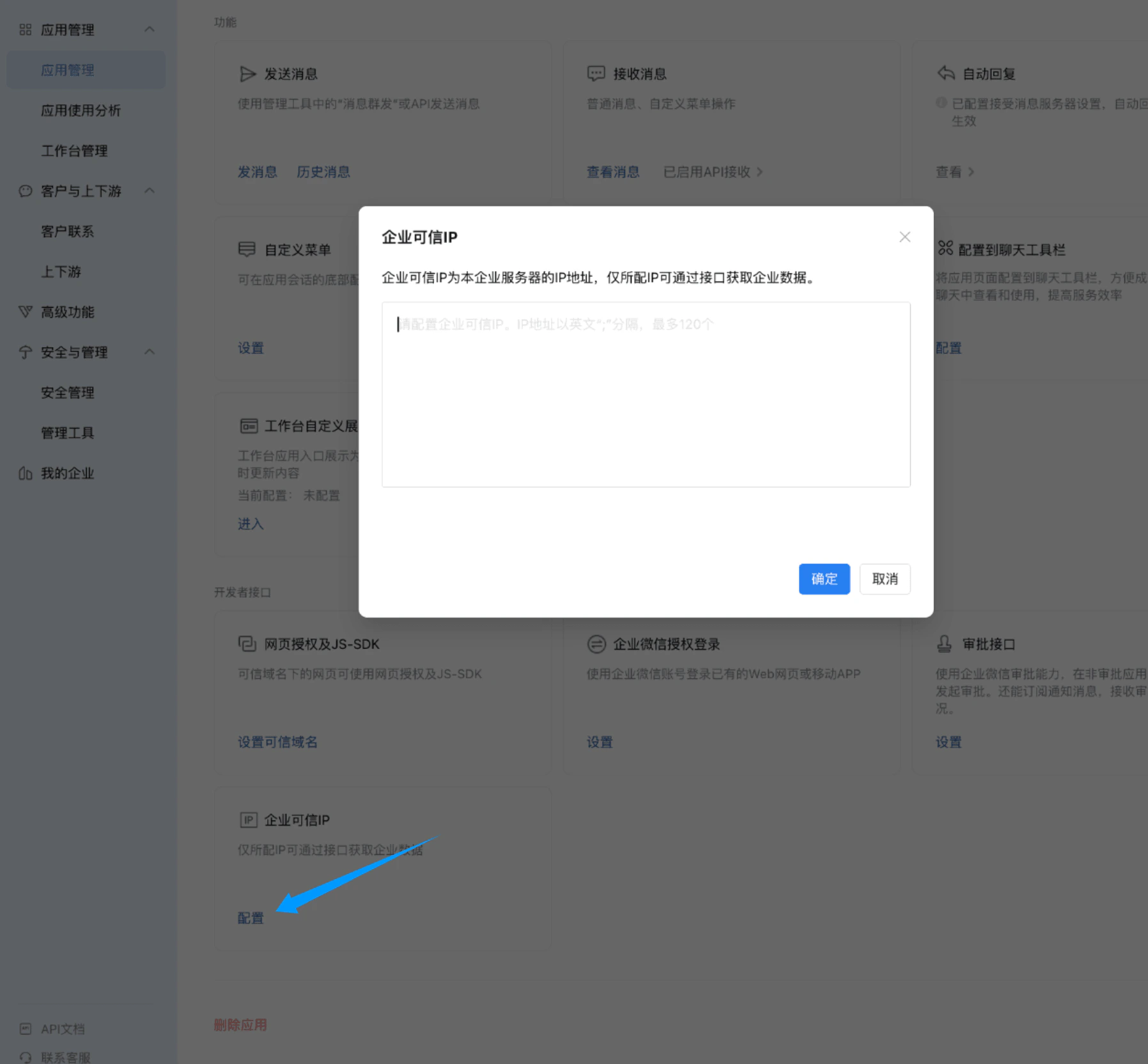
FAQ
Q: Can’t find the bot chat in WeCom? A: Go to the app’s detail page in WeCom admin, clickFeatures > Send Message > Send Message, choose your own account, send a message, and you will see the bot in your chat window.