Deploying WeCom Intelligent Bot
Creating a Bot
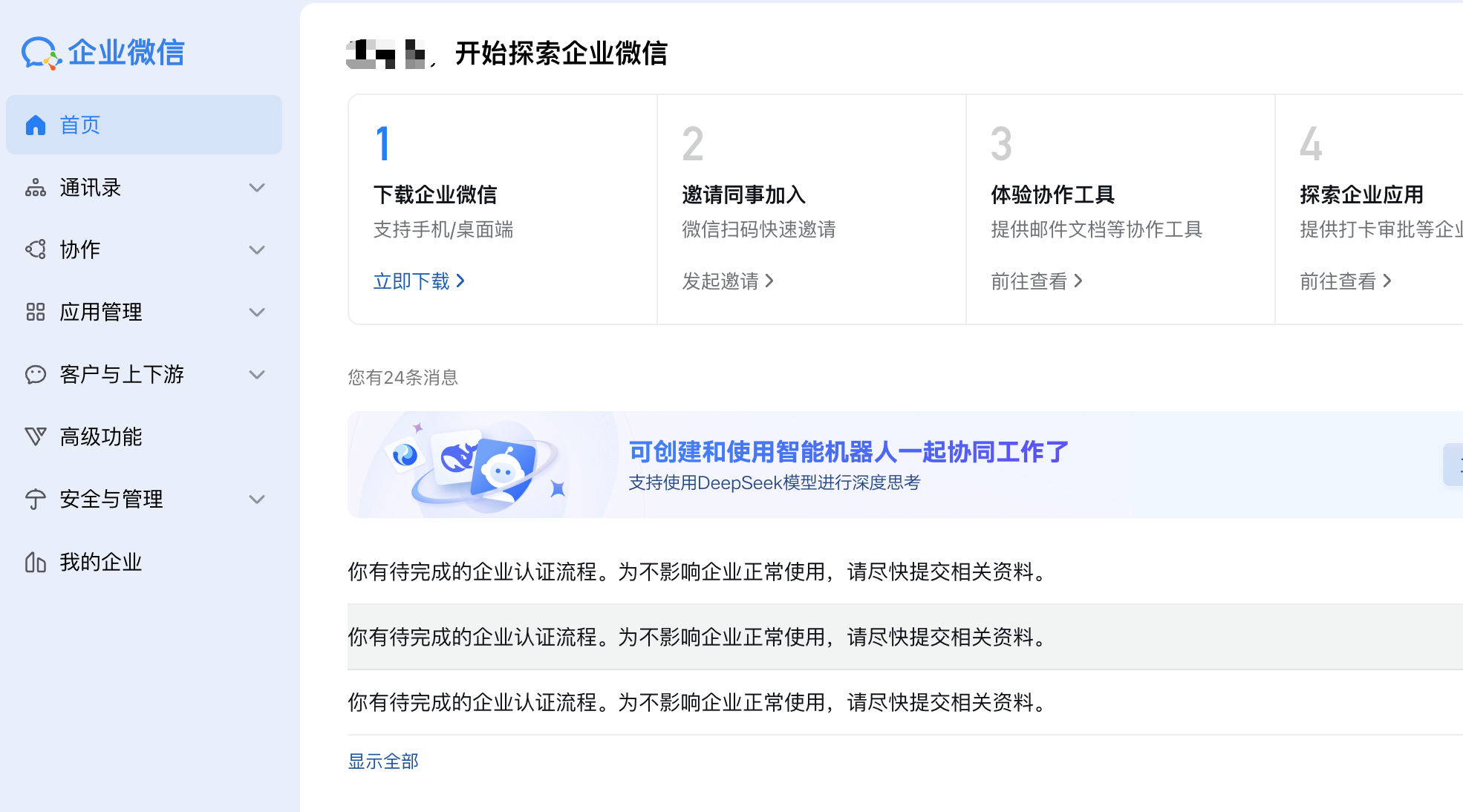
First, log in to the WeCom Admin Console.
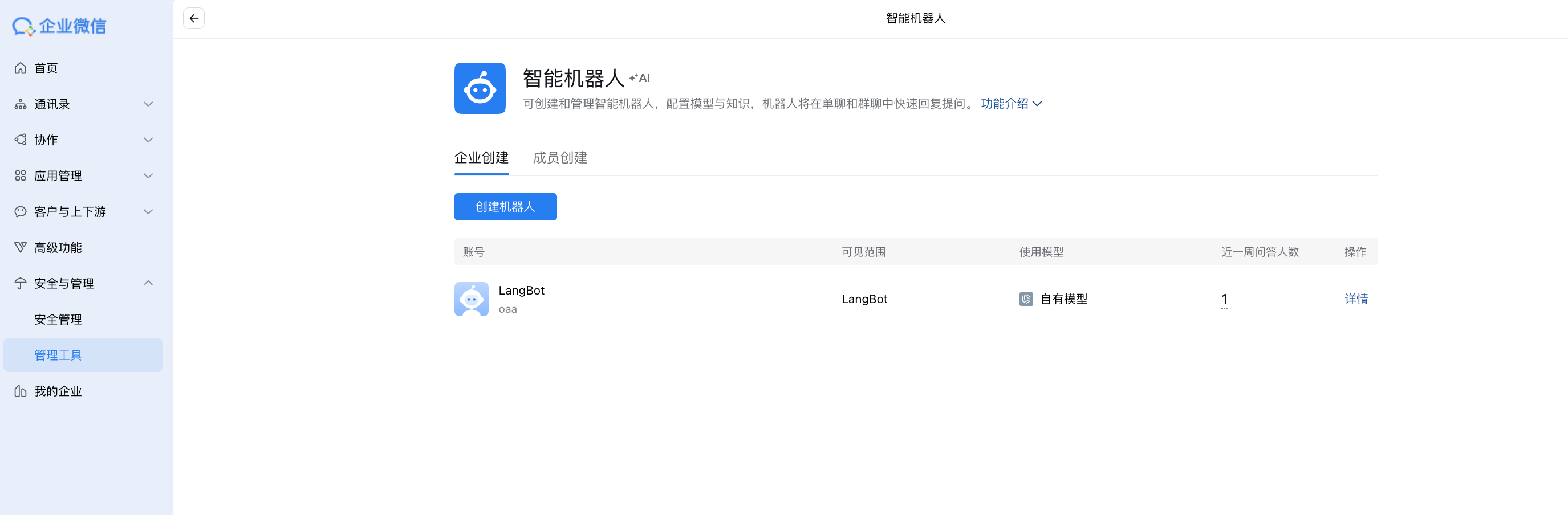
Click Security And Management in the left sidebar, then click Intelligent Bot under Management Tool.
As shown:
Click Create Bot, scroll to the bottom of the page, click Create via API Mode, and enter the page:
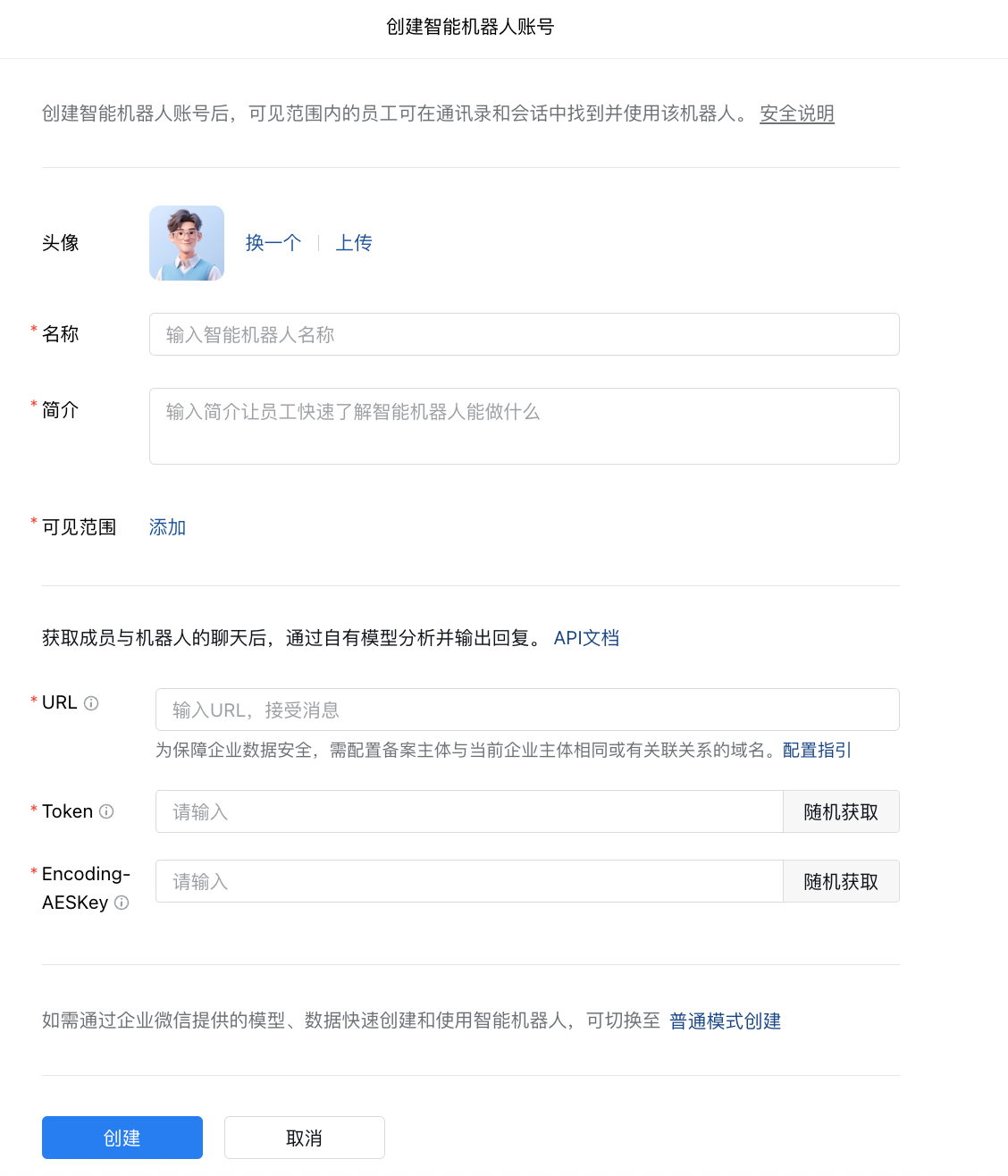
Click to randomly generate Token and EncodingAESKey, then fill in the basic bot information above. Pay attention to setting the visibility scope.
Click My Company in the left sidebar and save the Company ID at the bottom.
Configuring Callback URL
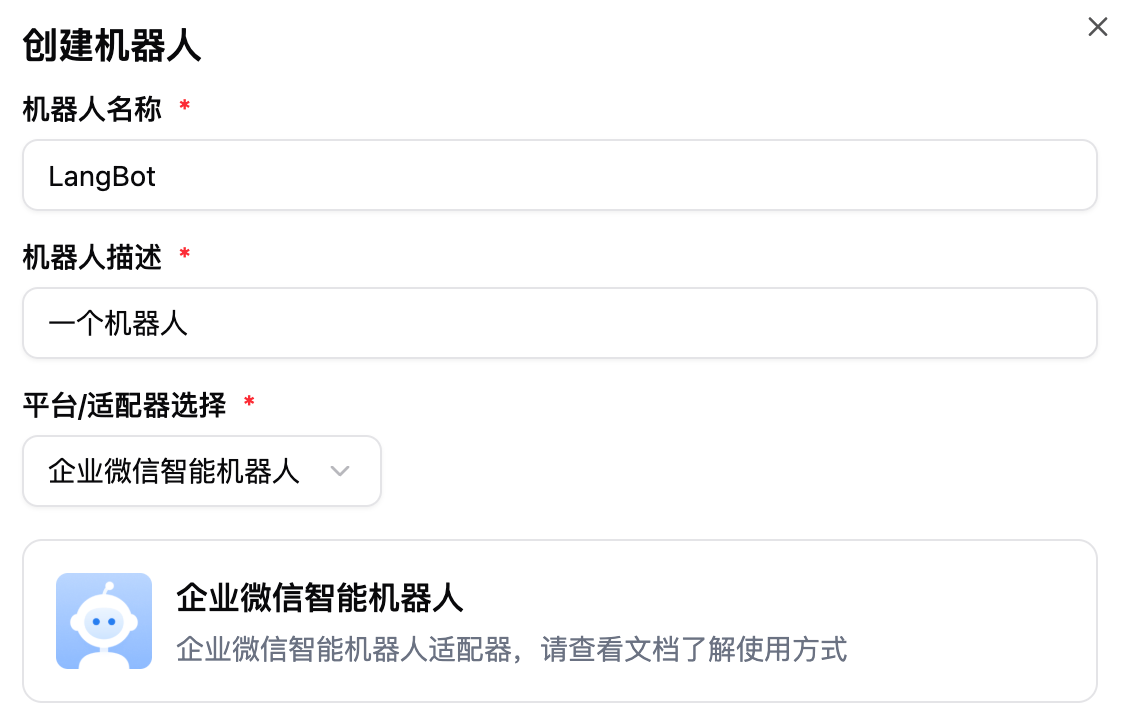
Start the LangBot main program, select the adapter WeCom Intelligent Bot, and fill in the configuration items.
Among them, the token is Token, the Encoding-AESKey is EncodingAESKey, and the Bot ID can be filled in as xxx (or filled in randomly, it will be changed later). After filling in, clickSave, and Enable the robot.
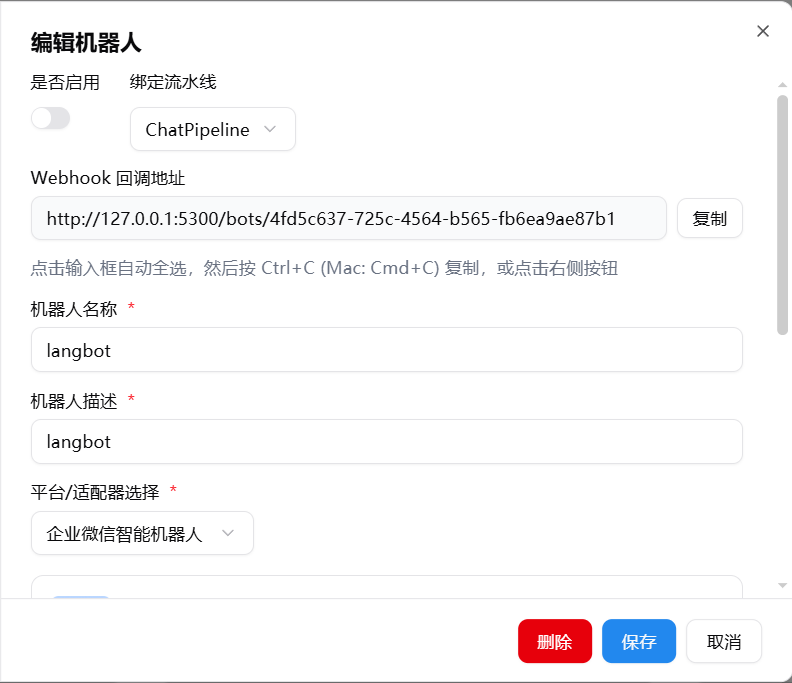
On the LangBot homepage, enable and select the corresponding bot, click to enter the configuration page, copy the Webhook callback address
INFO
We recommend that you first refer to Configure HTTP Reverse Proxy to configure the LangBot callback address.
Return to the WeCom robot configuration page and fill the copied webhook address into URL Callback. If the creation is successful, it will jump to the details page. If the message Request URL Failed appears, please double-check whether the above steps have been completed one by one.
Details page after successful creation: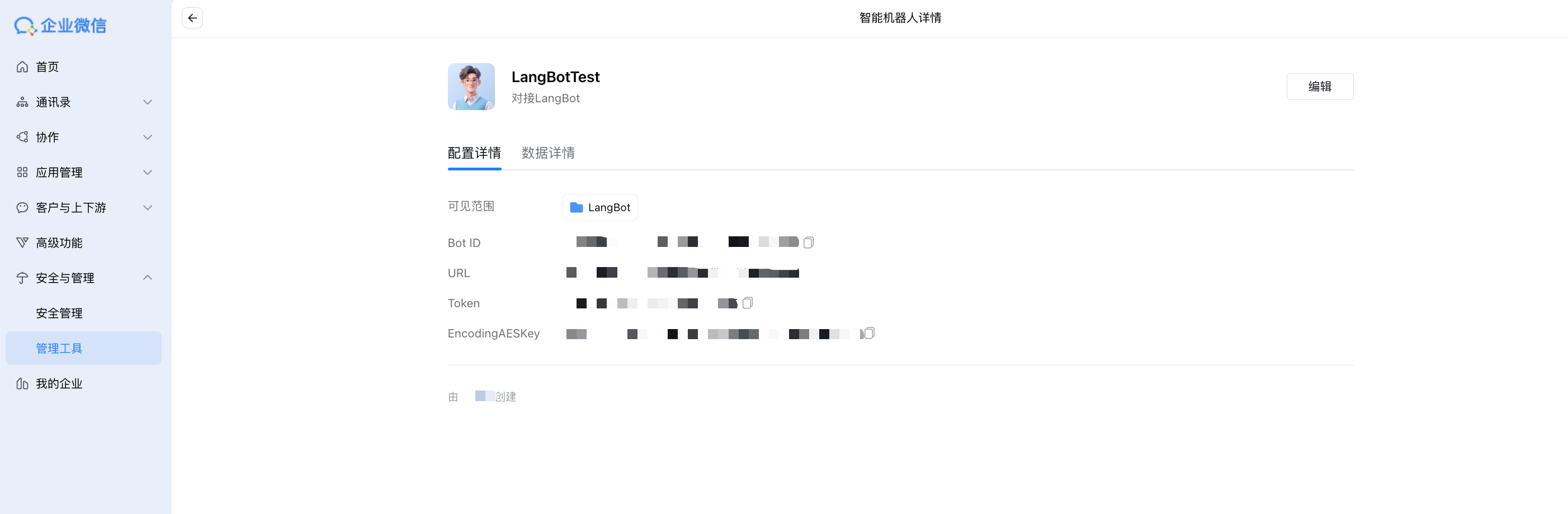
Copy the Bot ID from the WeCom robot details page, return to the LangBot management page, change the Bot ID of the deployed intelligent robot to the copied ID, and restart the robot.
Start Using
Enter WeCom, click ➕, as shown:

Click Company-Created, select the created bot, and enter the chat interface.
Similarly, if you want to invite the bot to a group chat, click the add member button in the group chat and add the bot from there.
Effect Images