
Connect to Slack Bot
Create Bot
Go to the Slack App Platform.
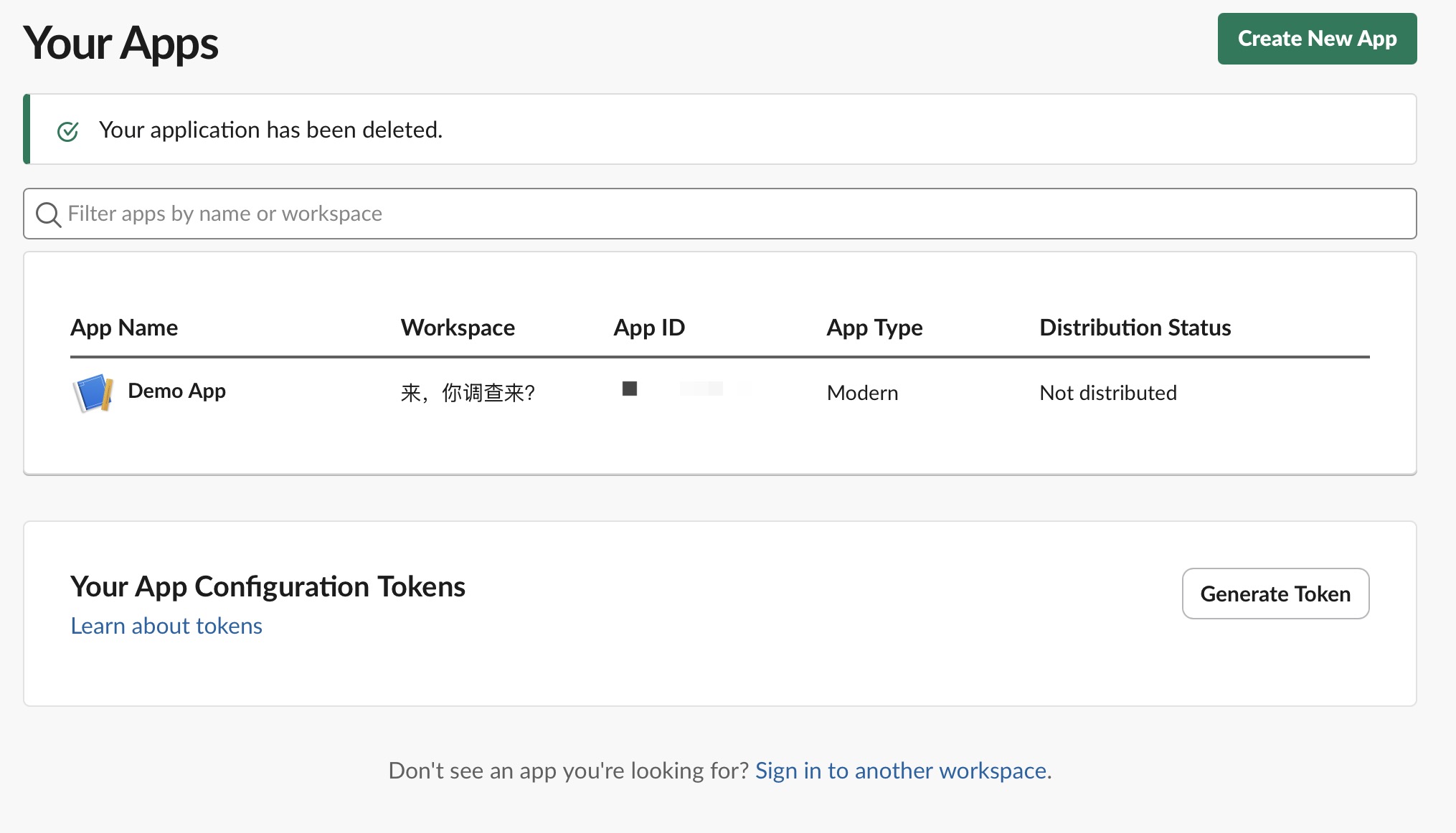
Click Create New App in the top right corner, select from a manifest, select the workspace where you want to deploy the bot, select next, and choose to create the bot.
Enter the Basic Information option on the left, record the signing_secret.
Enter OAuth & Permissions on the left, scroll down to Scopes, add the following bot permissions:
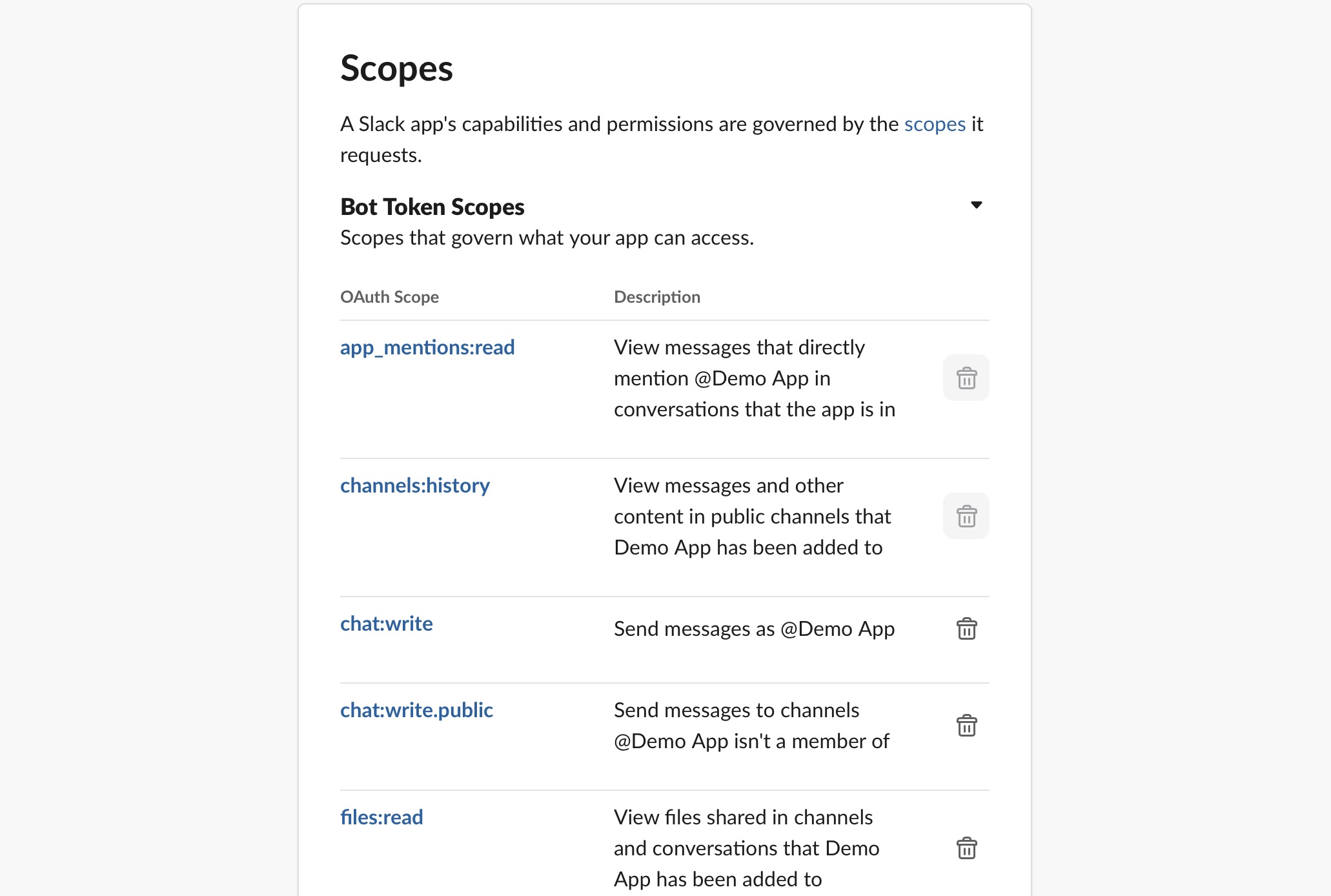
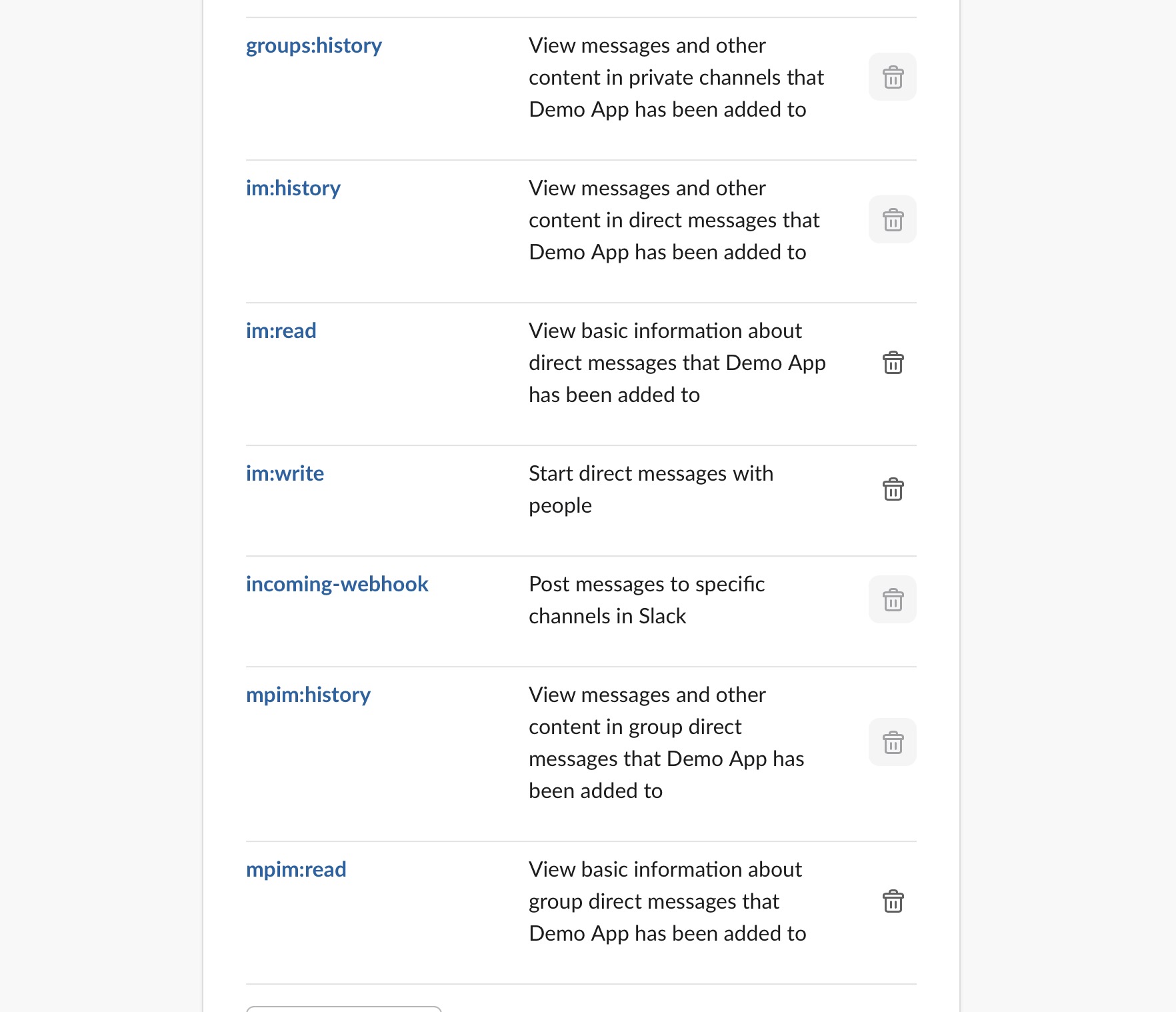
After adding the above permissions, click Install to your workspace, record the token starting with xoxb-xxxxx.
Note:If you didn't add all permissions at once, you'll need to reinstall the App later.
Enter the App Home tab on the left, scroll to the bottom where you'll find Message Tab, turn it on and check Allow users to send Slash commands and messages from the messages tab.
Connect to LangBot
Enter Event Subscriptions on the left, turn on the switch, click Subscribe to bot events, add the following permissions: 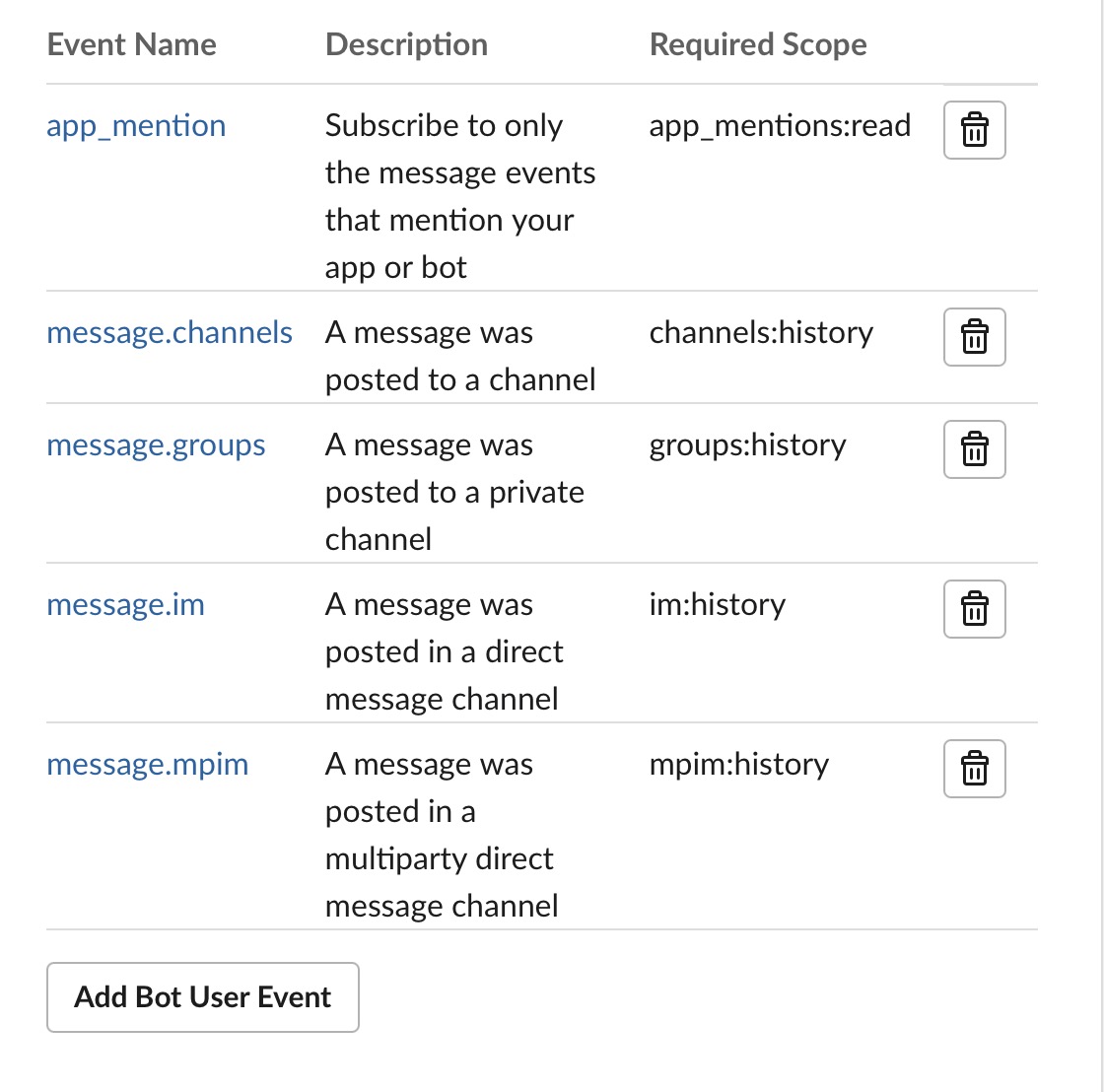
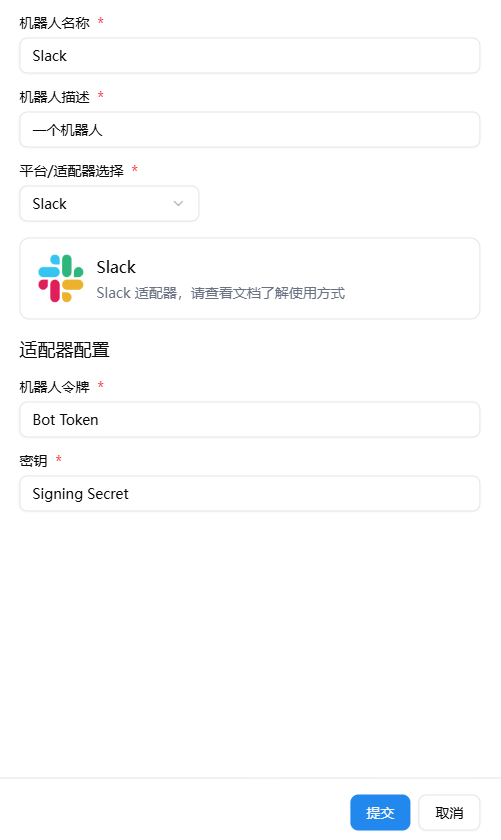
After completing all the above operations, open the LangBot Webui configuration page, add a new bot
Start Bot
INFO
Since Slack officially requires https, please configure reverse proxy first according to the documentation Configure HTTP Reverse Proxy and SSL.
After filling in the Slack configuration items, start LangBot. Enable and open the Slack bot configuration page on the LangBot homepage, copy the WebHook URL from it, then in the Request URL of the Event Subscriptions you just configured, fill in the WebHook URL.
After filling in all the above configuration items, click save link. If it shows a green Verified, it means the deployment is successful. Otherwise, check if the above configuration items are filled in correctly.
Effect Demonstration
