
メインコンテンツへスキップ
Pageコンポーネントを使用すると、プラグインはLangBot WebUIのサイドバーにカスタムビジュアルページを登録できます。ページはiframeサンドボックス内で実行され、Page SDKを介してホストと通信し、プラグインのバックエンドAPIを呼び出すことができます。

ユースケース

  • 管理パネル:プラグインに視覚的な設定やデータ管理インターフェースを提供(例:FAQ管理、分析ダッシュボード)
  • データ表示:ランタイムの統計データ、ログ、チャートなどを表示
  • インタラクティブツール:フォーム、エディタなどの対話式インターフェースを提供
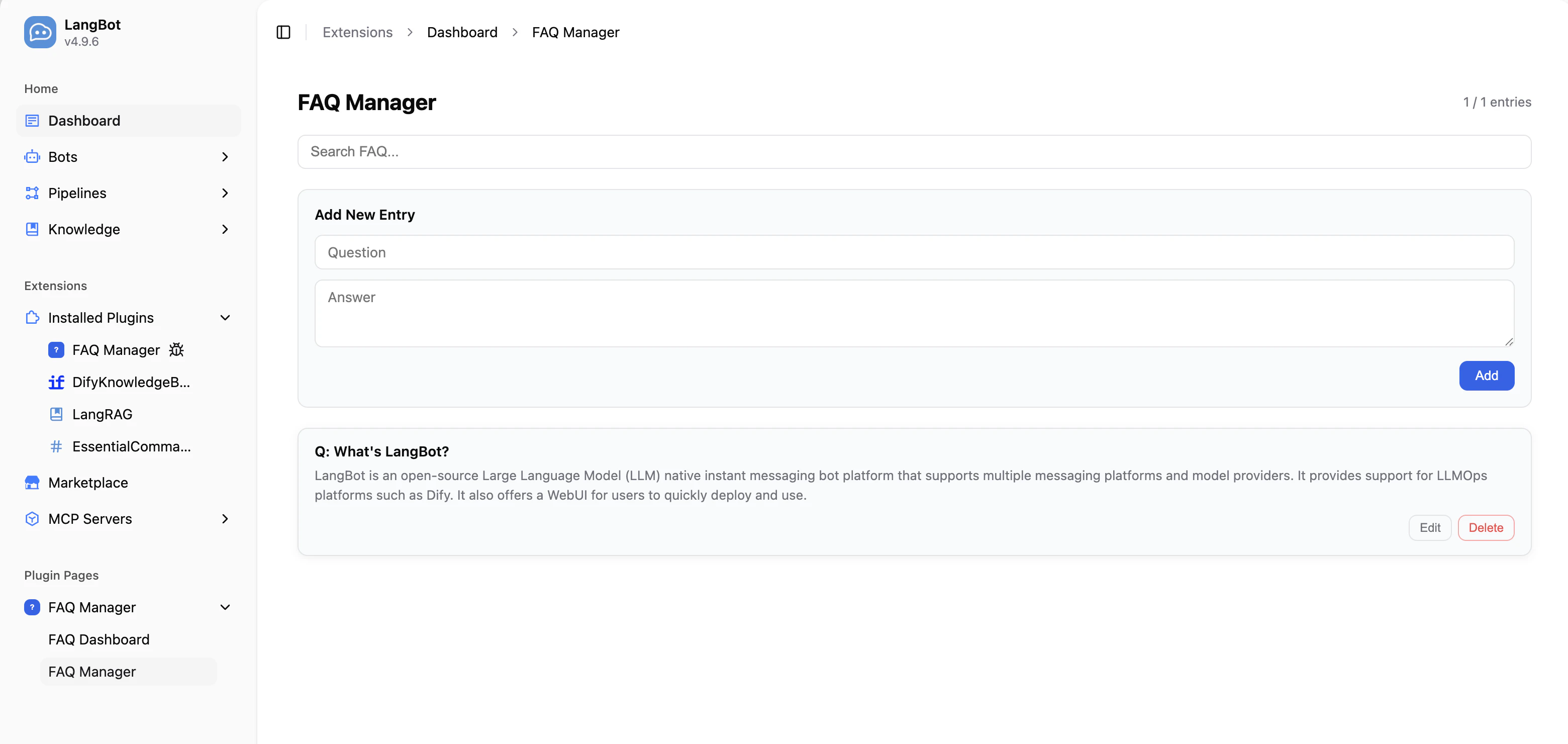
ページコンポーネントの追加

プラグインディレクトリでコマンドを実行します:
lbp comp Page
ページ名を入力すると、components/pages/ディレクトリにページファイルが生成されます:
├── components
   └── pages
       └── dashboard
           ├── dashboard.yaml   # ページマニフェスト
           ├── dashboard.py     # バックエンドハンドラー
           ├── index.html       # ページエントリポイント
           └── i18n             # 翻訳ファイル(オプション)
               ├── en_US.json
               └── ja_JP.json
manifest.yamlにもコンポーネント検出設定が追加されます:
spec:
  components:
    Page:
      fromDirs:
      - path: components/pages/
        maxDepth: 2

マニフェストファイル:ページ

apiVersion: v1  # 変更しないでください
kind: Page  # 変更しないでください
metadata:
  name: dashboard  # プラグイン内で一意のページID
  label:
    en_US: Dashboard  # WebUIサイドバーに表示される名前、多言語対応
    ja_JP: ダッシュボード
spec:
  path: index.html  # HTMLエントリファイル(このYAMLファイルからの相対パス)
execution:
  python:
    path: dashboard.py  # バックエンドハンドラーファイル
    attr: DashboardPage  # ハンドラークラス名

バックエンド処理

PageコンポーネントのバックエンドハンドラーはPage基底クラスを継承し、handle_apiメソッドを実装してフロントエンドページからのAPIリクエストを処理します。
from langbot_plugin.api.definition.components.page import Page, PageRequest, PageResponse


class DashboardPage(Page):

    async def handle_api(self, request: PageRequest) -> PageResponse:
        # request.endpoint: APIエンドポイントパス(例:'/stats')
        # request.method:   HTTPメソッド(GET、POST、PUT、DELETE)
        # request.body:     リクエストボディ(解析済みJSON、またはNone)

        if request.endpoint == '/stats' and request.method == 'GET':
            # self.pluginでプラグインインスタンスの共有状態にアクセス
            return PageResponse.ok({
                'total': len(self.plugin.entries),
            })

        return PageResponse.fail(f'不明なエンドポイント: {request.endpoint}')

PageRequestフィールド

フィールド説明
endpointstrAPIエンドポイントパス(例:'/entries'
methodstrHTTPメソッド(GETPOSTPUTDELETE
bodyAnyリクエストボディ(解析済みJSON、またはNone

PageResponseの構築

メソッド説明
PageResponse.ok(data)成功レスポンス。dataはJSON変換可能な任意の値
PageResponse.fail(error)エラーレスポンス。errorはエラーメッセージ文字列

フロントエンドページ開発

HTMLファイルにPage SDKを読み込んで、プラグインバックエンドと通信します:
<!DOCTYPE html>
<html>
<head>
  <meta charset="UTF-8">
  <style>
    body {
      background: var(--langbot-bg, #ffffff);
      color: var(--langbot-text, #0a0a0a);
      font-family: -apple-system, BlinkMacSystemFont, 'Segoe UI', Roboto, sans-serif;
      padding: 24px;
    }
  </style>
</head>
<body>
  <h1 data-i18n="title">ダッシュボード</h1>
  <p id="stats"></p>

  <script src="/api/v1/plugins/_sdk/page-sdk.js"></script>
  <script>
    langbot.onReady(async function(ctx) {
      // バックエンドAPIを呼び出す
      var data = await langbot.api('/stats', null, 'GET');
      document.getElementById('stats').textContent = '合計: ' + data.total;
    });
  </script>
</body>
</html>

Page SDK API

メソッド説明
langbot.onReady(callback)SDK準備完了時に呼ばれる。callbackctxthemelanguageを含む)を受け取る
langbot.api(endpoint, body?, method?)プラグインのhandle_apiを呼び出す。Promiseを返す
langbot.t(key, fallback?)翻訳文字列を取得
langbot.onThemeChange(callback)テーマ変更時のコールバック
langbot.onLanguageChange(callback)言語変更時のコールバック
langbot.applyI18n()data-i18n翻訳を手動で再適用

ダークモード

SDKはページにCSSカスタムプロパティを自動設定します。直接使用できます:
CSS変数用途
--langbot-bgページ背景色
--langbot-bg-cardカード背景色
--langbot-textメインテキスト色
--langbot-text-mutedサブテキスト色
--langbot-borderボーダー色
--langbot-accentアクセント色

ページi18n

ページディレクトリ内にi18n/ディレクトリを作成し、JSON翻訳ファイルを配置します:
pages/dashboard/
├── index.html
└── i18n/
    ├── en_US.json
    └── ja_JP.json
翻訳ファイルはフラットなJSONキーバリューペアです:
{
  "title": "ダッシュボード",
  "totalEntries": "エントリ数"
}
HTML要素にdata-i18n属性を追加すると、SDKが自動的にテキストを翻訳します:
<h1 data-i18n="title">Dashboard</h1>

完全な例:FAQ管理ページ

FAQエントリのCRUD操作を実装した完全なPageコンポーネントの例です。 バックエンドハンドラーcomponents/pages/manager/manager.py):
from langbot_plugin.api.definition.components.page import Page, PageRequest, PageResponse


class ManagerPage(Page):

    async def handle_api(self, request: PageRequest) -> PageResponse:
        plugin = self.plugin

        if request.endpoint == '/entries' and request.method == 'GET':
            return PageResponse.ok({'entries': plugin.entries})

        if request.endpoint == '/entries' and request.method == 'POST':
            question = (request.body or {}).get('question', '').strip()
            answer = (request.body or {}).get('answer', '').strip()
            if not question or not answer:
                return PageResponse.fail('質問と回答は必須です')
            entry = plugin.add_entry(question, answer)
            await plugin.persist()
            return PageResponse.ok({'entry': entry})

        if request.endpoint == '/entries' and request.method == 'DELETE':
            entry_id = (request.body or {}).get('id', '')
            if plugin.delete_entry(entry_id):
                await plugin.persist()
                return PageResponse.ok({'deleted': entry_id})
            return PageResponse.fail('エントリが見つかりません')

        return PageResponse.fail(f'不明: {request.method} {request.endpoint}')
フロントエンドページcomponents/pages/manager/index.html)ではlangbot.api()でバックエンドを呼び出します:
// エントリを読み込む
var data = await langbot.api('/entries', null, 'GET');

// エントリを追加
await langbot.api('/entries', { question: '...', answer: '...' }, 'POST');

// エントリを削除
await langbot.api('/entries', { id: '...' }, 'DELETE');
完全なサンプルコードはFAQManagerプラグインを参照してください。

注意事項

  • ページはsandbox="allow-scripts allow-forms"のiframe内で実行され、ポップアップを開いたり親ページをナビゲートすることはできません
  • self.pluginでプラグインインスタンスの共有状態にアクセスできます — PageとToolコンポーネントはデータを共有できます
  • PageResponse.ok()PageResponse.fail()を使用してレスポンスを構築し、一貫したフォーマットを確保してください
  • Page SDKの<script>タグは、langbotオブジェクトを使用するコードの前に配置する必要があります