> ## Documentation Index
> Fetch the complete documentation index at: https://docs.langbot.app/llms.txt
> Use this file to discover all available pages before exploring further.
# 企业微信智能机器人
> 用 LangBot 搭建企业微信智能机器人,将大模型对话引入你的组织。
## 一键配置(推荐)
LangBot 支持一键创建企业微信智能机器人并自动填写 BotId 和 Secret,无需手动复制粘贴。
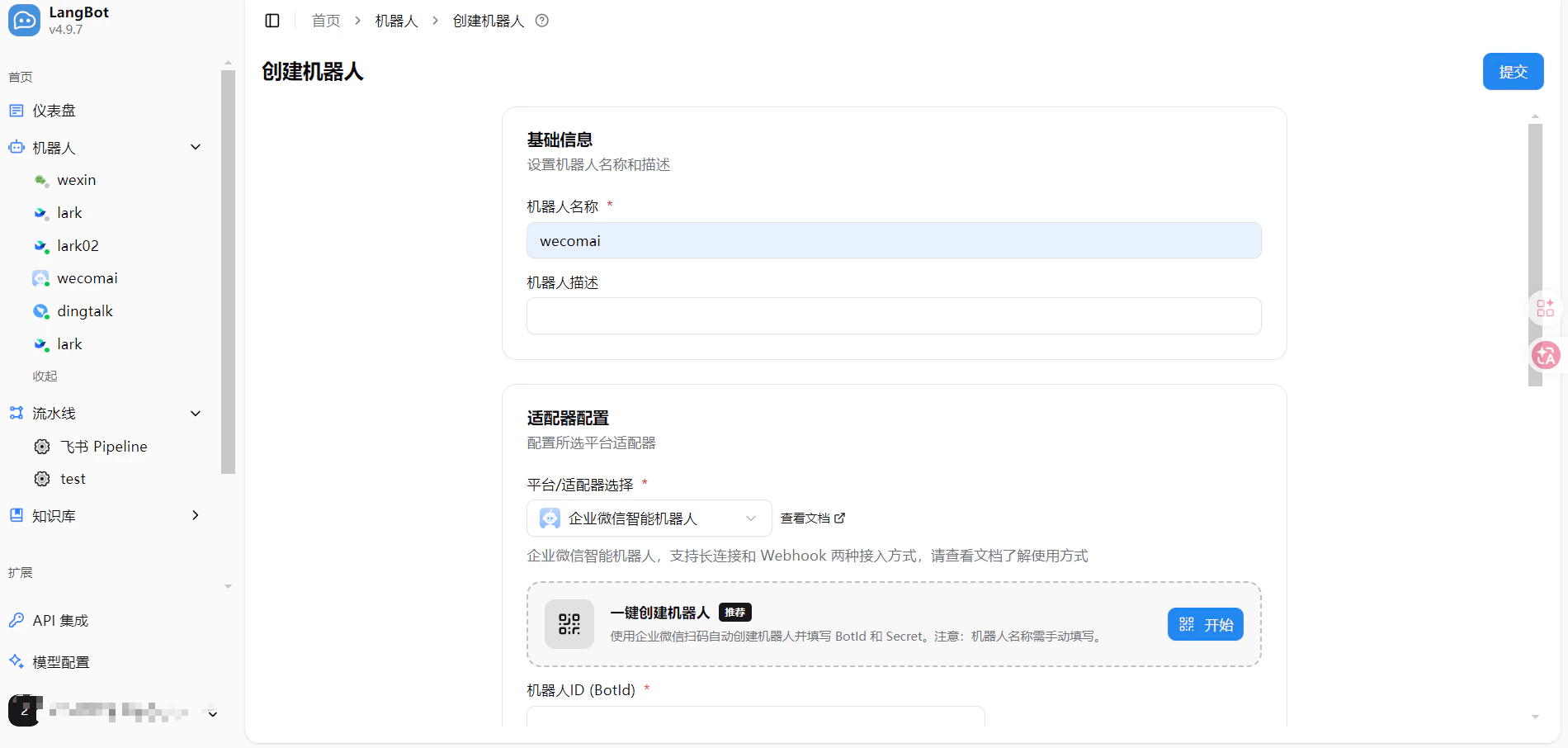
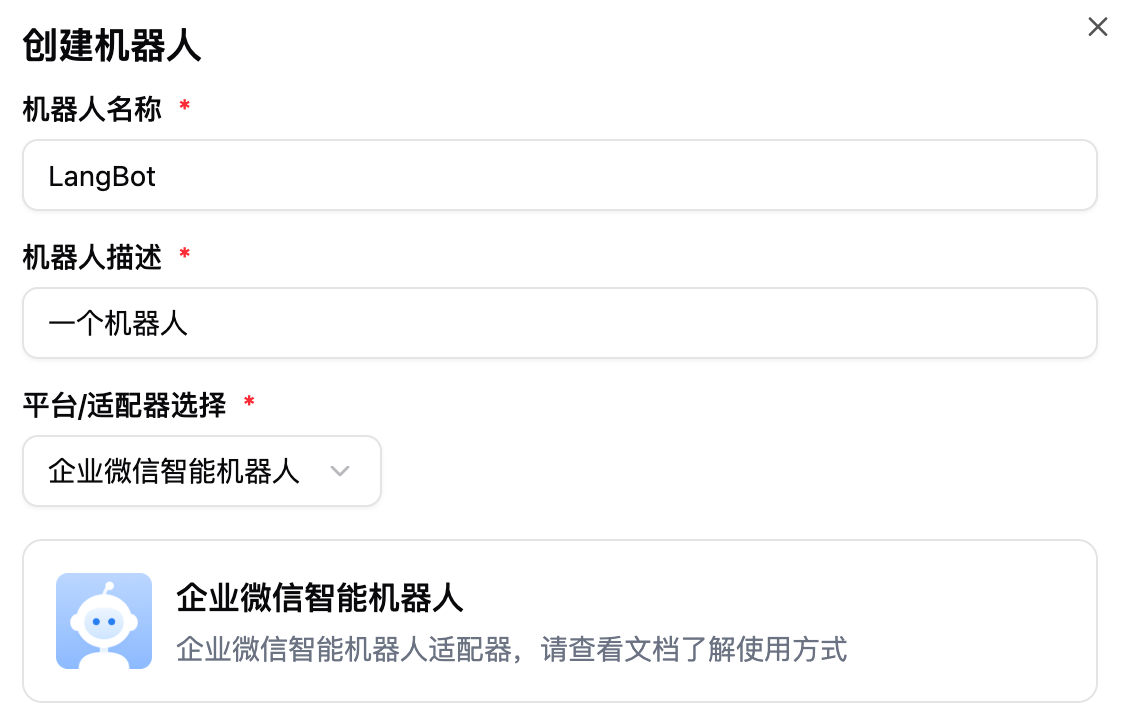
1. 打开 LangBot WebUI,进入**机器人 > 创建机器人**
2. 填写机器人名称,平台/适配器选择 `企业微信智能机器人`
3. 在下方出现的**一键创建机器人**区域,点击右侧的 **开始** 按钮
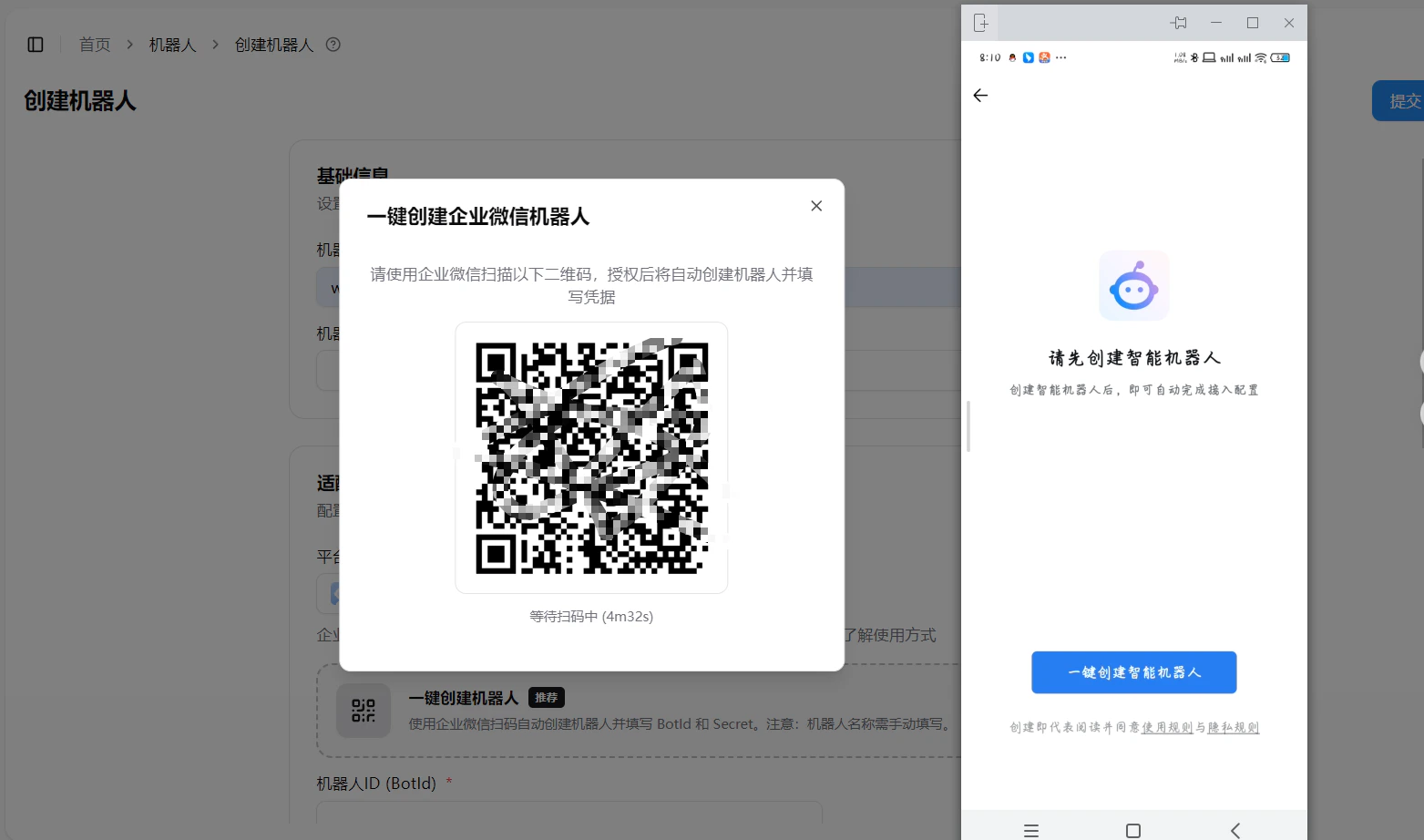
 4. 使用企业微信扫描弹出的二维码,手机端会提示「请先创建智能机器人」,点击 **一键创建智能机器人**
 5. 授权成功后,BotId 和 Secret 会**自动填入**配置表单
6. **手动填写机器人名称**,名称需与企业微信中创建的机器人名称一致
5. 授权成功后,BotId 和 Secret 会**自动填入**配置表单
6. **手动填写机器人名称**,名称需与企业微信中创建的机器人名称一致
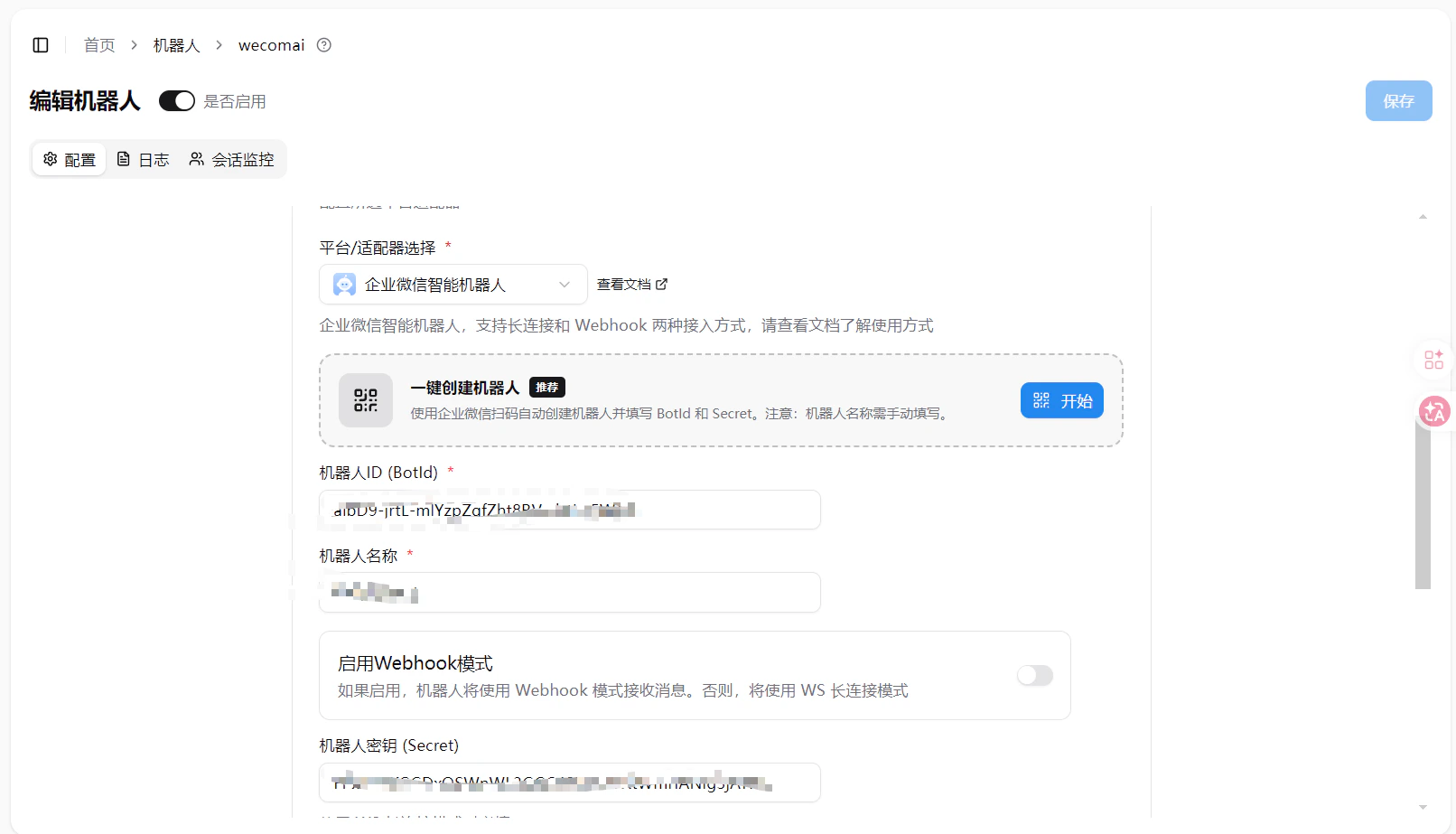 7. 点击**提交**,完成创建
企业微信智能机器人**不能选择已有的机器人**进行一键配置,只能新建。如果需要使用已有机器人,请参考下方手动配置。
***
## 手动配置
### 创建机器人
首先登录[企业微信管理后台](https://work.weixin.qq.com/wework_admin/frame#/)。
7. 点击**提交**,完成创建
企业微信智能机器人**不能选择已有的机器人**进行一键配置,只能新建。如果需要使用已有机器人,请参考下方手动配置。
***
## 手动配置
### 创建机器人
首先登录[企业微信管理后台](https://work.weixin.qq.com/wework_admin/frame#/)。
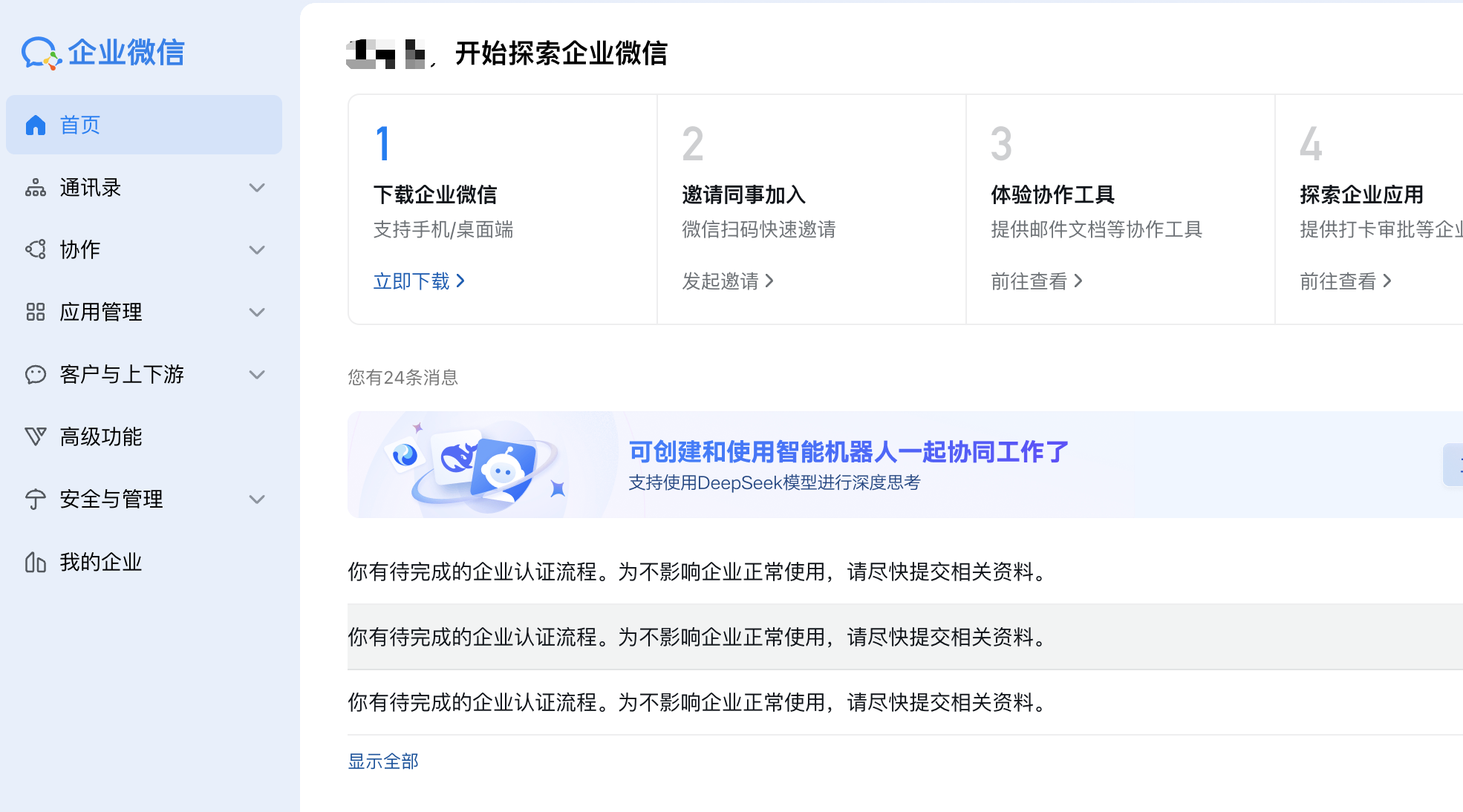 点击左边栏的`安全与管理`,点击`管理工具`里面的`智能机器人`。
如图:
点击左边栏的`安全与管理`,点击`管理工具`里面的`智能机器人`。
如图:
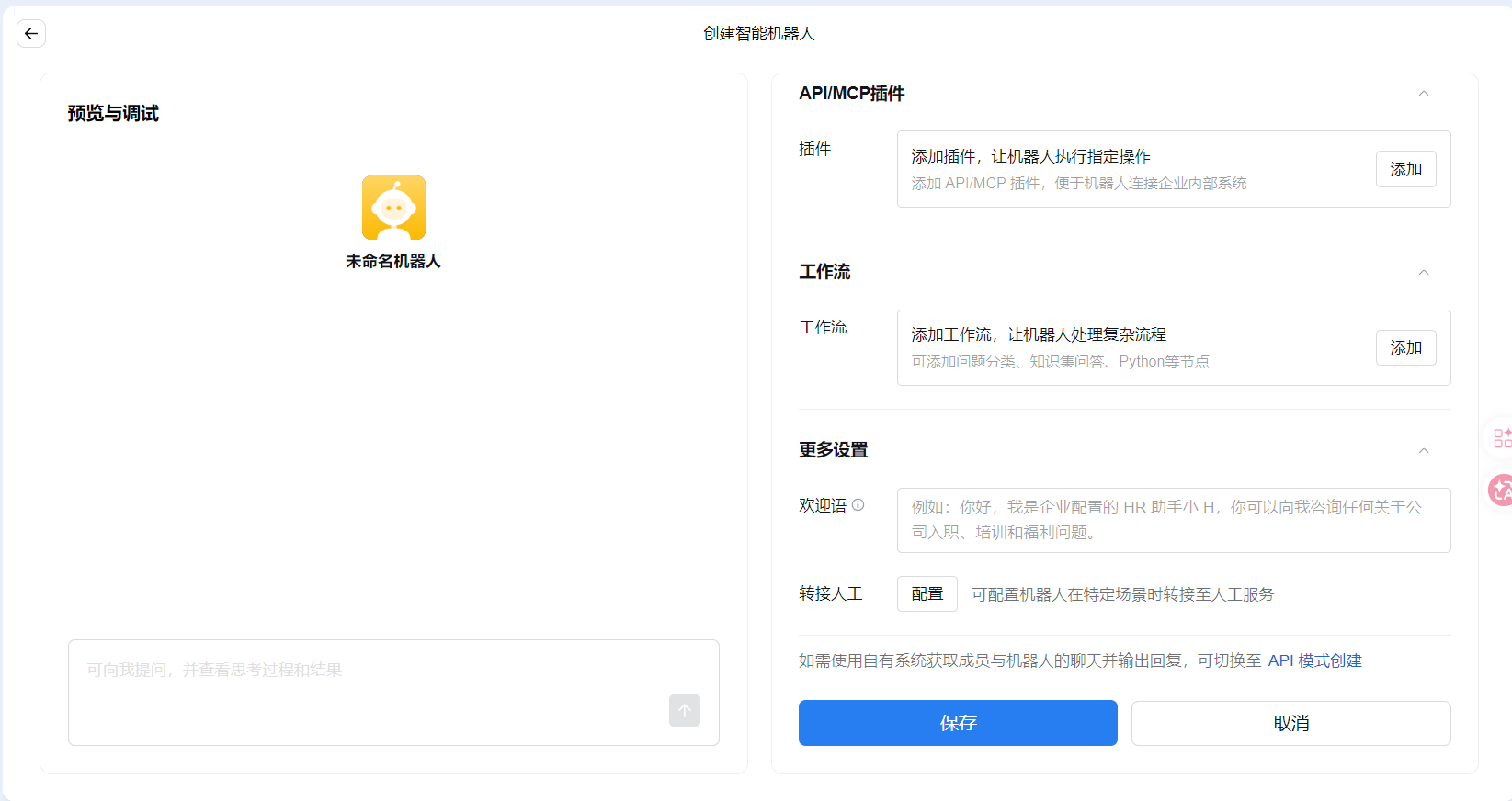
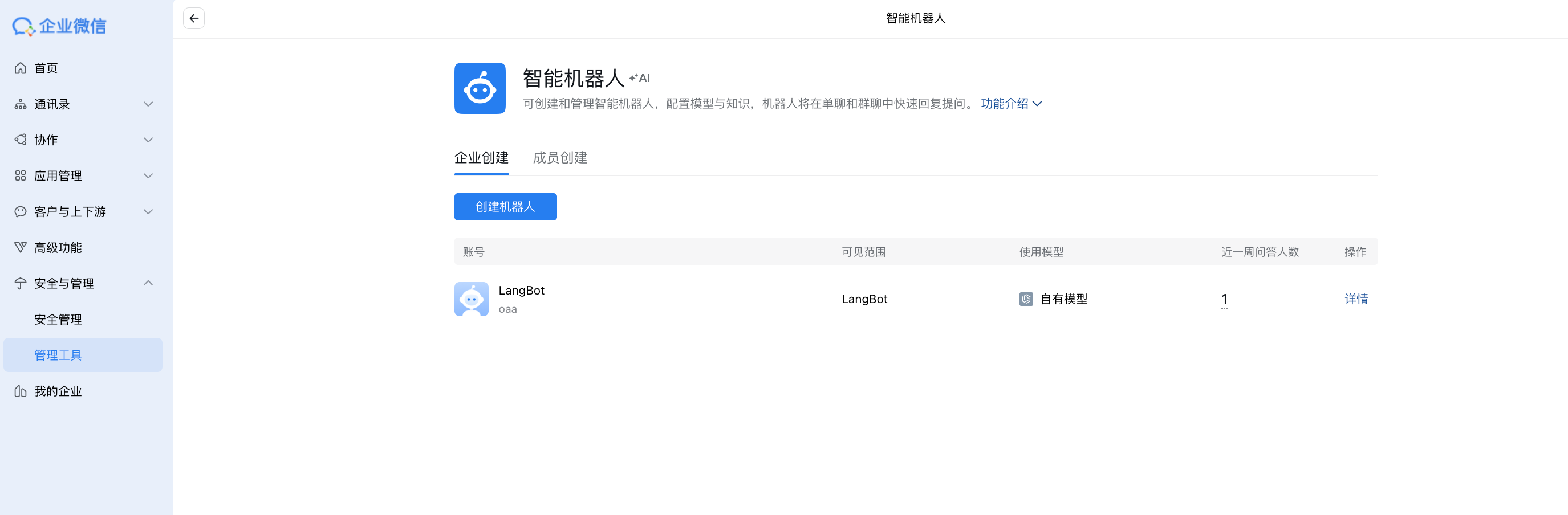 点击`创建机器人`并选择`手动创建`,拉至页面最底部,点击`API模式创建`,进入页面:
 ### 长连接配置说明
#### 开启长连接 API 模式
在企业微信管理后台,进入智能机器人的配置页面,开启「API 模式」并选择「长连接」方式:
### 长连接配置说明
#### 开启长连接 API 模式
在企业微信管理后台,进入智能机器人的配置页面,开启「API 模式」并选择「长连接」方式:
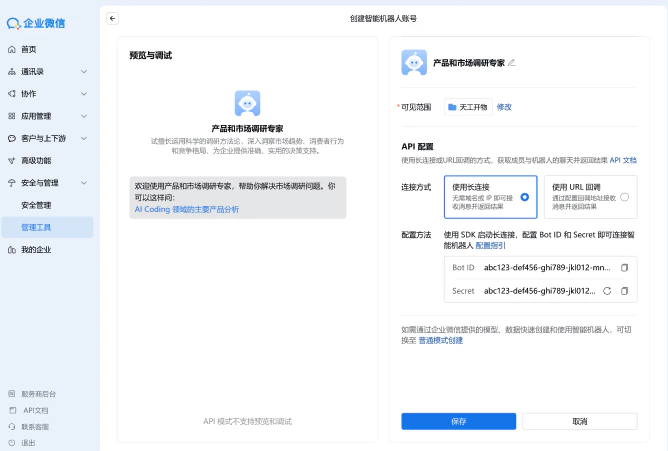 #### 获取凭证
开启长连接 API 模式后,需要获取以下凭证用于建立连接:
| 凭证 | 说明 |
| ------ | -------------------- |
| BotID | 智能机器人的唯一标识,用于标识机器人身份 |
| Secret | 长连接专用密钥,用于身份校验 |
注意:
* Secret 是长连接专用的密钥,与设置接收消息回调地址模式的 Token/EncodingAESKey 不同
* 请妥善保管 Secret,避免泄露
* 模式切换影响:API 模式只能选择一种方式(长连接或设置接收消息回调地址),切换到「设置接收消息回调地址」模式会导致现有长连接失效;反之,从「设置接收消息回调地址」切换到「长连接」模式后,原有的回调地址将不再生效
#### 配置机器人
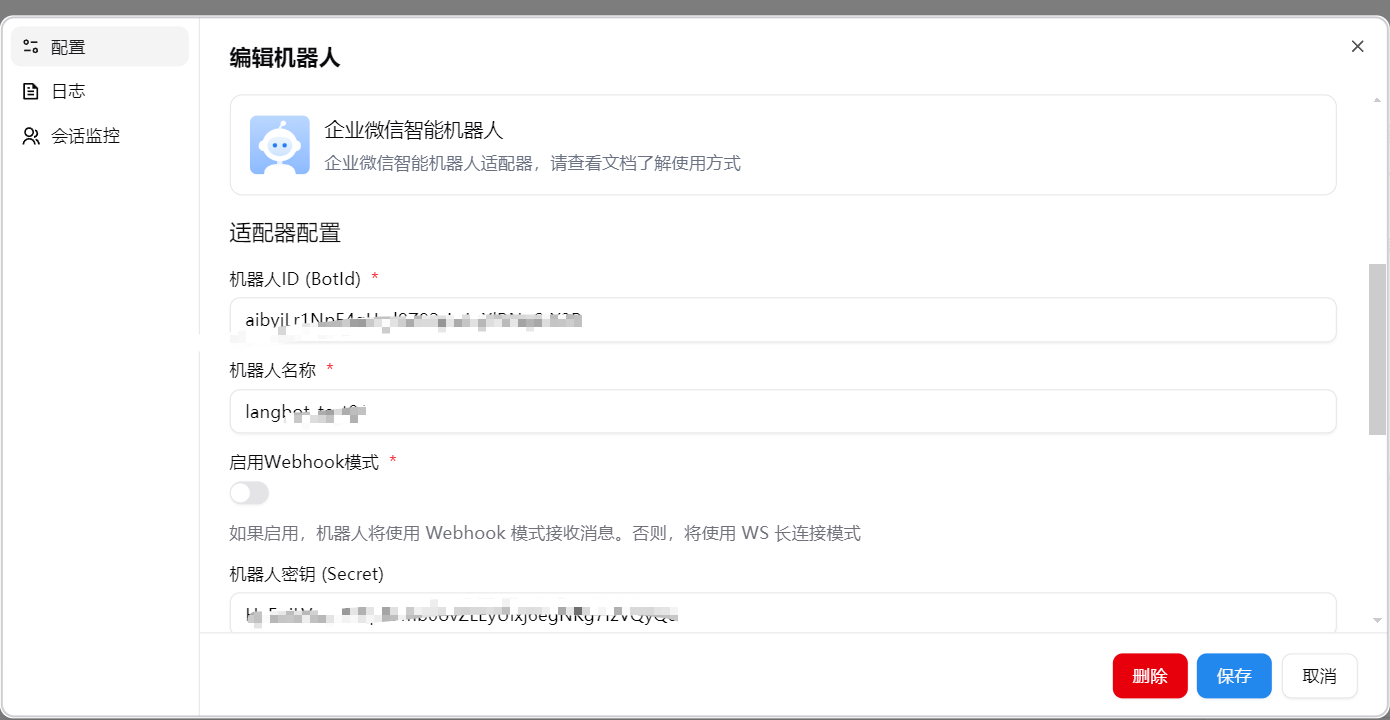
启动 LangBot 主程序,适配器选择 `企业微信智能机器人`,填写配置项,
将长连接中的botid和secret以及机器人名称填入,点击保存并使用
> 其中机器人名称要与新建的机器人名称一样,不然群聊会不回复
#### 获取凭证
开启长连接 API 模式后,需要获取以下凭证用于建立连接:
| 凭证 | 说明 |
| ------ | -------------------- |
| BotID | 智能机器人的唯一标识,用于标识机器人身份 |
| Secret | 长连接专用密钥,用于身份校验 |
注意:
* Secret 是长连接专用的密钥,与设置接收消息回调地址模式的 Token/EncodingAESKey 不同
* 请妥善保管 Secret,避免泄露
* 模式切换影响:API 模式只能选择一种方式(长连接或设置接收消息回调地址),切换到「设置接收消息回调地址」模式会导致现有长连接失效;反之,从「设置接收消息回调地址」切换到「长连接」模式后,原有的回调地址将不再生效
#### 配置机器人
启动 LangBot 主程序,适配器选择 `企业微信智能机器人`,填写配置项,
将长连接中的botid和secret以及机器人名称填入,点击保存并使用
> 其中机器人名称要与新建的机器人名称一样,不然群聊会不回复
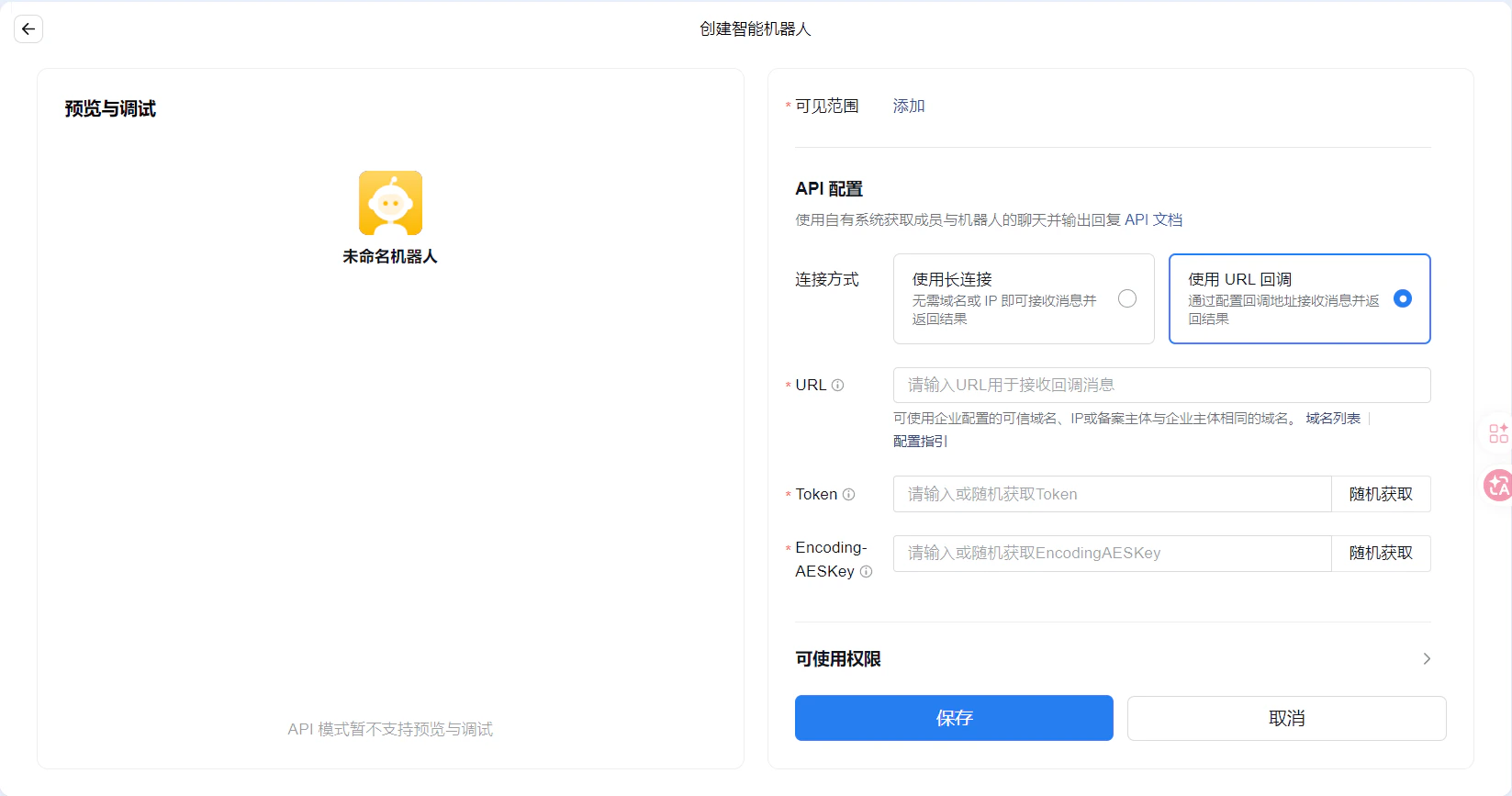
 ### 使用url回调配置说明
点击随机获取 Token 和 EncodingAESKey,然后填写上方的机器人基本信息,**注意设置可见范围**。
### 使用url回调配置说明
点击随机获取 Token 和 EncodingAESKey,然后填写上方的机器人基本信息,**注意设置可见范围**。
 点击左边栏的`我的企业`,保存最下方的企业ID。
#### 配置回调地址
启动 LangBot 主程序,适配器选择 `企业微信智能机器人`,填写配置项,
其中,令牌为 Token,消息加解密密钥为 EncodingAESKey,机器人ID填写入xxx(或者随便填写,后续会改),填写之后点击
`保存`,并`启用`机器人。
点击左边栏的`我的企业`,保存最下方的企业ID。
#### 配置回调地址
启动 LangBot 主程序,适配器选择 `企业微信智能机器人`,填写配置项,
其中,令牌为 Token,消息加解密密钥为 EncodingAESKey,机器人ID填写入xxx(或者随便填写,后续会改),填写之后点击
`保存`,并`启用`机器人。
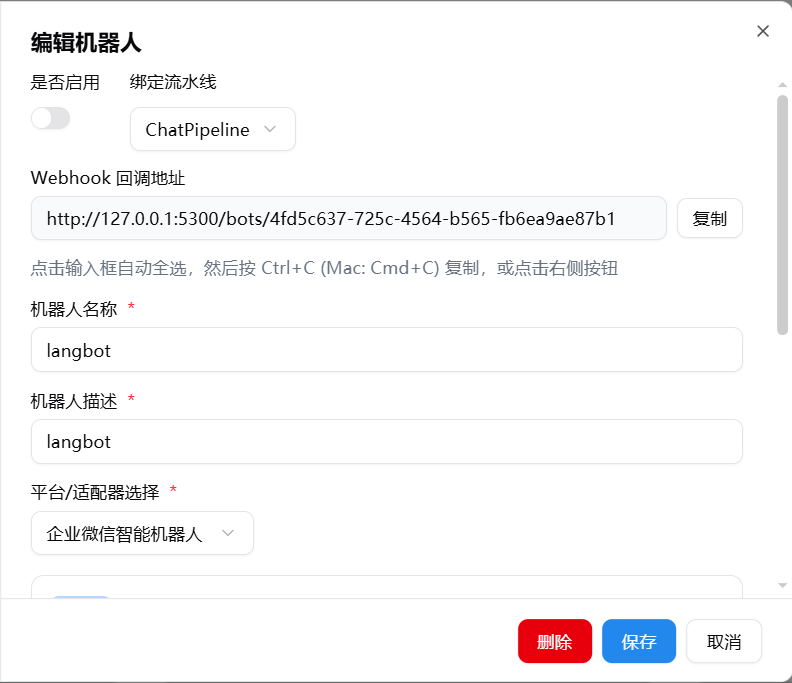
 在 LangBot 主页中,启用并选择对应的机器人,点击进入配置页面,复制其中的 Webhook 回调地址
推荐您先参照[配置 HTTP 反向代理](/zh/workshop/production/proxy-and-ssl)来配置 LangBot 回调地址。
在 LangBot 主页中,启用并选择对应的机器人,点击进入配置页面,复制其中的 Webhook 回调地址
推荐您先参照[配置 HTTP 反向代理](/zh/workshop/production/proxy-and-ssl)来配置 LangBot 回调地址。
 返回企业微信机器人配置页面将复制的webhook地址填写到`URL回调`中。若创建成功,则会跳转至详情页面,若出现`请求URL失败`字样,请再三检查上述操作是否一一完成。
创建成功之后的详情页:
返回企业微信机器人配置页面将复制的webhook地址填写到`URL回调`中。若创建成功,则会跳转至详情页面,若出现`请求URL失败`字样,请再三检查上述操作是否一一完成。
创建成功之后的详情页:
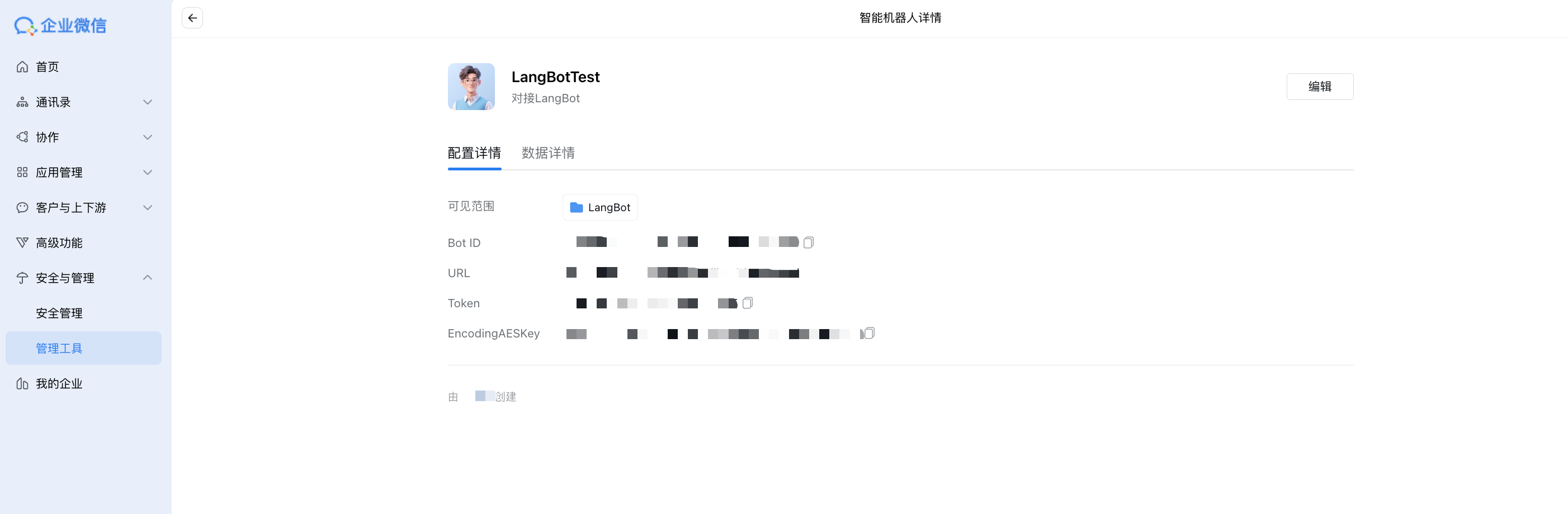 复制企业微信机器人详情页的`Bot ID`和机器人的名称,回到LangBot管理页面,将部署的智能机器人的机器人Id改为复制的ID,并填入机器人名称,重新启动机器人。
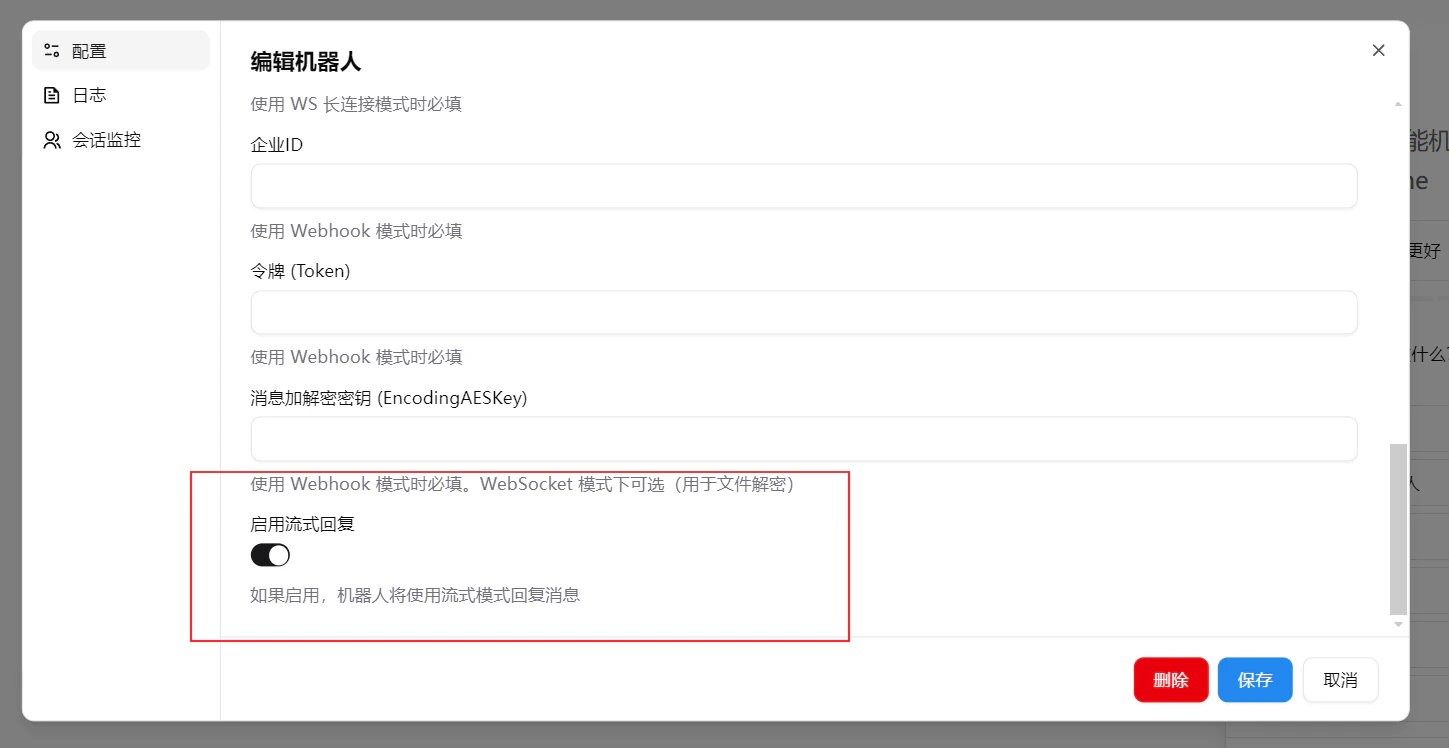
### 开启流式
针对部分本地搭建或者不支持流式的模型新增流式开关
复制企业微信机器人详情页的`Bot ID`和机器人的名称,回到LangBot管理页面,将部署的智能机器人的机器人Id改为复制的ID,并填入机器人名称,重新启动机器人。
### 开启流式
针对部分本地搭建或者不支持流式的模型新增流式开关
 ### 开始使用
进入企业微信,点击 `➕`,如图:
### 开始使用
进入企业微信,点击 `➕`,如图:
 点击`企业创建的`,选择创建的机器人,进入聊天界面。
同理,若想邀请机器人进入群聊,那么点击群聊的添加人员,在其中添加机器人。
### 效果图
点击`企业创建的`,选择创建的机器人,进入聊天界面。
同理,若想邀请机器人进入群聊,那么点击群聊的添加人员,在其中添加机器人。
### 效果图