> ## Documentation Index
> Fetch the complete documentation index at: https://docs.langbot.app/llms.txt
> Use this file to discover all available pages before exploring further.
# 宝塔面板部署
> 使用宝塔面板(aaPanel)一键部署 LangBot,通过 Web 控制面板安装开源 AI 机器人平台。
使用[宝塔面板](https://www.bt.cn/new/download.html?r=dk_LangBot)一键部署 LangBot。
如果你已经安装了宝塔,请更新到 **9.2.0** 及以上
使用[阿里云,服务器价格低至 38 元一年,更可以享受8折优惠](https://www.aliyun.com/minisite/goods?userCode=ys4ad8gs),一键安装宝塔更方便
## 安装宝塔
> 服务器系统推荐(来自宝塔):Debian 12,Ubuntu 22等
>
> 本文默认所述的是拥有公网IPv4地址的服务器,如果是家用机器没有公网 IP,可以通过下文中的内网来访问相关页面
打开[宝塔面板](https://www.bt.cn/new/download.html?r=dk_LangBot),使用宝塔官方提供的Linux面板安装脚本,根据自己使用的系统选择对应的脚本
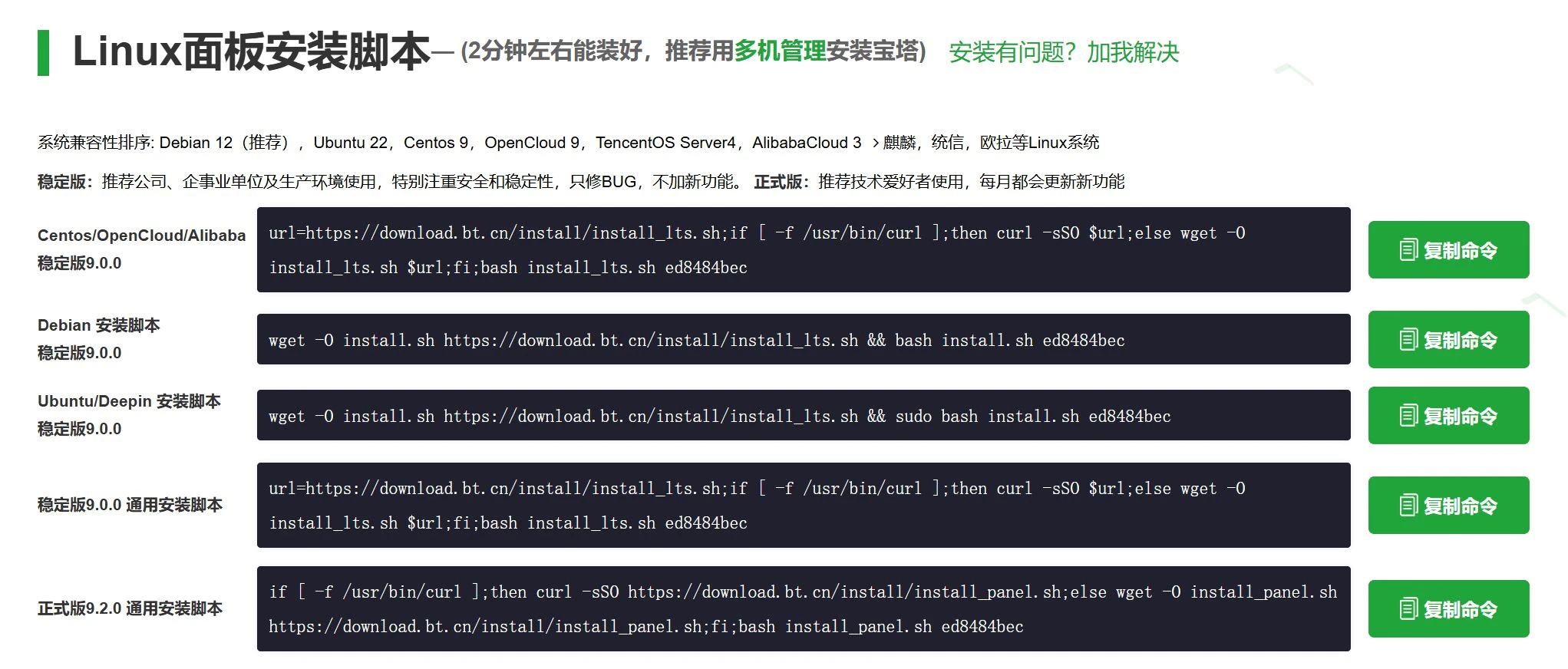 复制对应脚本,粘贴到服务器执行。
## 安装LangBot
等待一段时间后,宝塔安装完成
可以看到提示信息中类似这样的一段,将外网面板地址复制到浏览器打开。
复制对应脚本,粘贴到服务器执行。
## 安装LangBot
等待一段时间后,宝塔安装完成
可以看到提示信息中类似这样的一段,将外网面板地址复制到浏览器打开。
 首次打开应该会弹出`推荐安装套件`,无需安装,关闭跳过即可。
然后点击侧边栏的`docker`,首次会提示安装Docker和Docker Compose服务,点击立即安装,若已安装请忽略。
然后在`Docker -> 应用商店`,搜索`LangBot`(注意大小写),点击`安装`,使用默认配置。
稍等一段时间,可以看到提示名为`langbot_XXXX`的容器显示`运行中`
首次打开应该会弹出`推荐安装套件`,无需安装,关闭跳过即可。
然后点击侧边栏的`docker`,首次会提示安装Docker和Docker Compose服务,点击立即安装,若已安装请忽略。
然后在`Docker -> 应用商店`,搜索`LangBot`(注意大小写),点击`安装`,使用默认配置。
稍等一段时间,可以看到提示名为`langbot_XXXX`的容器显示`运行中`
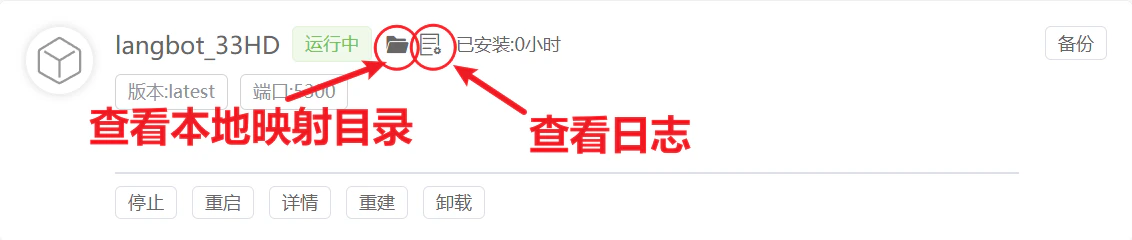 点击上图中红色圆圈查看运行日志
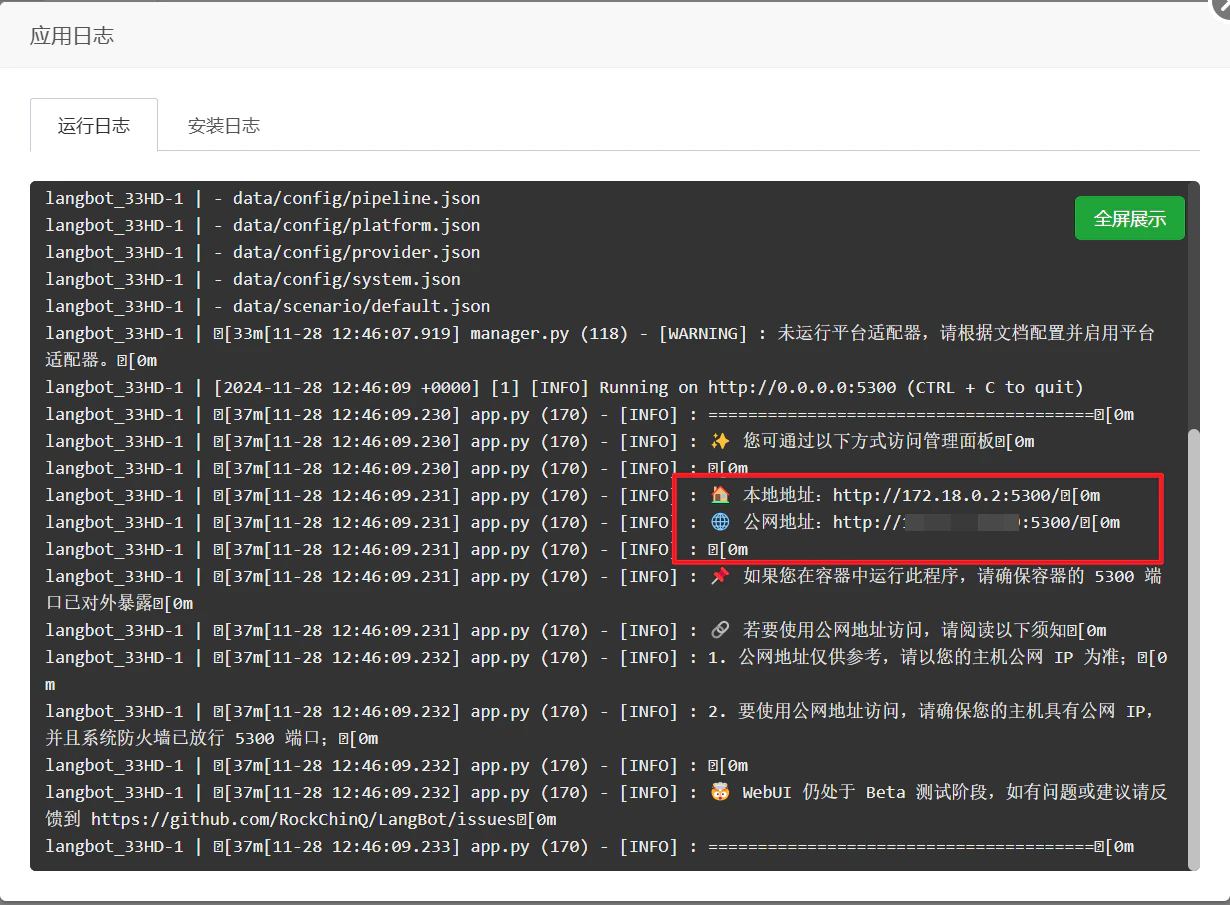 可以看到WebUI的配置页面(可视化配置页面)的外网和内网访问路径,复制公网地址,例如`http://xxx.xxx.xxx.xxx:5300`(xxx.xxx.xxx.xxx为宝塔面板IP,5300为端口号,可能变化,具体如图)
打开后输入管理员邮箱和密码,然后点击初始化。
然后就可以在可视化界面进行配置了。
接下来请继续阅读[配置消息平台](/zh/usage/platforms/readme)页。
可以看到WebUI的配置页面(可视化配置页面)的外网和内网访问路径,复制公网地址,例如`http://xxx.xxx.xxx.xxx:5300`(xxx.xxx.xxx.xxx为宝塔面板IP,5300为端口号,可能变化,具体如图)
打开后输入管理员邮箱和密码,然后点击初始化。
然后就可以在可视化界面进行配置了。
接下来请继续阅读[配置消息平台](/zh/usage/platforms/readme)页。