> ## Documentation Index
> Fetch the complete documentation index at: https://docs.langbot.app/llms.txt
> Use this file to discover all available pages before exploring further.
# 1Panel部署
> 使用 1Panel 一键部署 LangBot,无需命令行即可安装开源 AI 聊天机器人平台。
使用[1Panel](https://www.bt.cn/new/download.html?r=dk_LangBot)一键部署 LangBot。
使用[阿里云,服务器价格低至 38 元一年,更可以享受8折优惠](https://www.aliyun.com/minisite/goods?userCode=ys4ad8gs),一键安装1Panel更方便
## 安装1Panel
> 服务器系统推荐(来自1Panel):Debian 12,Ubuntu 22等
>
> 本文默认所述的是拥有公网IPv4地址的服务器,如果是家用机器没有公网 IP,可以通过下文中的内网来访问相关页面
打开[1Panel](https://www.bt.cn/new/download.html?r=dk_LangBot),使用1Panel官方提供的Linux面板安装脚本,根据自己使用的系统选择对应的脚本
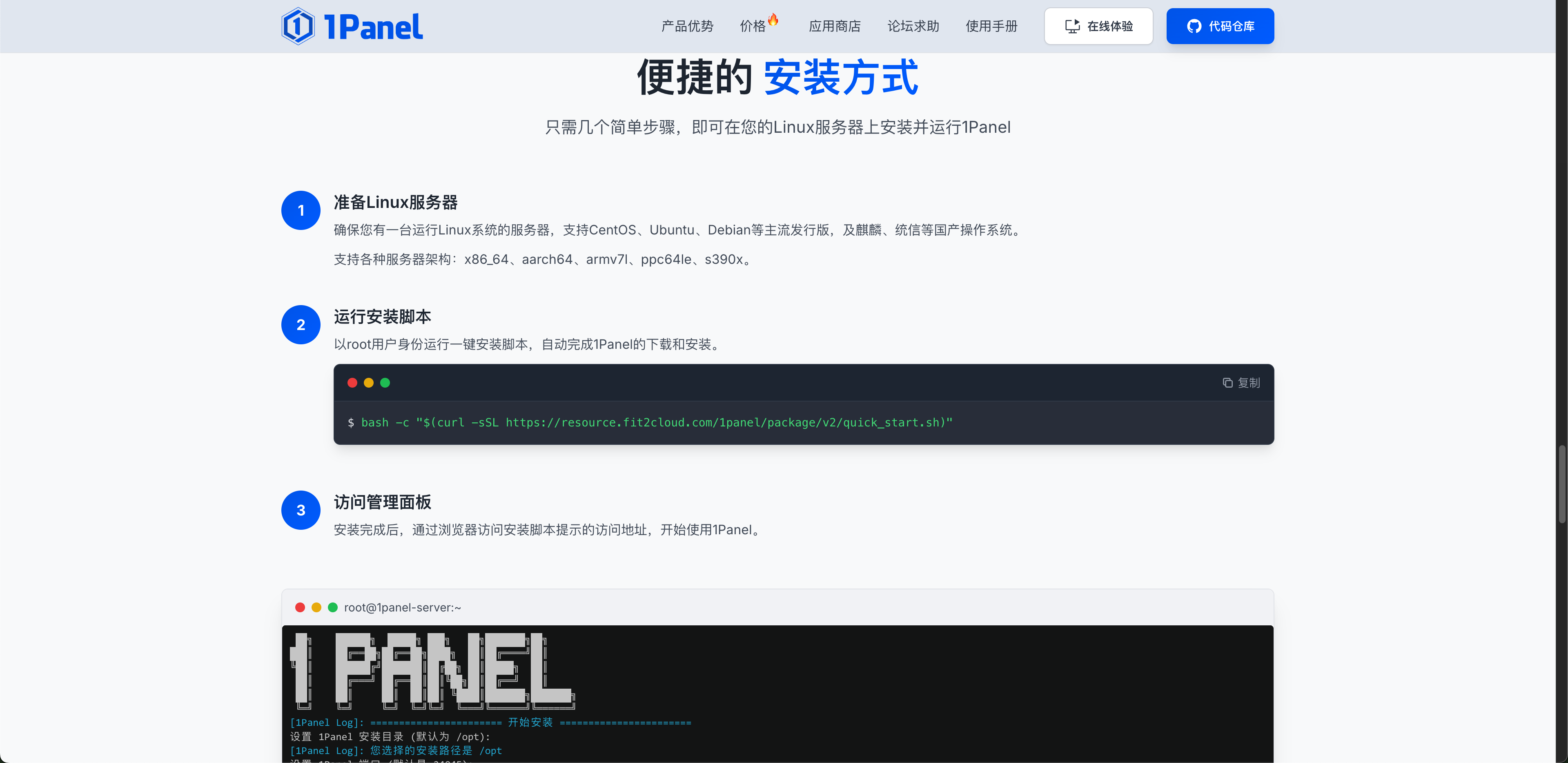 复制对应脚本,粘贴到服务器执行。
等待一段时间后,1Panel安装完成
然后将`外部地址`复制到浏览器打开。
## 安装LangBot
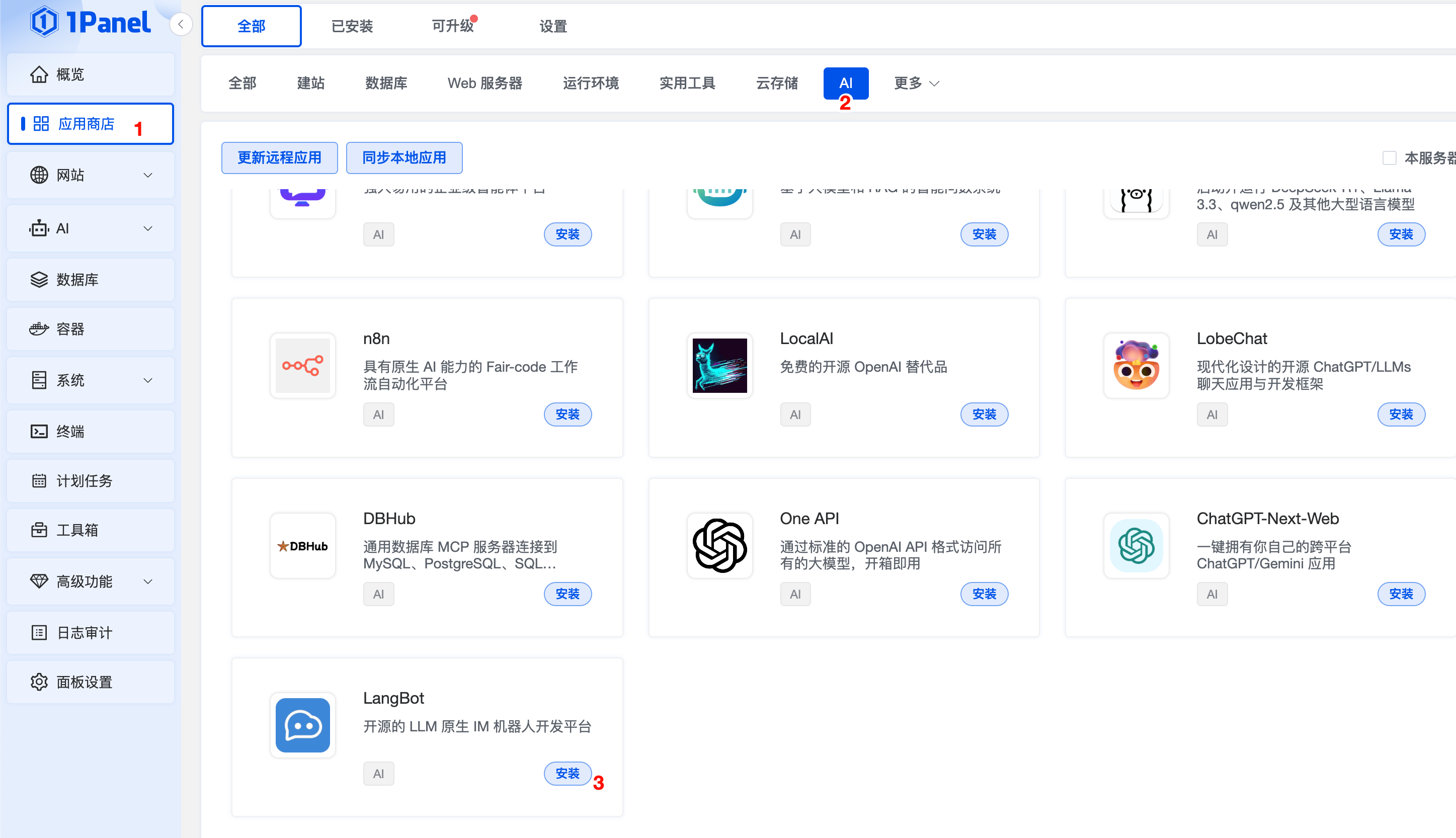
打开`应用商店`,选择`AI`类别,点击安装 LangBot
复制对应脚本,粘贴到服务器执行。
等待一段时间后,1Panel安装完成
然后将`外部地址`复制到浏览器打开。
## 安装LangBot
打开`应用商店`,选择`AI`类别,点击安装 LangBot
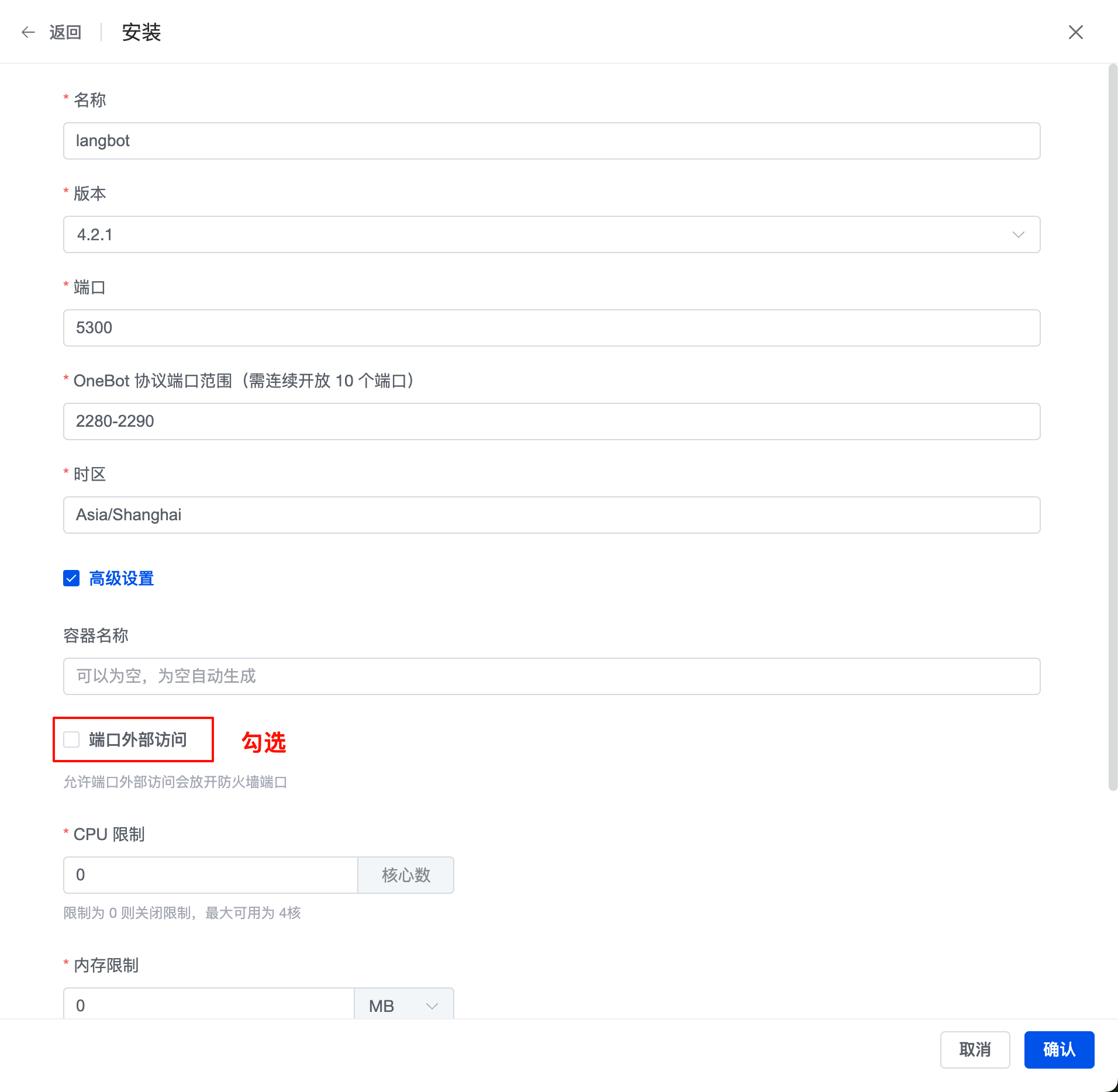
 勾选`端口外部访问`,点击确认即可
 稍等片刻,安装完成
点击左侧`容器`,选择`容器`类目,即可看到 LangBot 容器栏
稍等片刻,安装完成
点击左侧`容器`,选择`容器`类目,即可看到 LangBot 容器栏
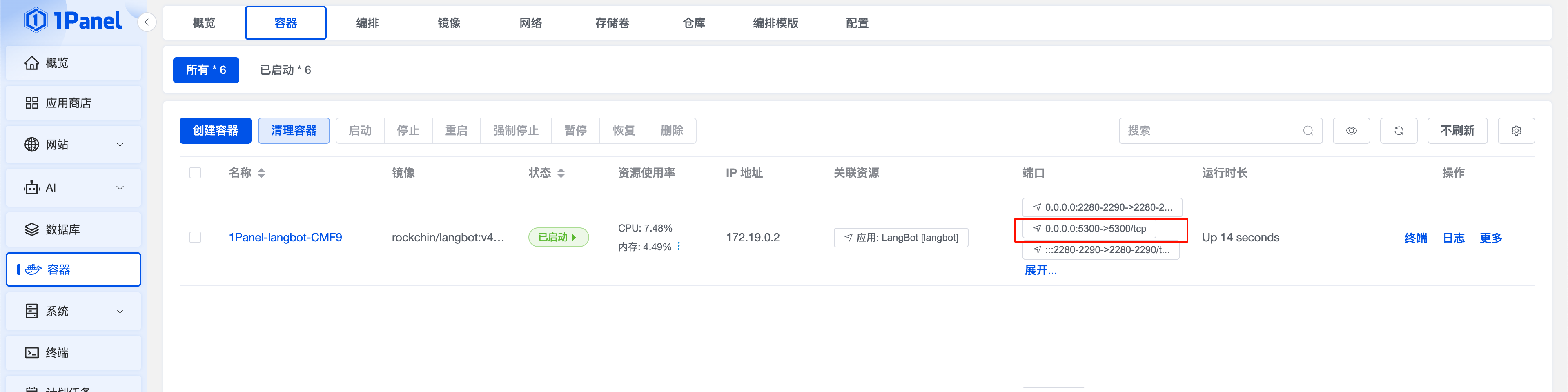 复制服务器公网地址,例如`http://xxx.xxx.xxx.xxx:5300`(xxx.xxx.xxx.xxx为1Panel 明白所在服务器的 IP,5300为端口号)
打开后输入管理员邮箱和密码,然后点击初始化。
然后就可以在可视化界面进行配置了。
接下来请继续阅读[配置消息平台](/zh/usage/platforms/readme)页。
复制服务器公网地址,例如`http://xxx.xxx.xxx.xxx:5300`(xxx.xxx.xxx.xxx为1Panel 明白所在服务器的 IP,5300为端口号)
打开后输入管理员邮箱和密码,然后点击初始化。
然后就可以在可视化界面进行配置了。
接下来请继续阅读[配置消息平台](/zh/usage/platforms/readme)页。