> ## Documentation Index
> Fetch the complete documentation index at: https://docs.langbot.app/llms.txt
> Use this file to discover all available pages before exploring further.
# 個人 WeChat(OpenClaw)
> LangBot で個人 WeChat AI ボットを構築。大規模言語モデルを WeChat アカウントに接続。
## はじめに
[OpenClaw](https://github.com/dingxiang-me/OpenClaw-Wechat) はオープンソースの AI Agent フレームワークです。OpenClaw WeChat アダプターを使用することで、LangBot を個人の WeChat アカウントに接続でき、単一チャット、ストリーミング出力、ホワイトリスト制御などの機能をサポートしています。
## クイックスキャンログイン(おすすめ)
LangBot は WeChat のワンクリックスキャンログインをサポートしており、クレデンシャルを自動入力します。手動でのトークン入力は不要です。
スマートフォンの WeChat バージョンが **8.0.69** 以上であることを確認してください。それ以外の場合、正常に動作しない可能性があります。
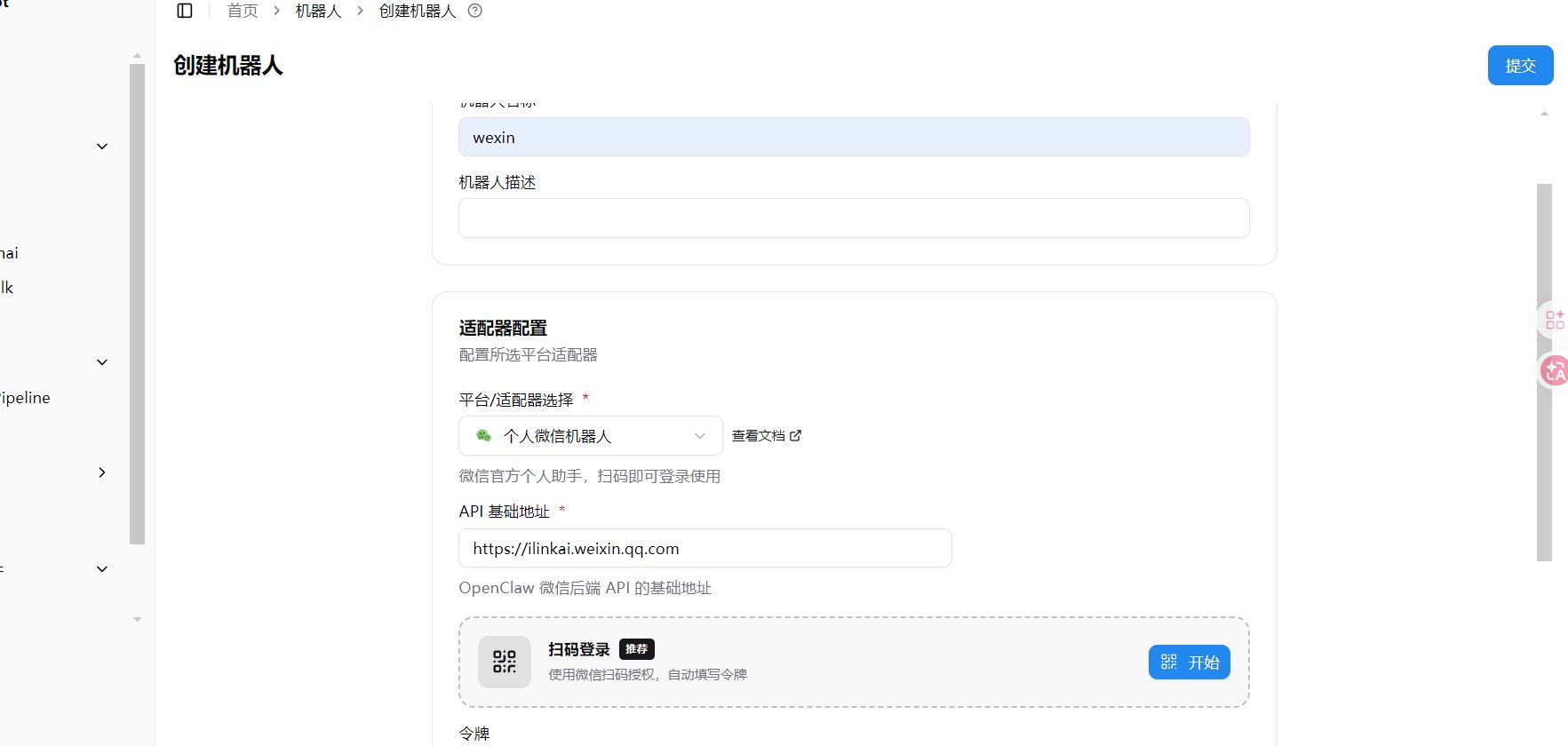
1. LangBot WebUI を開き、**ボット > ボットを作成** に移動
2. ボット名を入力し、プラットフォーム/アダプターで `個人微信ボット` を選択
3. 表示される **スキャンログイン** エリアで **開始** ボタンをクリック
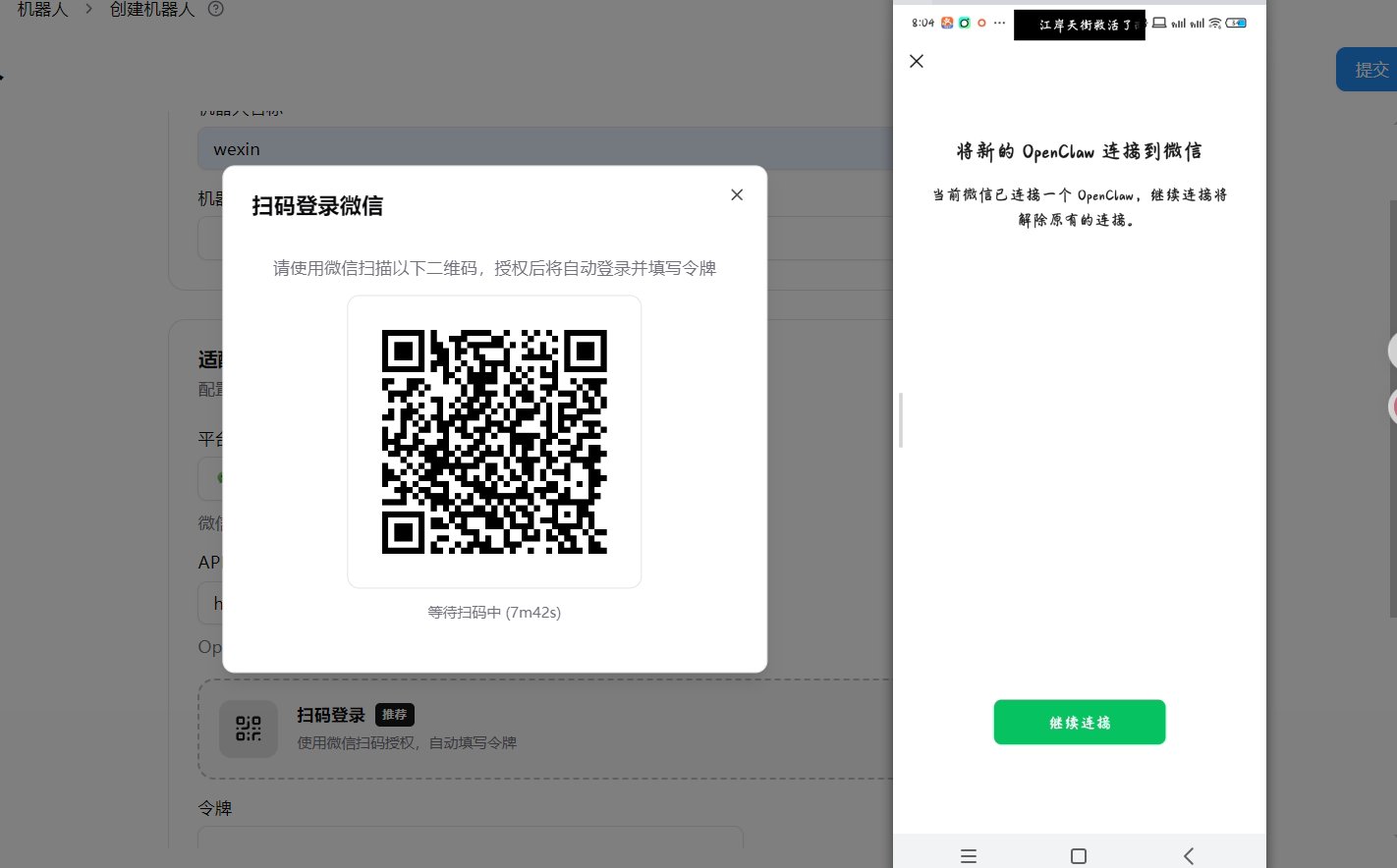
 4. WeChat で QR コードをスキャンし、手机端で「新しい OpenClaw を WeChat に接続」をタップし **続行** をクリック
 5. 認証成功後、トークンとアカウント ID がフォームに**自動入力**されます
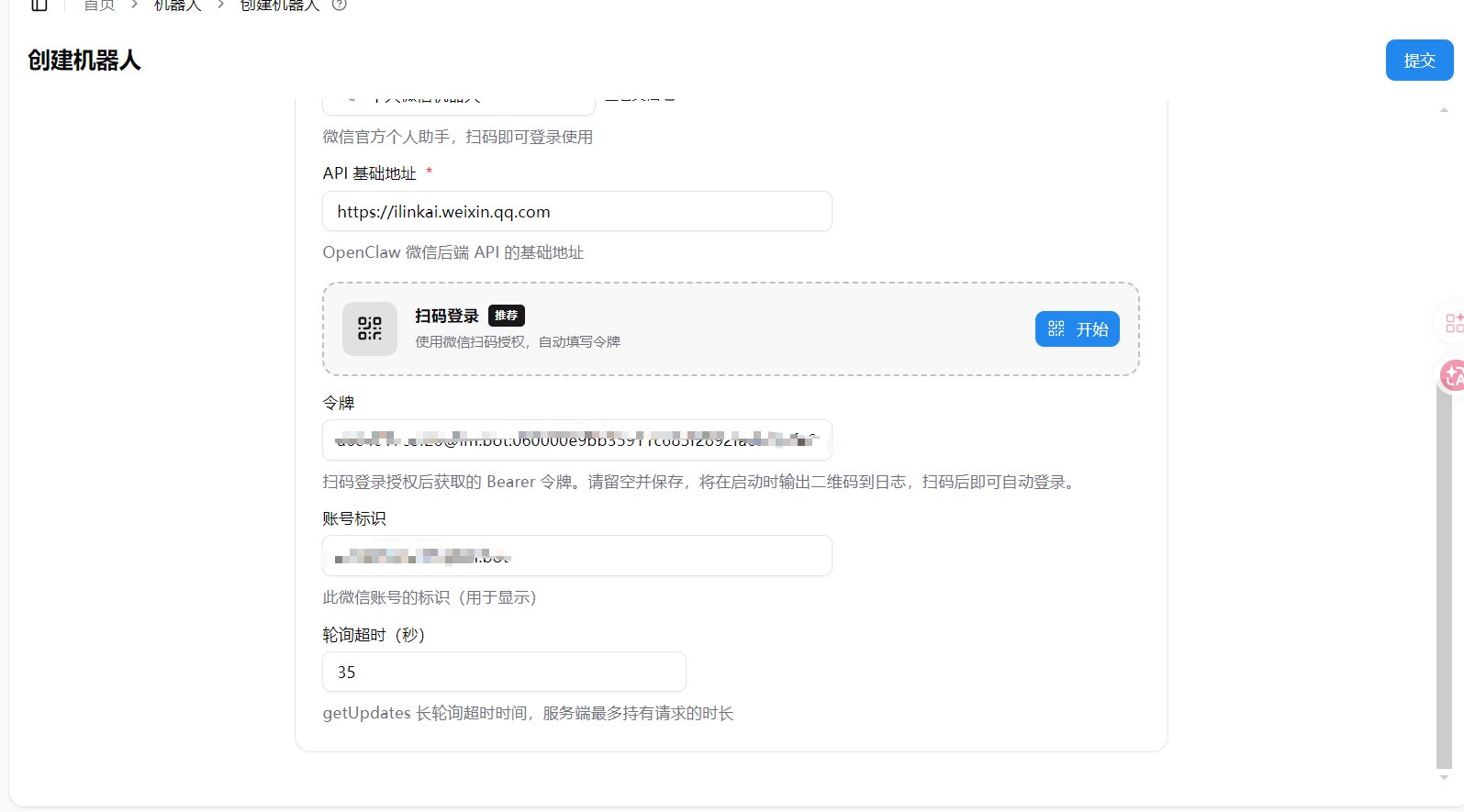 6. **送信** をクリックして完了
接続に失敗した場合は、WeChat のバージョンが 8.0.69 以上であることを確認してください。
### ログイン成功の確認
スキャンが成功すると、スマートフォンに ClawBot のチャット画面が表示されます。
6. **送信** をクリックして完了
接続に失敗した場合は、WeChat のバージョンが 8.0.69 以上であることを確認してください。
### ログイン成功の確認
スキャンが成功すると、スマートフォンに ClawBot のチャット画面が表示されます。
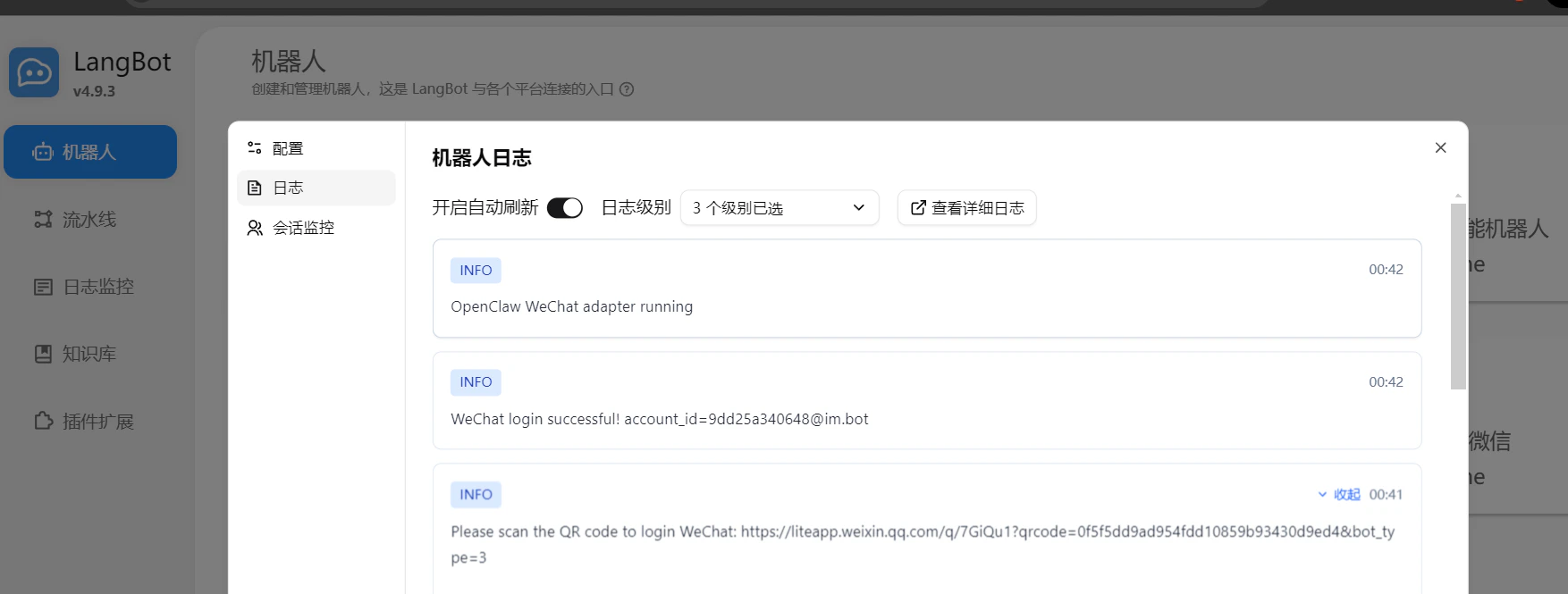
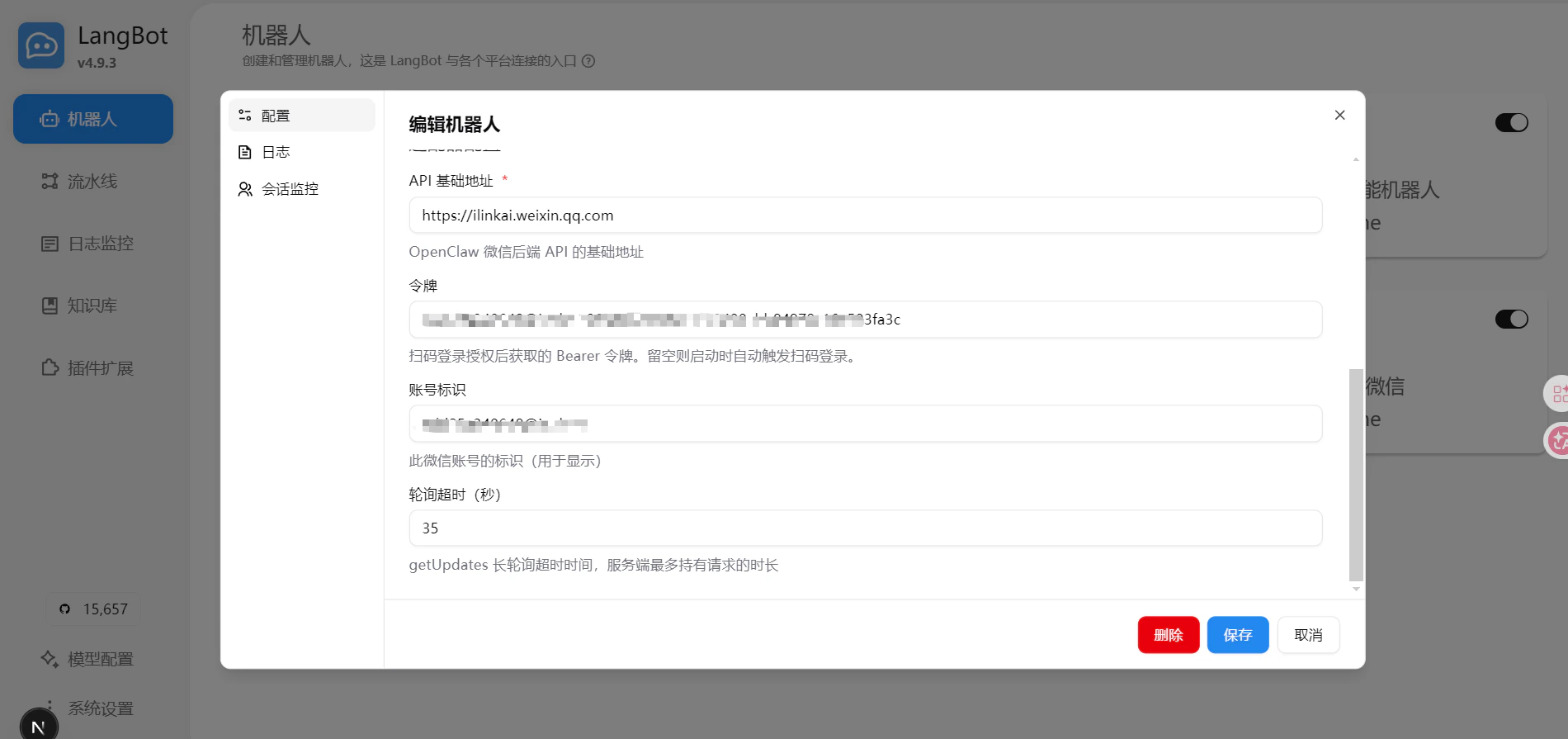
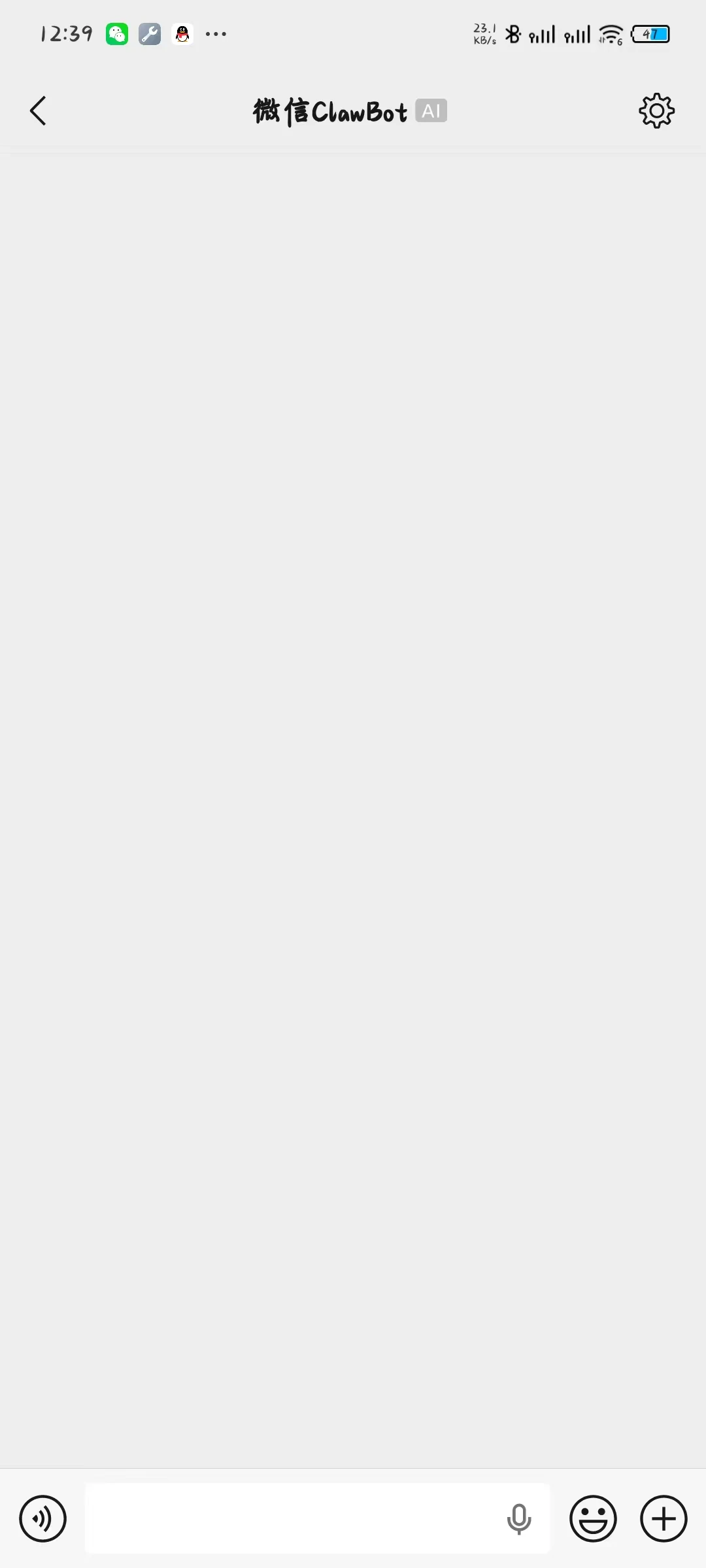 同時に、LangBot のログに接続成功のメッセージが表示され、設定ページのトークンとアカウントが自動的に更新されます。これでログイン成功です。
 ## 使い方
ログイン成功後、スキャンしたアカウントで先ほど入った ClawBot のチャット画面に話しかけると、LangBot が自動的に返信します。
## 使い方
ログイン成功後、スキャンしたアカウントで先ほど入った ClawBot のチャット画面に話しかけると、LangBot が自動的に返信します。