> ## Documentation Index
> Fetch the complete documentation index at: https://docs.langbot.app/llms.txt
> Use this file to discover all available pages before exploring further.

# LINE

> LangBot で LINE AI ボットを構築。大規模言語モデルを LINE のチャットや公式アカウントに接続。

この記事では、LangBot を LINE プラットフォームと接続して LINE ボット機能を実装する方法について説明します。

## LINE ボットの作成

### LINE 開発者アカウントの登録

1. [LINE Developers ウェブサイト](https://developers.line.biz/)にアクセスし、LINE アカウントでログインします
2. ログイン後、開発者コンソールに入ります

### Provider と Channel の作成

> [Developer Console](https://developers.line.biz/console)

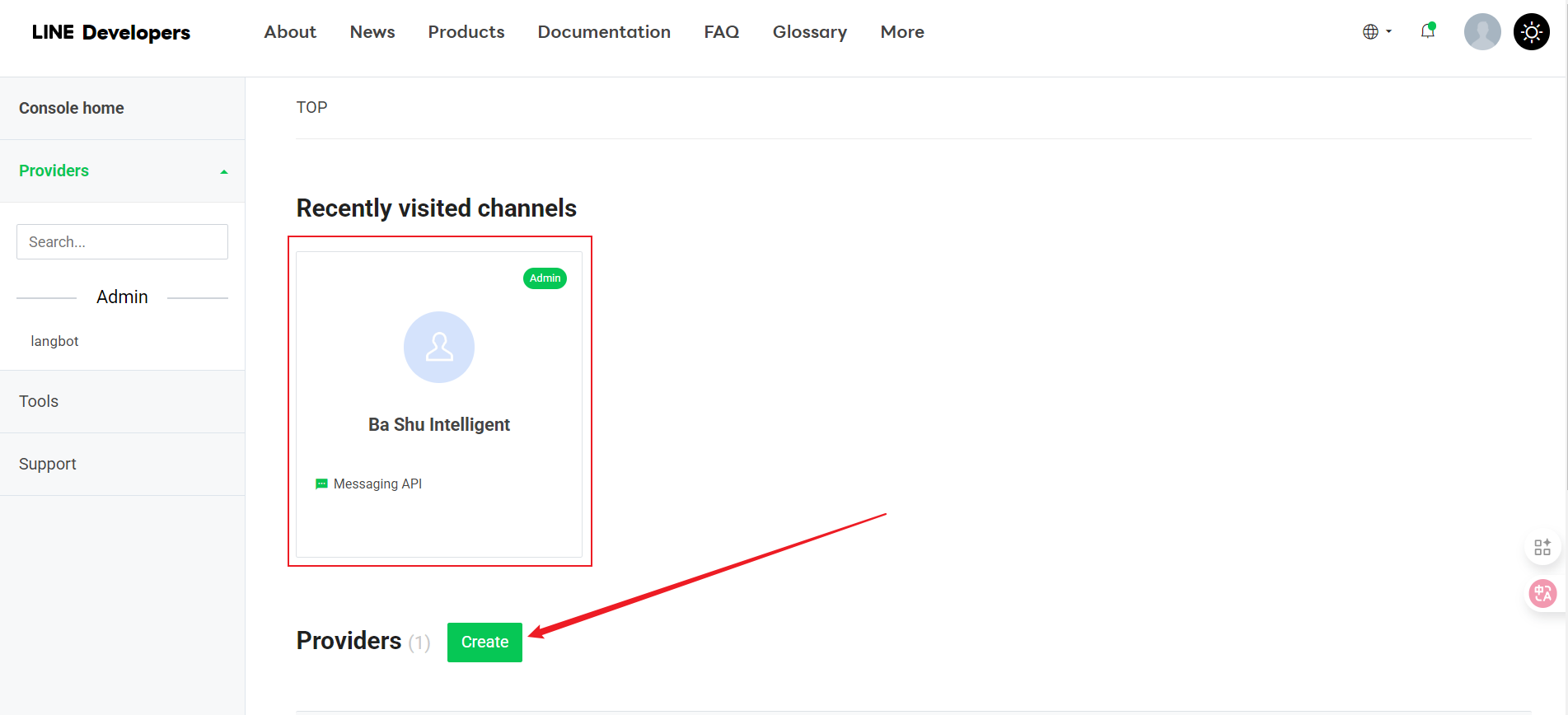
1. 開発者コンソールで、新しい Provider を作成します（ない場合）
   <img src="https://mintcdn.com/langbot/7LP8IdEMby3DrX2X/images/zh/deploy/bots/line/line01.png?fit=max&auto=format&n=7LP8IdEMby3DrX2X&q=85&s=a13b8620a00caa05fccbc30af46677c2" alt="alt text" width="1903" height="868" data-path="images/zh/deploy/bots/line/line01.png" />

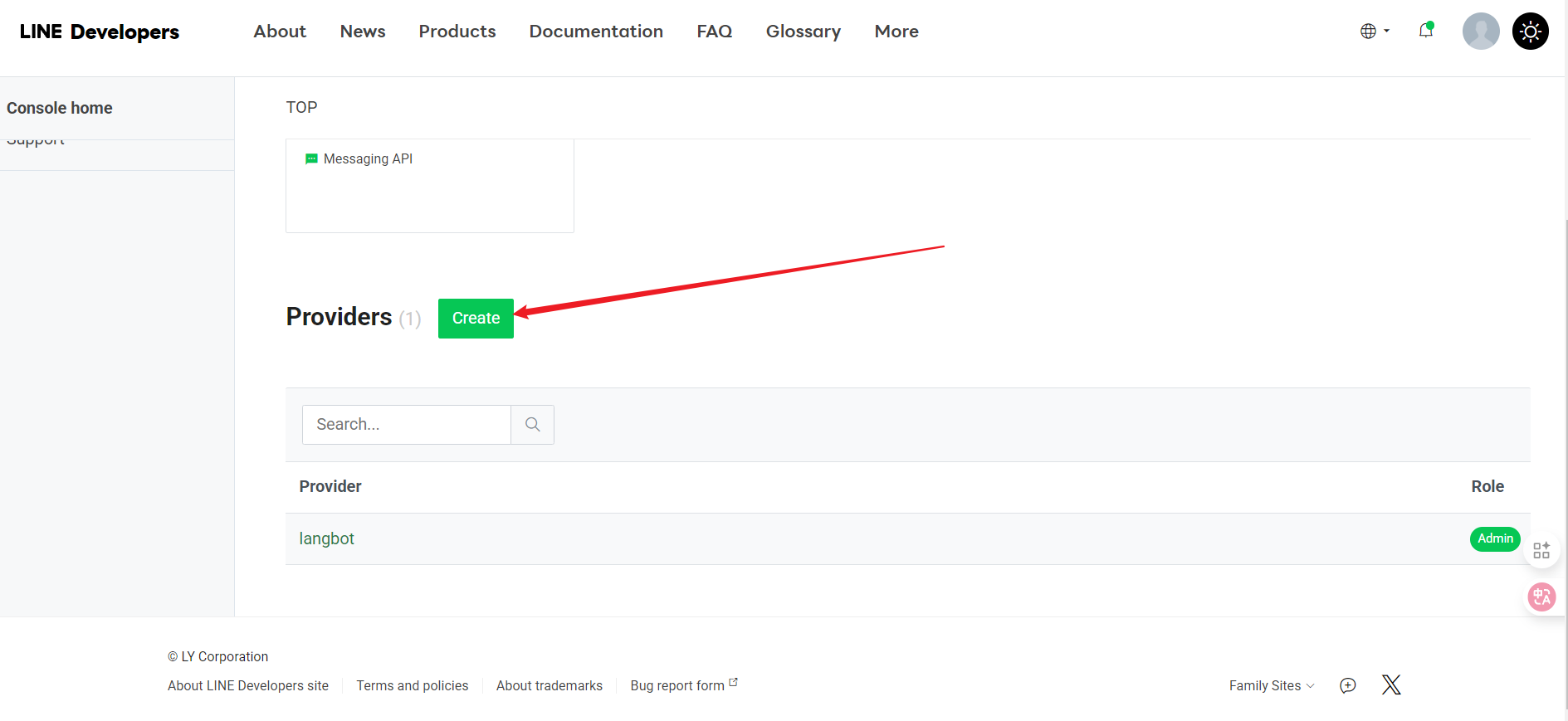
2. Provider の下で、「Create」をクリックします
   <img src="https://mintcdn.com/langbot/7LP8IdEMby3DrX2X/images/zh/deploy/bots/line/line02.png?fit=max&auto=format&n=7LP8IdEMby3DrX2X&q=85&s=b7f5bd9332592c4603b2bf214f418d94" alt="alt text" width="1889" height="869" data-path="images/zh/deploy/bots/line/line02.png" />

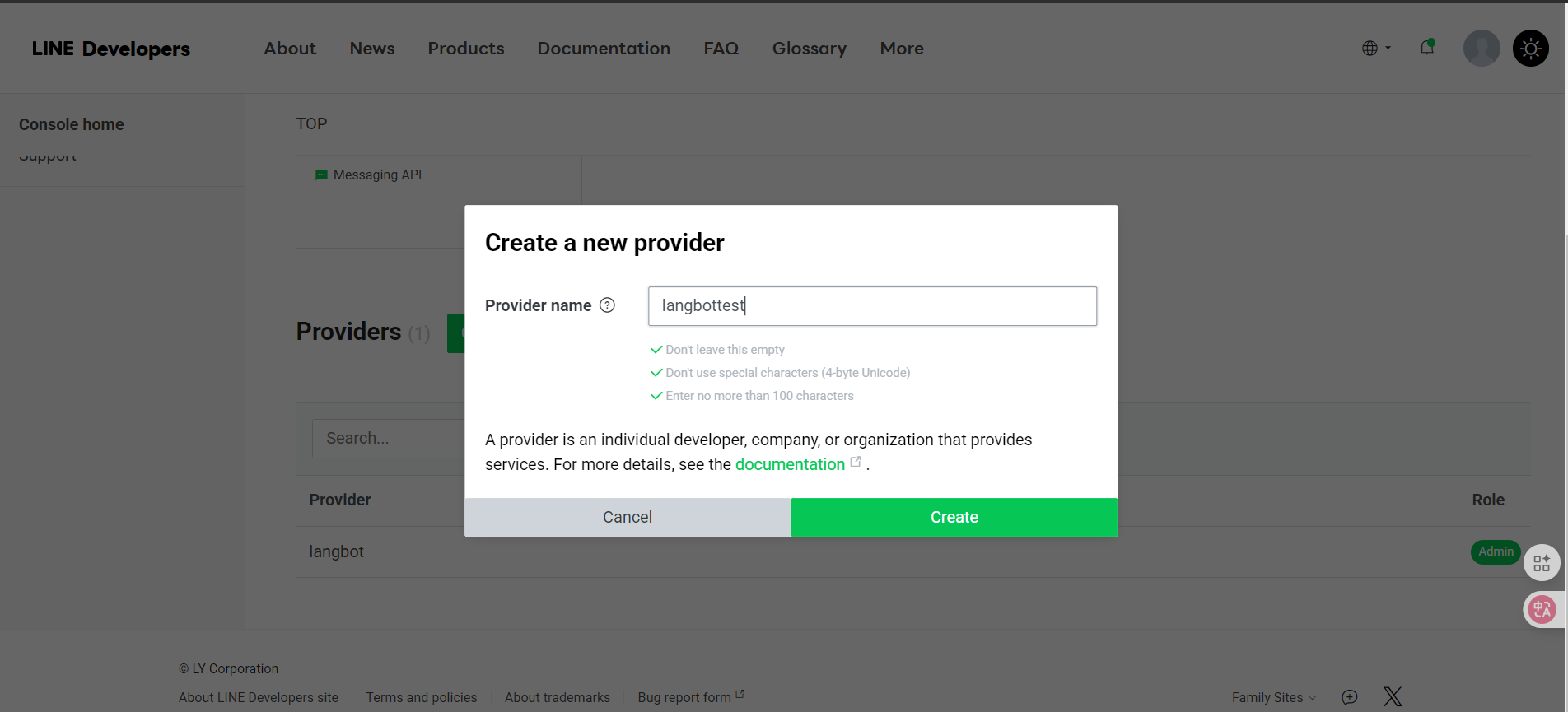
3. 名前を入力して Create をクリックします
   <img src="https://mintcdn.com/langbot/7LP8IdEMby3DrX2X/images/zh/deploy/bots/line/line03.png?fit=max&auto=format&n=7LP8IdEMby3DrX2X&q=85&s=af69cbd6e8cd056553a6a4e94c435e1c" alt="alt text" width="1904" height="865" data-path="images/zh/deploy/bots/line/line03.png" />

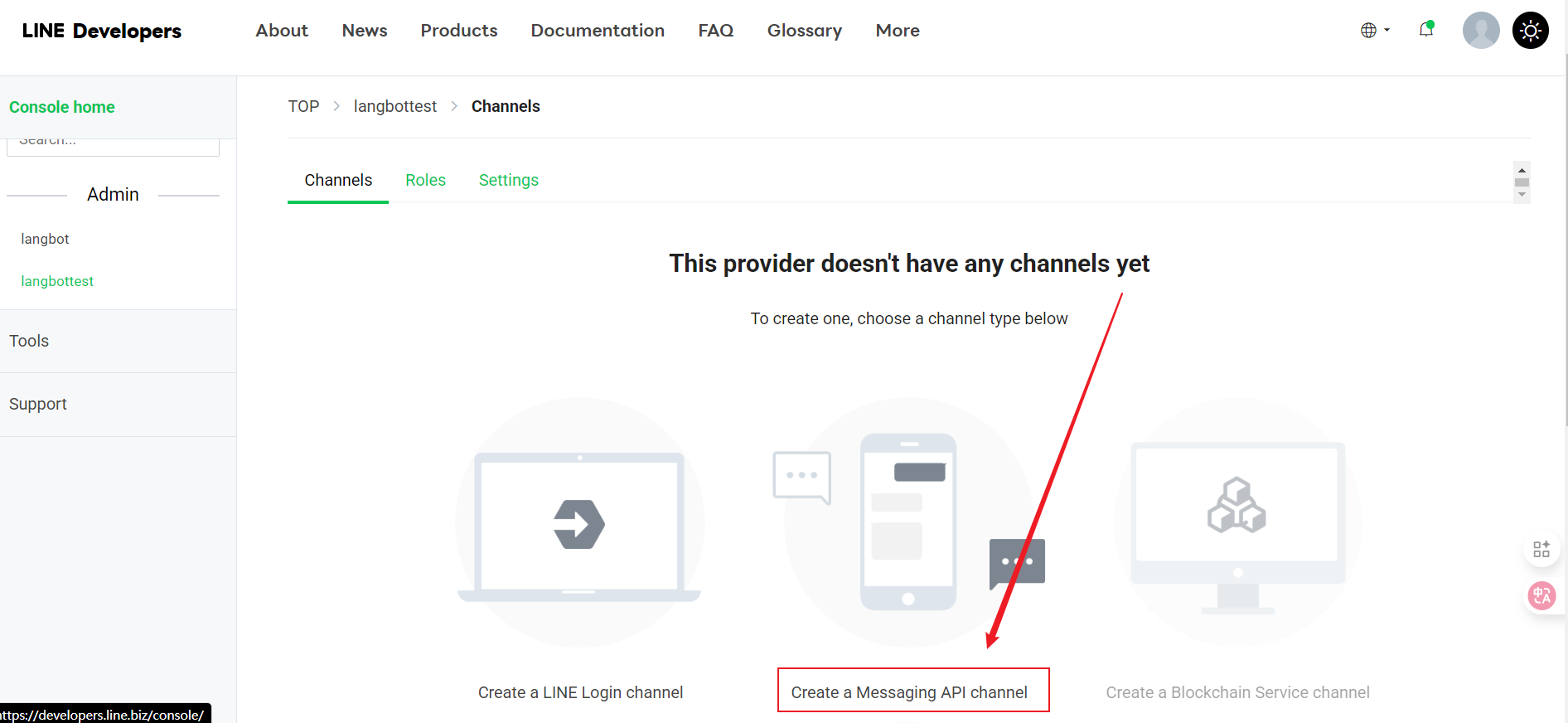
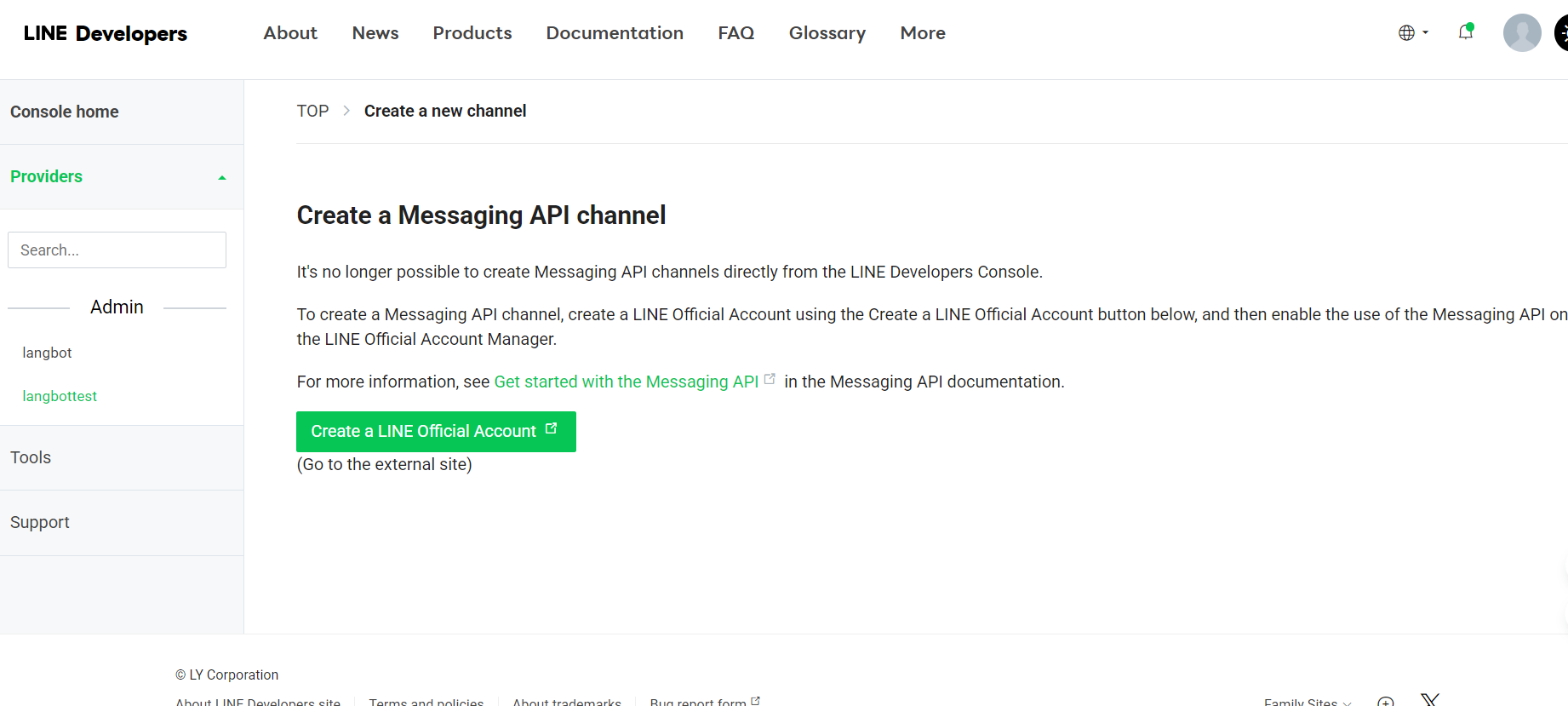
4. リダイレクト後、Message API の作成を選択します
   <img src="https://mintcdn.com/langbot/7LP8IdEMby3DrX2X/images/zh/deploy/bots/line/line04.png?fit=max&auto=format&n=7LP8IdEMby3DrX2X&q=85&s=7415f81d8a56491b7dd8ed810c7ed5aa" alt="alt text" width="1892" height="872" data-path="images/zh/deploy/bots/line/line04.png" />

* Message API の作成をクリックして続行します
  <img src="https://mintcdn.com/langbot/7LP8IdEMby3DrX2X/images/zh/deploy/bots/line/line05.png?fit=max&auto=format&n=7LP8IdEMby3DrX2X&q=85&s=1eab450322616bc97ad2441080b483d9" alt="alt text" width="1842" height="829" data-path="images/zh/deploy/bots/line/line05.png" />
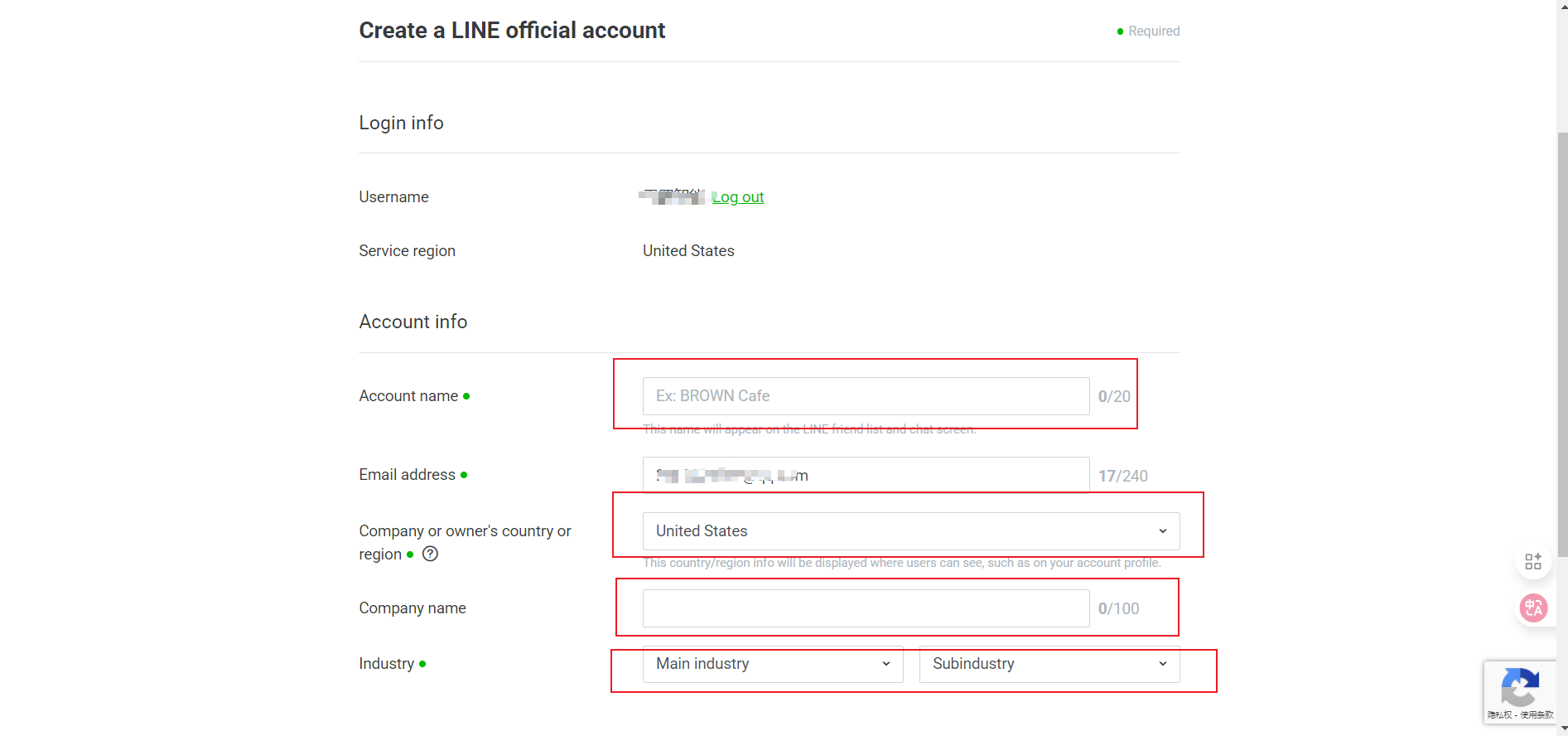
* リダイレクト後、基本情報を入力します
  <img src="https://mintcdn.com/langbot/7LP8IdEMby3DrX2X/images/zh/deploy/bots/line/line06.png?fit=max&auto=format&n=7LP8IdEMby3DrX2X&q=85&s=f7e363f62e0eb8c73bcda0809f88ba7e" alt="alt text" width="1893" height="888" data-path="images/zh/deploy/bots/line/line06.png" />
  * Channel Name
  * Channel Description
  * Category
  * Subcategory
  * Email Address

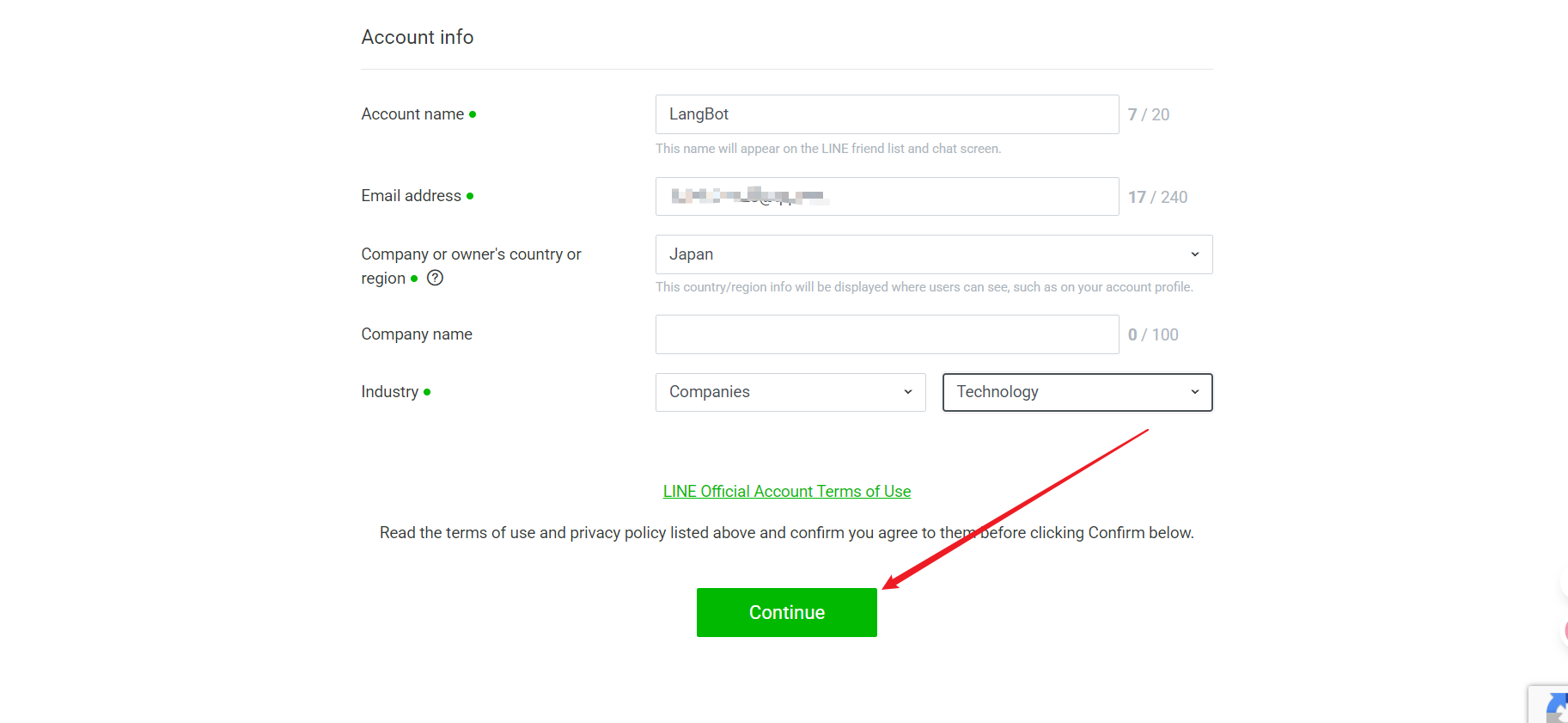
5. すべての情報を入力したら、「Continue」をクリックして作成します
   <img src="https://mintcdn.com/langbot/7LP8IdEMby3DrX2X/images/zh/deploy/bots/line/line07.png?fit=max&auto=format&n=7LP8IdEMby3DrX2X&q=85&s=daaa875ff01affce4d567b207f5013b1" alt="alt text" width="1825" height="841" data-path="images/zh/deploy/bots/line/line07.png" />
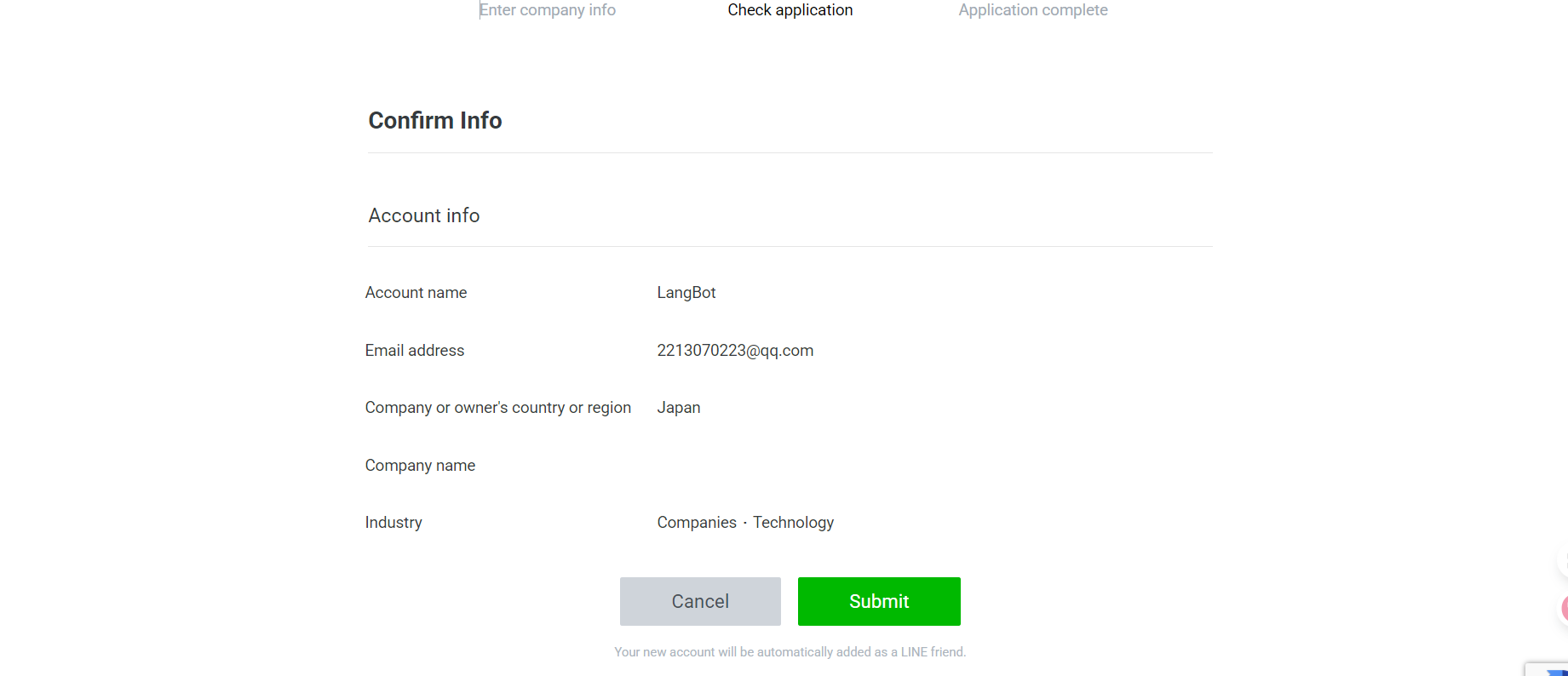
6. 入力した情報を確認し、問題がなければ Submit をクリックします
   <img src="https://mintcdn.com/langbot/7LP8IdEMby3DrX2X/images/zh/deploy/bots/line/line08.png?fit=max&auto=format&n=7LP8IdEMby3DrX2X&q=85&s=e2e93e568c9c5d1c616329dc3b0a56a1" alt="alt text" width="1841" height="794" data-path="images/zh/deploy/bots/line/line08.png" />
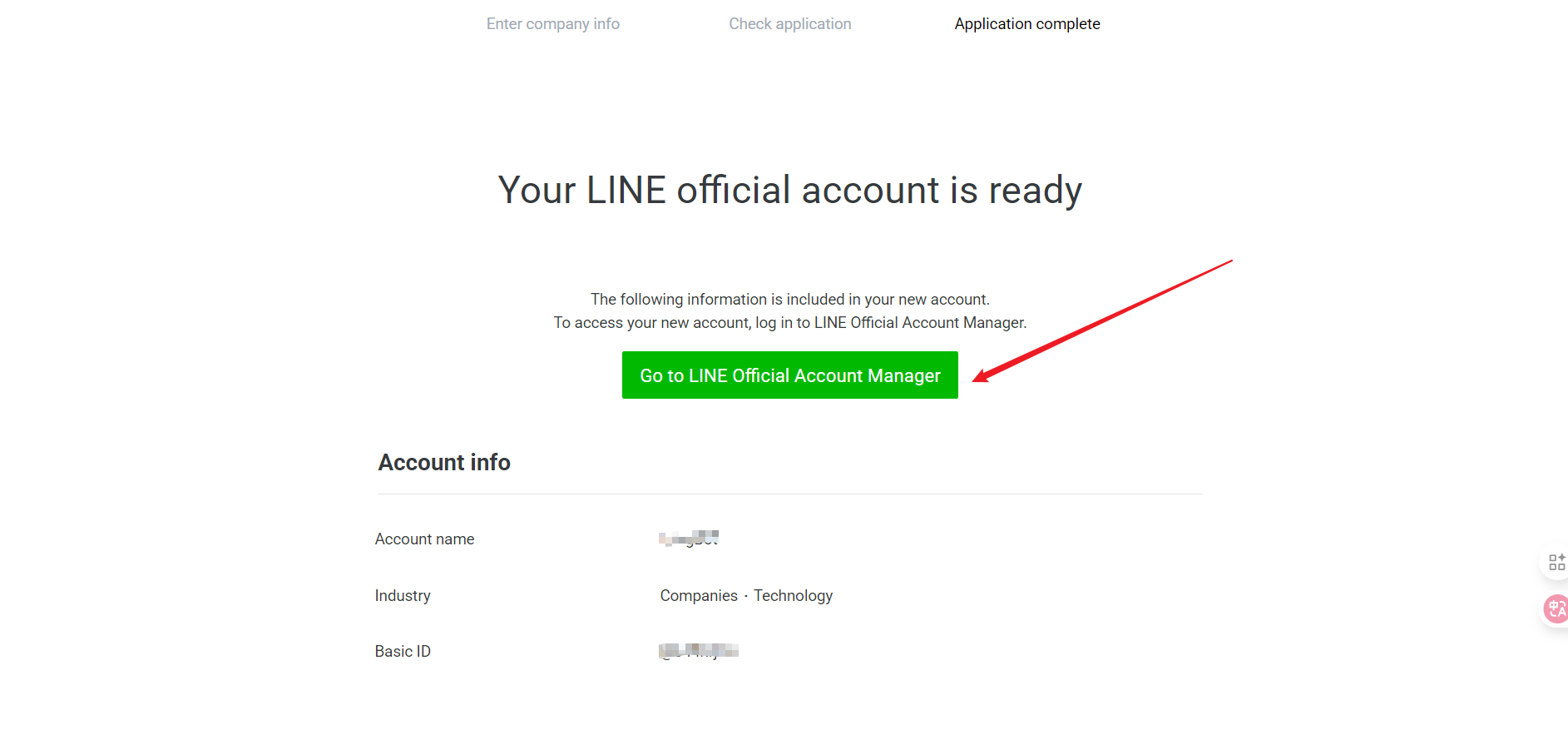
7. 正常に作成されました。使用に進みます
   <img src="https://mintcdn.com/langbot/7LP8IdEMby3DrX2X/images/zh/deploy/bots/line/line09.png?fit=max&auto=format&n=7LP8IdEMby3DrX2X&q=85&s=2a676d5901bacc1bcfe7dd3e0273f51c" alt="alt text" width="1885" height="877" data-path="images/zh/deploy/bots/line/line09.png" />

### 設定情報の取得

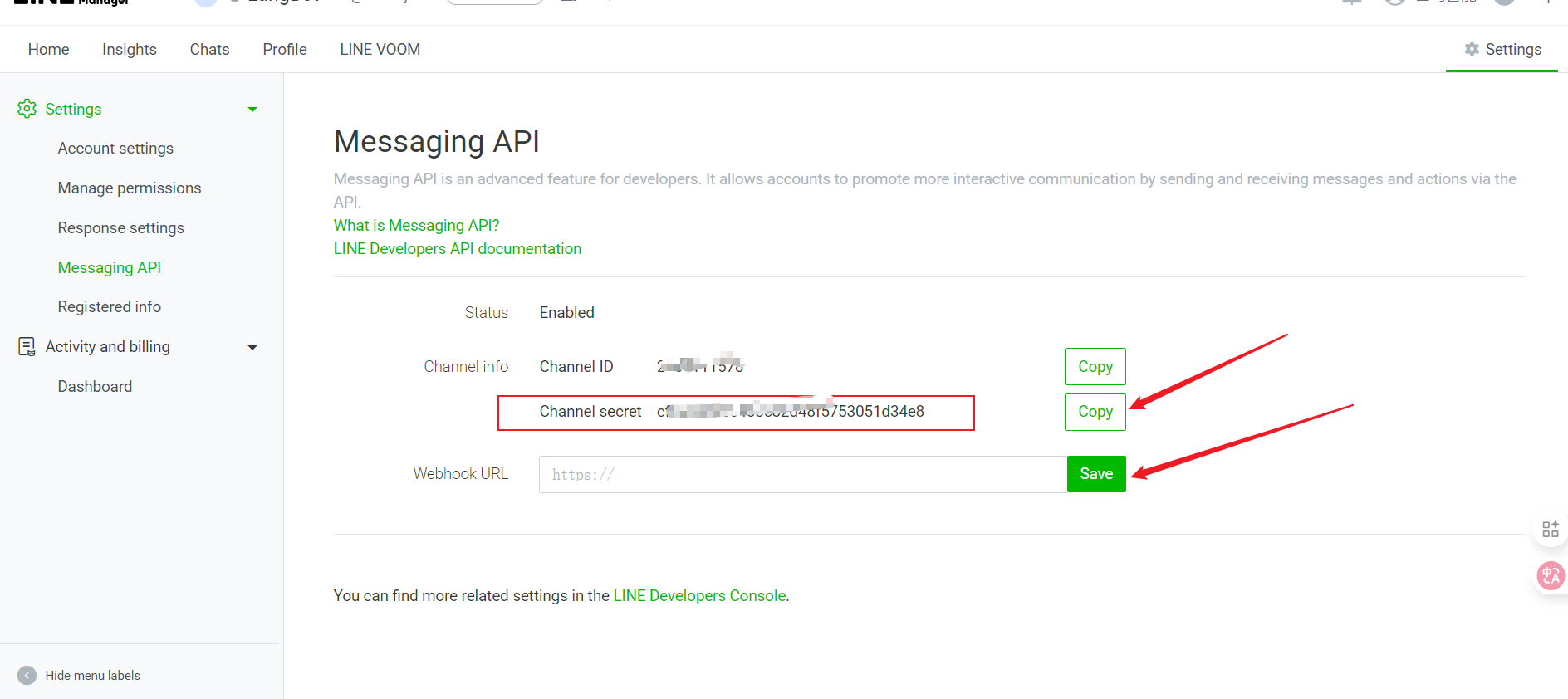
作成後、次の重要な情報を取得します。記録してください：

1. Channel Secret

> [使用をクリックした後のページ](https://manager.line.biz/account)

* Settings を選択
  <img src="https://mintcdn.com/langbot/7LP8IdEMby3DrX2X/images/zh/deploy/bots/line/line09.png?fit=max&auto=format&n=7LP8IdEMby3DrX2X&q=85&s=2a676d5901bacc1bcfe7dd3e0273f51c" alt="alt text" width="1885" height="877" data-path="images/zh/deploy/bots/line/line09.png" />
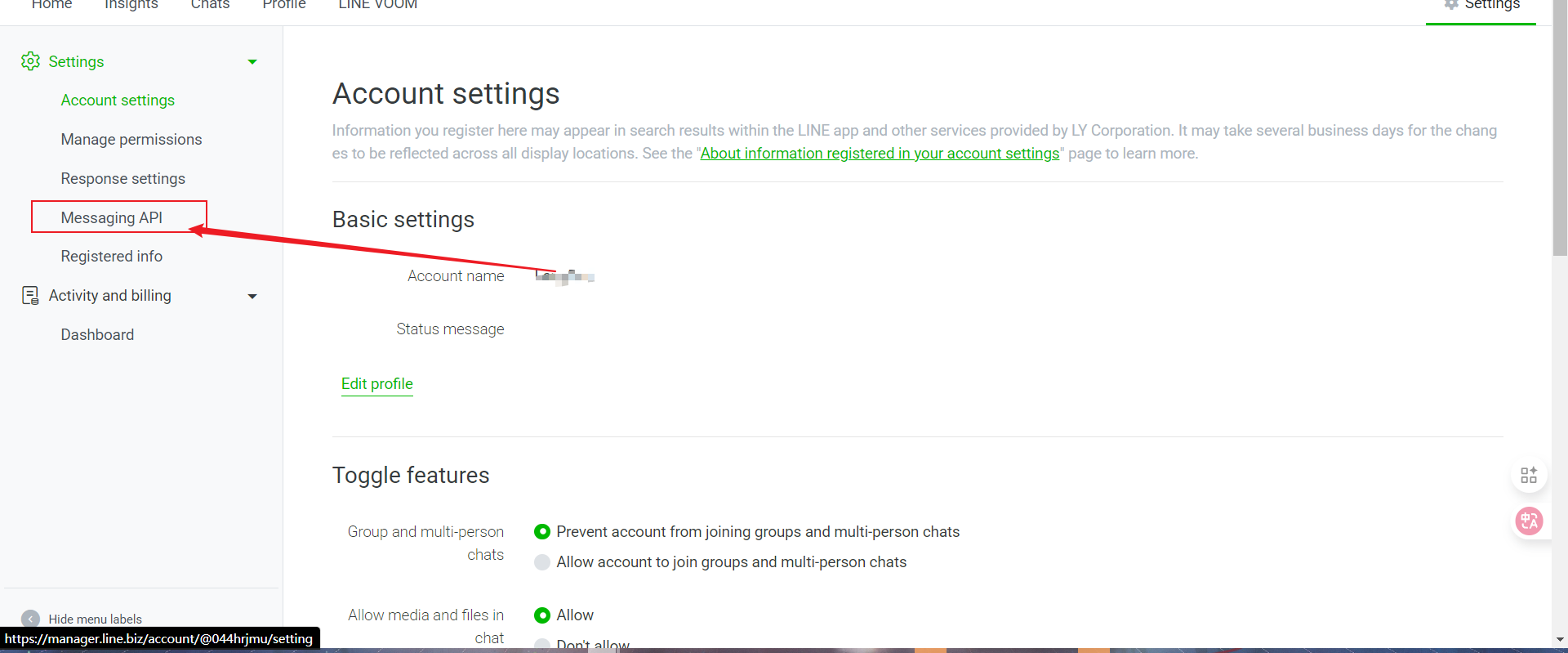
* Message API をクリック
  <img src="https://mintcdn.com/langbot/7LP8IdEMby3DrX2X/images/zh/deploy/bots/line/line11.png?fit=max&auto=format&n=7LP8IdEMby3DrX2X&q=85&s=75e2fcf21b5a10f00cf37c37ff866f86" alt="alt text" width="1920" height="799" data-path="images/zh/deploy/bots/line/line11.png" />
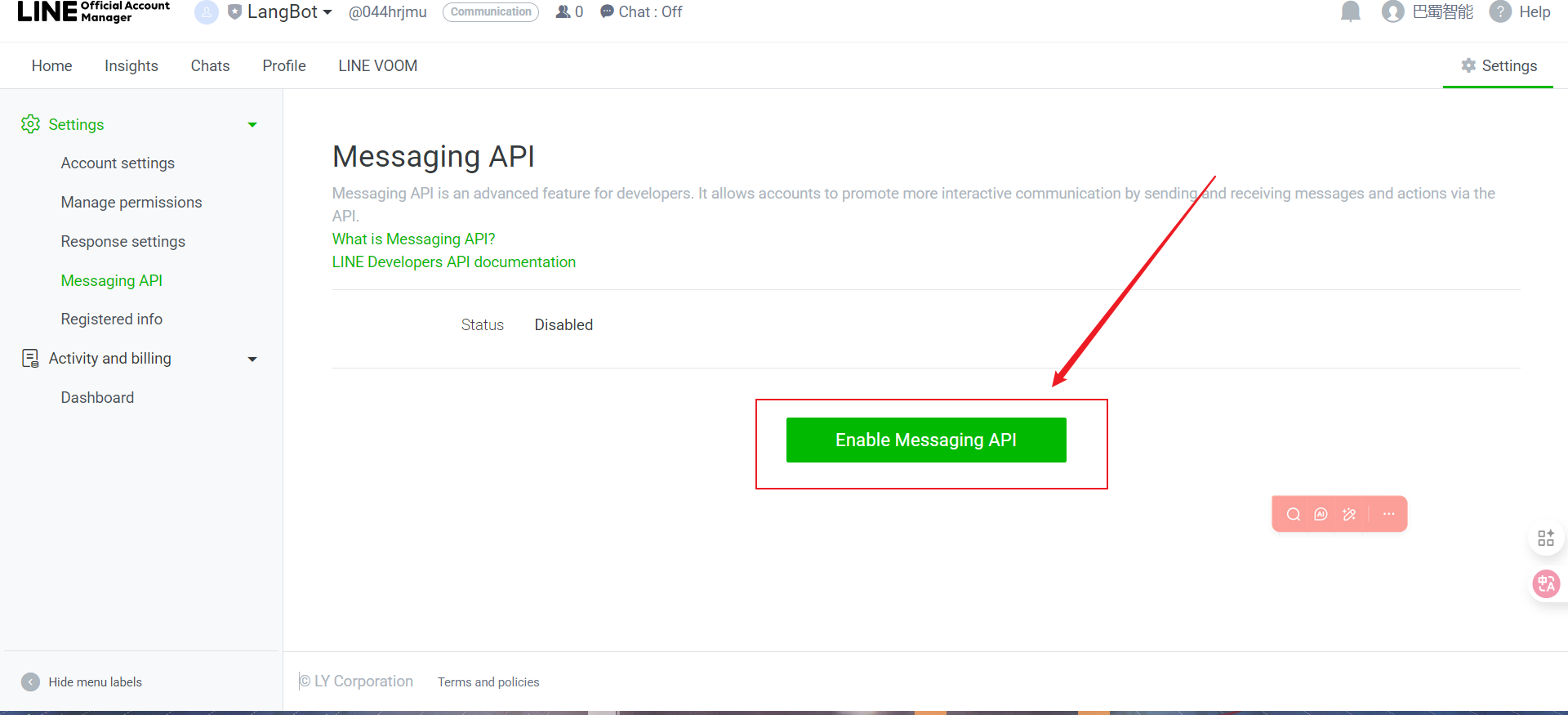
* Message API を有効にします
  <img src="https://mintcdn.com/langbot/7LP8IdEMby3DrX2X/images/zh/deploy/bots/line/line12.png?fit=max&auto=format&n=7LP8IdEMby3DrX2X&q=85&s=e39e31b86a7266d4026f479c2e15ba6d" alt="alt text" width="1920" height="875" data-path="images/zh/deploy/bots/line/line12.png" />
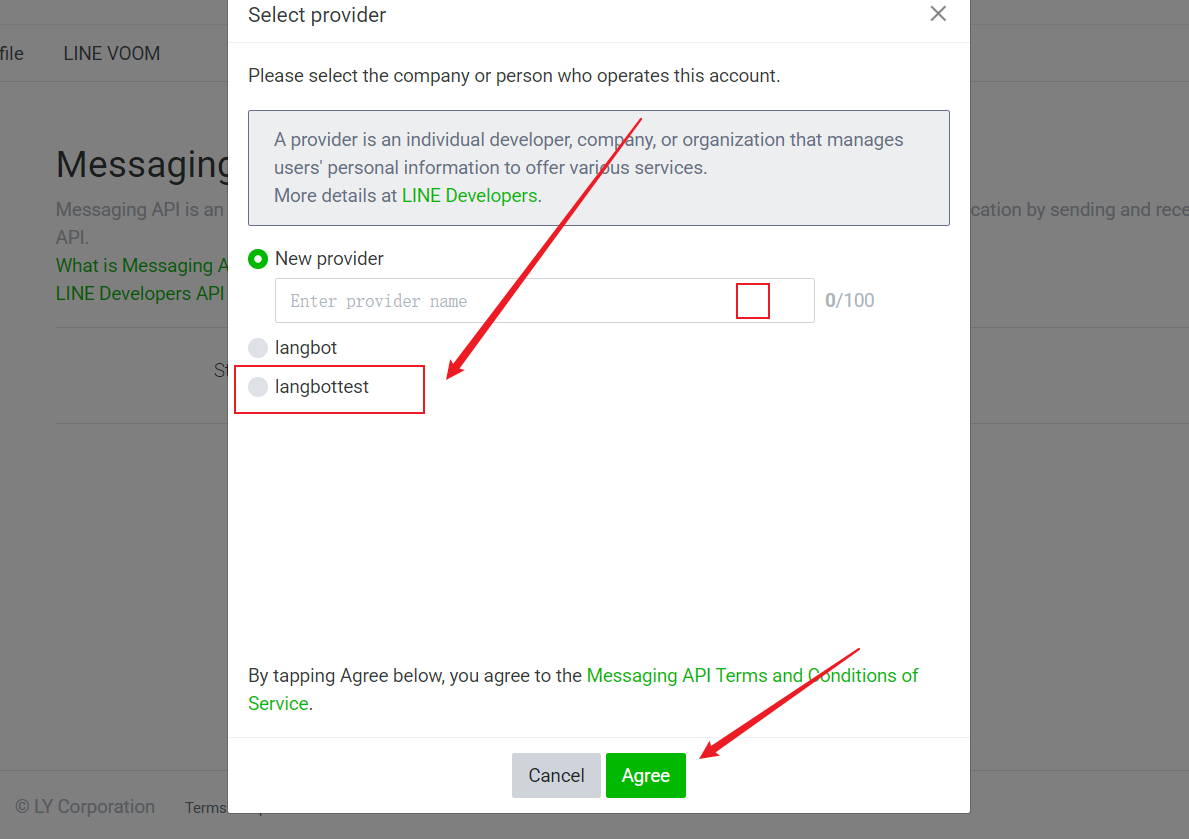
* 作成したばかりの Provider を選択し、Agree をクリックします
  <img src="https://mintcdn.com/langbot/7LP8IdEMby3DrX2X/images/zh/deploy/bots/line/line13.png?fit=max&auto=format&n=7LP8IdEMby3DrX2X&q=85&s=b3613a5a9ef8e22267b2c0b9c9759ea2" alt="alt text" width="1189" height="839" data-path="images/zh/deploy/bots/line/line13.png" />
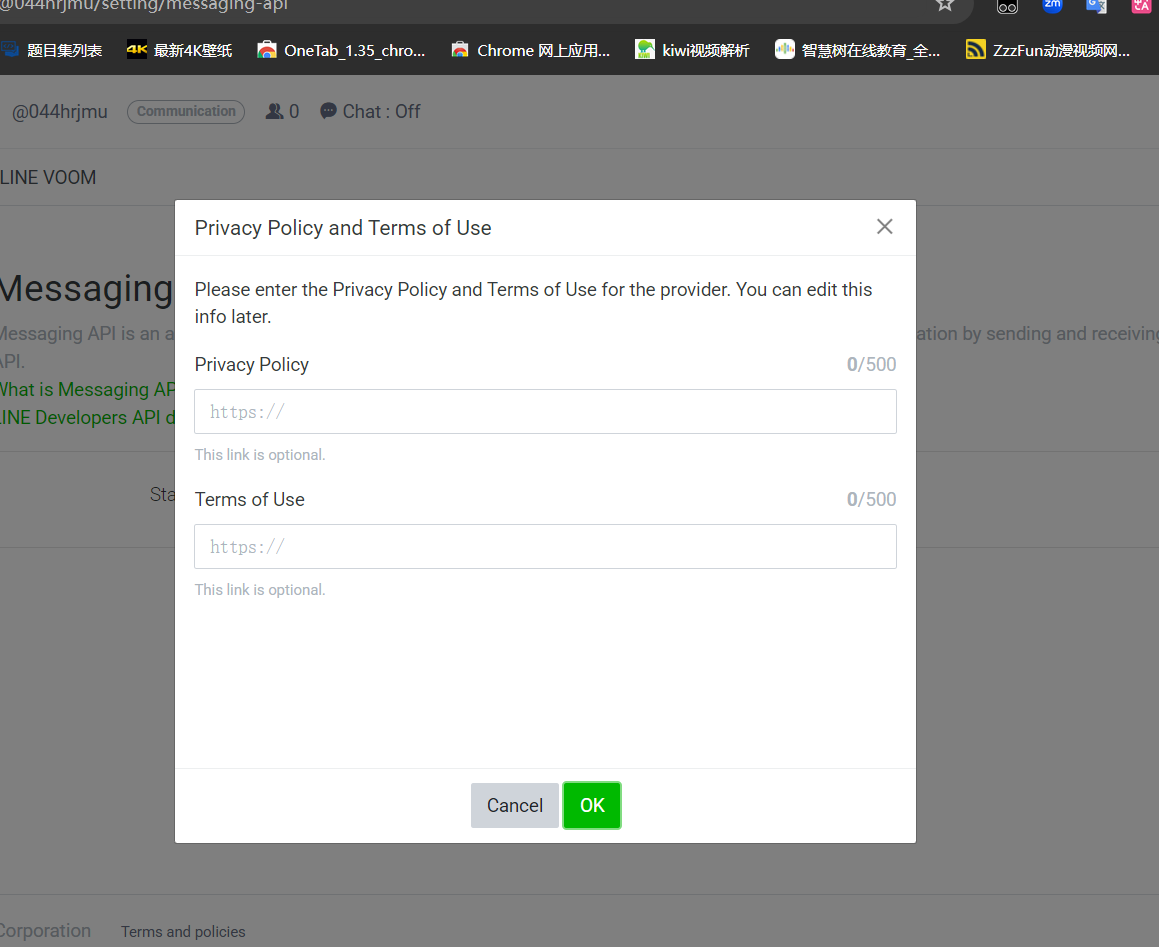
* プライバシー規約については、単に OK をクリックします
  <img src="https://mintcdn.com/langbot/7LP8IdEMby3DrX2X/images/zh/deploy/bots/line/line14.png?fit=max&auto=format&n=7LP8IdEMby3DrX2X&q=85&s=b458e9e3db14b3fc6693085e24a7b899" alt="alt text" width="1159" height="947" data-path="images/zh/deploy/bots/line/line14.png" />
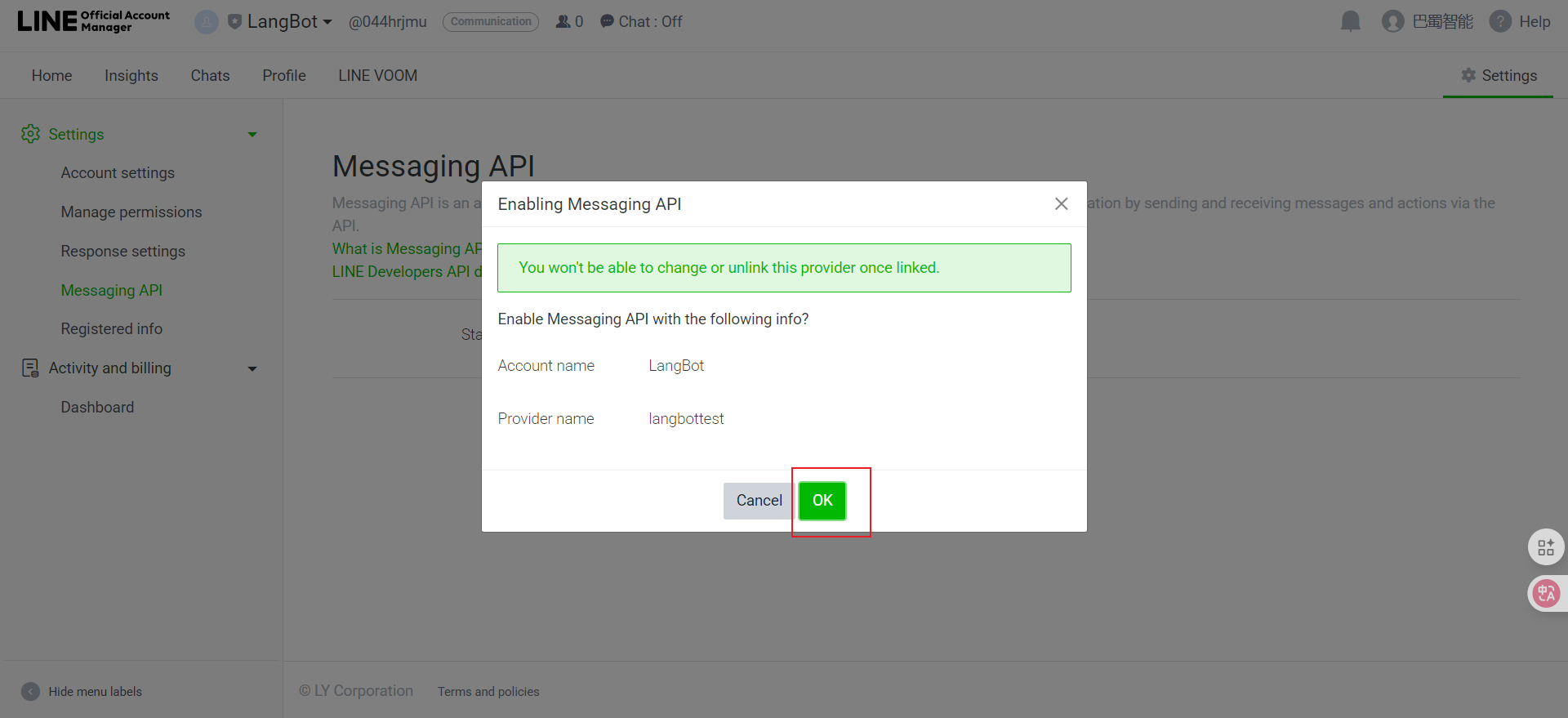
* OK をクリックして作成を完了します
  <img src="https://mintcdn.com/langbot/7LP8IdEMby3DrX2X/images/zh/deploy/bots/line/line15.png?fit=max&auto=format&n=7LP8IdEMby3DrX2X&q=85&s=7c91b666d54d183ee0a86dd16eda9cf5" alt="alt text" width="1920" height="879" data-path="images/zh/deploy/bots/line/line15.png" />
* コピーします
  <img src="https://mintcdn.com/langbot/7LP8IdEMby3DrX2X/images/zh/deploy/bots/line/line16.png?fit=max&auto=format&n=7LP8IdEMby3DrX2X&q=85&s=bc3457b23d78b4a08de6b856cf40e5f4" alt="alt text" width="1888" height="842" data-path="images/zh/deploy/bots/line/line16.png" />

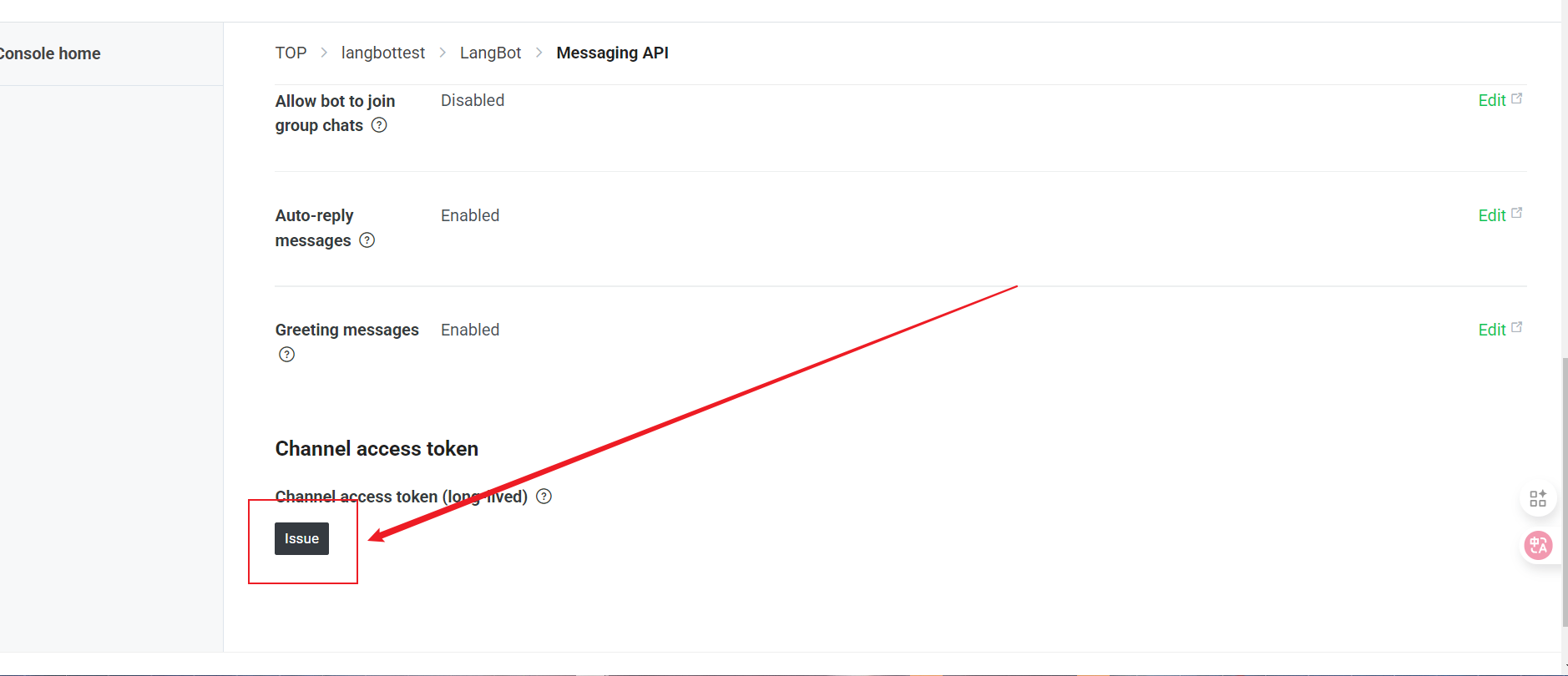
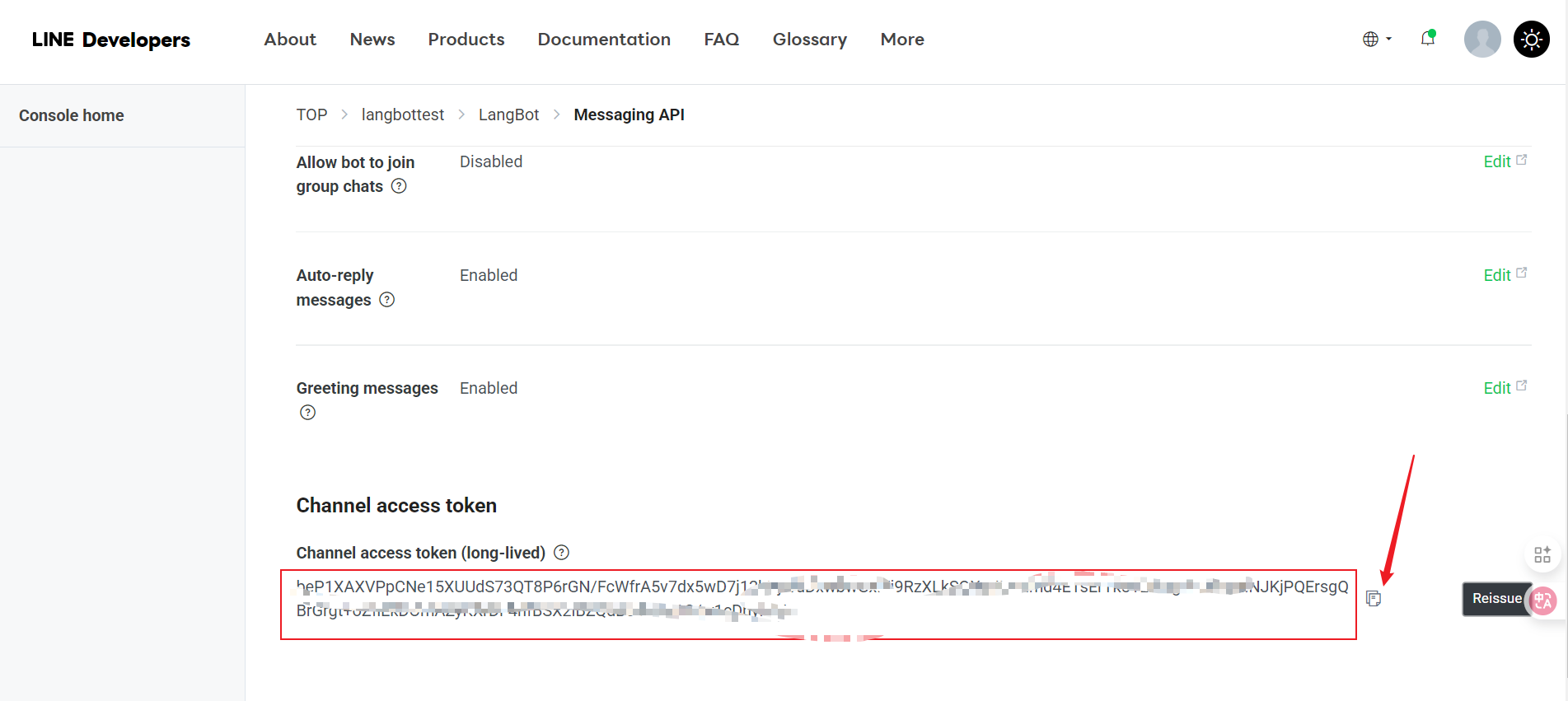
2. Channel Access Token（「Issue」ボタンをクリックして生成する必要があります）

* console をクリックするか、直接 [Console](https://developers.line.biz/console/) にアクセスします
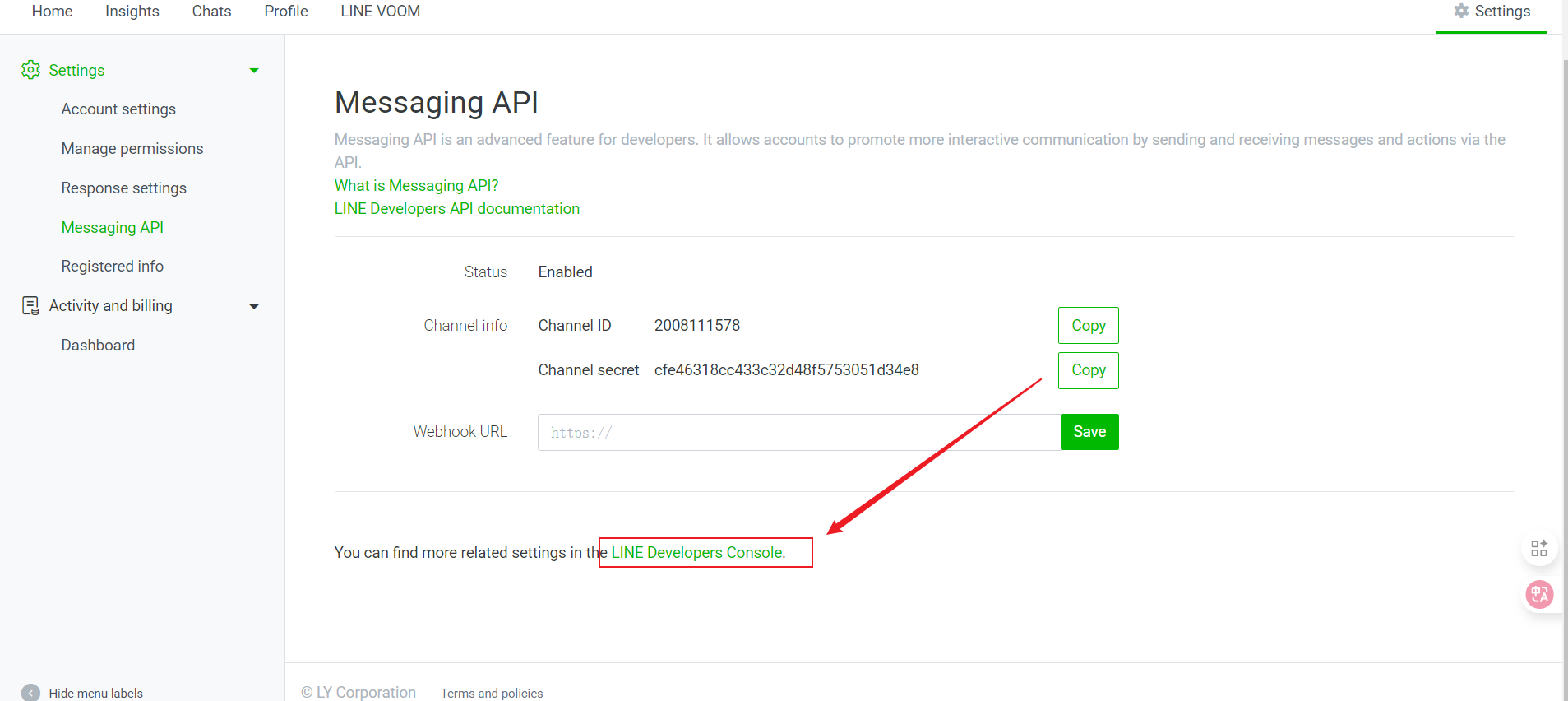
  <img src="https://mintcdn.com/langbot/7LP8IdEMby3DrX2X/images/zh/deploy/bots/line/line17.png?fit=max&auto=format&n=7LP8IdEMby3DrX2X&q=85&s=e60c4f29ea6d83e3e4d560bb951b3869" alt="alt text" width="1907" height="852" data-path="images/zh/deploy/bots/line/line17.png" />
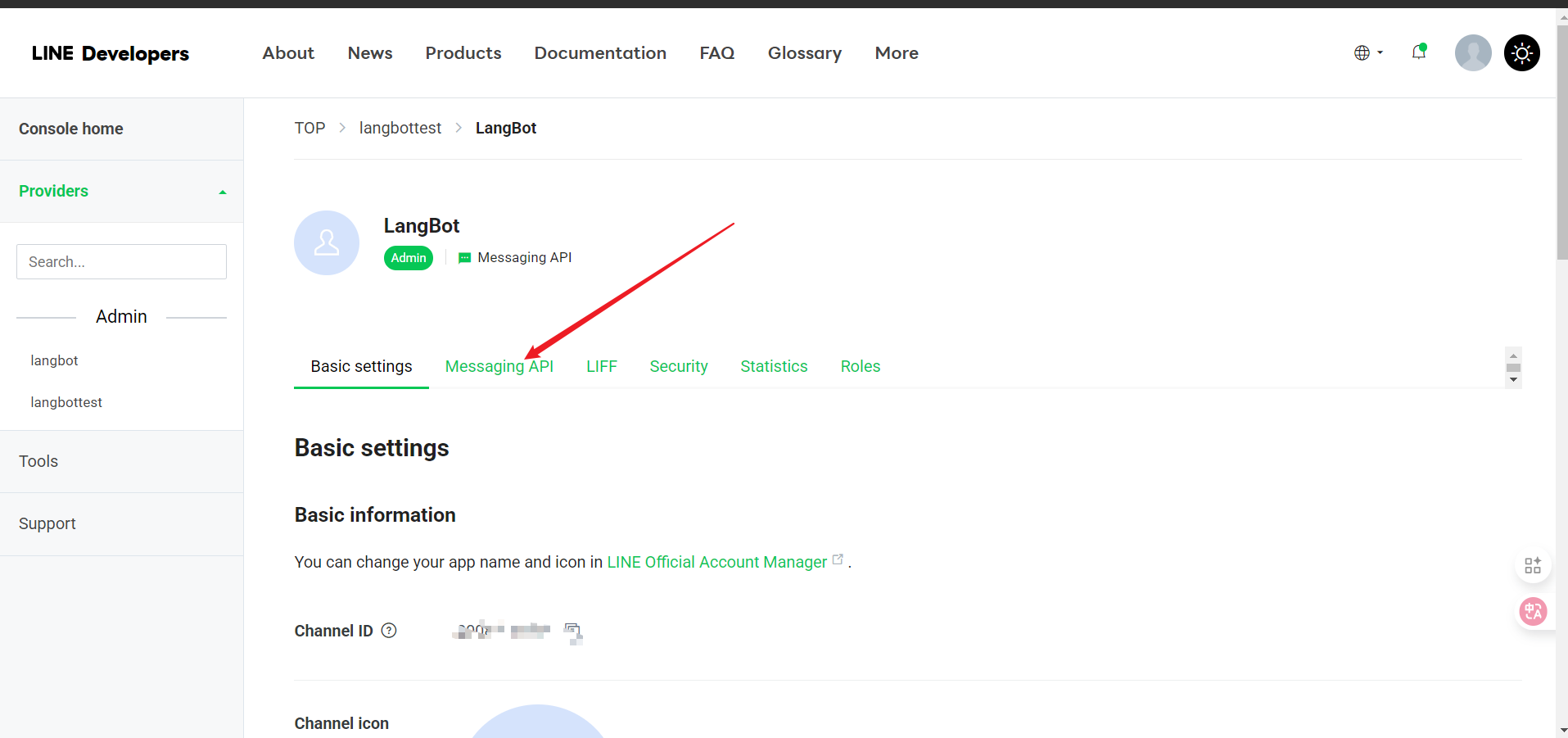
* 作成した Provider を選択し、Message API をクリックします
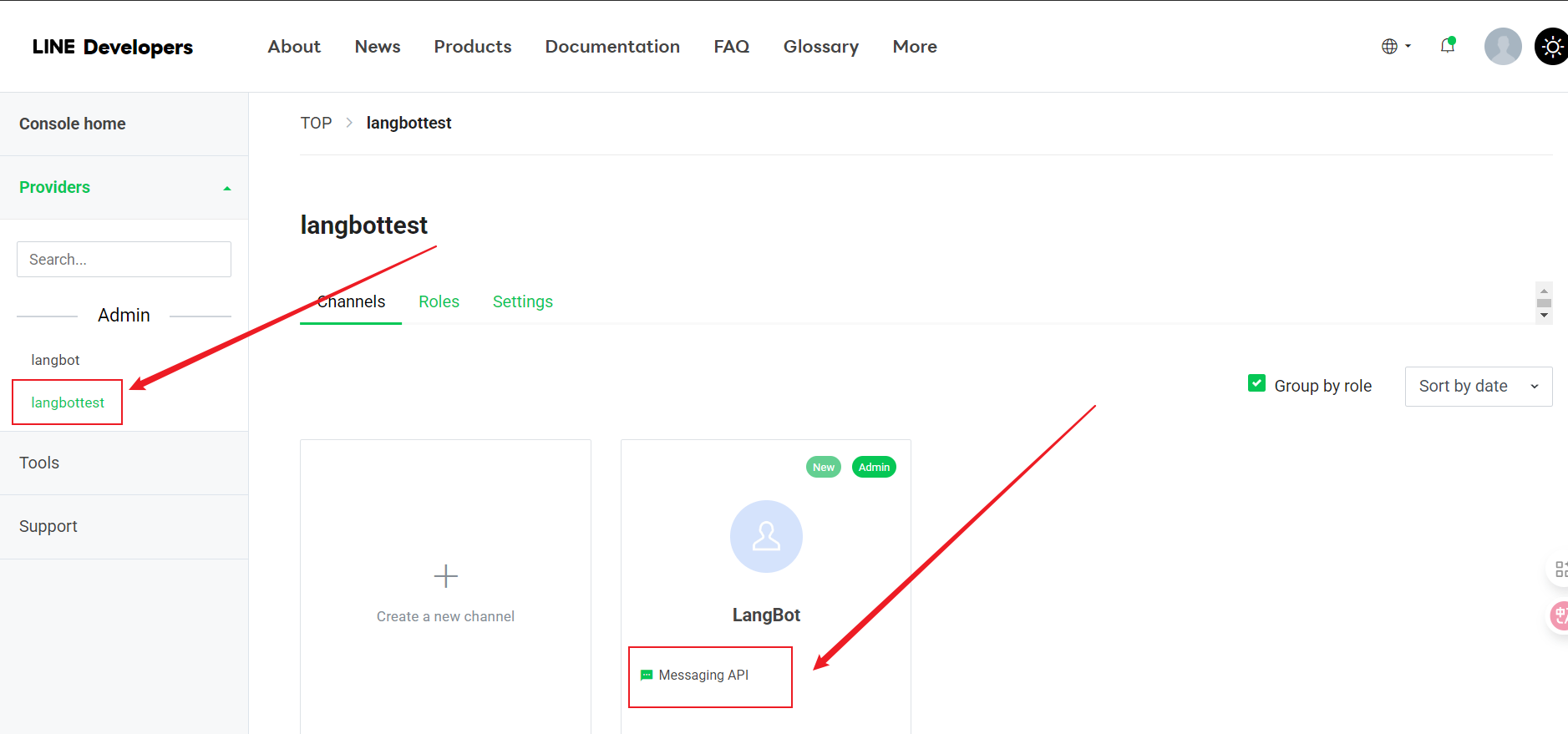
  <img src="https://mintcdn.com/langbot/7LP8IdEMby3DrX2X/images/zh/deploy/bots/line/line18.png?fit=max&auto=format&n=7LP8IdEMby3DrX2X&q=85&s=a5d7e5d239240f2b75a4bc2a6288332c" alt="alt text" width="1877" height="879" data-path="images/zh/deploy/bots/line/line18.png" />
* Message API をクリックします
  <img src="https://mintcdn.com/langbot/7LP8IdEMby3DrX2X/images/zh/deploy/bots/line/line19.png?fit=max&auto=format&n=7LP8IdEMby3DrX2X&q=85&s=614d84c02e8fb34a92a97e8ae64dcaa1" alt="alt text" width="1915" height="901" data-path="images/zh/deploy/bots/line/line19.png" />
* 一番下までスクロールし、Issue をクリックします
  <img src="https://mintcdn.com/langbot/7LP8IdEMby3DrX2X/images/zh/deploy/bots/line/line20.png?fit=max&auto=format&n=7LP8IdEMby3DrX2X&q=85&s=e35012762bee2c9bcbdf48a83ee42639" alt="alt text" width="1878" height="810" data-path="images/zh/deploy/bots/line/line20.png" />
* アイコンをクリックしてコピーします
  <img src="https://mintcdn.com/langbot/7LP8IdEMby3DrX2X/images/zh/deploy/bots/line/line21.png?fit=max&auto=format&n=7LP8IdEMby3DrX2X&q=85&s=566ff66cac84a039e8ec4b87495f86cb" alt="alt text" width="1903" height="851" data-path="images/zh/deploy/bots/line/line21.png" />

## LangBot に接続

次に、LangBot 設定ページを開きます：

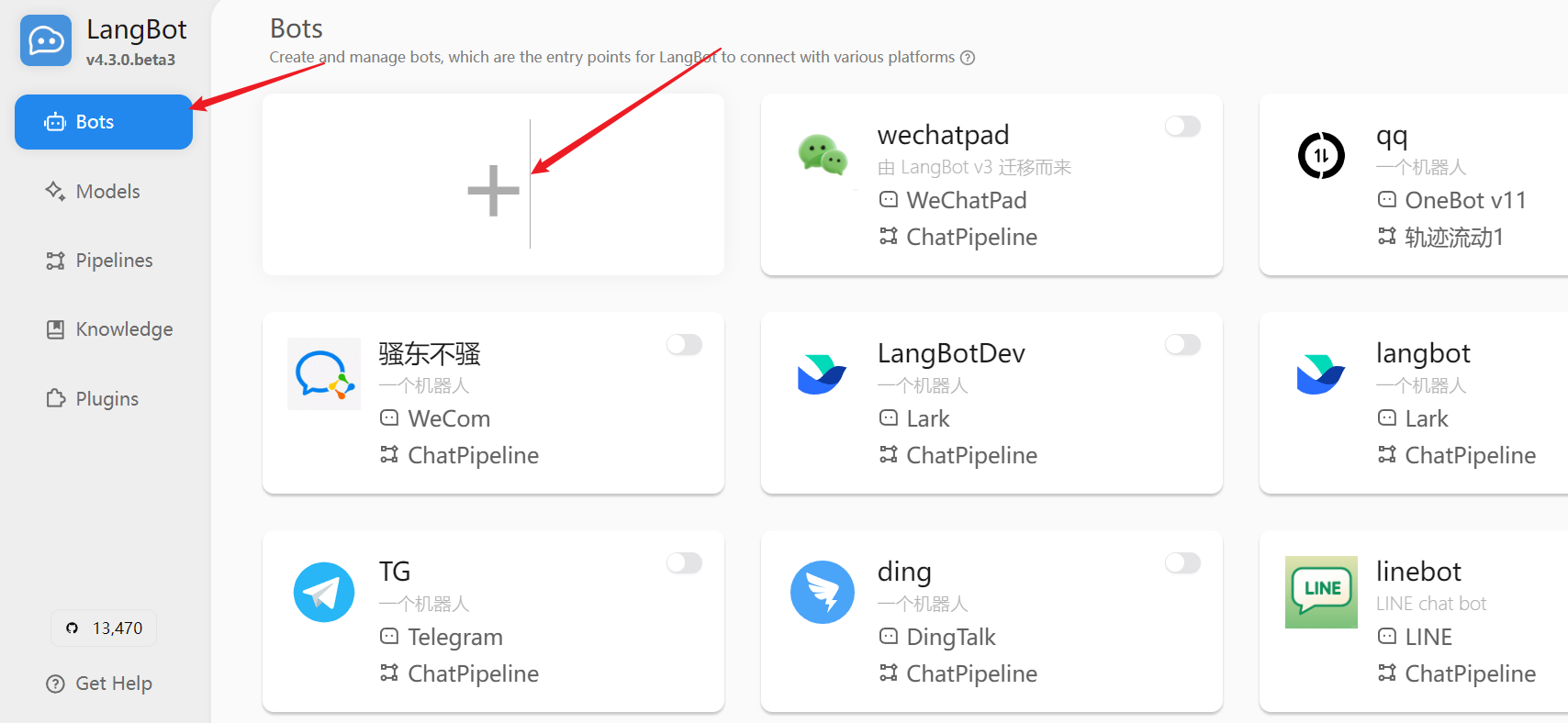
1. 「Bots」をクリックし、次に「Add」をクリックします
   <img src="https://mintcdn.com/langbot/7LP8IdEMby3DrX2X/images/zh/deploy/bots/line/line26.png?fit=max&auto=format&n=7LP8IdEMby3DrX2X&q=85&s=f0cc67db904c7cbdfc8fd9454edc44dc" alt="alt text" width="1708" height="788" data-path="images/zh/deploy/bots/line/line26.png" />

2. 「Platform/Adapter Selection」で「LINE」を選択します
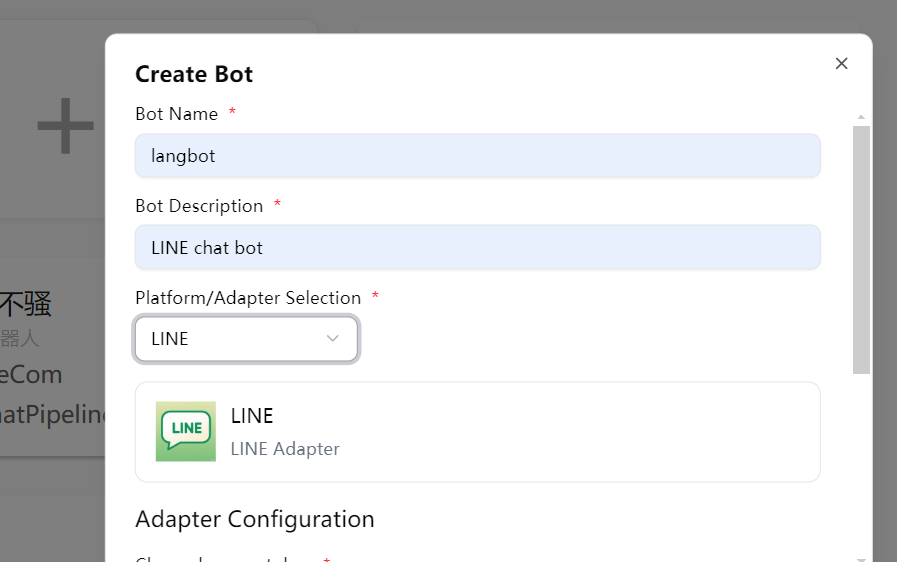
   <img src="https://mintcdn.com/langbot/7LP8IdEMby3DrX2X/images/zh/deploy/bots/line/line27.png?fit=max&auto=format&n=7LP8IdEMby3DrX2X&q=85&s=743d78febb3a87f7fe6736e1a277765a" alt="alt text" width="897" height="562" data-path="images/zh/deploy/bots/line/line27.png" />

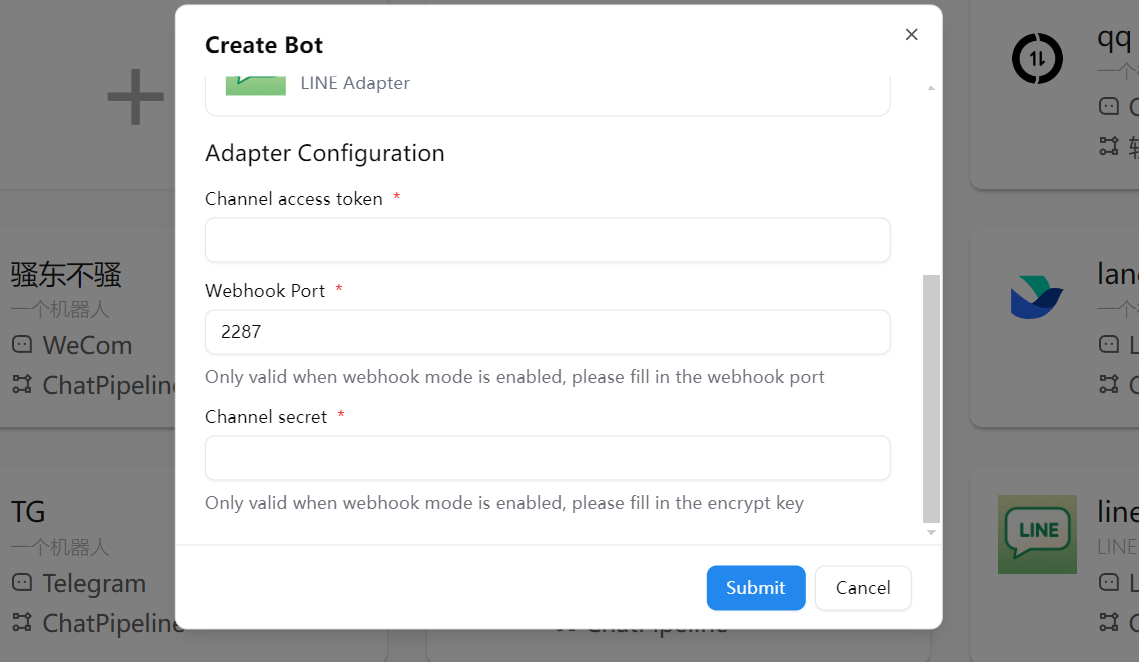
3. 設定情報を入力します：
   * Channel Secret：以前に取得した Channel secret
   * Channel Access Token：以前に取得した Channel access token
     <img src="https://mintcdn.com/langbot/7LP8IdEMby3DrX2X/images/zh/deploy/bots/line/line28.png?fit=max&auto=format&n=7LP8IdEMby3DrX2X&q=85&s=62abe5cdc3df626137ad766fc234f51b" alt="alt text" width="1139" height="662" data-path="images/zh/deploy/bots/line/line28.png" />

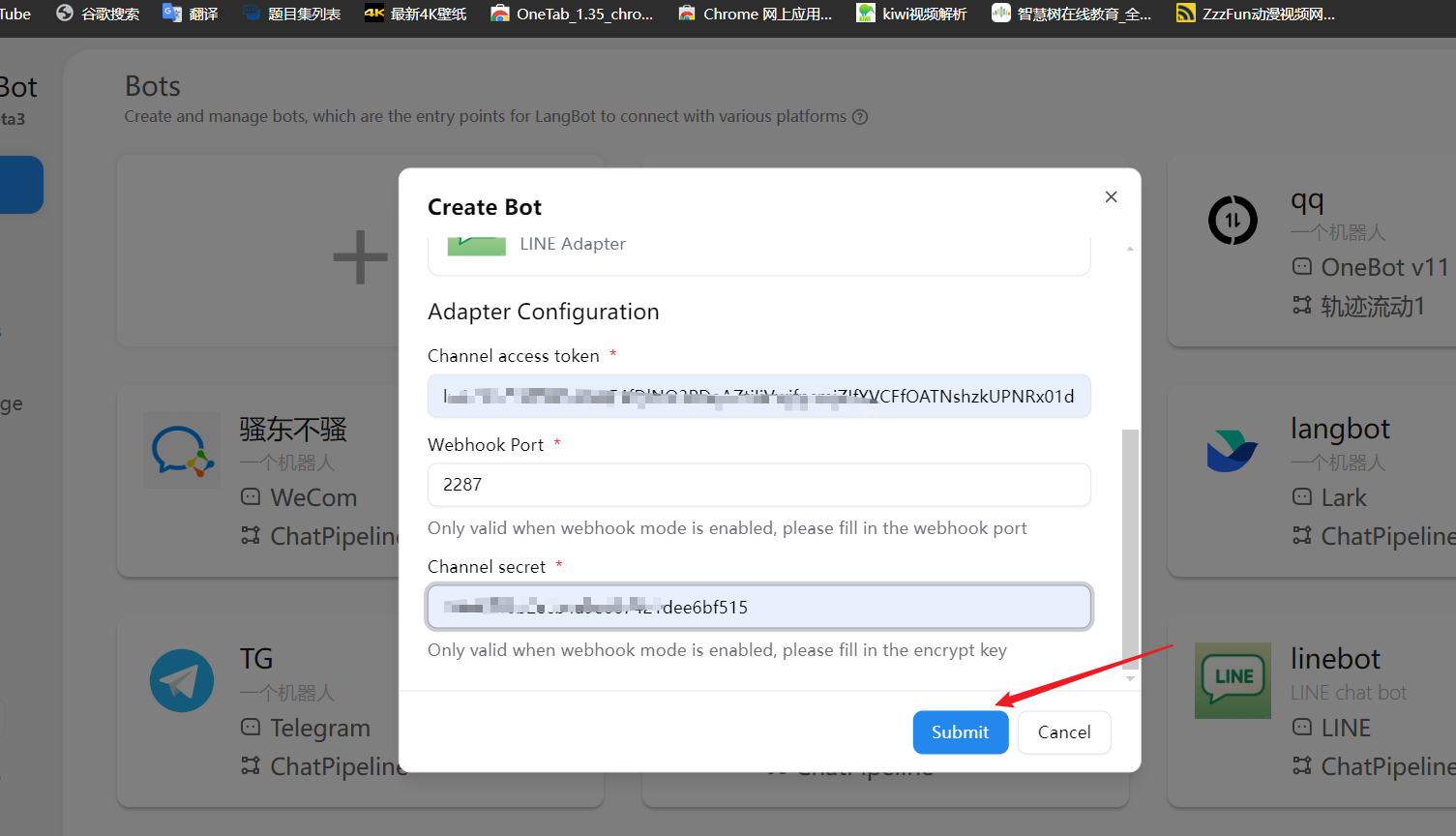
4. 「Save」をクリックして設定を完了します
   <img src="https://mintcdn.com/langbot/7LP8IdEMby3DrX2X/images/zh/deploy/bots/line/line29.png?fit=max&auto=format&n=7LP8IdEMby3DrX2X&q=85&s=66ff6ac8ecd301964eb542fa91a3c4c6" alt="alt text" width="1505" height="864" data-path="images/zh/deploy/bots/line/line29.png" />

## Webhook の設定

<Info>
  まず、[HTTP リバースプロキシの設定](/en/workshop/production/proxy-and-ssl)を参照して LangBot コールバックアドレスを設定することをお勧めします。
</Info>

<Tip>
  **パブリックサーバーとドメインの設定が不要です。** [LangBot Cloud](https://space.langbot.app/cloud) にはドメインと HTTPS が含まれており、すぐに使用できます。
</Tip>

* LangBot 設定ページから Webhook コールバック URL を取得します
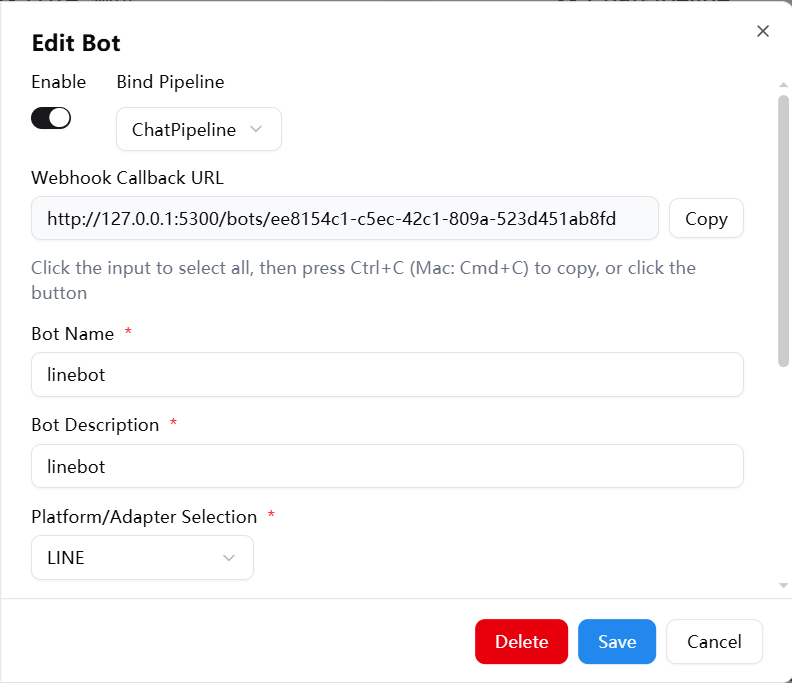
  <img src="https://mintcdn.com/langbot/7LP8IdEMby3DrX2X/images/zh/deploy/bots/line/line30.png?fit=max&auto=format&n=7LP8IdEMby3DrX2X&q=85&s=88649dd82d77e3e7b39a28bdeab847b5" alt="alt text" width="792" height="683" data-path="images/zh/deploy/bots/line/line30.png" />

* console をクリックするか、直接 [Console](https://developers.line.biz/console/) にアクセスします
  <img src="https://mintcdn.com/langbot/7LP8IdEMby3DrX2X/images/zh/deploy/bots/line/line17.png?fit=max&auto=format&n=7LP8IdEMby3DrX2X&q=85&s=e60c4f29ea6d83e3e4d560bb951b3869" alt="alt text" width="1907" height="852" data-path="images/zh/deploy/bots/line/line17.png" />

* 作成した Provider を選択し、Message API をクリックします
  <img src="https://mintcdn.com/langbot/7LP8IdEMby3DrX2X/images/zh/deploy/bots/line/line18.png?fit=max&auto=format&n=7LP8IdEMby3DrX2X&q=85&s=a5d7e5d239240f2b75a4bc2a6288332c" alt="alt text" width="1877" height="879" data-path="images/zh/deploy/bots/line/line18.png" />

* Message API をクリックします
  <img src="https://mintcdn.com/langbot/7LP8IdEMby3DrX2X/images/zh/deploy/bots/line/line19.png?fit=max&auto=format&n=7LP8IdEMby3DrX2X&q=85&s=614d84c02e8fb34a92a97e8ae64dcaa1" alt="alt text" width="1915" height="901" data-path="images/zh/deploy/bots/line/line19.png" />

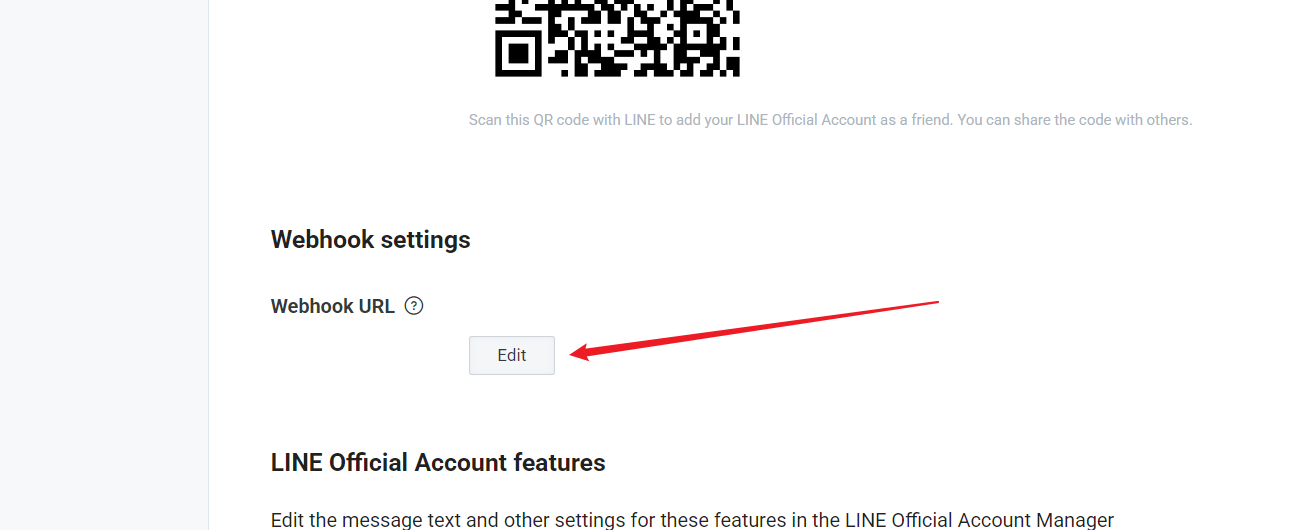
* Edit をクリックして接続を入力します
  <img src="https://mintcdn.com/langbot/7LP8IdEMby3DrX2X/images/zh/deploy/bots/line/line22.png?fit=max&auto=format&n=7LP8IdEMby3DrX2X&q=85&s=592b1d1c314e431058921db1b323ddaf" alt="alt text" width="1315" height="530" data-path="images/zh/deploy/bots/line/line22.png" />

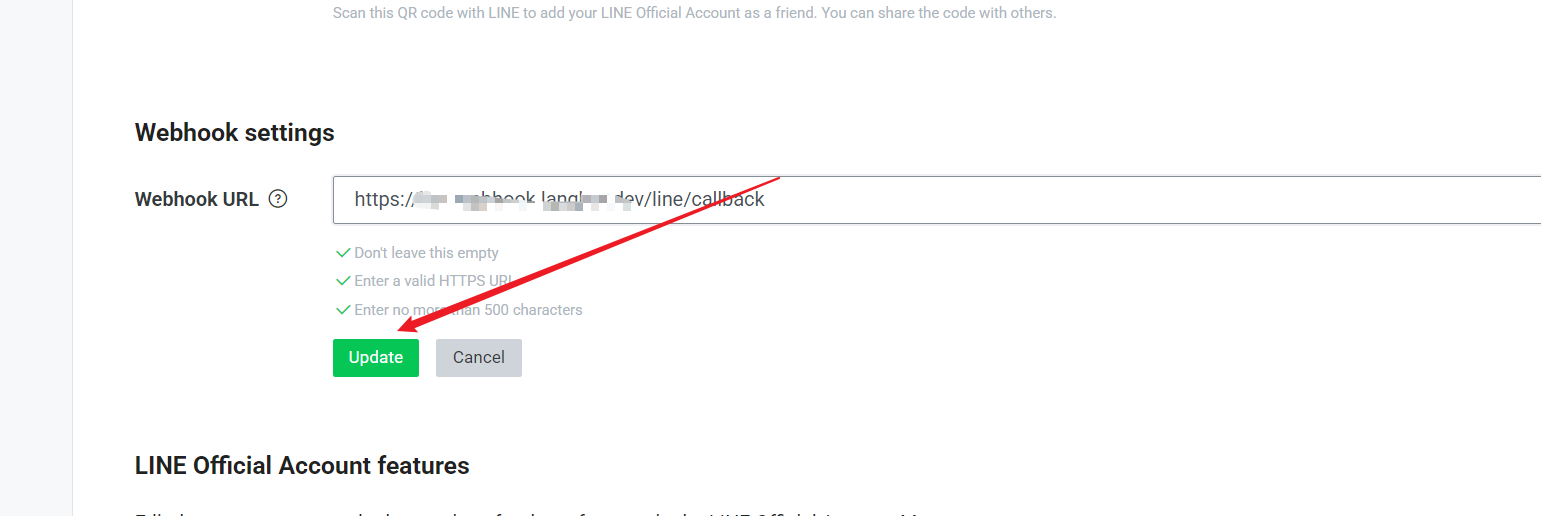
* 接続を入力します（HTTPS 接続である必要があります。つまり、SSL 証明書が必要です）、Update をクリックします
  <img src="https://mintcdn.com/langbot/7LP8IdEMby3DrX2X/images/zh/deploy/bots/line/line23.png?fit=max&auto=format&n=7LP8IdEMby3DrX2X&q=85&s=659b9924ca2c21a9882df5e2b0acd3d6" alt="alt text" width="1541" height="516" data-path="images/zh/deploy/bots/line/line23.png" />

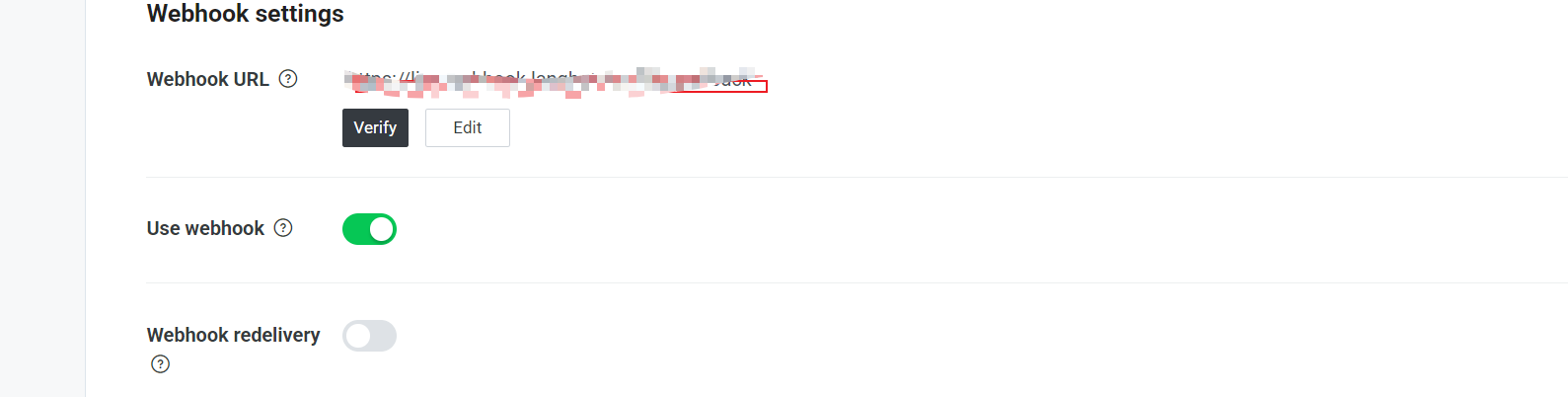
* Use Webhook を選択します
  <img src="https://mintcdn.com/langbot/7LP8IdEMby3DrX2X/images/zh/deploy/bots/line/line24.png?fit=max&auto=format&n=7LP8IdEMby3DrX2X&q=85&s=99bf16e4f595ecc9d0ec23cc6c83dd10" alt="alt text" width="1589" height="402" data-path="images/zh/deploy/bots/line/line24.png" />

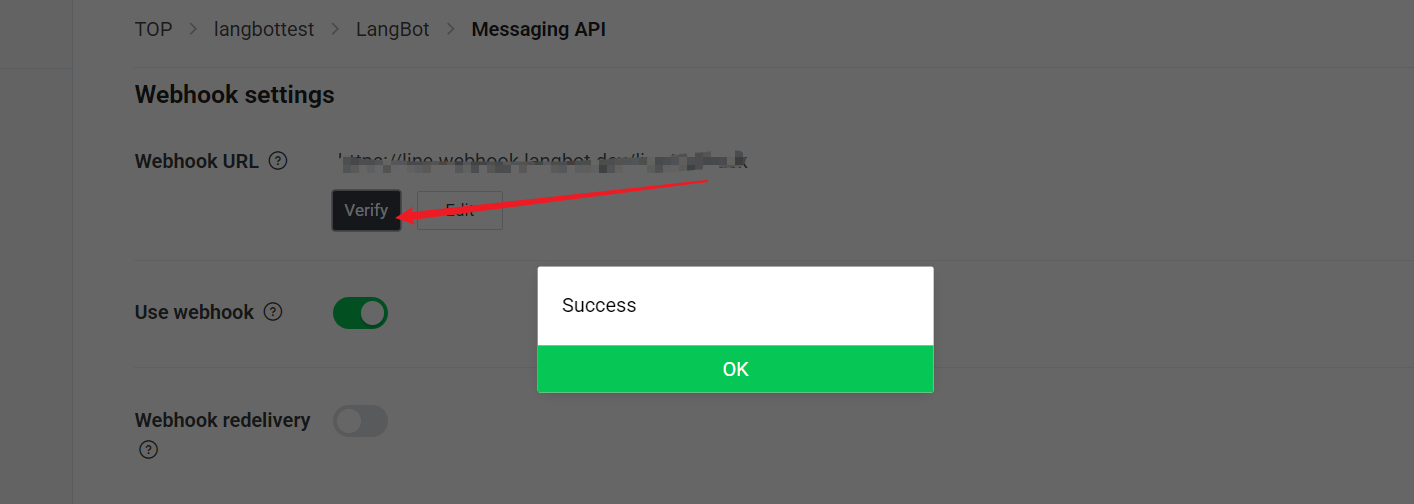
5. 「Verify」ボタンをクリックして、接続が成功したかどうかをテストします
   <img src="https://mintcdn.com/langbot/7LP8IdEMby3DrX2X/images/zh/deploy/bots/line/line25.png?fit=max&auto=format&n=7LP8IdEMby3DrX2X&q=85&s=6fd5d9d9a0a68b0e068e251726c92b49" alt="alt text" width="1414" height="504" data-path="images/zh/deploy/bots/line/line25.png" />

## 機能設定

LINE 開発者コンソールで、ボットの機能をさらに設定できます：

1. 「Messaging API」タブで、「LINE Official Account Features」セクションを見つけます
2. 必要に応じて次の機能を有効または無効にします：
   * 自動返信メッセージ
   * 友達追加時のウェルカムメッセージ
   * グループおよび複数人チャット
   * ボットがグループに参加したときの挨拶

## 使用方法

設定後、ユーザーは次の方法で LINE ボットとやり取りできます：

1. LINE 開発者コンソールで提供される QR コードをスキャンして、ボットを友達として追加します
2. チャットでメッセージを送信すると、ボットは LangBot を通じて処理して返信します

## よくある問題

### Webhook 検証失敗

* サーバーが HTTPS 経由でアクセスできることを確認してください
* Webhook URL が正しいかどうかを確認してください
* LangBot サービスが正常に実行されていることを確認してください

### メッセージを受信できない

* Channel Access Token が有効かどうかを確認してください
* 「Use Webhook」オプションが有効になっていることを確認してください
* LangBot ログでエラーメッセージを確認してください

### 権限の問題

* LINE 開発者コンソールでボットに必要な権限を有効にしていることを確認してください
* 一部の高度な機能には、LINE Premium アカウントが必要な場合があります