> ## Documentation Index
> Fetch the complete documentation index at: https://docs.langbot.app/llms.txt
> Use this file to discover all available pages before exploring further.
# Feishu
> LangBot で Feishu/Lark AI ボットを構築。GPT・Claude・Dify 等を Feishu のグループやメッセージに接続。
## プラットフォームドメインの選択
ボットを作成する際、**アダプター設定**で**プラットフォームドメイン**を選択する必要があります:
* **飞书 (open.feishu.cn)**:国内の飛書ユーザー向け(デフォルト)
* **Lark (open.larksuite.com)**:海外のLarkユーザー向け
* **カスタム (custom)**:プライベートデプロイユーザー向け
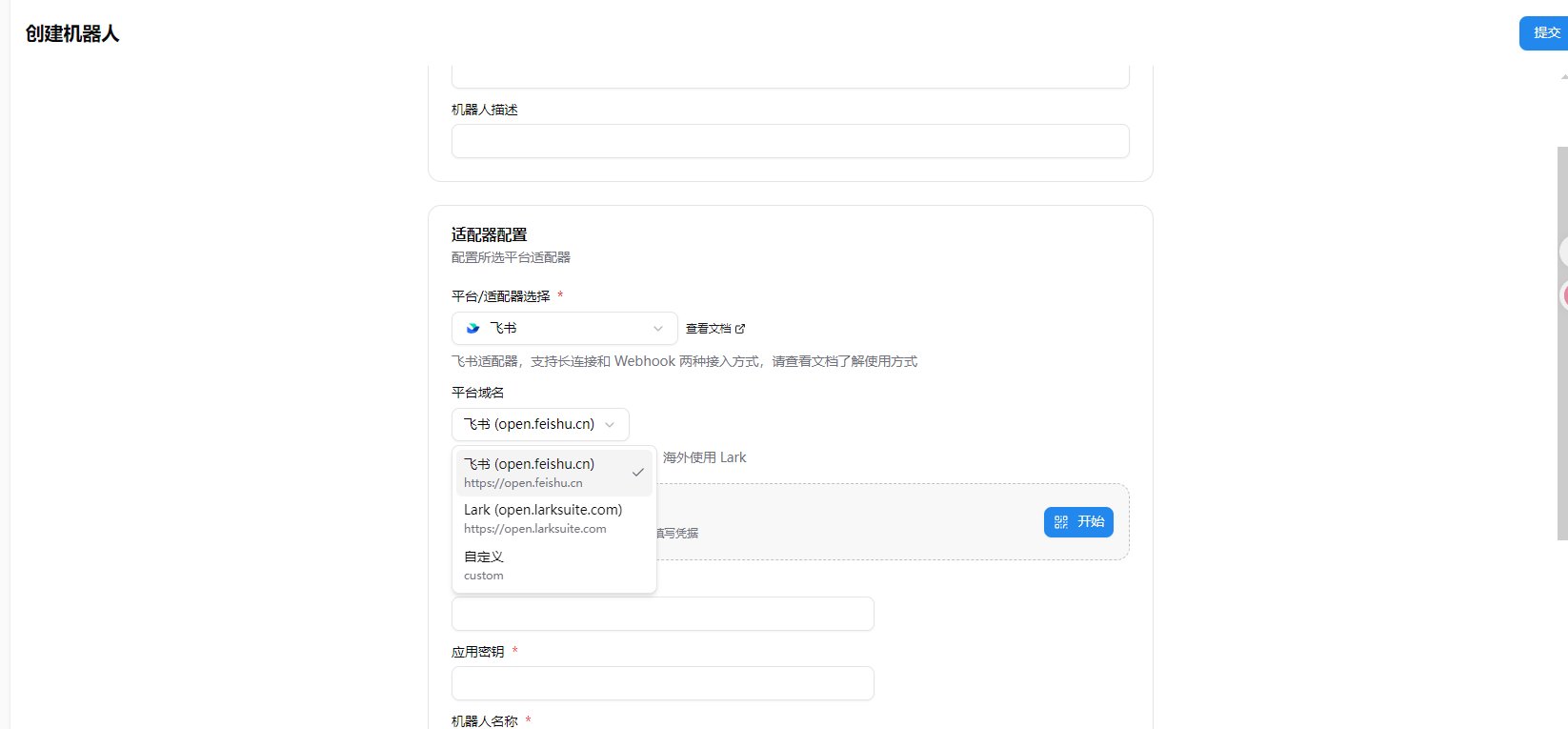 海外版のLarkを選択する場合、`open.larksuite.com`ドメインを使用してください。そうしないと、接続に失敗する可能性があります。プライベートデプロイユーザーは、実際のデプロイアドレスに応じてカスタムを選択し、対応するドメインを入力してください。
## 一键設定(おすすめ)
LangBot は Feishu アプリのワンクリック作成とクレデンシャルの自動入力に対応しています。手動でのコピペは不要です。
1. LangBot WebUI を開き、**ボット > ボットを作成** に移動
2. ボット名を入力し、プラットフォーム/アダプターで `飞书` を選択
3. 表示される **一键创建应用** エリアで **開始** ボタンをクリック
海外版のLarkを選択する場合、`open.larksuite.com`ドメインを使用してください。そうしないと、接続に失敗する可能性があります。プライベートデプロイユーザーは、実際のデプロイアドレスに応じてカスタムを選択し、対応するドメインを入力してください。
## 一键設定(おすすめ)
LangBot は Feishu アプリのワンクリック作成とクレデンシャルの自動入力に対応しています。手動でのコピペは不要です。
1. LangBot WebUI を開き、**ボット > ボットを作成** に移動
2. ボット名を入力し、プラットフォーム/アダプターで `飞书` を選択
3. 表示される **一键创建应用** エリアで **開始** ボタンをクリック
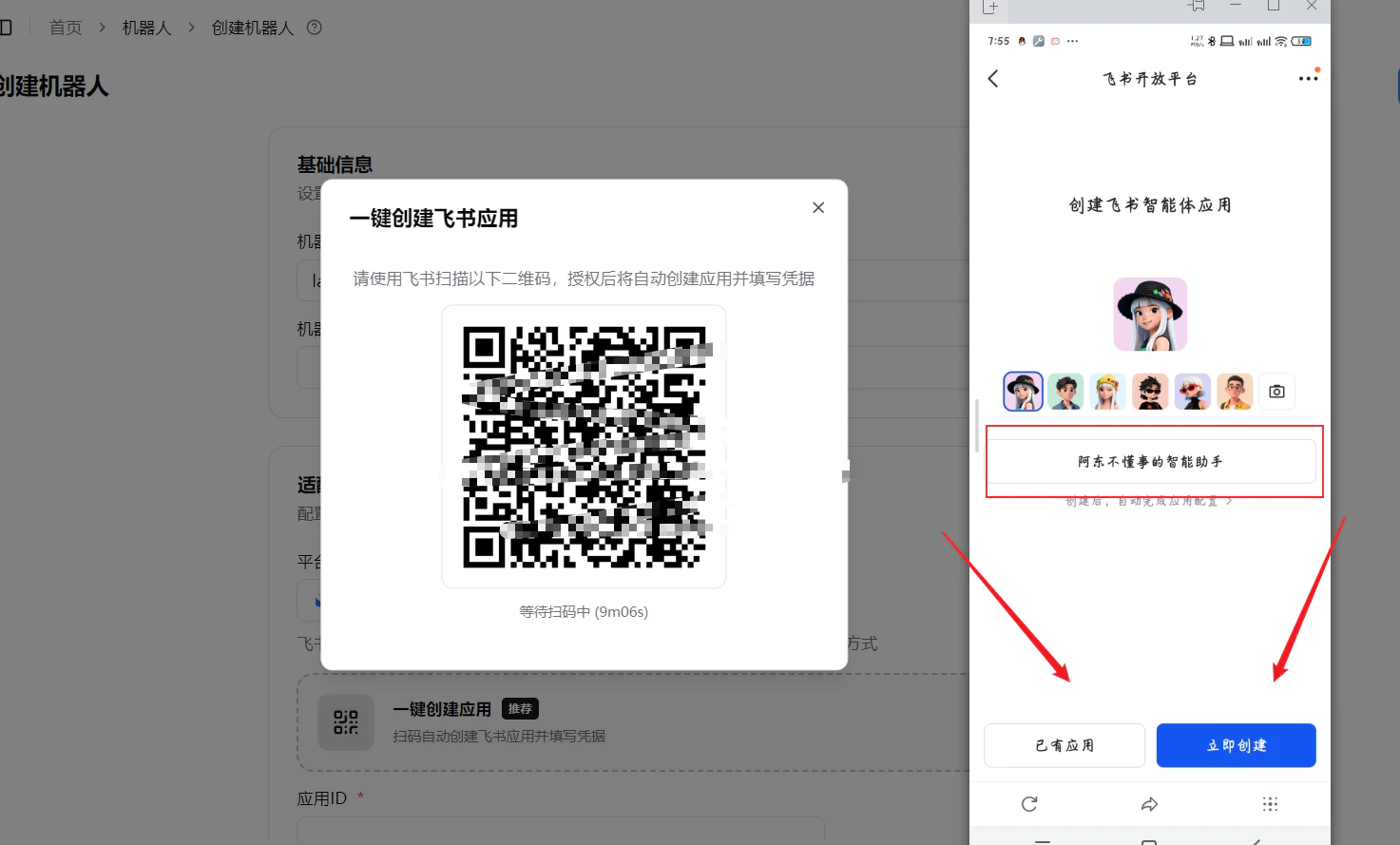
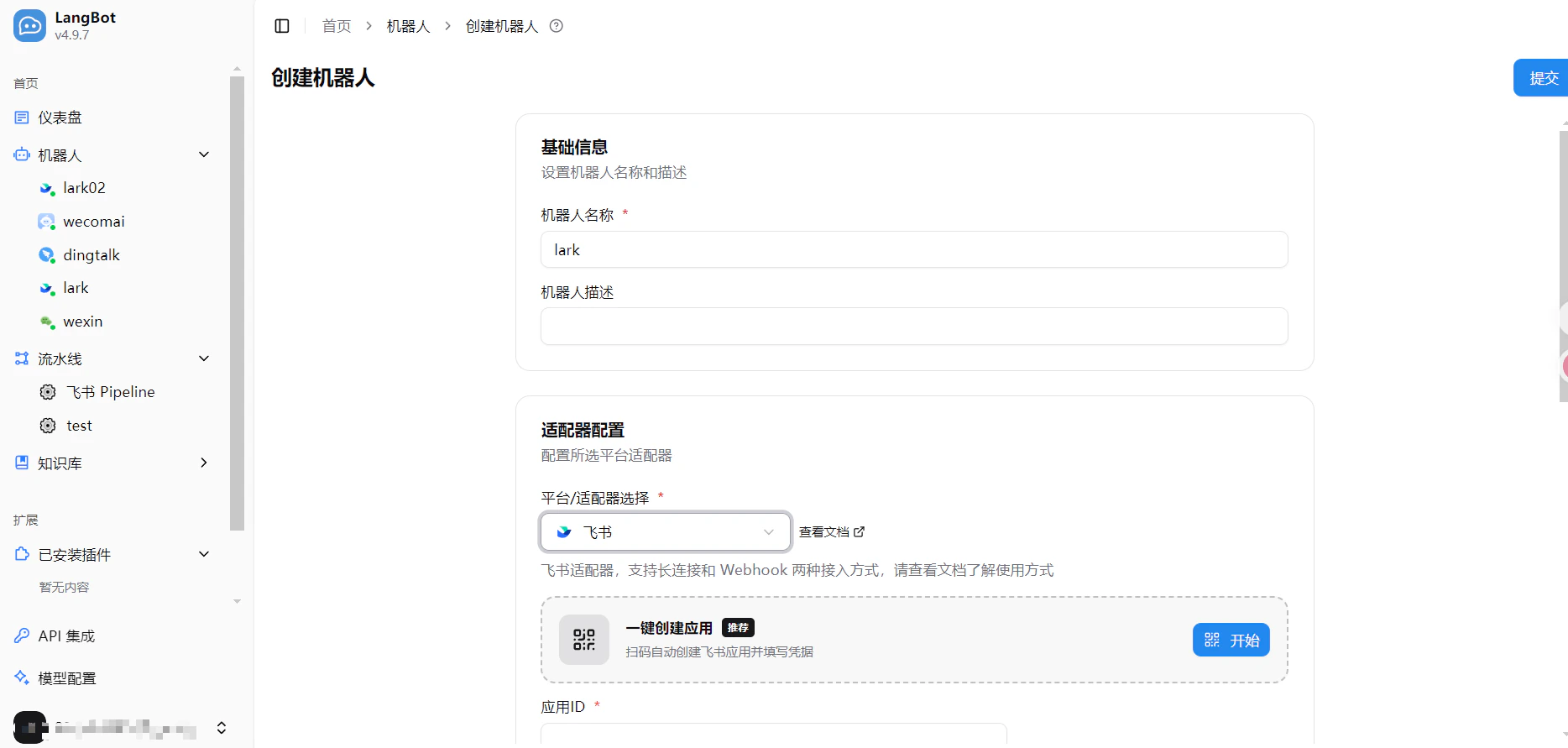 4. 飛書で QR コードをスキャンし、手机端で飞書開放平台のボット作成ページが表示されます
5. **既存のアプリを使用** または **新規作成** を選択できます:
4. 飛書で QR コードをスキャンし、手机端で飞書開放平台のボット作成ページが表示されます
5. **既存のアプリを使用** または **新規作成** を選択できます:
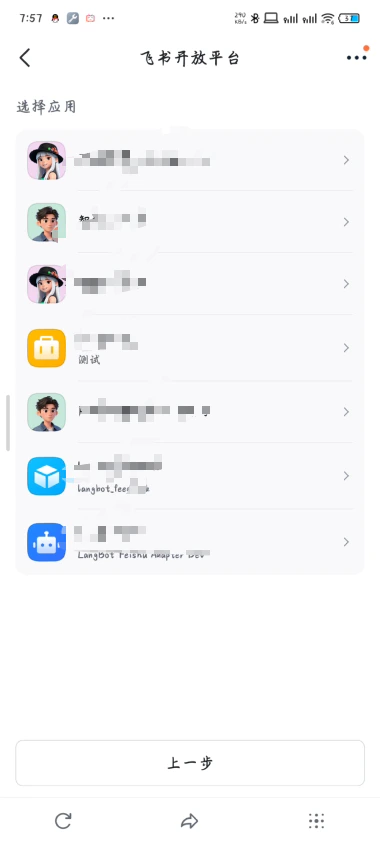
 既存のアプリを選択すると、アプリ一覧が表示されます:
 6. 認証成功後、手机端に「設定成功」と表示され、app\_id と app\_secret が LangBot WebUI に**自動入力**されます
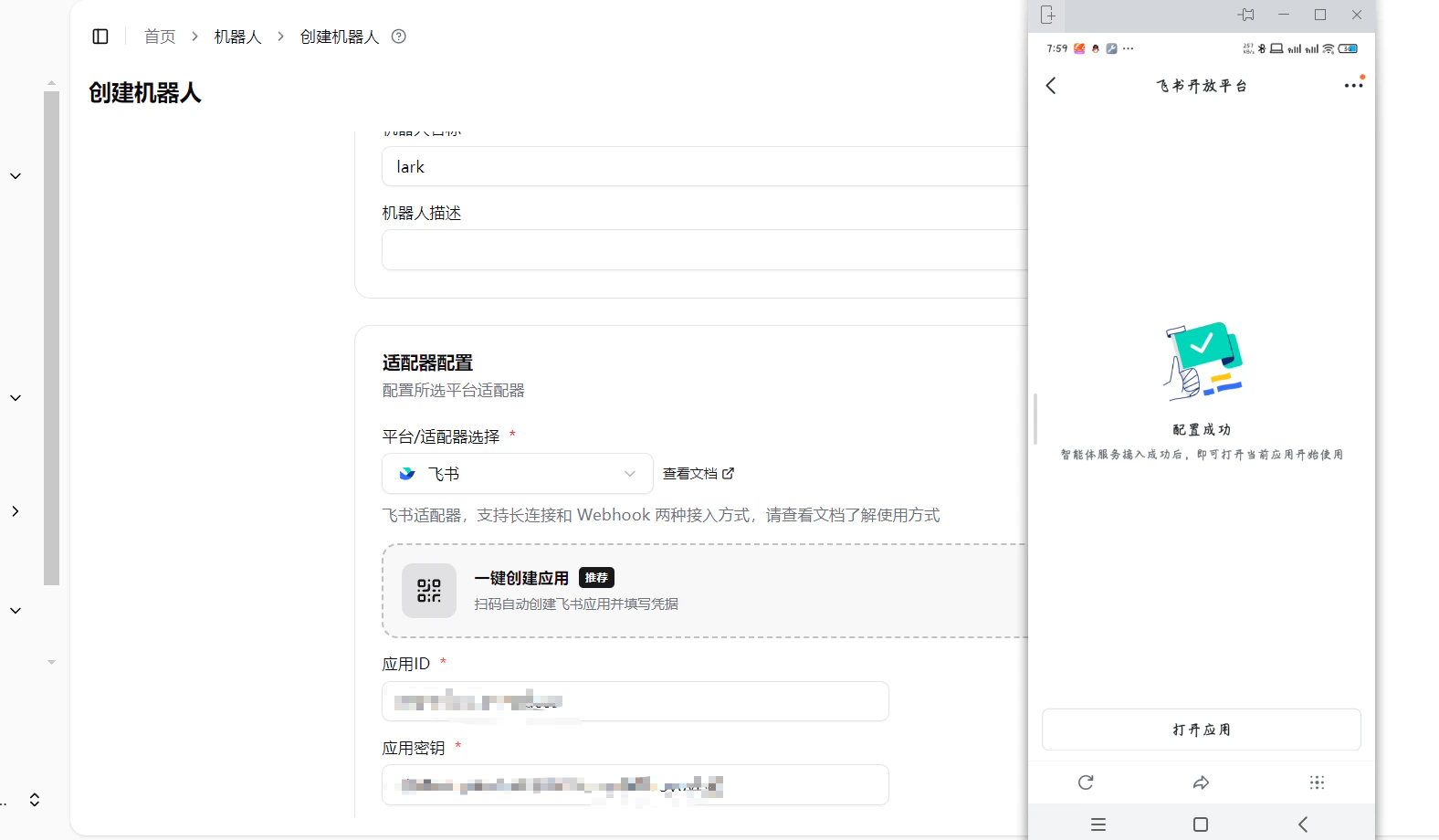 7. **ボット名を手動で入力** — 飛書のボット名と一致させる必要があります。一致しない場合、グループ内でメッセージを受信できません
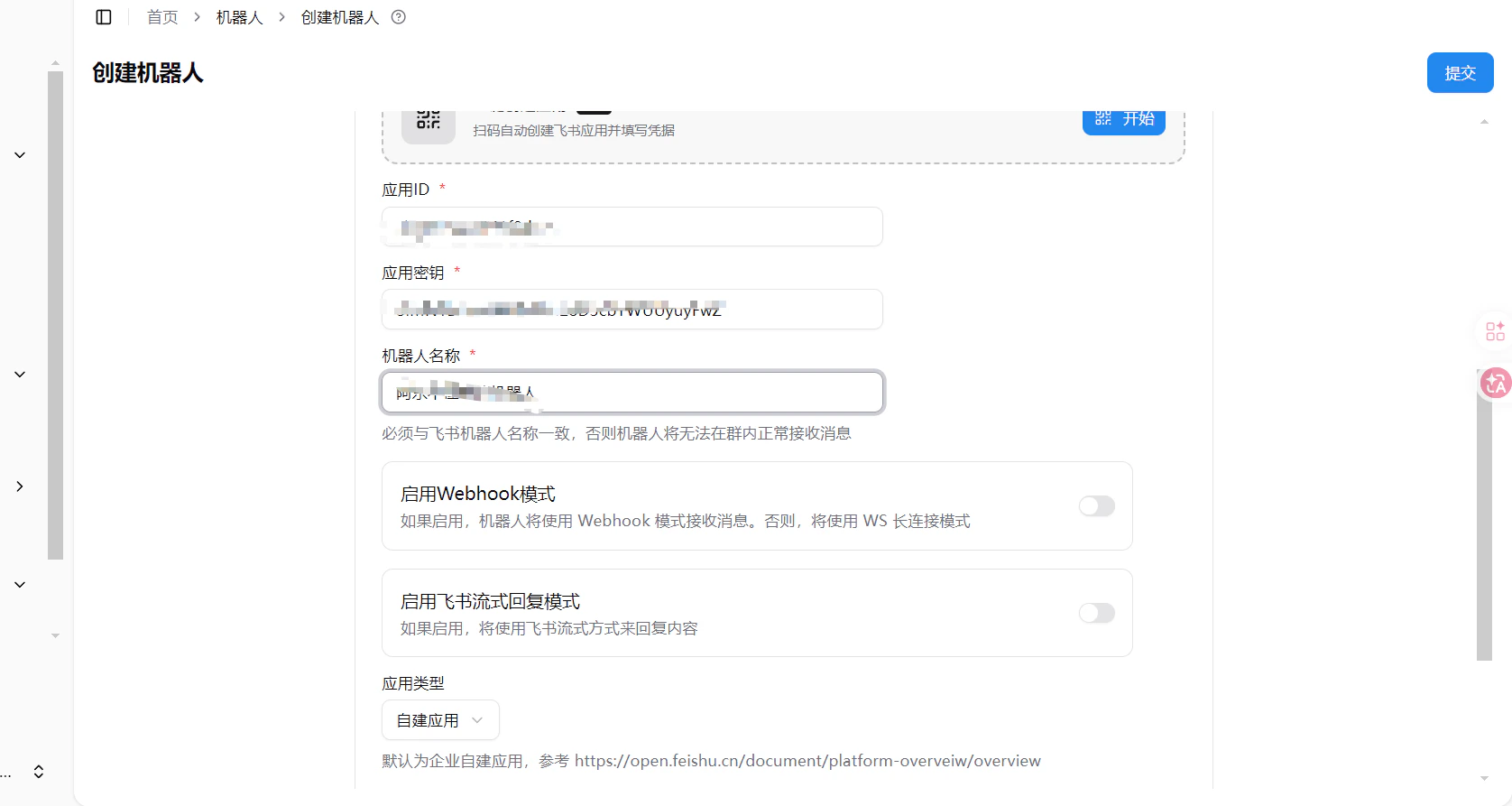 8. **送信** をクリックして完了
***
## ボットの作成
[Feishu Open Platform](https://open.feishu.cn/app)にアクセスし、ログインして、企業の自己構築アプリケーションまたはストアアプリケーションを作成します。[(違いの紹介)](https://open.feishu.cn/document/platform-overveiw/overview)
8. **送信** をクリックして完了
***
## ボットの作成
[Feishu Open Platform](https://open.feishu.cn/app)にアクセスし、ログインして、企業の自己構築アプリケーションまたはストアアプリケーションを作成します。[(違いの紹介)](https://open.feishu.cn/document/platform-overveiw/overview)
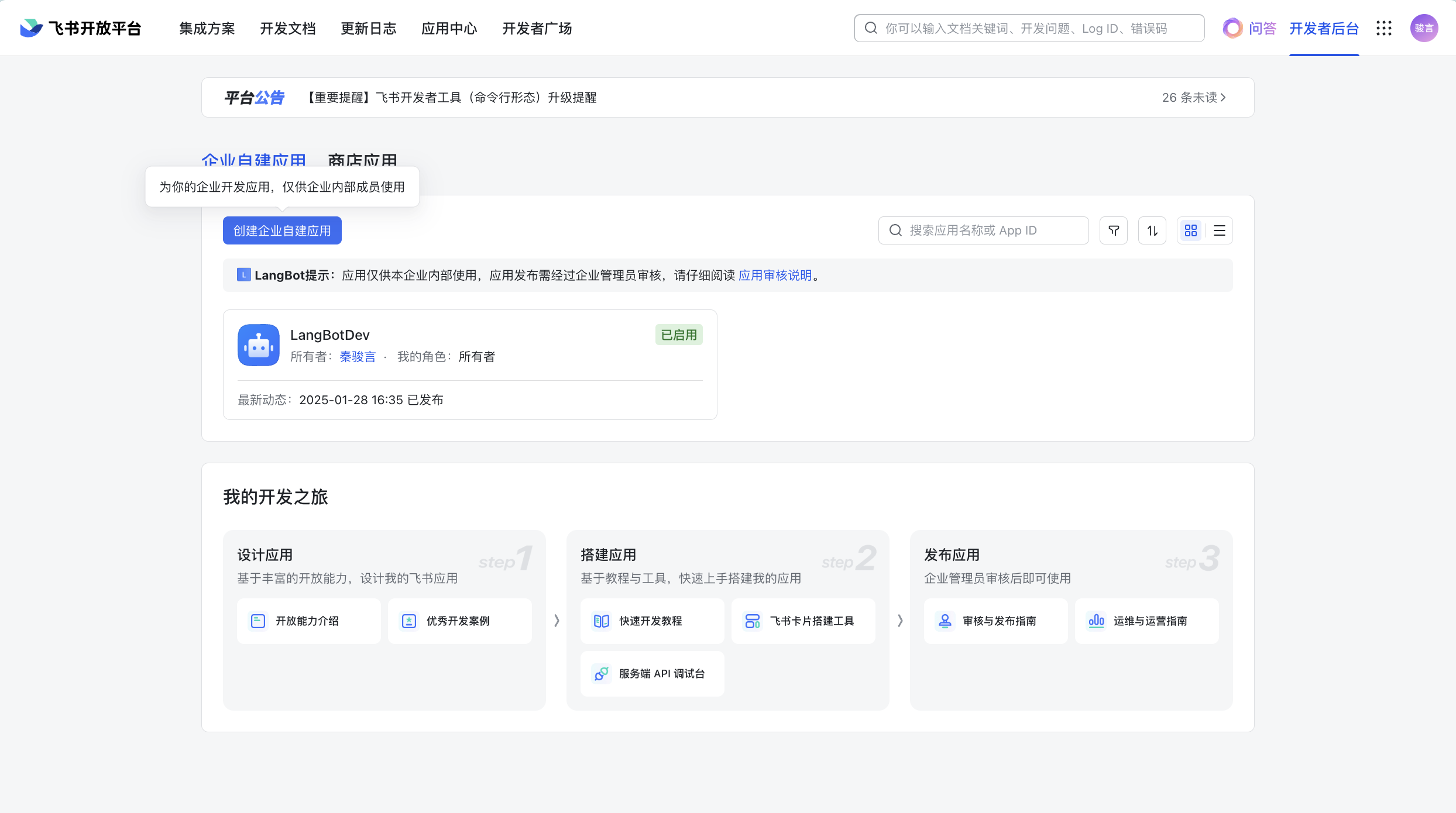
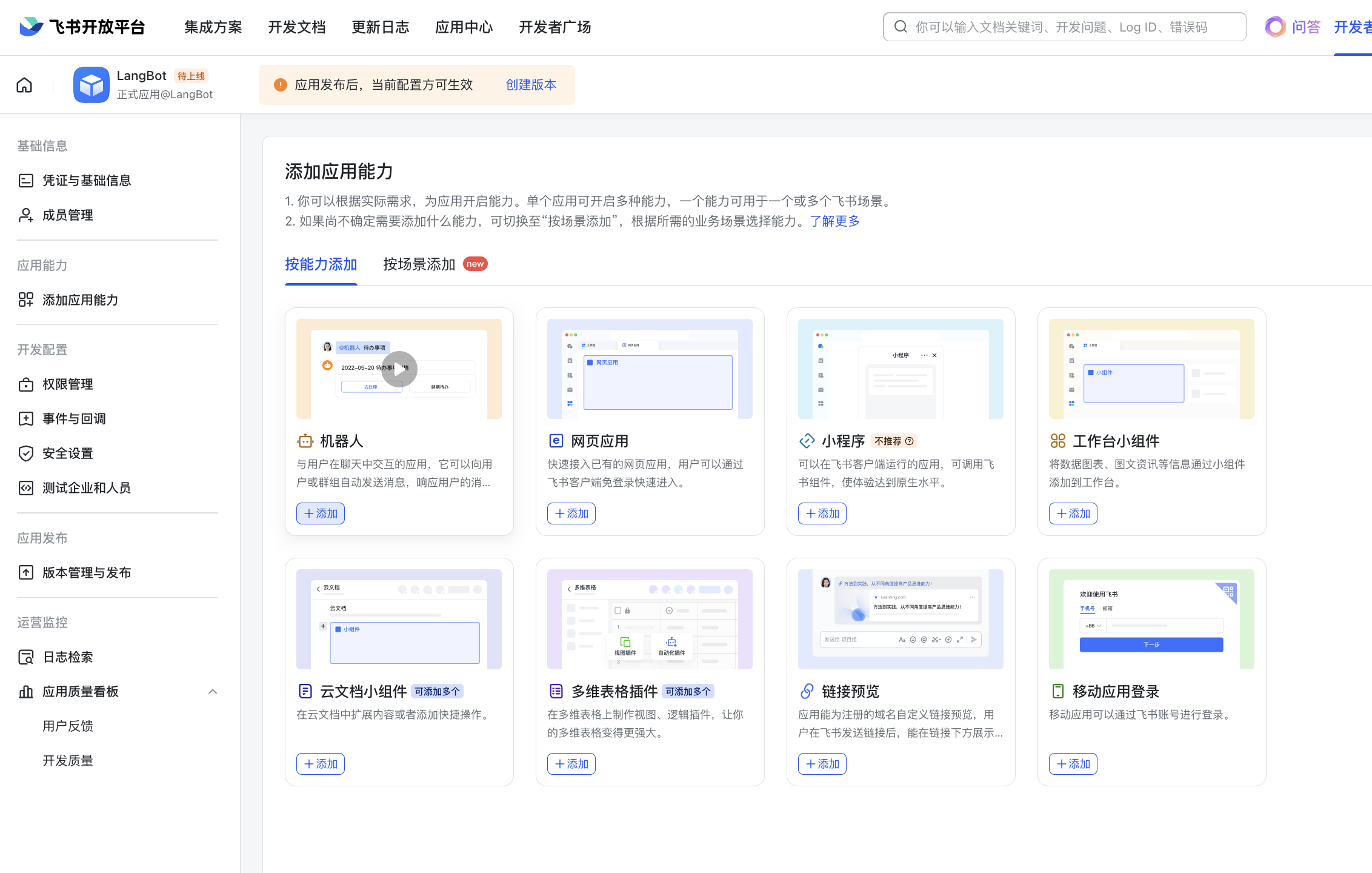
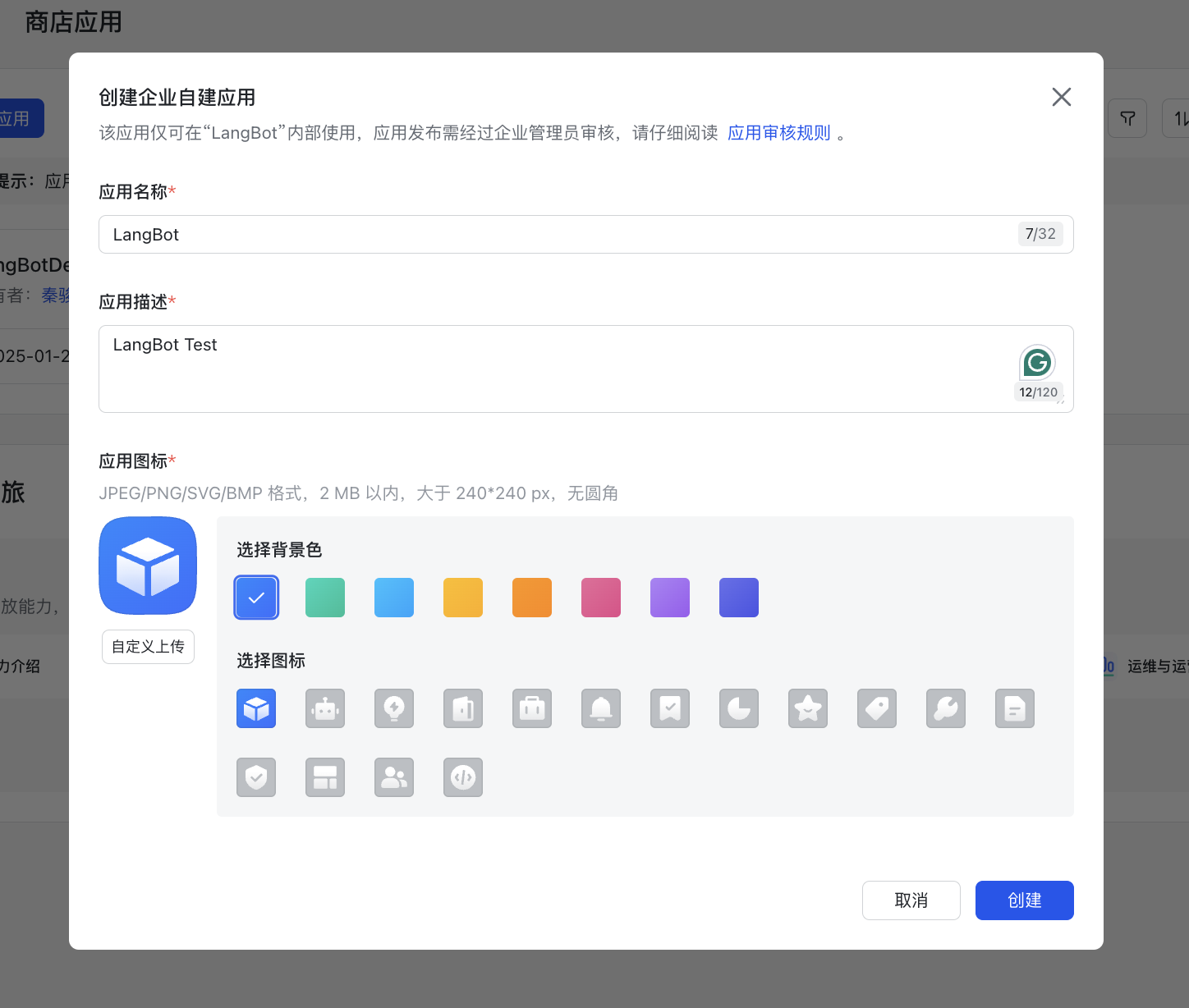 アプリケーションにボット機能を追加します:
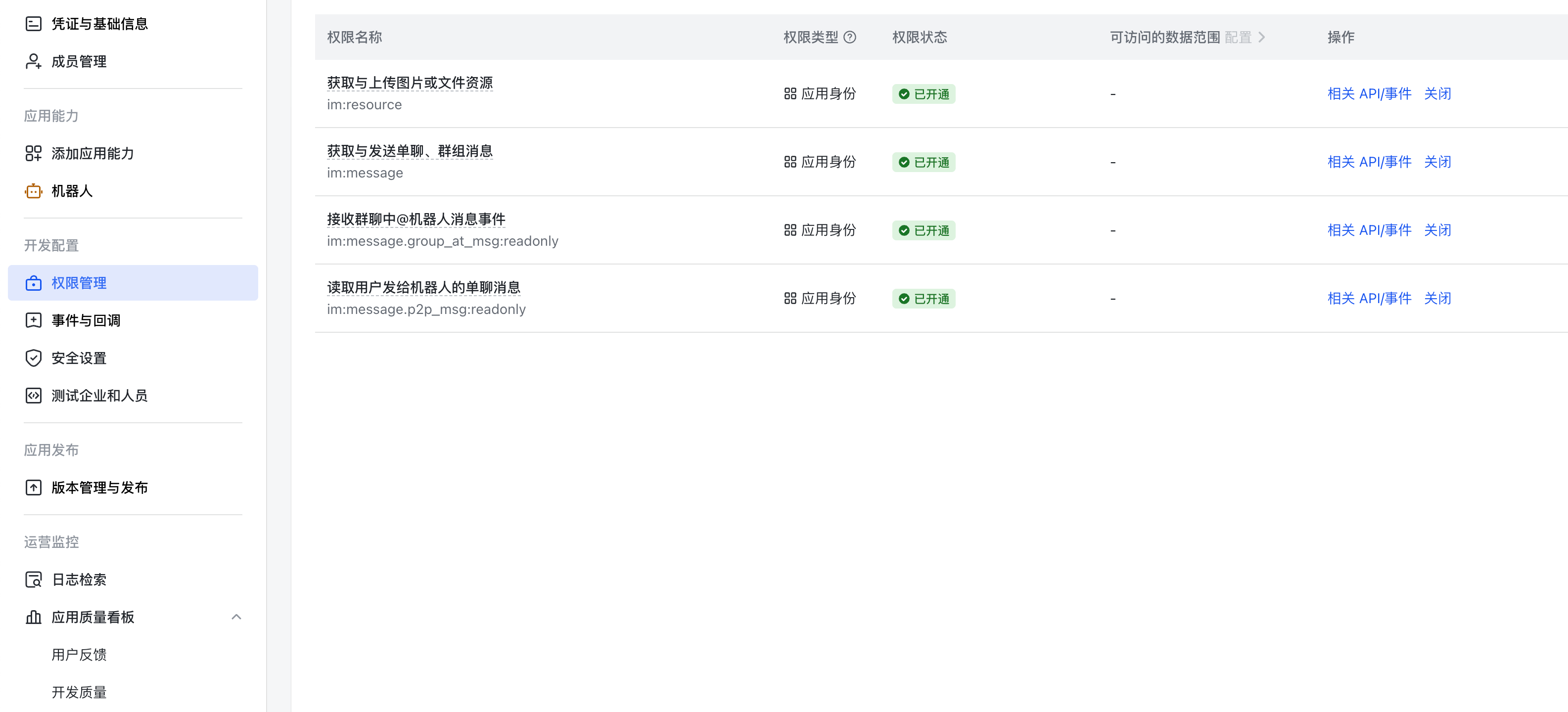
 権限管理で画像に示されている権限を追加します:
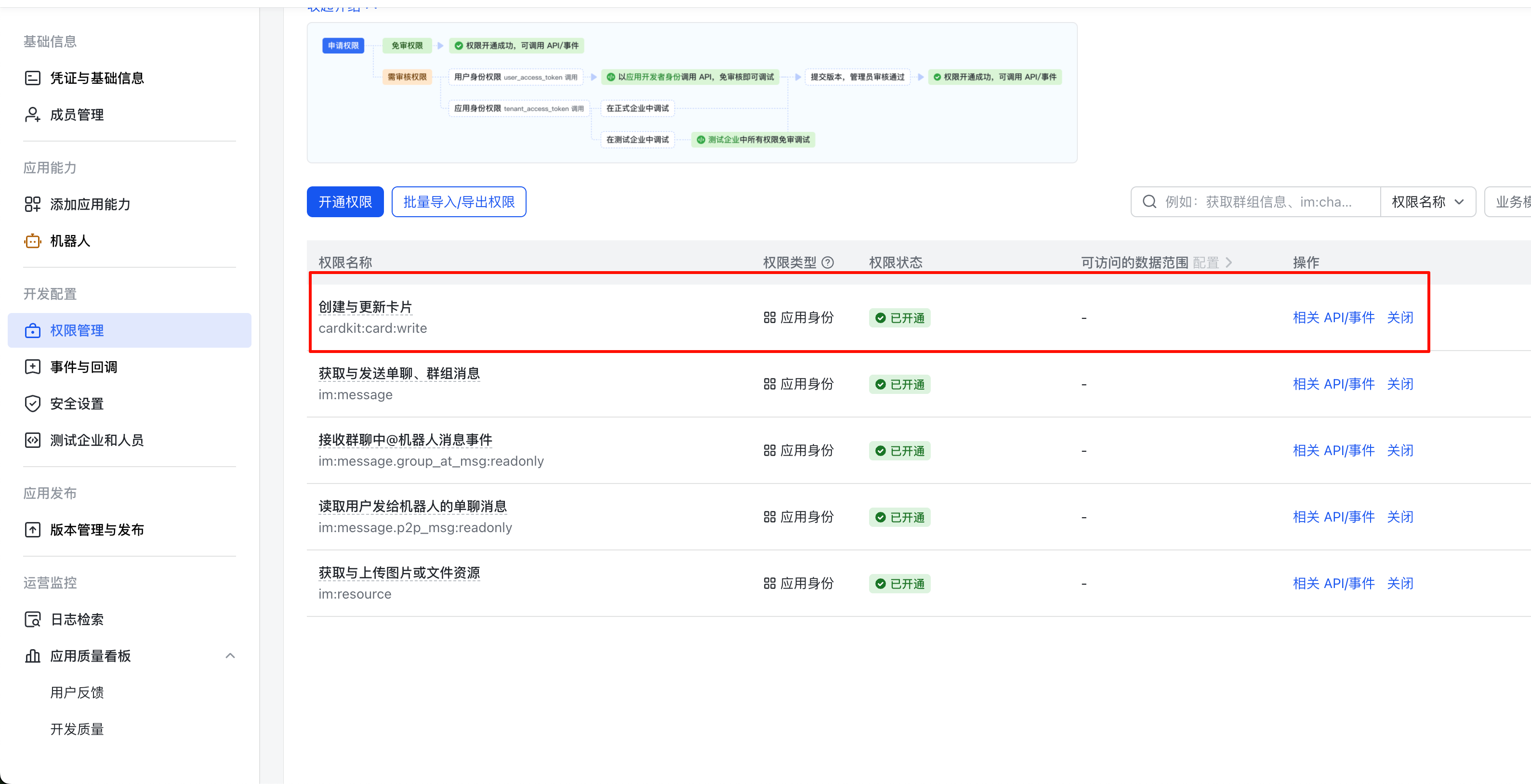
 カードストリーミング権限が必要な場合は、画像に示されている次のカード作成と更新権限を追加します:
 デフォルトのカードテンプレートを変更する必要がある場合は、プラットフォームアダプターのコードでカードテンプレートを自分で修正する必要があります。
### LangBot に接続
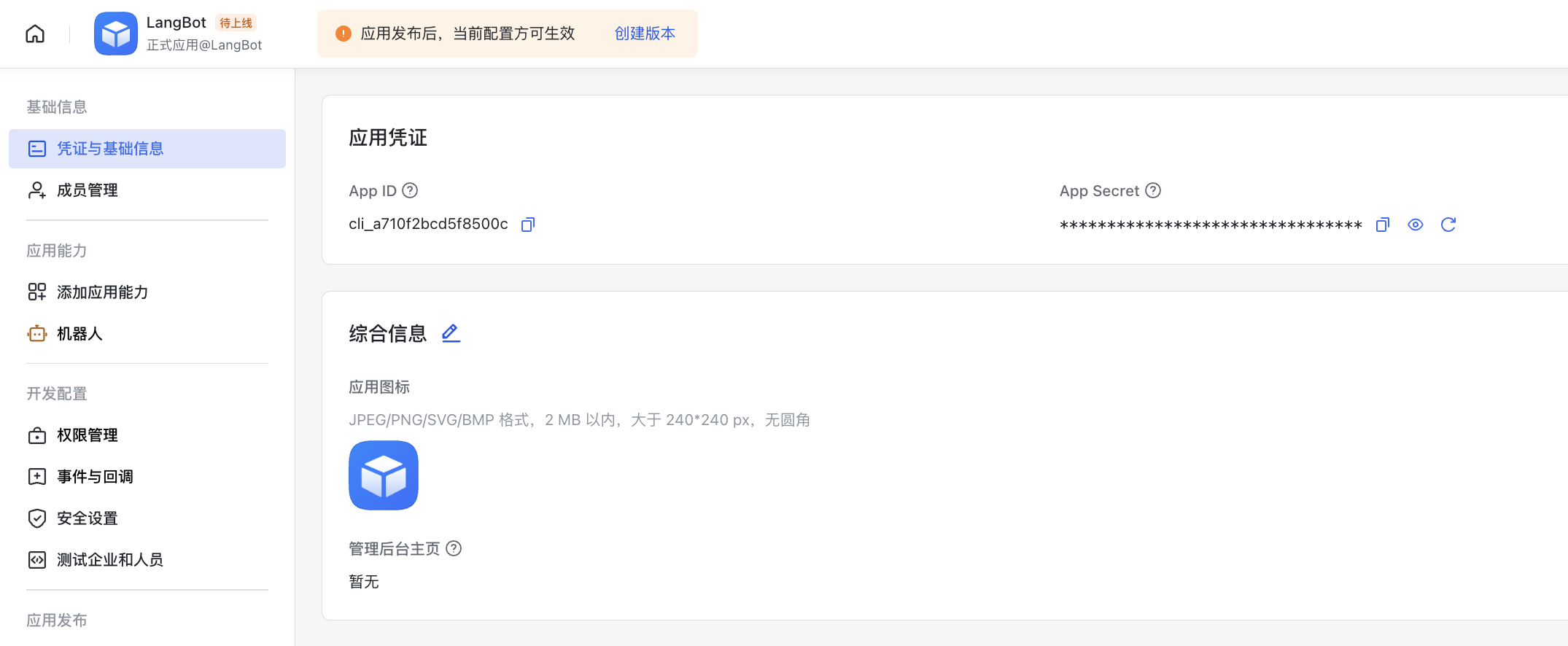
「認証情報と基本情報」ページで `app_id` と `app_secret` を見つけます。
デフォルトのカードテンプレートを変更する必要がある場合は、プラットフォームアダプターのコードでカードテンプレートを自分で修正する必要があります。
### LangBot に接続
「認証情報と基本情報」ページで `app_id` と `app_secret` を見つけます。
 LangBot の Webui 設定ページを開き、新しいボットを作成します
フォームに関連情報を入力します
LangBot の Webui 設定ページを開き、新しいボットを作成します
フォームに関連情報を入力します
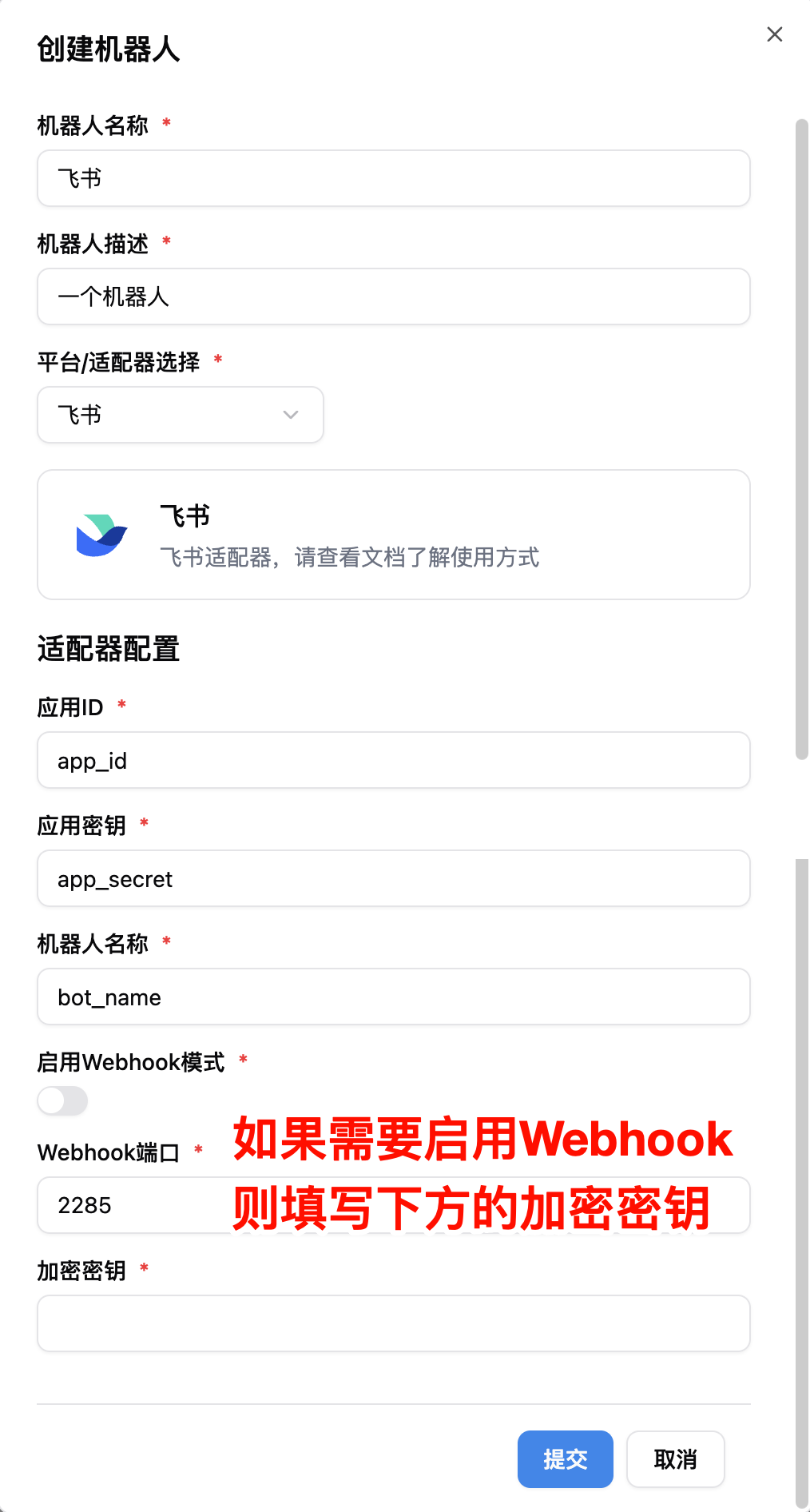 ストリーミング関連:
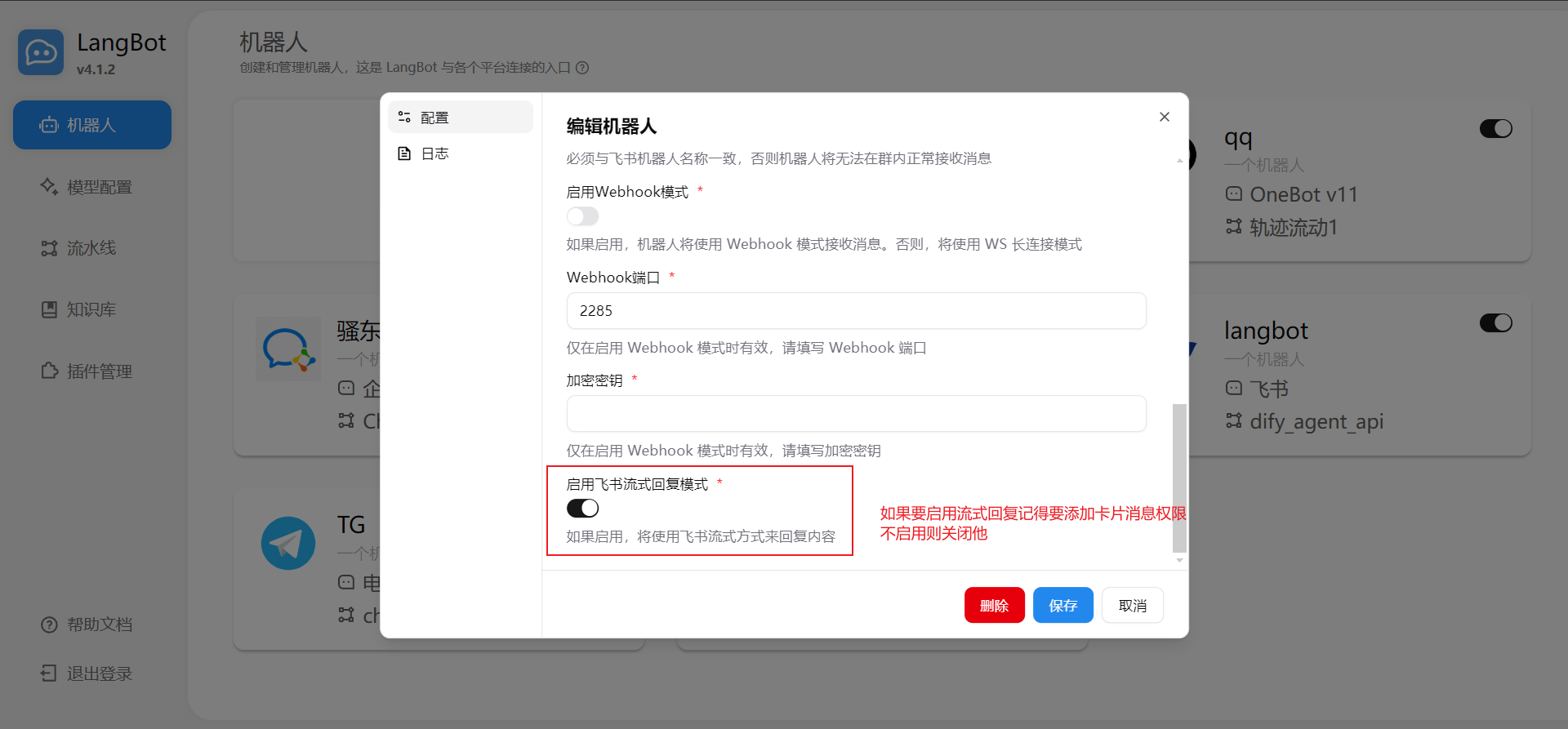 入力後、LangBot を起動します。設定が成功した場合、ログに `[01-29 23:42:56.796] manager.py (68) - [INFO] : Initializing platform adapter 1: lark` と表示されます。LangBot を実行し続けてください。
デフォルトでは、WebSocket 長時間接続モードが使用されます。これは以下の長時間接続サブスクリプションに対応しています。ただし、場合によっては(国際版の Feishu など)、長時間接続モードが利用できない場合があります。その場合は、Webhook モードを使用する必要があります。これは、「開発者サーバーにイベントを送信」モードに対応しています。次の設定を参照してください:
* `enable-webhook`:`true` に設定
* `encrypt-key`:「イベントとコールバック」ページの「暗号化戦略」の「Encrypt Key」に設定
Webhook モードでは、LangBot をパブリック IP を持つサーバーにデプロイし、ファイアウォールが上記で設定したポートを開いていることを確認する必要があることに注意してください。
**パブリックサーバーがありませんか?** [LangBot Cloud](https://space.langbot.app/cloud) にはドメインと HTTPS が含まれており、Lark ボットをすぐに使用できます。
### イベントサブスクリプションの設定
「イベントとコールバック」ページに移動し、サブスクリプション方式を「長時間接続」として設定します:
入力後、LangBot を起動します。設定が成功した場合、ログに `[01-29 23:42:56.796] manager.py (68) - [INFO] : Initializing platform adapter 1: lark` と表示されます。LangBot を実行し続けてください。
デフォルトでは、WebSocket 長時間接続モードが使用されます。これは以下の長時間接続サブスクリプションに対応しています。ただし、場合によっては(国際版の Feishu など)、長時間接続モードが利用できない場合があります。その場合は、Webhook モードを使用する必要があります。これは、「開発者サーバーにイベントを送信」モードに対応しています。次の設定を参照してください:
* `enable-webhook`:`true` に設定
* `encrypt-key`:「イベントとコールバック」ページの「暗号化戦略」の「Encrypt Key」に設定
Webhook モードでは、LangBot をパブリック IP を持つサーバーにデプロイし、ファイアウォールが上記で設定したポートを開いていることを確認する必要があることに注意してください。
**パブリックサーバーがありませんか?** [LangBot Cloud](https://space.langbot.app/cloud) にはドメインと HTTPS が含まれており、Lark ボットをすぐに使用できます。
### イベントサブスクリプションの設定
「イベントとコールバック」ページに移動し、サブスクリプション方式を「長時間接続」として設定します:
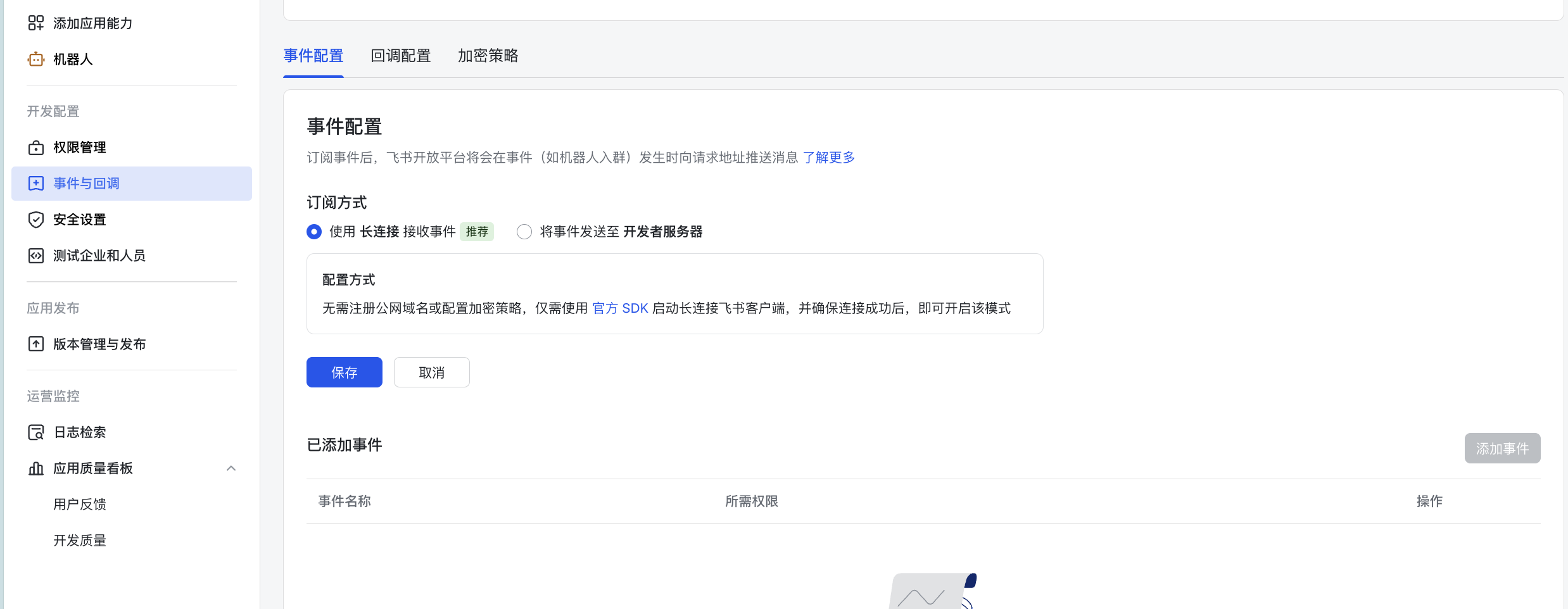 そして、イベント:「メッセージを受信」を追加します
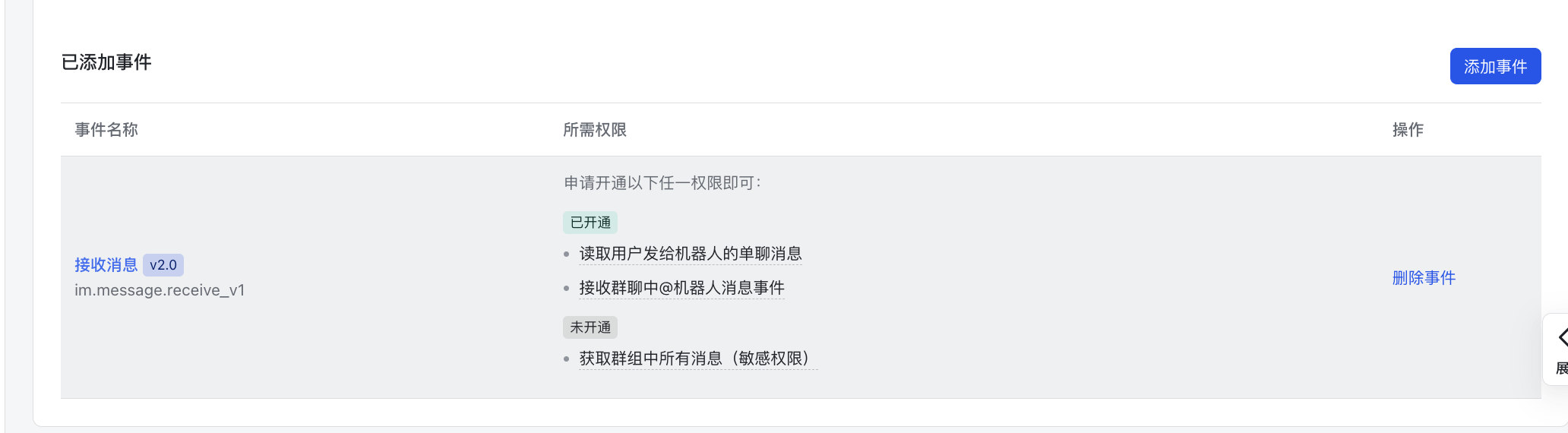 `コールバック設定`を設定し、長時間接続のコールバックを選択します(webhook の場合は webhook を使用)
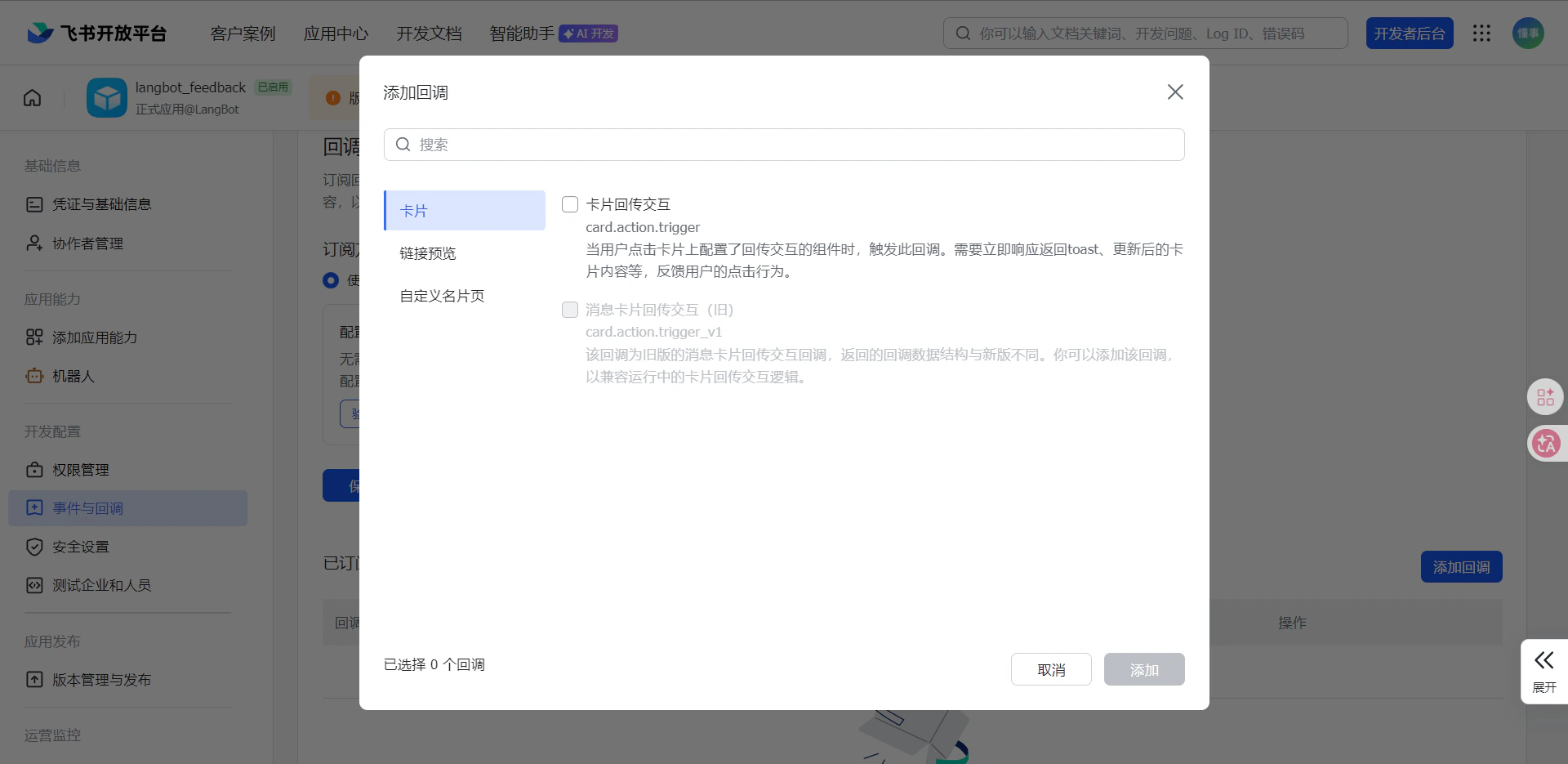
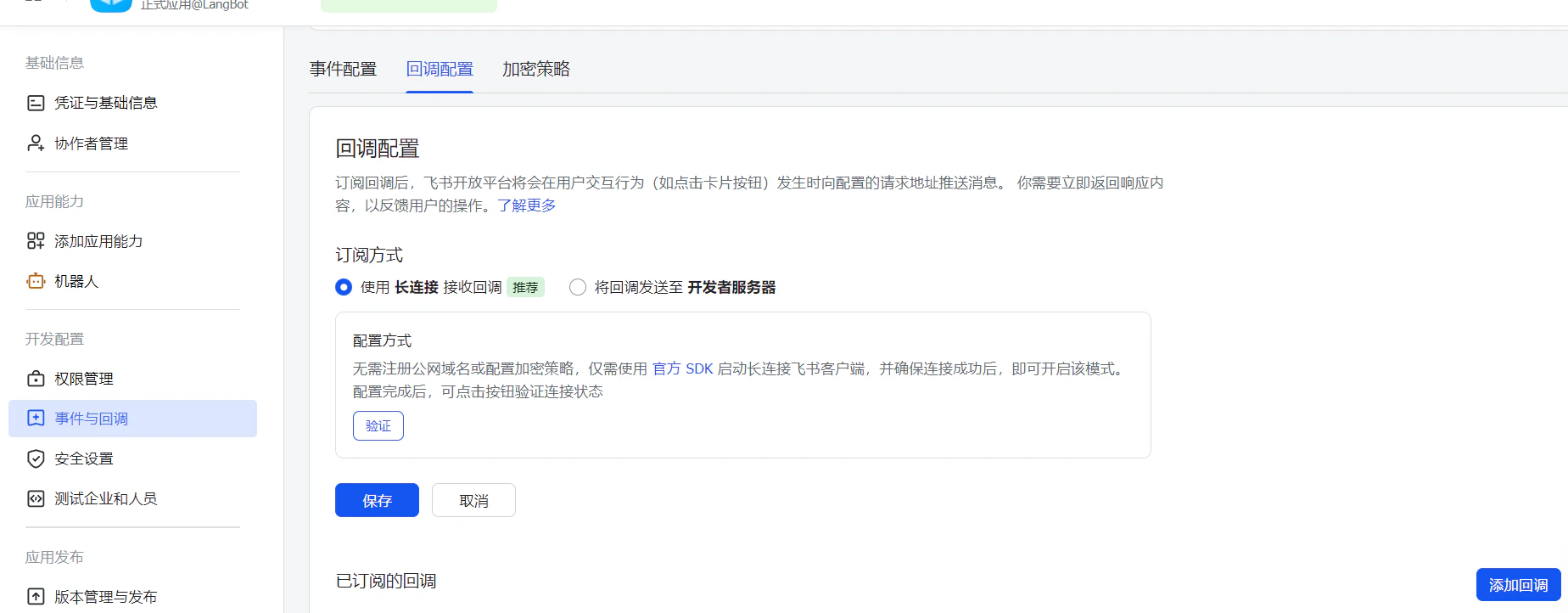 コールバック`カードコールバックインタラクション`を追加します
 Webhook モード設定方法:
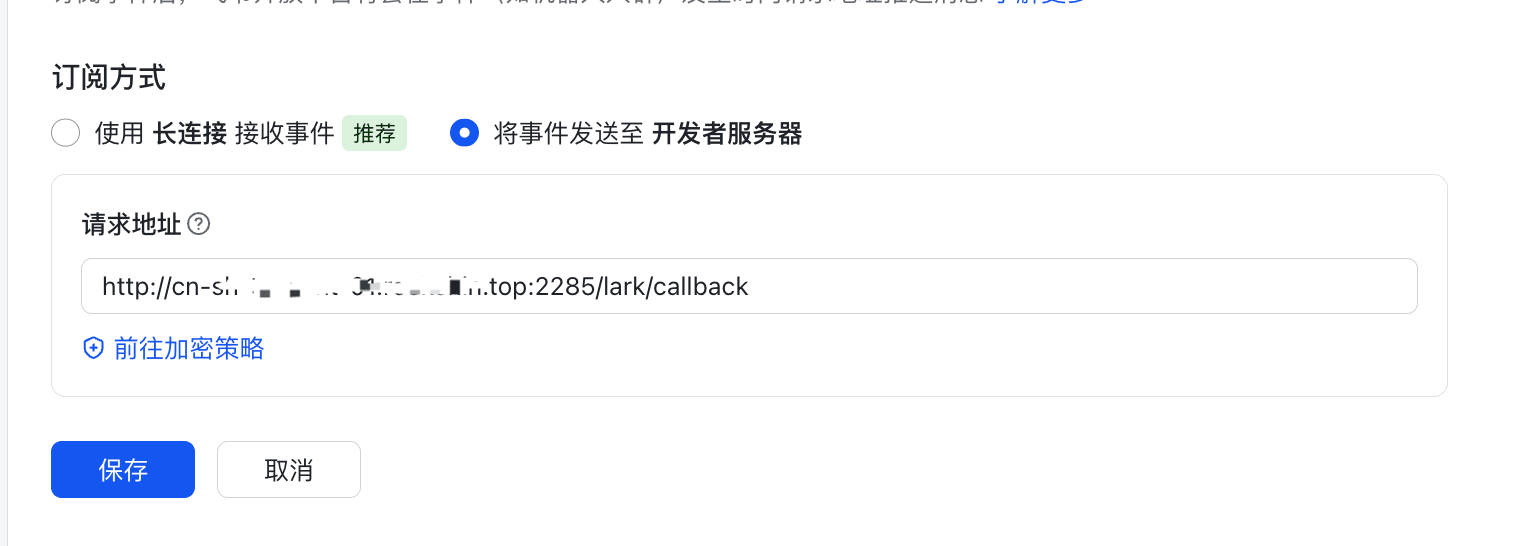 まず LangBot を起動してください。ここに LangBot から取得した Webhook アドレスを入力します。
### ボットの公開
上部の「バージョンを作成」をクリックし、バージョン番号とその他の情報を入力し、下部の「保存」をクリックします。
まず LangBot を起動してください。ここに LangBot から取得した Webhook アドレスを入力します。
### ボットの公開
上部の「バージョンを作成」をクリックし、バージョン番号とその他の情報を入力し、下部の「保存」をクリックします。
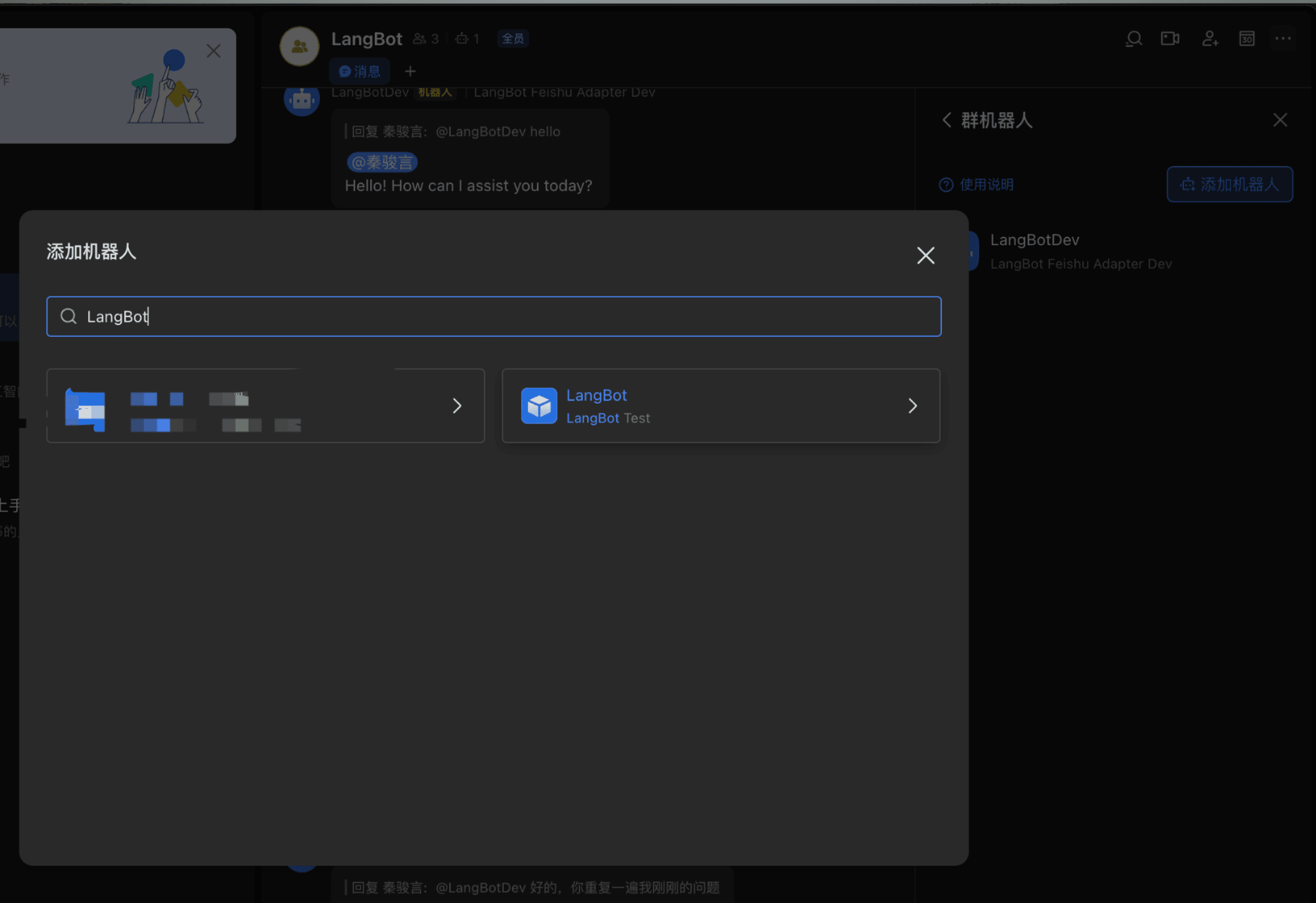
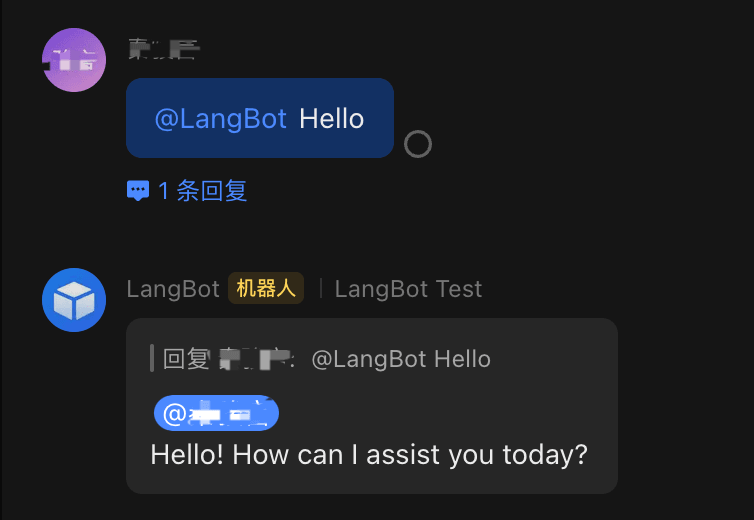
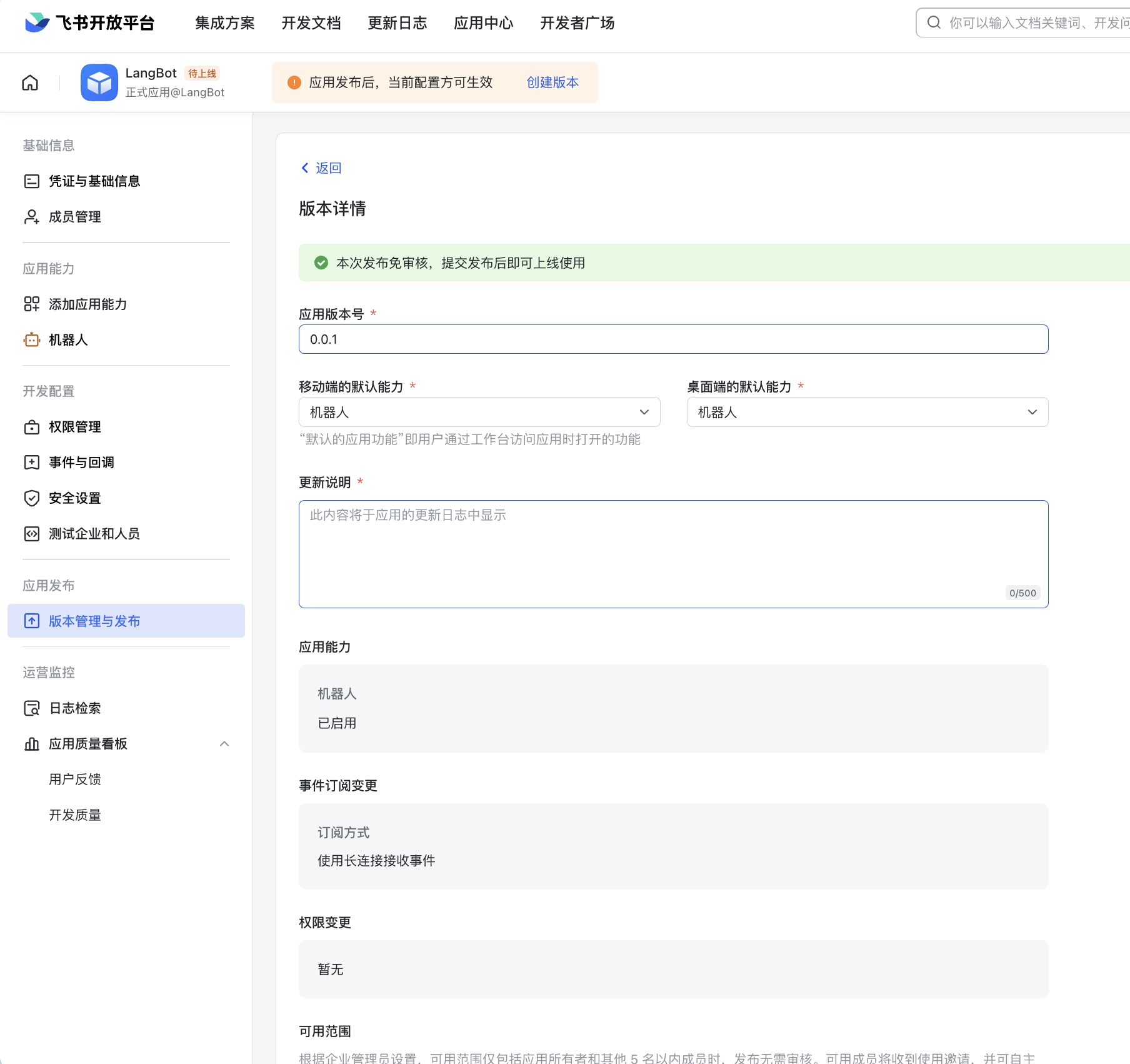 ボットを Feishu グループに追加して使用します:
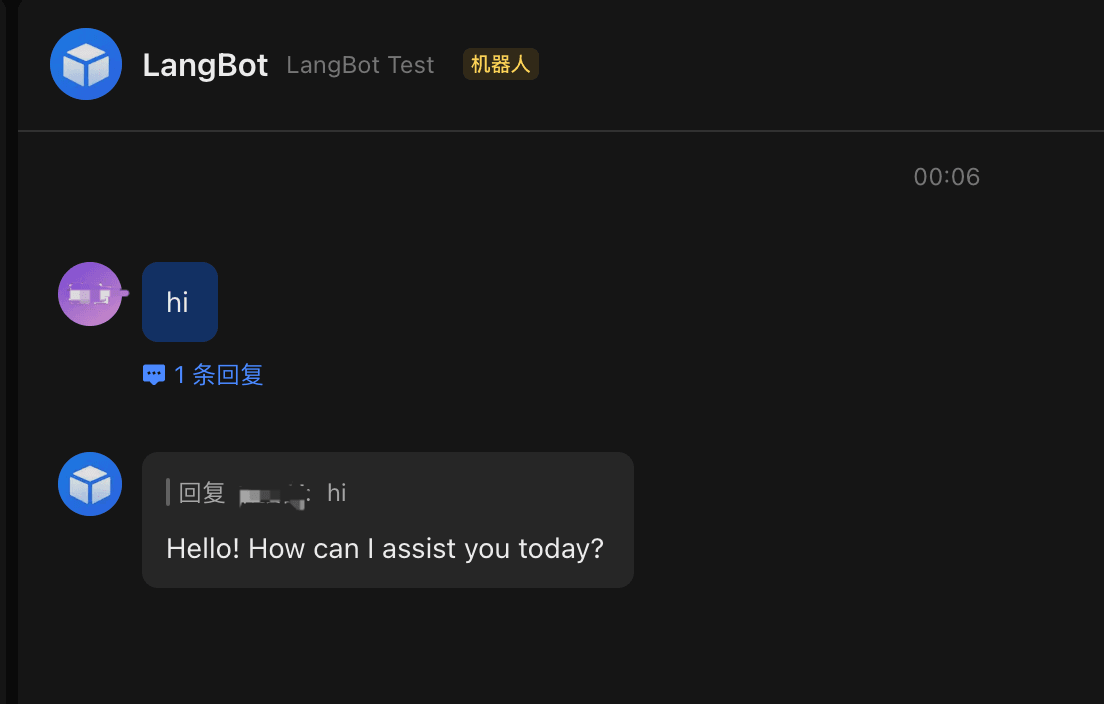
 プライベートチャットでも直接使用できます
 ## よくある問題
* ストアアプリのボットは、作成/保存直後にチャットメッセージに応答できません。[app\_ticket イベント](https://open.feishu.cn/document/server-docs/application-v6/event/app_ticket-events)の遅延メカニズムにより、正常に動作するまで約 2 分待つ必要があります。
## よくある問題
* ストアアプリのボットは、作成/保存直後にチャットメッセージに応答できません。[app\_ticket イベント](https://open.feishu.cn/document/server-docs/application-v6/event/app_ticket-events)の遅延メカニズムにより、正常に動作するまで約 2 分待つ必要があります。