> ## Documentation Index
> Fetch the complete documentation index at: https://docs.langbot.app/llms.txt
> Use this file to discover all available pages before exploring further.

# Discord

> LangBot で Discord AI ボットを構築。GPT・Claude・Gemini・DeepSeek・Dify を数分で Discord サーバーに接続。

## ボットの作成

[Discord Developer Portal](https://discord.com/developers/applications)にアクセスし、ログインしてアプリケーションを作成します。
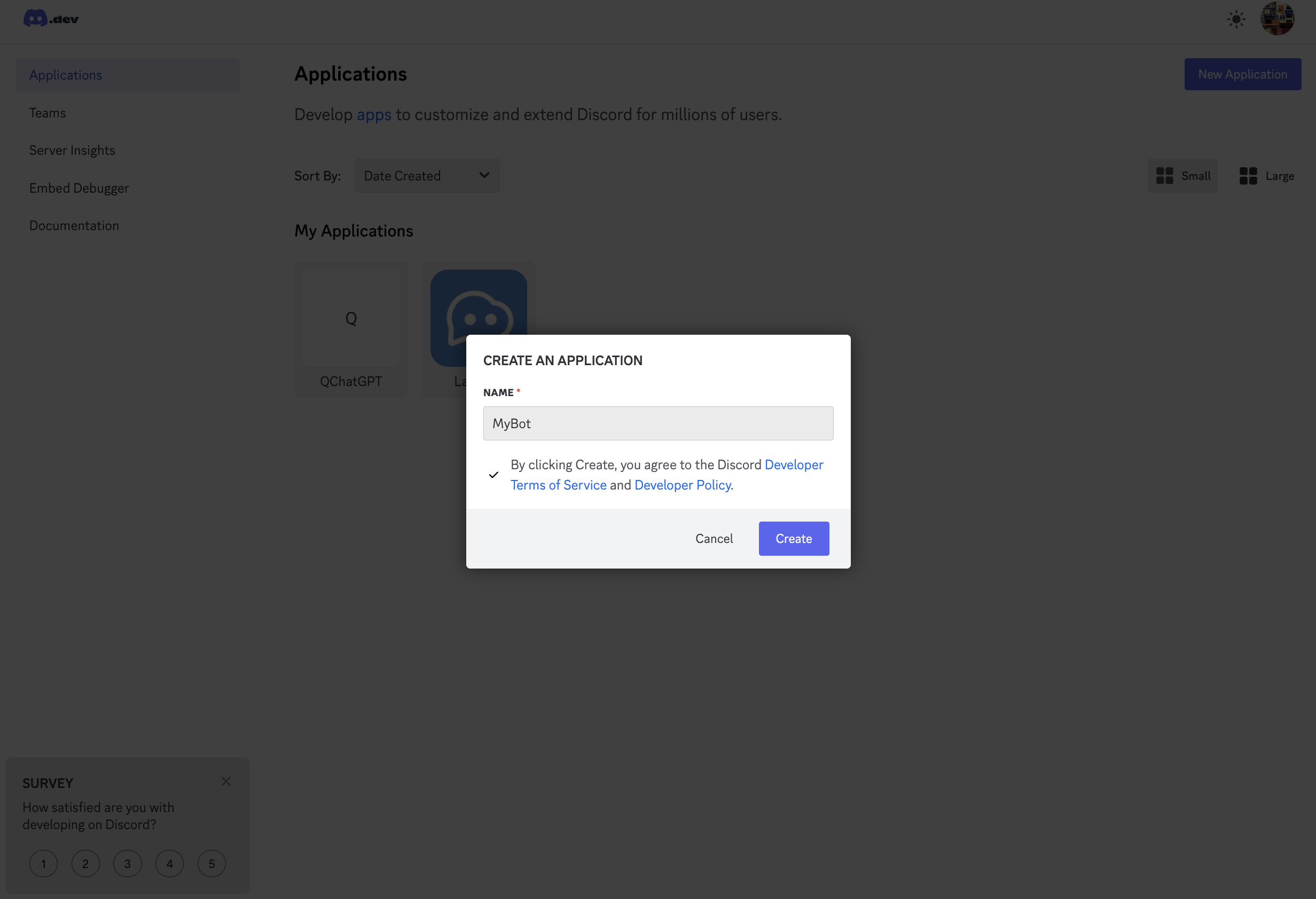
<img src="https://mintcdn.com/langbot/BZuGA47SaPPwv_j7/images/zh/deploy/bots/discord/discord_01.png?fit=max&auto=format&n=BZuGA47SaPPwv_j7&q=85&s=ebc30ebdf0e0b7141ee20a129c75f593" alt="alt text" width="2464" height="1684" data-path="images/zh/deploy/bots/discord/discord_01.png" />

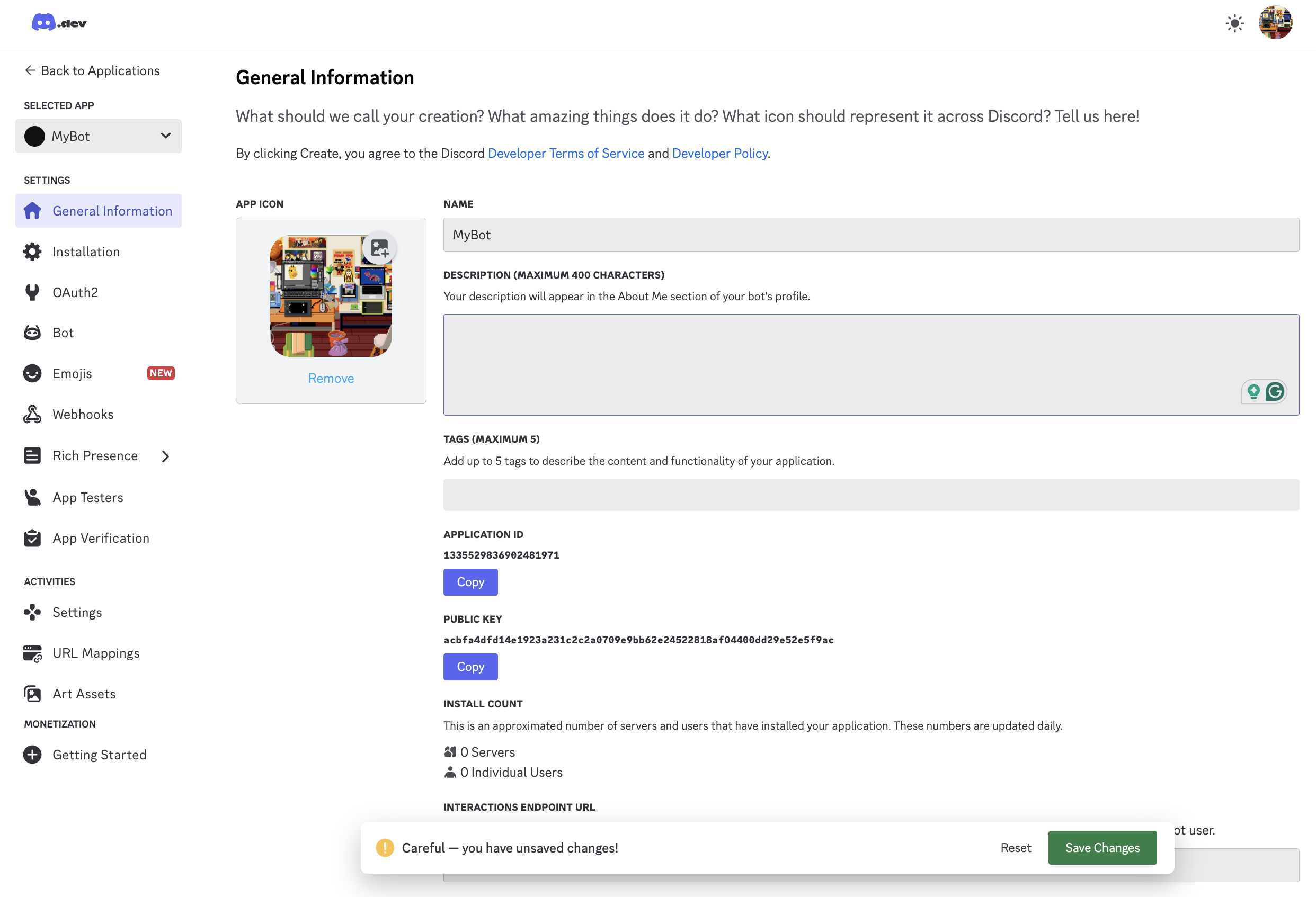
基本情報を変更し、「Save Changes」をクリックして保存します。

<img src="https://mintcdn.com/langbot/BZuGA47SaPPwv_j7/images/zh/deploy/bots/discord/discord_02.png?fit=max&auto=format&n=BZuGA47SaPPwv_j7&q=85&s=a86cdc3aaf54e809c6e82ec6c23ea02c" alt="alt text" width="2484" height="1694" data-path="images/zh/deploy/bots/discord/discord_02.png" />

左側の「Bot」をクリックし、「Reset Token」をクリックして、生成された Token をコピーします。
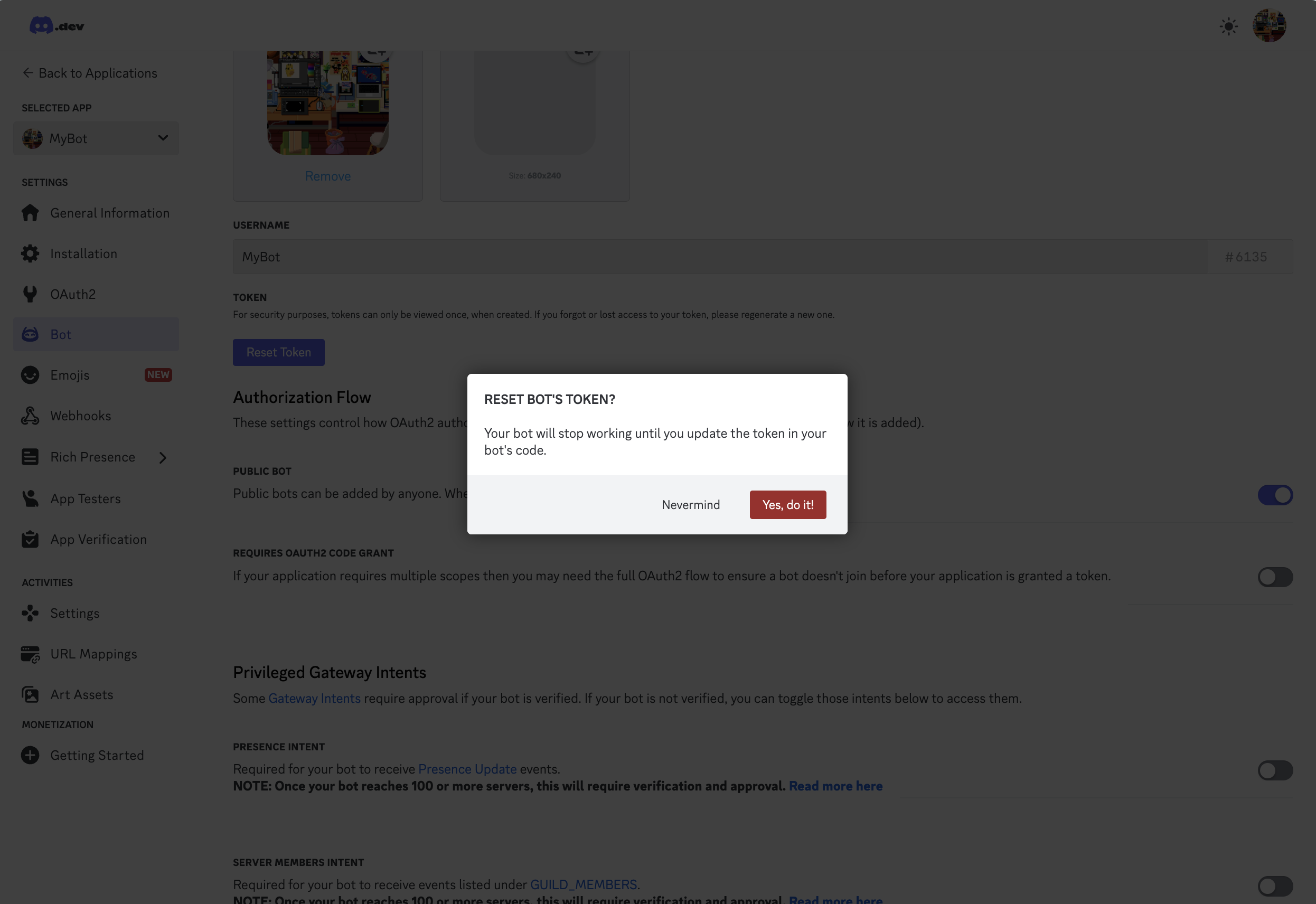
<img src="https://mintcdn.com/langbot/BZuGA47SaPPwv_j7/images/zh/deploy/bots/discord/discord_03.png?fit=max&auto=format&n=BZuGA47SaPPwv_j7&q=85&s=f5c5a49d96b03487ad025ed4430c4cfb" alt="alt text" width="2492" height="1712" data-path="images/zh/deploy/bots/discord/discord_03.png" />

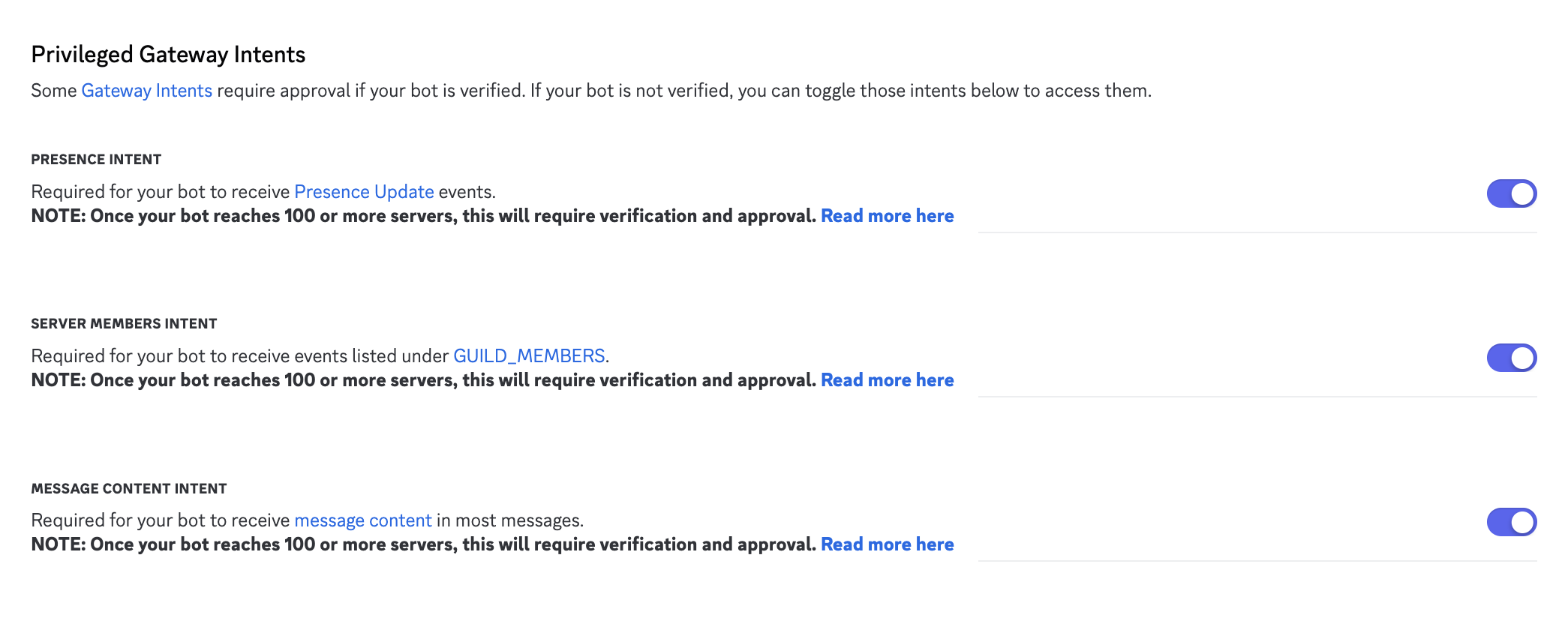
そして、このページの「Privileged Gateway Intents」のすべてのオプションをチェックし、「Save Changes」をクリックして保存します。
<img src="https://mintcdn.com/langbot/BZuGA47SaPPwv_j7/images/zh/deploy/bots/discord/discord_05.png?fit=max&auto=format&n=BZuGA47SaPPwv_j7&q=85&s=761e395e992fdc42a176dc9145c53ab4" alt="alt text" width="2090" height="844" data-path="images/zh/deploy/bots/discord/discord_05.png" />

**最後に、左側の「OAuth2」をクリックし、ページの「Client ID」をコピーします。**

## LangBot に接続

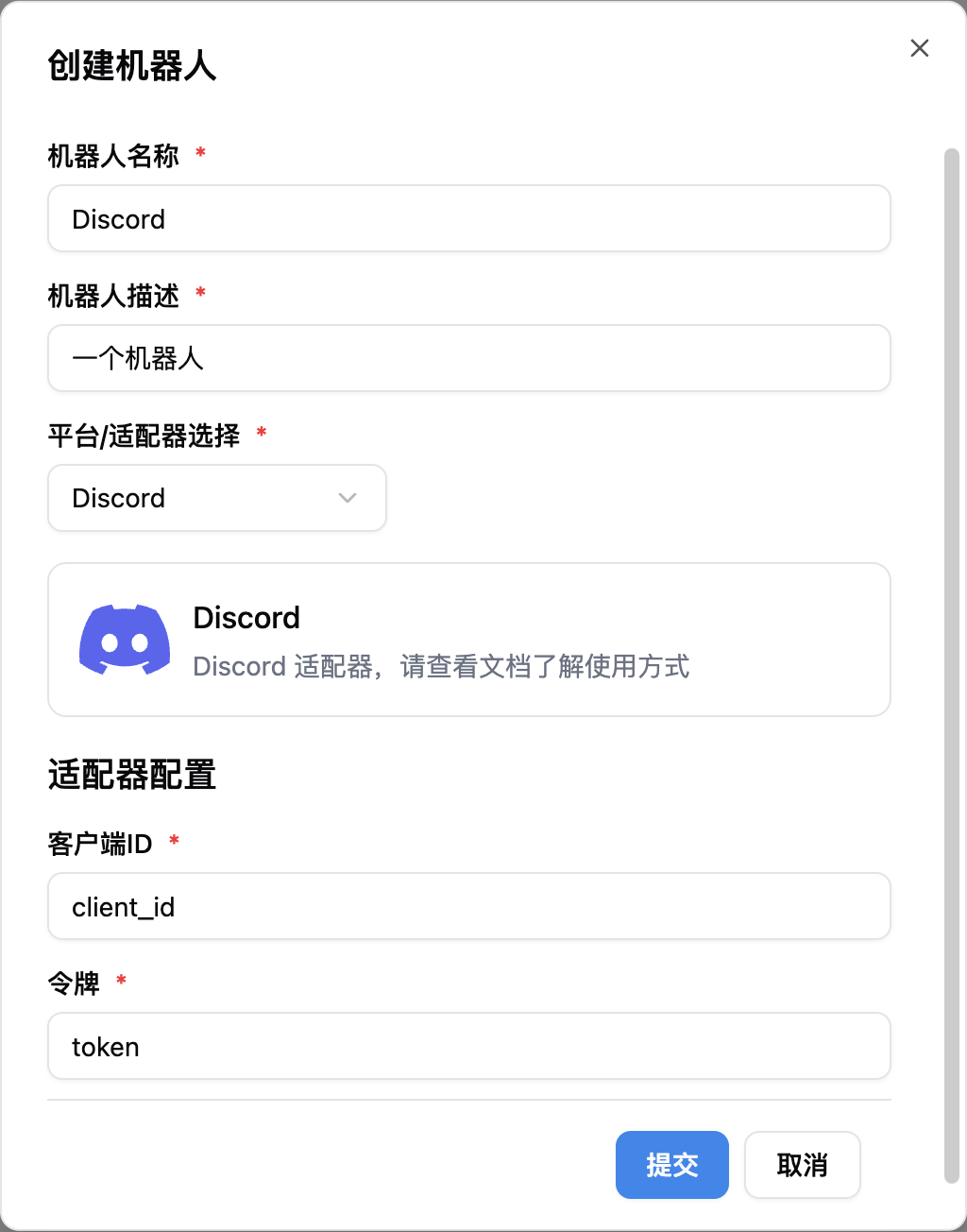
新しいボットを追加するためにクリックし、前の手順で取得した「Client ID」と「Token」を設定に入力します。
<img src="https://mintcdn.com/langbot/BZuGA47SaPPwv_j7/images/zh/deploy/bots/discord/connect_to_langbot.png?fit=max&auto=format&n=BZuGA47SaPPwv_j7&q=85&s=fbf794ccd2fcd11d3e4dbc79a89b9bdb" alt="alt text" width="1024" height="1304" data-path="images/zh/deploy/bots/discord/connect_to_langbot.png" />

<Warning title="">
  中国本土内でこのアダプターを使用している場合、ネットワークプロキシを設定する必要がある場合があります。
</Warning>

入力後、LangBot を起動します。設定が成功した場合、ログに `[02-02 16:48:15.263] manager.py (68) - [INFO] : Initializing platform adapter 1: discord` と表示されます。LangBot を実行し続けてください。

## ボットをサーバーに招待

まずサーバーを作成し、次にボットをサーバーに招待する必要があります。

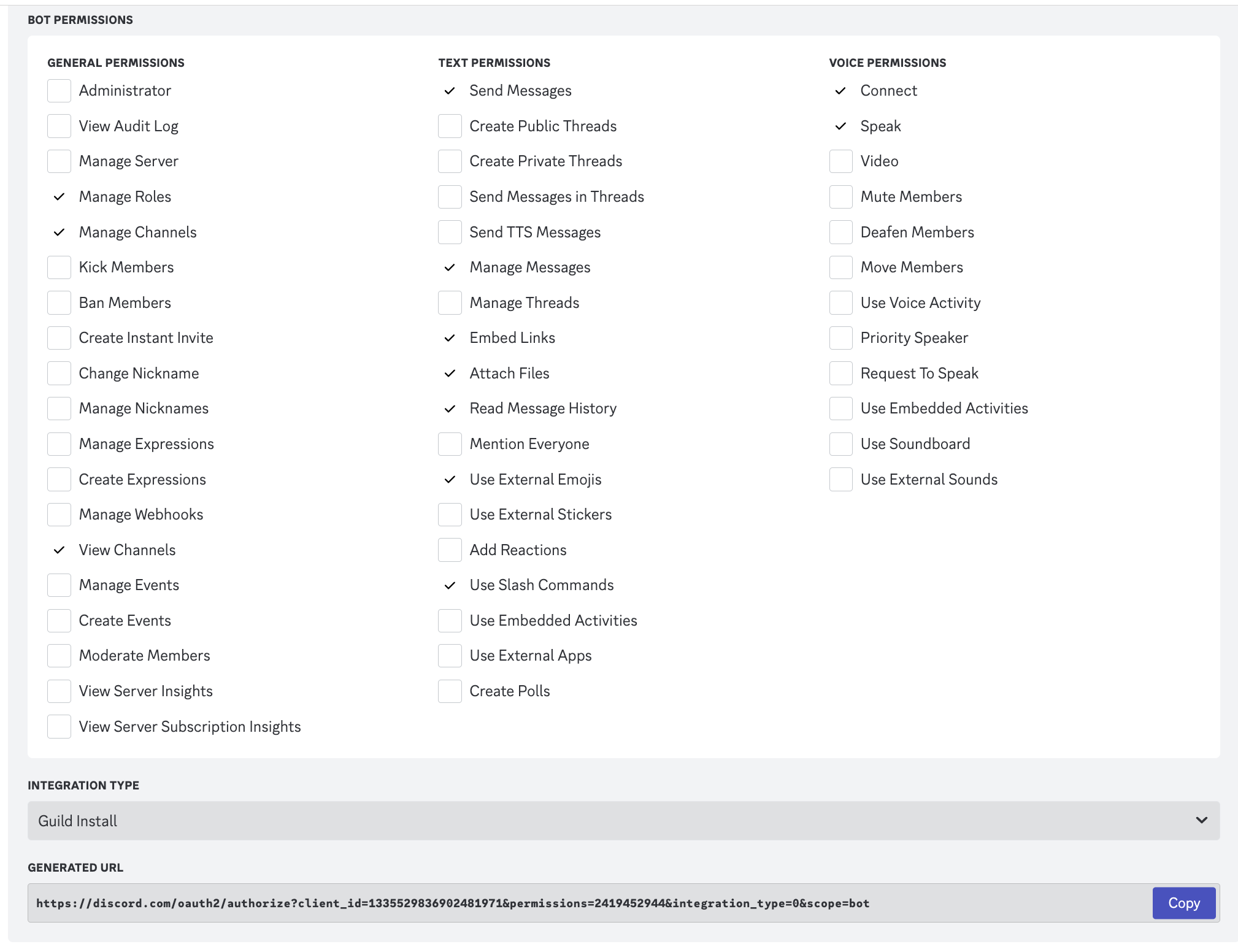
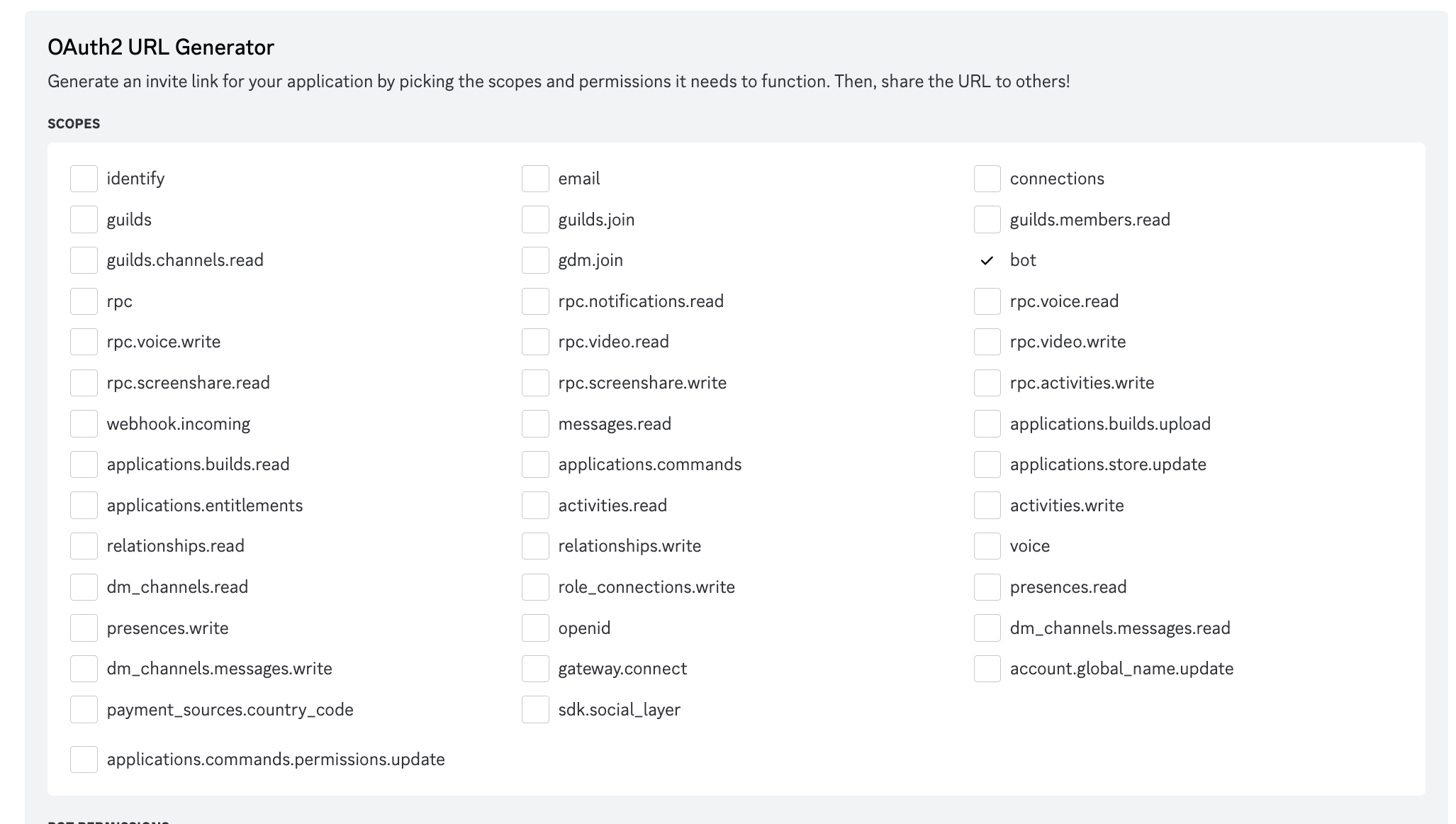
「OAuth2」ページに移動し、「URL Generator」を選択し、「bot」を選択して、画像に示されている権限をチェックします。
<img src="https://mintcdn.com/langbot/BZuGA47SaPPwv_j7/images/zh/deploy/bots/discord/discord_06.png?fit=max&auto=format&n=BZuGA47SaPPwv_j7&q=85&s=a6db470e5ff35c34f971119fcbf28fa6" alt="alt text" width="2054" height="1162" data-path="images/zh/deploy/bots/discord/discord_06.png" />

<img src="https://mintcdn.com/langbot/BZuGA47SaPPwv_j7/images/zh/deploy/bots/discord/discord_07.png?fit=max&auto=format&n=BZuGA47SaPPwv_j7&q=85&s=f4b8caf58e67c0517b904d27579cbb5d" alt="alt text" width="2018" height="1552" data-path="images/zh/deploy/bots/discord/discord_07.png" />

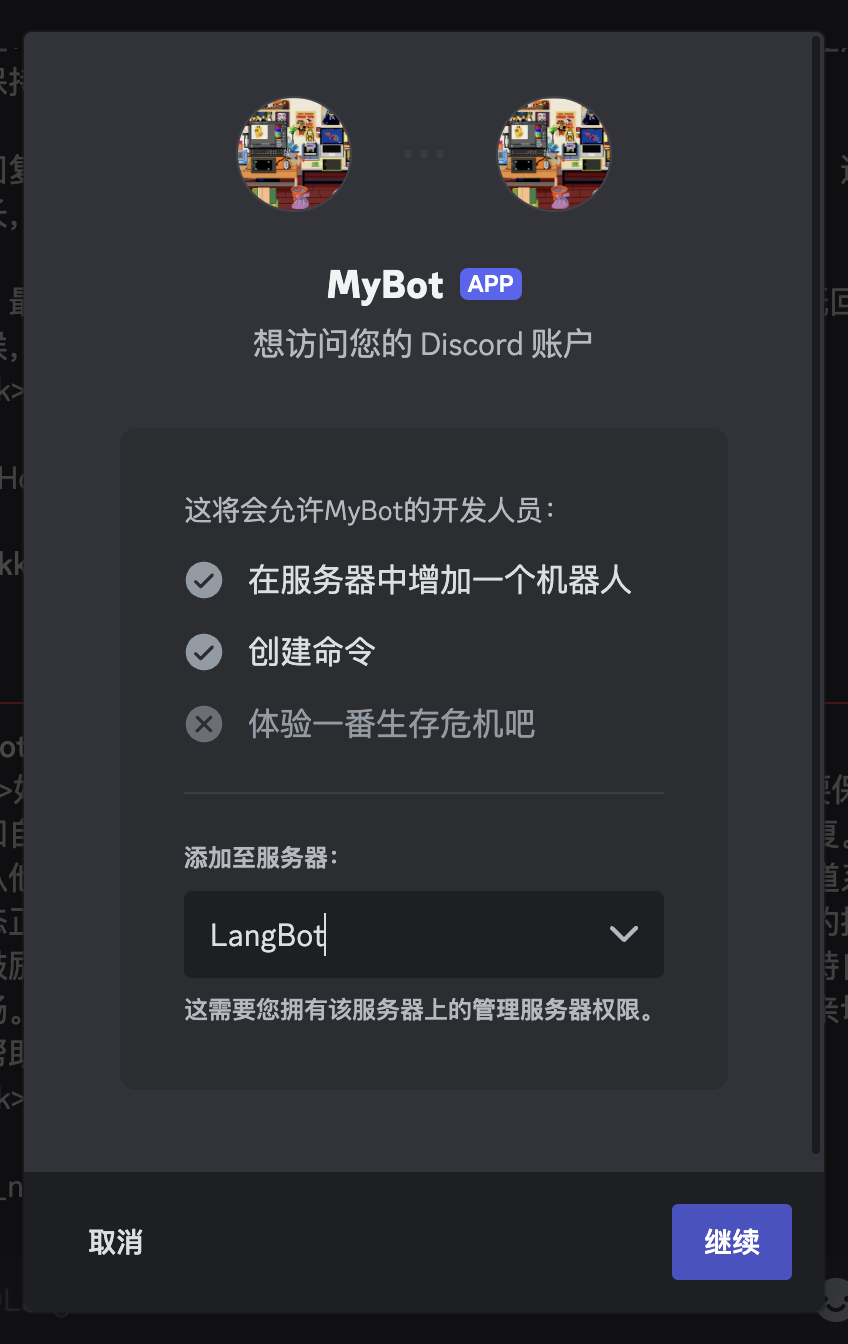
「Copy」をクリックし、生成された URL をブラウザに貼り付けて開き、ボットをサーバーに招待します。
<img src="https://mintcdn.com/langbot/BZuGA47SaPPwv_j7/images/zh/deploy/bots/discord/discord_08.png?fit=max&auto=format&n=BZuGA47SaPPwv_j7&q=85&s=574c56fb2b7c01441dd9f34f40016ca8" alt="alt text" width="848" height="1344" data-path="images/zh/deploy/bots/discord/discord_08.png" />

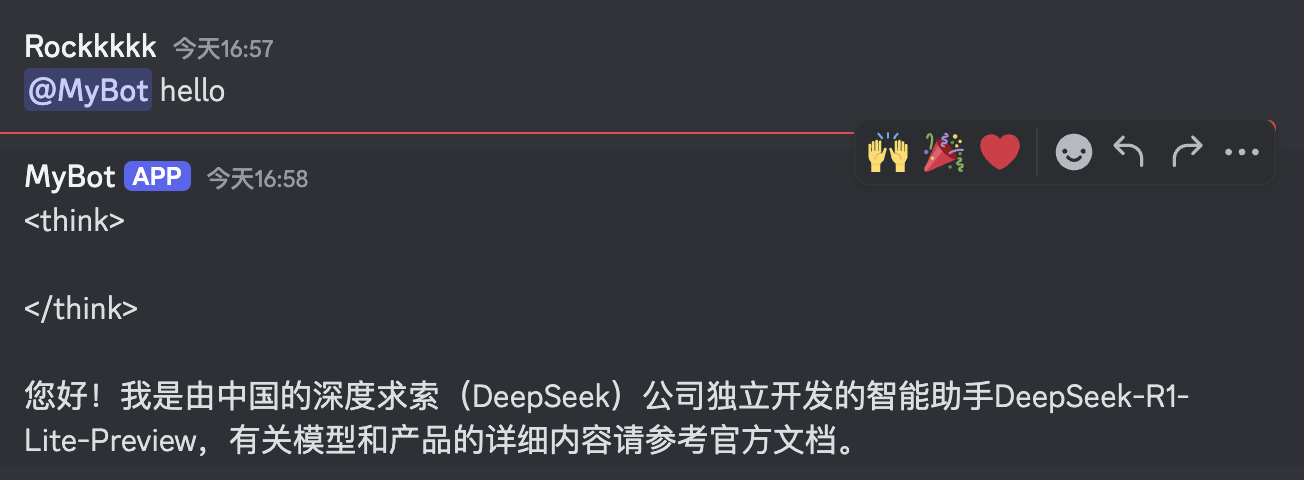
## ボットの使用

グループまたはプライベートメッセージでボットを通常どおり使用できるようになりました。
<img src="https://mintcdn.com/langbot/BZuGA47SaPPwv_j7/images/zh/deploy/bots/discord/discord_09.png?fit=max&auto=format&n=BZuGA47SaPPwv_j7&q=85&s=e4e34f6d279eddf3d66fa0d798cea701" alt="alt text" width="1304" height="480" data-path="images/zh/deploy/bots/discord/discord_09.png" />