> ## Documentation Index
> Fetch the complete documentation index at: https://docs.langbot.app/llms.txt
> Use this file to discover all available pages before exploring further.
# プラグインマーケットプレイスに公開
CLI経由で[LangBotプラグインマーケットプレイス](https://space.langbot.app/market)にプラグインを公開します。
## LangBot Spaceでアカウントを作成
LangBot SpaceはLangBotの集中サービスプラットフォームです。[LangBot Space](https://space.langbot.app)にアクセスし、右上隅をクリックしてGitHubでログインし、アカウントを作成してください。
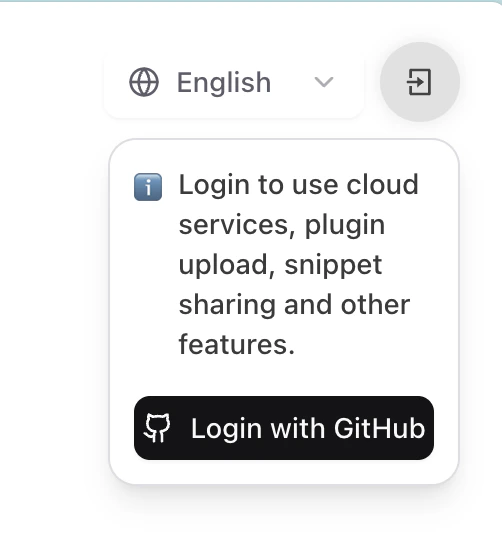 GitHubの認証ページにリダイレクトされますので、プロンプトに従って認証を完了してください。
## CLIを使用してLangBot Spaceにログイン
### 方法1:個人アクセストークンを使用(推奨)
1. [LangBot Space](https://space.langbot.app)にログインし、アバターをクリックして**アカウント設定**を開き、**アカウント**タブの**個人アクセストークン**で新しいトークンを作成します。
2. 生成されたトークンをコピーし(一度しか表示されません)、ターミナルで以下を実行します:
```bash theme={null}
➜ HelloPlugin > lbp login --token lbpat_xxxxxxxxxxxxxxxxxxxxxxxxxxxxxxxxxxxxxxxxxxxxxxxxxxxxxxxxxxxxxxxx
==================================================
✅ 個人アクセストークンでログインしました!
トークンの保存先:~/.langbot/cli/config.json
==================================================
```
### 方法2:デバイスコード認証を使用
任意のディレクトリでコマンド`lbp login`を実行します:
```bash theme={null}
➜ HelloPlugin > lbp login
Starting LangBot CLI login process...
Generating device code...
==================================================
Please copy the user code and complete verification in your browser:
User Code: 6CD64D56
Verification URL: https://space.langbot.app/auth/device
Device code expires in: 120 seconds
==================================================
Waiting for verification...
```
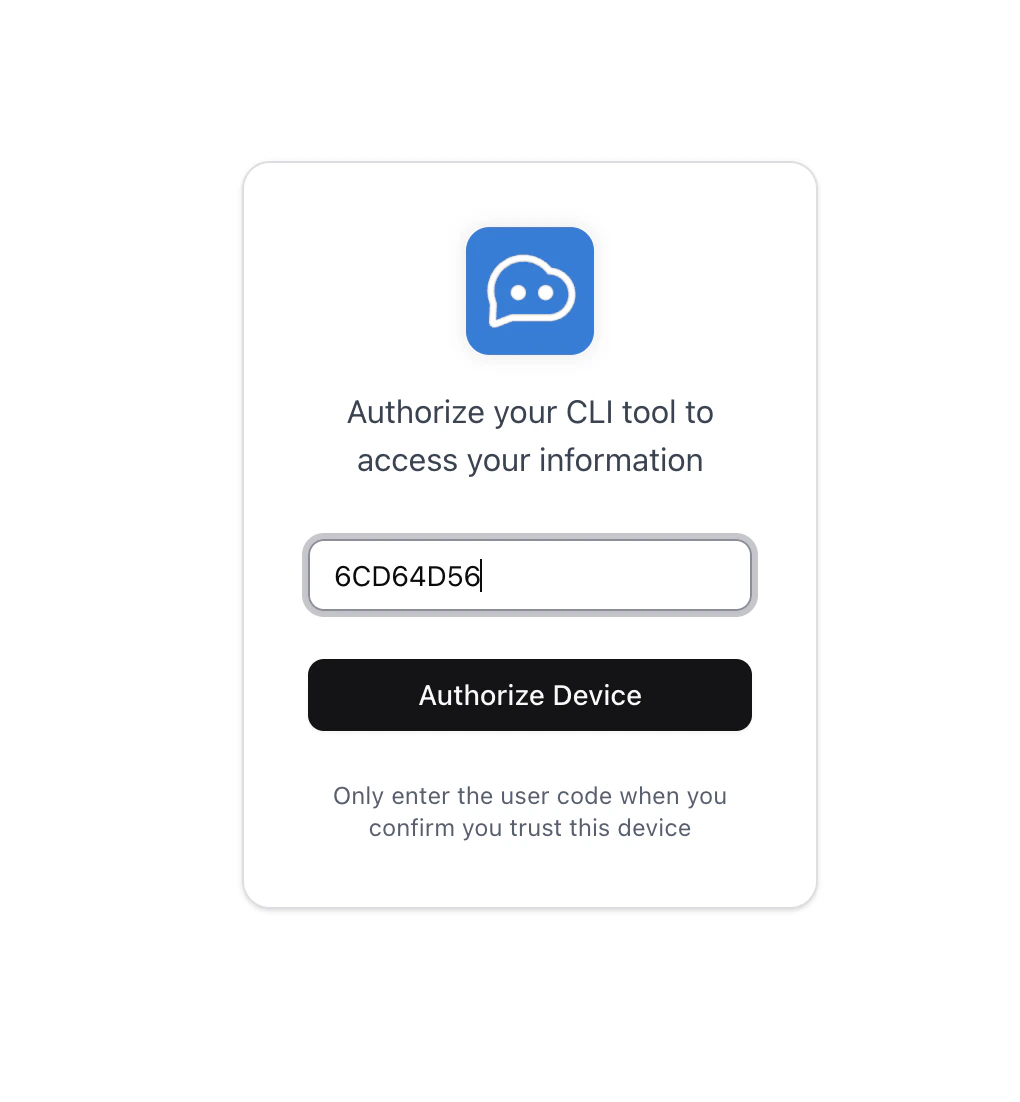
`Verification URL`をクリックしてLangBot Spaceにリダイレクトし、`User Code`を入力してログインを完了してください。
GitHubの認証ページにリダイレクトされますので、プロンプトに従って認証を完了してください。
## CLIを使用してLangBot Spaceにログイン
### 方法1:個人アクセストークンを使用(推奨)
1. [LangBot Space](https://space.langbot.app)にログインし、アバターをクリックして**アカウント設定**を開き、**アカウント**タブの**個人アクセストークン**で新しいトークンを作成します。
2. 生成されたトークンをコピーし(一度しか表示されません)、ターミナルで以下を実行します:
```bash theme={null}
➜ HelloPlugin > lbp login --token lbpat_xxxxxxxxxxxxxxxxxxxxxxxxxxxxxxxxxxxxxxxxxxxxxxxxxxxxxxxxxxxxxxxx
==================================================
✅ 個人アクセストークンでログインしました!
トークンの保存先:~/.langbot/cli/config.json
==================================================
```
### 方法2:デバイスコード認証を使用
任意のディレクトリでコマンド`lbp login`を実行します:
```bash theme={null}
➜ HelloPlugin > lbp login
Starting LangBot CLI login process...
Generating device code...
==================================================
Please copy the user code and complete verification in your browser:
User Code: 6CD64D56
Verification URL: https://space.langbot.app/auth/device
Device code expires in: 120 seconds
==================================================
Waiting for verification...
```
`Verification URL`をクリックしてLangBot Spaceにリダイレクトし、`User Code`を入力してログインを完了してください。
 ```bash theme={null}
==================================================
✅ Login successful!
Access token saved to: ~/.langbot/cli/config.json
Token type: Bearer
Expires in: 21600 seconds
==================================================
```
どちらの方法でもログインが成功したら、CLIを使用してプラグインをアップロードできます。
## プラグインのアップロード
プラグインディレクトリで`lbp publish`を実行してください:
```bash theme={null}
➜ HelloPlugin > lbp publish
Building plugin to dist/tmp...
- Skipping ignored directory: dist
- Skipping ignored directory: __pycache__
...
Plugin built successfully: dist/tmp/RockChinQ-HelloPlugin-0.1.0.lbpkg
✅ Plugin published successfully. You can check it on https://https://space.langbot.app/market
```
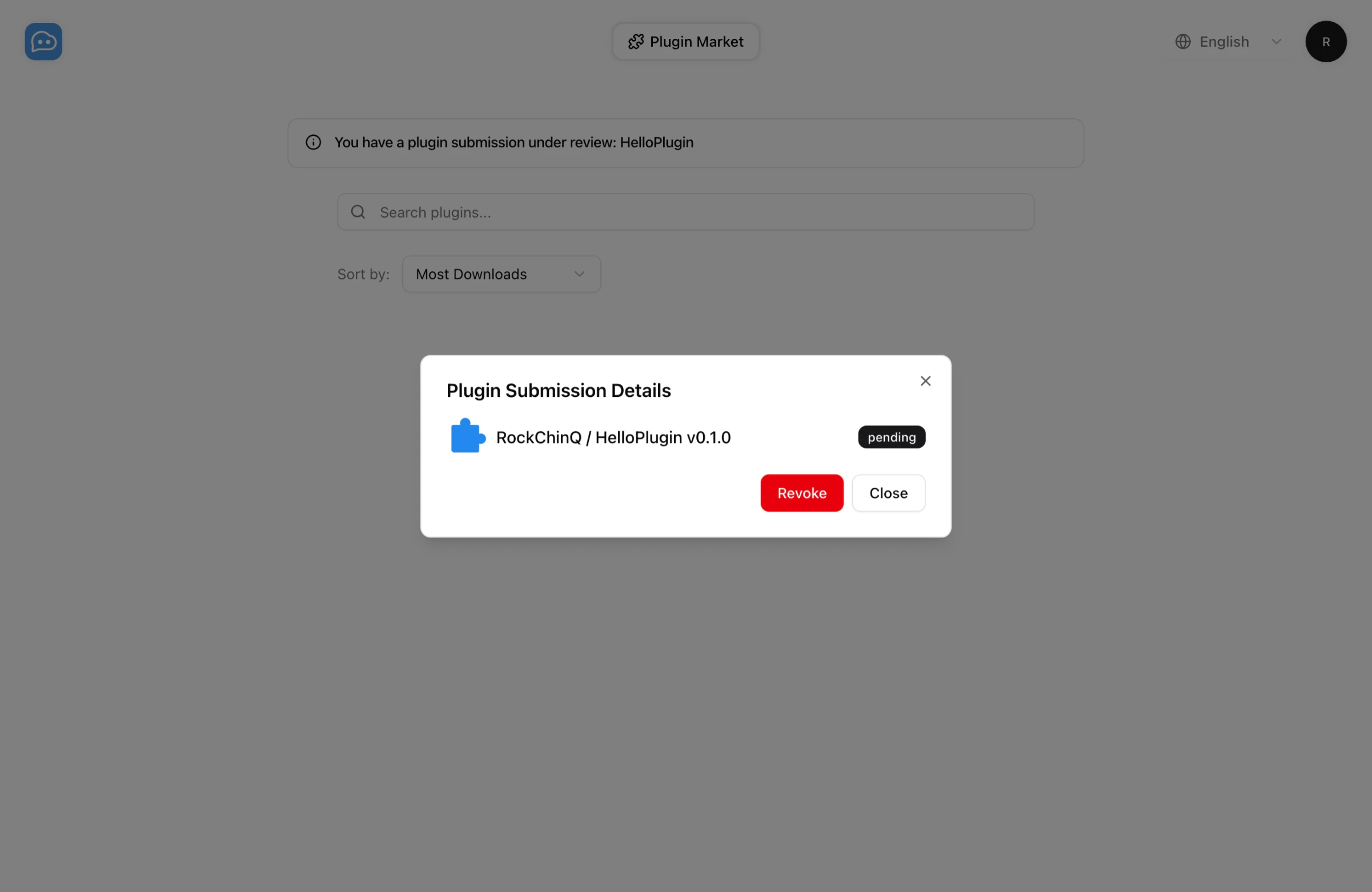
[LangBotプラグインマーケットプレイス](https://space.langbot.app/market)でプラグイン提出タスクを確認できます。承認をお待ちください。承認後、マーケットプレイスでプラグインを表示できます。
```bash theme={null}
==================================================
✅ Login successful!
Access token saved to: ~/.langbot/cli/config.json
Token type: Bearer
Expires in: 21600 seconds
==================================================
```
どちらの方法でもログインが成功したら、CLIを使用してプラグインをアップロードできます。
## プラグインのアップロード
プラグインディレクトリで`lbp publish`を実行してください:
```bash theme={null}
➜ HelloPlugin > lbp publish
Building plugin to dist/tmp...
- Skipping ignored directory: dist
- Skipping ignored directory: __pycache__
...
Plugin built successfully: dist/tmp/RockChinQ-HelloPlugin-0.1.0.lbpkg
✅ Plugin published successfully. You can check it on https://https://space.langbot.app/market
```
[LangBotプラグインマーケットプレイス](https://space.langbot.app/market)でプラグイン提出タスクを確認できます。承認をお待ちください。承認後、マーケットプレイスでプラグインを表示できます。
 ご質問がある場合は、`hello@langbot.app`にメールを送信するか、[コミュニティ](/ja/insight/community)を通じてお問い合わせください。