> ## Documentation Index
> Fetch the complete documentation index at: https://docs.langbot.app/llms.txt
> Use this file to discover all available pages before exploring further.
# コンポーネント:ページ
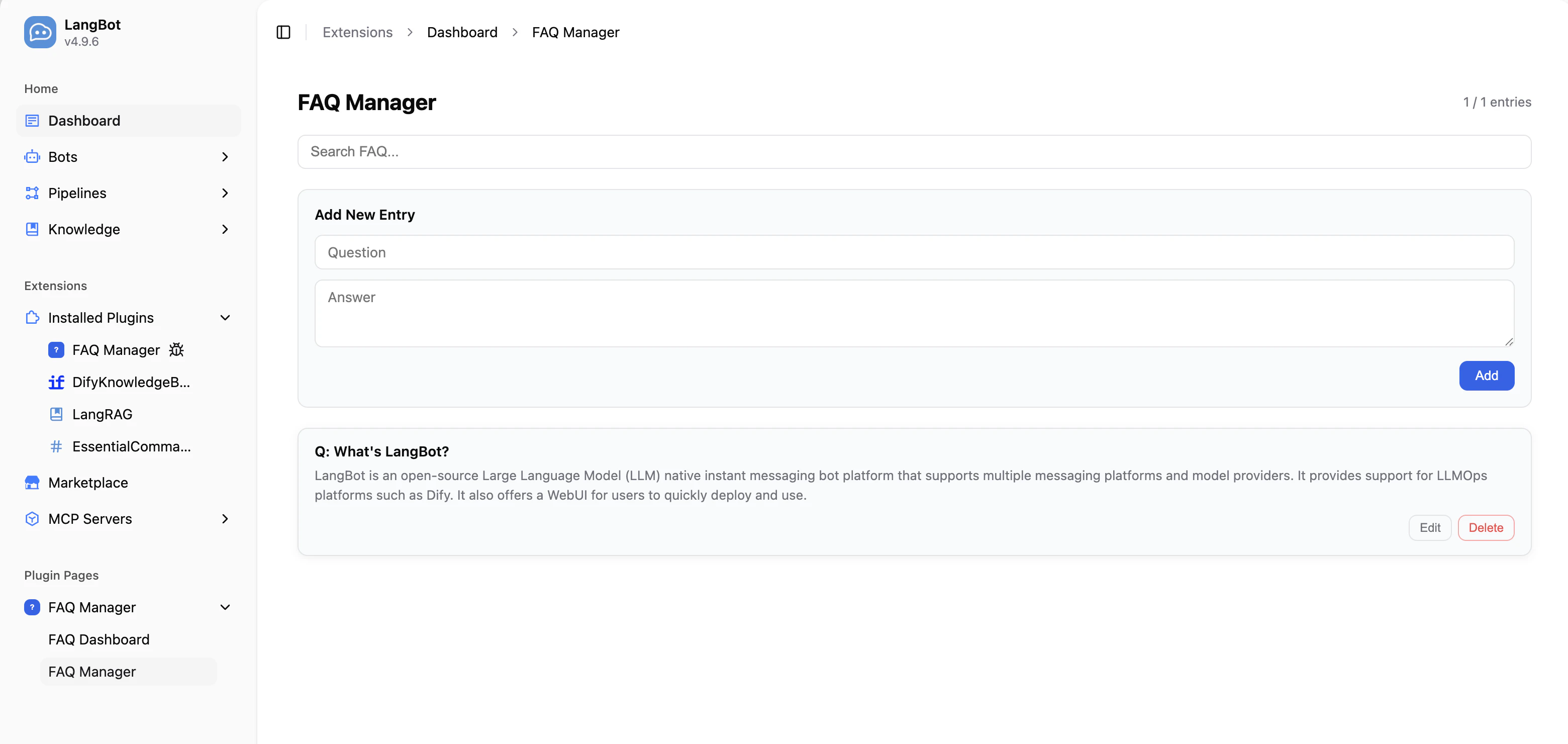
Pageコンポーネントを使用すると、プラグインはLangBot WebUIのサイドバーにカスタムビジュアルページを登録できます。ページはiframeサンドボックス内で実行され、Page SDKを介してホストと通信し、プラグインのバックエンドAPIを呼び出すことができます。
## ユースケース
* **管理パネル**:プラグインに視覚的な設定やデータ管理インターフェースを提供(例:FAQ管理、分析ダッシュボード)
* **データ表示**:ランタイムの統計データ、ログ、チャートなどを表示
* **インタラクティブツール**:フォーム、エディタなどの対話式インターフェースを提供
 ## ページコンポーネントの追加
プラグインディレクトリでコマンドを実行します:
```bash theme={null}
lbp comp Page
```
ページ名を入力すると、`components/pages/`ディレクトリにページファイルが生成されます:
```bash theme={null}
├── components
│ └── pages
│ └── dashboard
│ ├── dashboard.yaml # ページマニフェスト
│ ├── dashboard.py # バックエンドハンドラー
│ ├── index.html # ページエントリポイント
│ └── i18n # 翻訳ファイル(オプション)
│ ├── en_US.json
│ └── ja_JP.json
```
`manifest.yaml`にもコンポーネント検出設定が追加されます:
```yaml theme={null}
spec:
components:
Page:
fromDirs:
- path: components/pages/
maxDepth: 2
```
## マニフェストファイル:ページ
```yaml theme={null}
apiVersion: v1 # 変更しないでください
kind: Page # 変更しないでください
metadata:
name: dashboard # プラグイン内で一意のページID
label:
en_US: Dashboard # WebUIサイドバーに表示される名前、多言語対応
ja_JP: ダッシュボード
spec:
path: index.html # HTMLエントリファイル(このYAMLファイルからの相対パス)
execution:
python:
path: dashboard.py # バックエンドハンドラーファイル
attr: DashboardPage # ハンドラークラス名
```
## バックエンド処理
Pageコンポーネントのバックエンドハンドラーは`Page`基底クラスを継承し、`handle_api`メソッドを実装してフロントエンドページからのAPIリクエストを処理します。
```python theme={null}
from langbot_plugin.api.definition.components.page import Page, PageRequest, PageResponse
class DashboardPage(Page):
async def handle_api(self, request: PageRequest) -> PageResponse:
# request.endpoint: APIエンドポイントパス(例:'/stats')
# request.method: HTTPメソッド(GET、POST、PUT、DELETE)
# request.body: リクエストボディ(解析済みJSON、またはNone)
if request.endpoint == '/stats' and request.method == 'GET':
# self.pluginでプラグインインスタンスの共有状態にアクセス
return PageResponse.ok({
'total': len(self.plugin.entries),
})
return PageResponse.fail(f'不明なエンドポイント: {request.endpoint}')
```
### PageRequestフィールド
| フィールド | 型 | 説明 |
| ---------- | ----- | ------------------------------------- |
| `endpoint` | `str` | APIエンドポイントパス(例:`'/entries'`) |
| `method` | `str` | HTTPメソッド(`GET`、`POST`、`PUT`、`DELETE`) |
| `body` | `Any` | リクエストボディ(解析済みJSON、または`None`) |
### PageResponseの構築
| メソッド | 説明 |
| -------------------------- | ---------------------------- |
| `PageResponse.ok(data)` | 成功レスポンス。`data`はJSON変換可能な任意の値 |
| `PageResponse.fail(error)` | エラーレスポンス。`error`はエラーメッセージ文字列 |
## フロントエンドページ開発
HTMLファイルにPage SDKを読み込んで、プラグインバックエンドと通信します:
```html theme={null}
## ページコンポーネントの追加
プラグインディレクトリでコマンドを実行します:
```bash theme={null}
lbp comp Page
```
ページ名を入力すると、`components/pages/`ディレクトリにページファイルが生成されます:
```bash theme={null}
├── components
│ └── pages
│ └── dashboard
│ ├── dashboard.yaml # ページマニフェスト
│ ├── dashboard.py # バックエンドハンドラー
│ ├── index.html # ページエントリポイント
│ └── i18n # 翻訳ファイル(オプション)
│ ├── en_US.json
│ └── ja_JP.json
```
`manifest.yaml`にもコンポーネント検出設定が追加されます:
```yaml theme={null}
spec:
components:
Page:
fromDirs:
- path: components/pages/
maxDepth: 2
```
## マニフェストファイル:ページ
```yaml theme={null}
apiVersion: v1 # 変更しないでください
kind: Page # 変更しないでください
metadata:
name: dashboard # プラグイン内で一意のページID
label:
en_US: Dashboard # WebUIサイドバーに表示される名前、多言語対応
ja_JP: ダッシュボード
spec:
path: index.html # HTMLエントリファイル(このYAMLファイルからの相対パス)
execution:
python:
path: dashboard.py # バックエンドハンドラーファイル
attr: DashboardPage # ハンドラークラス名
```
## バックエンド処理
Pageコンポーネントのバックエンドハンドラーは`Page`基底クラスを継承し、`handle_api`メソッドを実装してフロントエンドページからのAPIリクエストを処理します。
```python theme={null}
from langbot_plugin.api.definition.components.page import Page, PageRequest, PageResponse
class DashboardPage(Page):
async def handle_api(self, request: PageRequest) -> PageResponse:
# request.endpoint: APIエンドポイントパス(例:'/stats')
# request.method: HTTPメソッド(GET、POST、PUT、DELETE)
# request.body: リクエストボディ(解析済みJSON、またはNone)
if request.endpoint == '/stats' and request.method == 'GET':
# self.pluginでプラグインインスタンスの共有状態にアクセス
return PageResponse.ok({
'total': len(self.plugin.entries),
})
return PageResponse.fail(f'不明なエンドポイント: {request.endpoint}')
```
### PageRequestフィールド
| フィールド | 型 | 説明 |
| ---------- | ----- | ------------------------------------- |
| `endpoint` | `str` | APIエンドポイントパス(例:`'/entries'`) |
| `method` | `str` | HTTPメソッド(`GET`、`POST`、`PUT`、`DELETE`) |
| `body` | `Any` | リクエストボディ(解析済みJSON、または`None`) |
### PageResponseの構築
| メソッド | 説明 |
| -------------------------- | ---------------------------- |
| `PageResponse.ok(data)` | 成功レスポンス。`data`はJSON変換可能な任意の値 |
| `PageResponse.fail(error)` | エラーレスポンス。`error`はエラーメッセージ文字列 |
## フロントエンドページ開発
HTMLファイルにPage SDKを読み込んで、プラグインバックエンドと通信します:
```html theme={null}
ダッシュボード
```
### Page SDK API
| メソッド | 説明 |
| --------------------------------------- | ---------------------------------------------------------- |
| `langbot.onReady(callback)` | SDK準備完了時に呼ばれる。`callback`は`ctx`(`theme`と`language`を含む)を受け取る |
| `langbot.api(endpoint, body?, method?)` | プラグインの`handle_api`を呼び出す。Promiseを返す |
| `langbot.t(key, fallback?)` | 翻訳文字列を取得 |
| `langbot.onThemeChange(callback)` | テーマ変更時のコールバック |
| `langbot.onLanguageChange(callback)` | 言語変更時のコールバック |
| `langbot.applyI18n()` | `data-i18n`翻訳を手動で再適用 |
### ダークモード
SDKはページにCSSカスタムプロパティを自動設定します。直接使用できます:
| CSS変数 | 用途 |
| ---------------------- | -------- |
| `--langbot-bg` | ページ背景色 |
| `--langbot-bg-card` | カード背景色 |
| `--langbot-text` | メインテキスト色 |
| `--langbot-text-muted` | サブテキスト色 |
| `--langbot-border` | ボーダー色 |
| `--langbot-accent` | アクセント色 |
### ページi18n
ページディレクトリ内に`i18n/`ディレクトリを作成し、JSON翻訳ファイルを配置します:
```
pages/dashboard/
├── index.html
└── i18n/
├── en_US.json
└── ja_JP.json
```
翻訳ファイルはフラットなJSONキーバリューペアです:
```json theme={null}
{
"title": "ダッシュボード",
"totalEntries": "エントリ数"
}
```
HTML要素に`data-i18n`属性を追加すると、SDKが自動的にテキストを翻訳します:
```html theme={null}
Dashboard
```
## 完全な例:FAQ管理ページ
FAQエントリのCRUD操作を実装した完全なPageコンポーネントの例です。
**バックエンドハンドラー**(`components/pages/manager/manager.py`):
```python theme={null}
from langbot_plugin.api.definition.components.page import Page, PageRequest, PageResponse
class ManagerPage(Page):
async def handle_api(self, request: PageRequest) -> PageResponse:
plugin = self.plugin
if request.endpoint == '/entries' and request.method == 'GET':
return PageResponse.ok({'entries': plugin.entries})
if request.endpoint == '/entries' and request.method == 'POST':
question = (request.body or {}).get('question', '').strip()
answer = (request.body or {}).get('answer', '').strip()
if not question or not answer:
return PageResponse.fail('質問と回答は必須です')
entry = plugin.add_entry(question, answer)
await plugin.persist()
return PageResponse.ok({'entry': entry})
if request.endpoint == '/entries' and request.method == 'DELETE':
entry_id = (request.body or {}).get('id', '')
if plugin.delete_entry(entry_id):
await plugin.persist()
return PageResponse.ok({'deleted': entry_id})
return PageResponse.fail('エントリが見つかりません')
return PageResponse.fail(f'不明: {request.method} {request.endpoint}')
```
**フロントエンドページ**(`components/pages/manager/index.html`)では`langbot.api()`でバックエンドを呼び出します:
```javascript theme={null}
// エントリを読み込む
var data = await langbot.api('/entries', null, 'GET');
// エントリを追加
await langbot.api('/entries', { question: '...', answer: '...' }, 'POST');
// エントリを削除
await langbot.api('/entries', { id: '...' }, 'DELETE');
```
完全なサンプルコードは[FAQManagerプラグイン](https://github.com/langbot-app/langbot-plugin-demo/tree/main/FAQManager)を参照してください。
## 注意事項
* ページは`sandbox="allow-scripts allow-forms"`のiframe内で実行され、ポップアップを開いたり親ページをナビゲートすることはできません
* `self.plugin`でプラグインインスタンスの共有状態にアクセスできます — PageとToolコンポーネントはデータを共有できます
* `PageResponse.ok()`と`PageResponse.fail()`を使用してレスポンスを構築し、一貫したフォーマットを確保してください
* Page SDKの`