> ## Documentation Index
> Fetch the complete documentation index at: https://docs.langbot.app/llms.txt
> Use this file to discover all available pages before exploring further.
# Lucky Lilla Desktop
> Connect LangBot via the Satori protocol (LLOneBot) to run an AI bot across supported messaging clients.
Connected via the Satori protocol, you need to select `Satori` as the adapter.
# LuckyLillia
* [LuckyLillia](https://github.com/LLOneBot/LuckyLilliaBot) Install the client to use the Satori protocol
LuckyLillia installation tutorial: [https://luckylillia.com/guide/choice\_install](https://luckylillia.com/guide/choice_install)
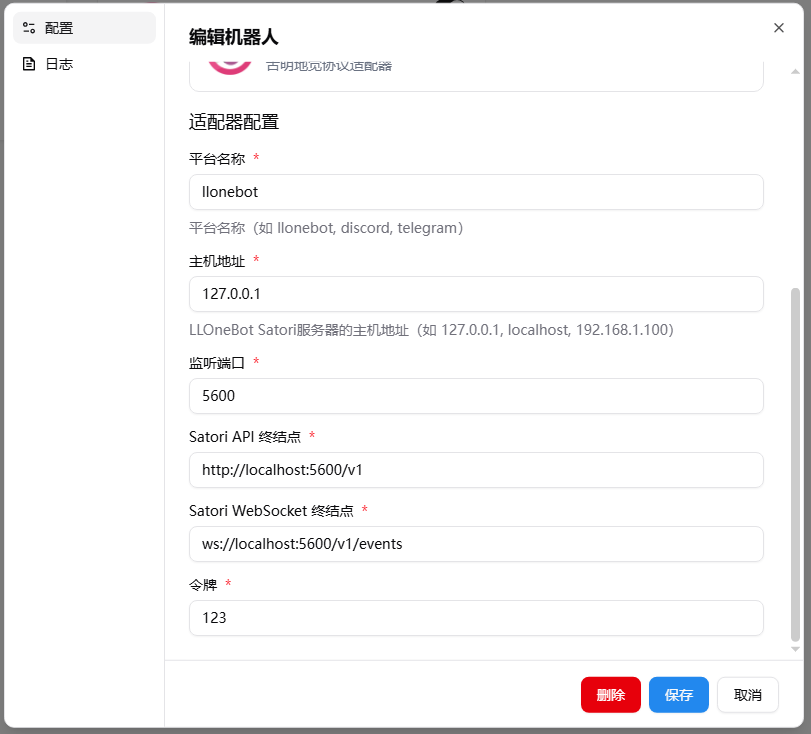
 Make sure the IP address in the address field is the address of the host running LangBot (use `127.0.0.1` if running on the same network). The default port `5600` can be changed as needed. Setting a token is recommended.
>
Make sure the IP address in the address field is the address of the host running LangBot (use `127.0.0.1` if running on the same network). The default port `5600` can be changed as needed. Setting a token is recommended.
>  >
> This image shows the public network configuration. Make sure the IP address is the address of the host running LangBot. In this case, you need to expose the corresponding LangBot port.
## LangBot Integration
Next, open the LangBot configuration page.
Click on Bots, then click Add.
Select `Satori` for `Platform/Adapter`.
>
> This image shows the public network configuration. Make sure the IP address is the address of the host running LangBot. In this case, you need to expose the corresponding LangBot port.
## LangBot Integration
Next, open the LangBot configuration page.
Click on Bots, then click Add.
Select `Satori` for `Platform/Adapter`.
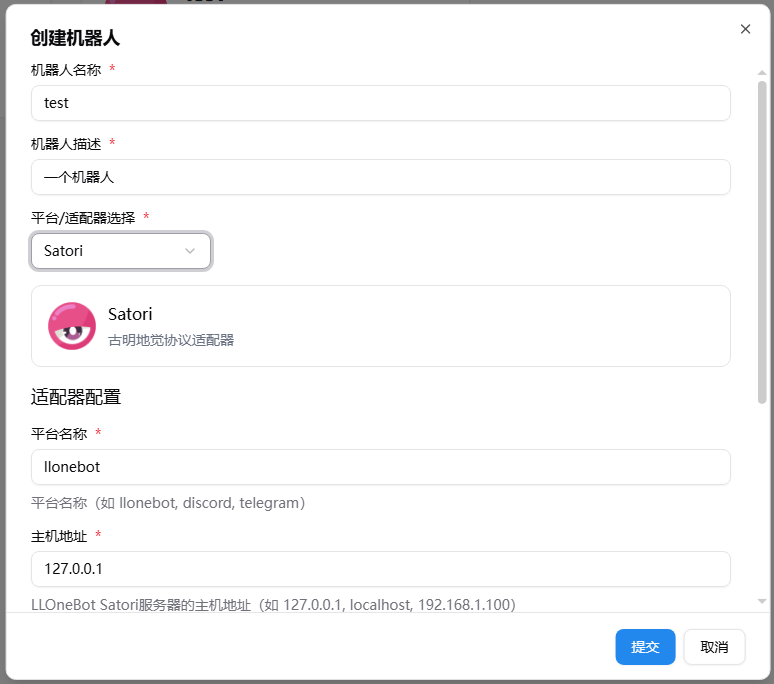 > If you use the default configuration (local network), you don't even need to modify any parameters.
After creation, you can still adjust the parameters.
> If you use the default configuration (local network), you don't even need to modify any parameters.
After creation, you can still adjust the parameters.
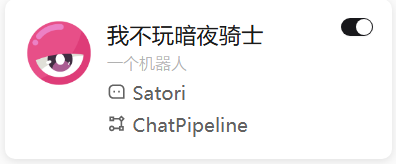
 Make sure you have enabled this adapter.
 Note: If you encounter network connectivity issues between multiple Docker containers, please refer to [Network Configuration Details](/en/workshop/network-details).