> ## Documentation Index
> Fetch the complete documentation index at: https://docs.langbot.app/llms.txt
> Use this file to discover all available pages before exploring further.
# Discord
## Create Bot
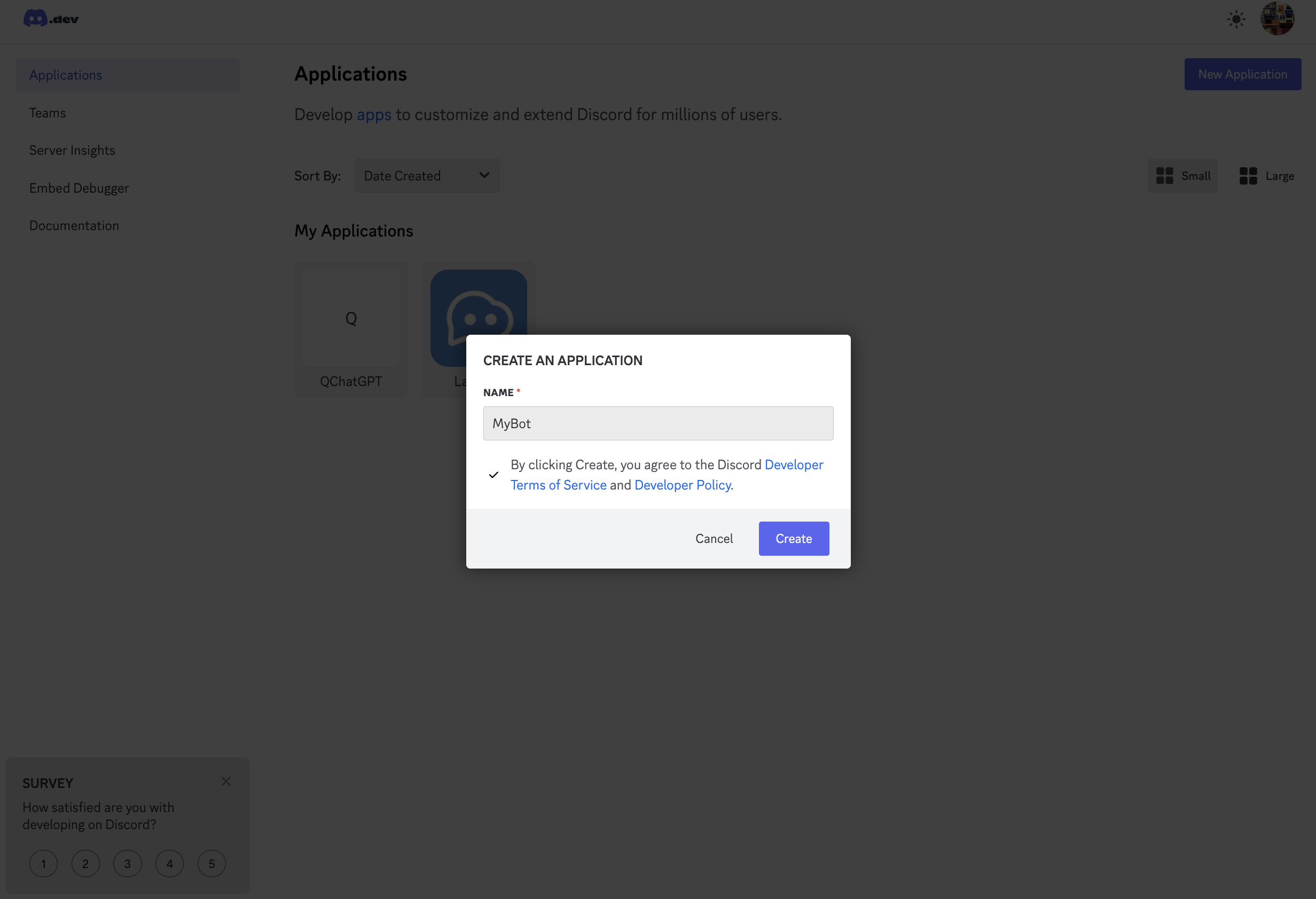
Go to the [Discord Developer Portal](https://discord.com/developers/applications), log in, and create an application.
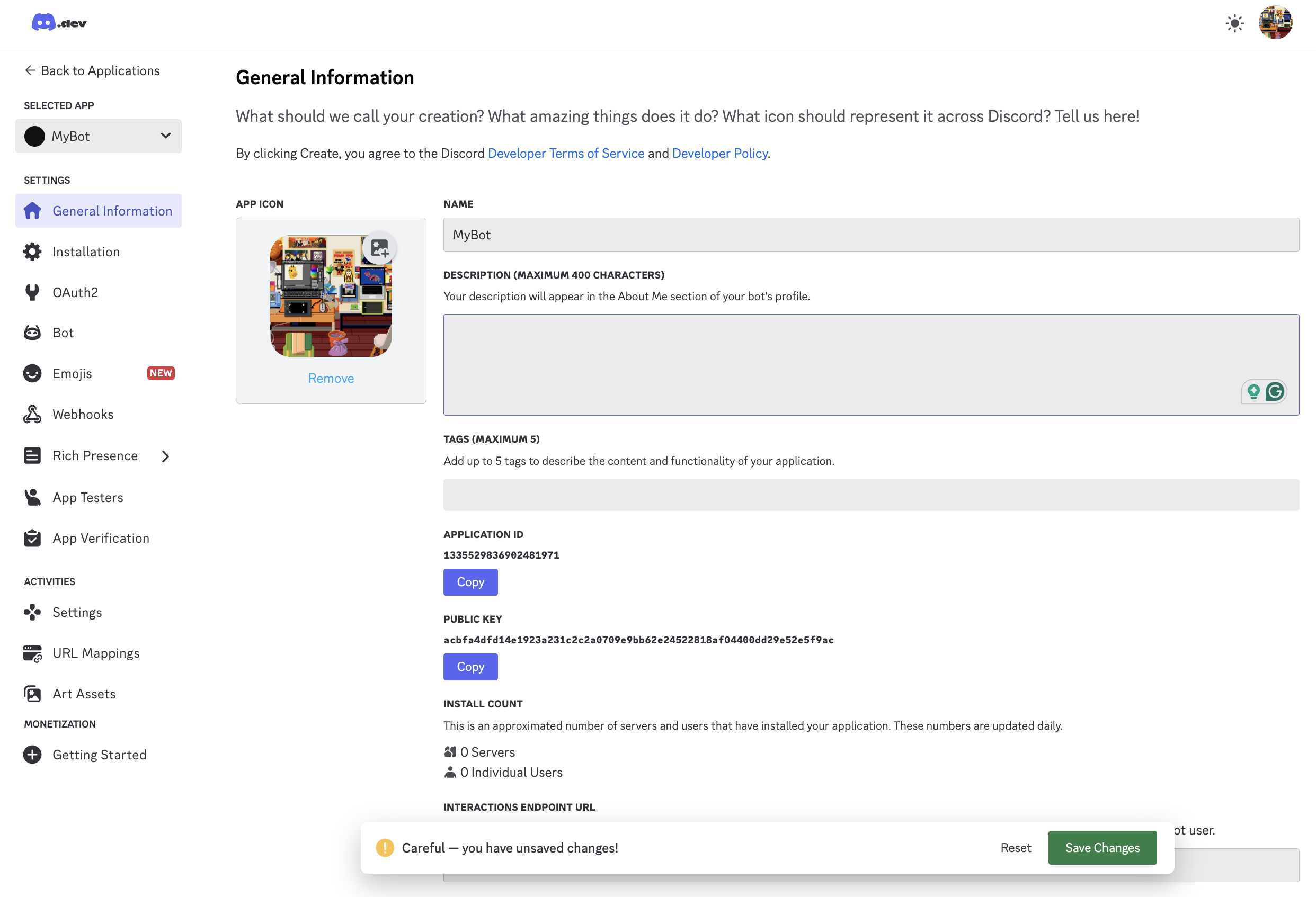
 Modify the basic information, click `Save Changes` to save.
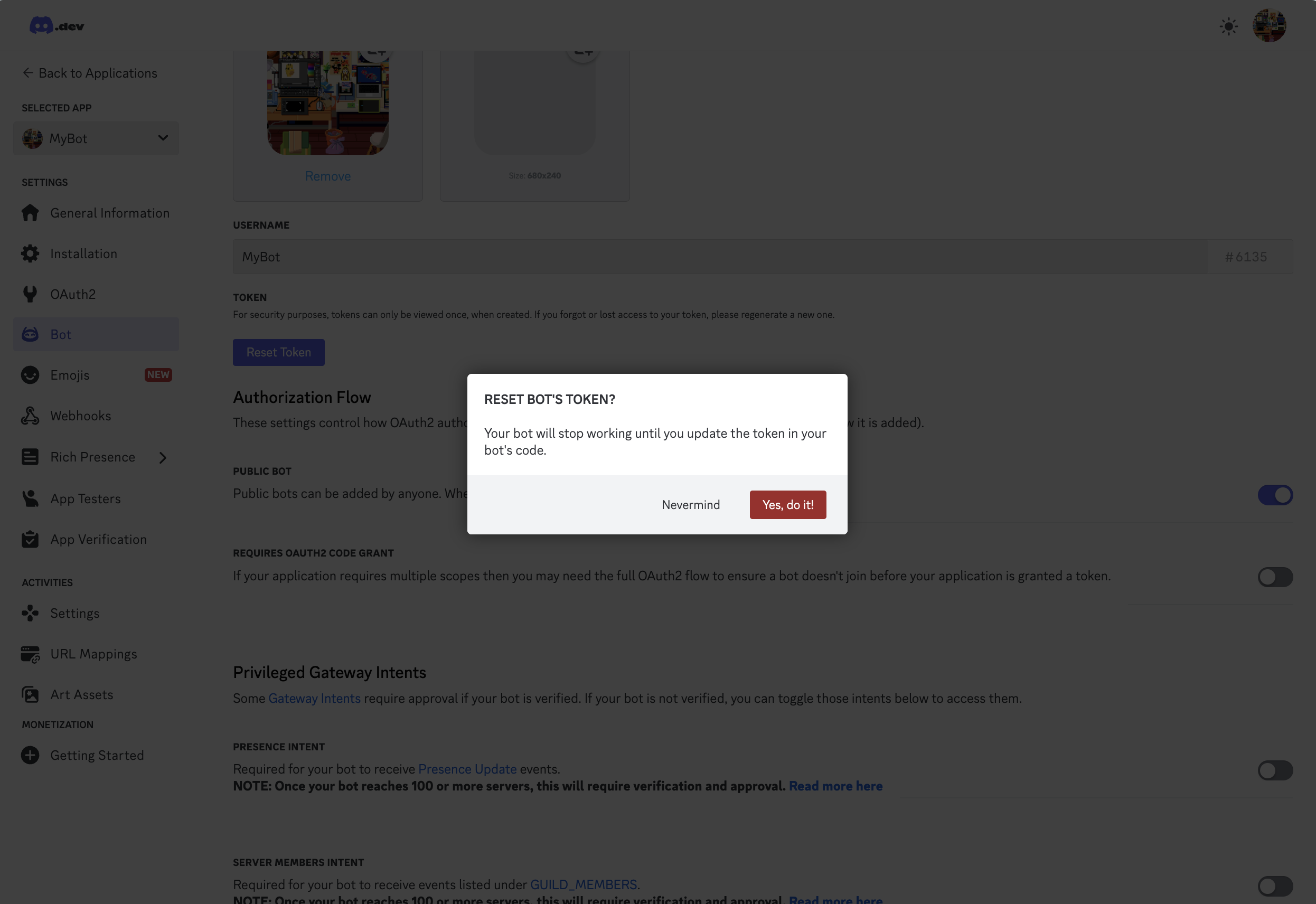
 Click `Bot` on the left, click `Reset Token`, copy the generated Token.
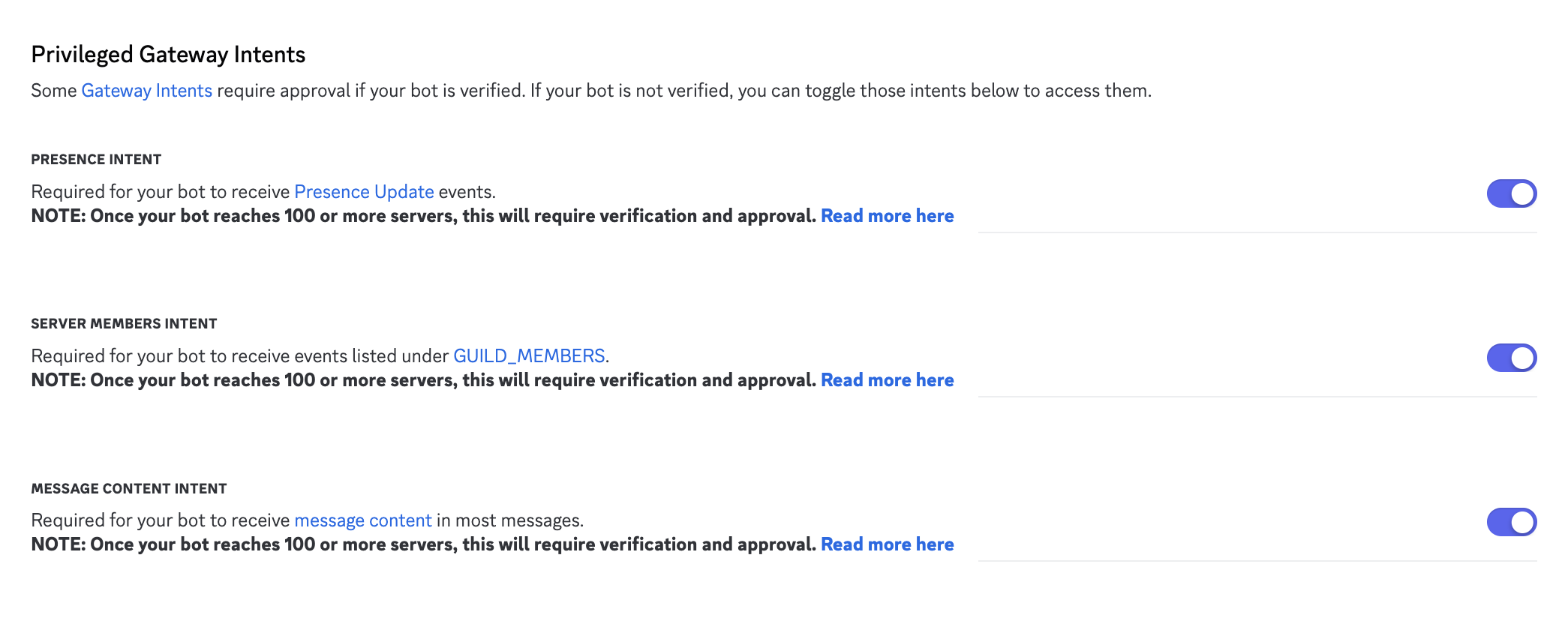
 And check all options in `Privileged Gateway Intents` on this page, click `Save Changes` to save.
 **Finally, click `OAuth2` on the left, copy the `Client ID` on the page.**
## Connect to LangBot
Click to add a new bot, fill in the `Client ID` and `Token` obtained in the previous step into the configuration.
**Finally, click `OAuth2` on the left, copy the `Client ID` on the page.**
## Connect to LangBot
Click to add a new bot, fill in the `Client ID` and `Token` obtained in the previous step into the configuration.
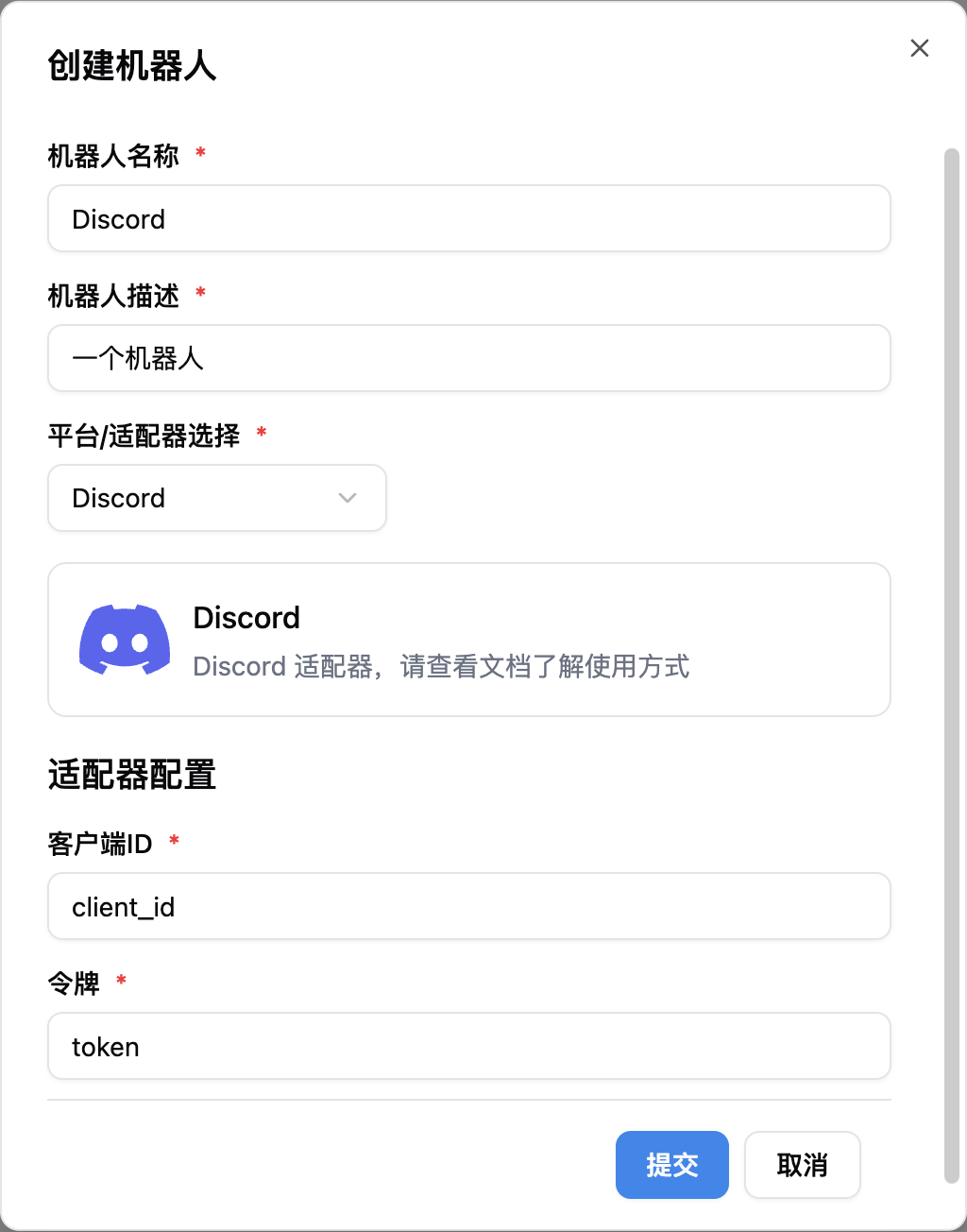 If you are using this adapter within mainland China, you may need to set up a network proxy.
After filling in, start LangBot. If configured successfully, the log will show `[02-02 16:48:15.263] manager.py (68) - [INFO] : Initializing platform adapter 1: discord`, keep LangBot running.
## Invite Bot to Server
You need to create a server first, then invite the bot to the server.
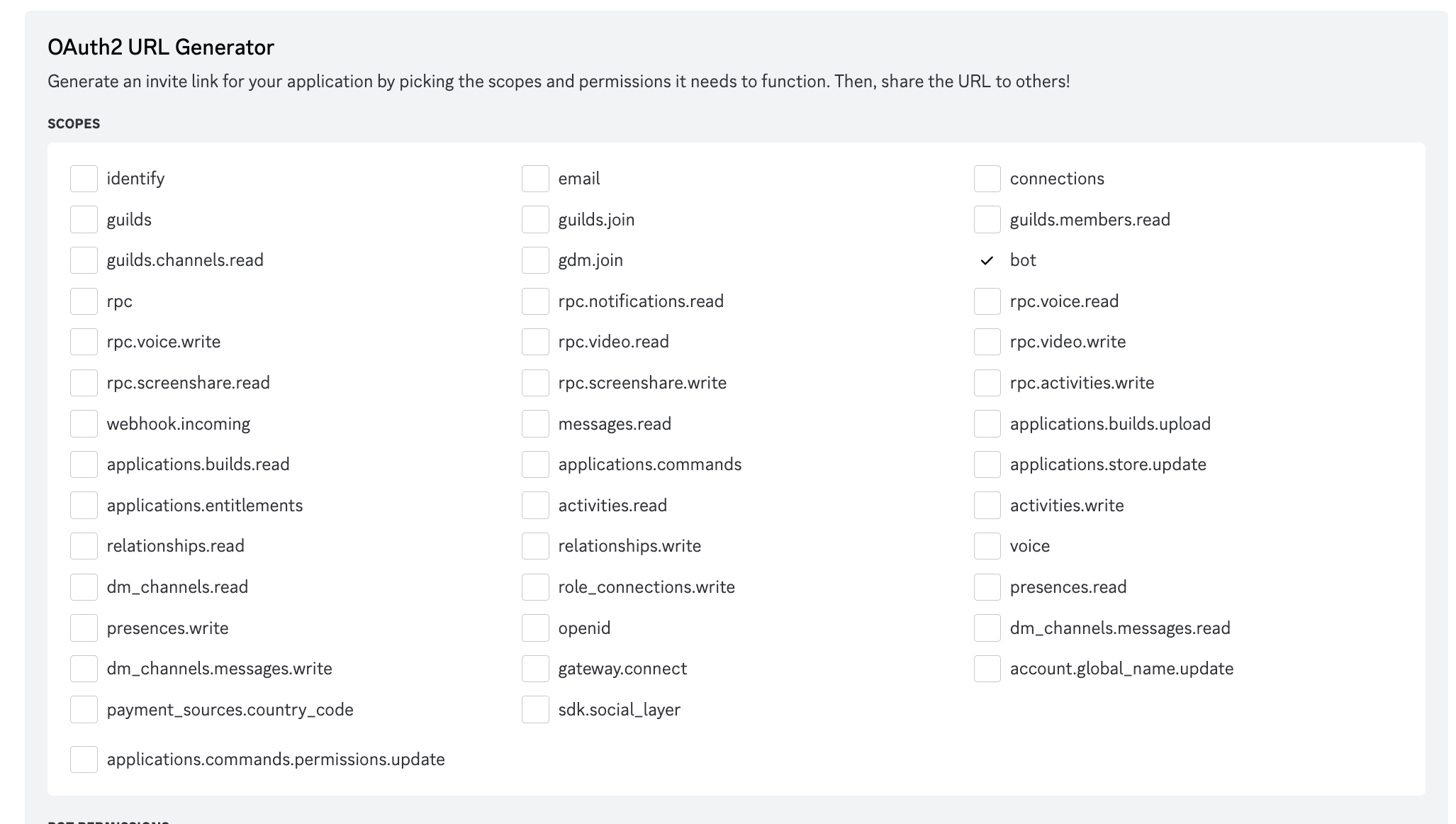
Go to the `OAuth2` page, select `URL Generator`, select `bot`, check the permissions as shown in the image.
If you are using this adapter within mainland China, you may need to set up a network proxy.
After filling in, start LangBot. If configured successfully, the log will show `[02-02 16:48:15.263] manager.py (68) - [INFO] : Initializing platform adapter 1: discord`, keep LangBot running.
## Invite Bot to Server
You need to create a server first, then invite the bot to the server.
Go to the `OAuth2` page, select `URL Generator`, select `bot`, check the permissions as shown in the image.
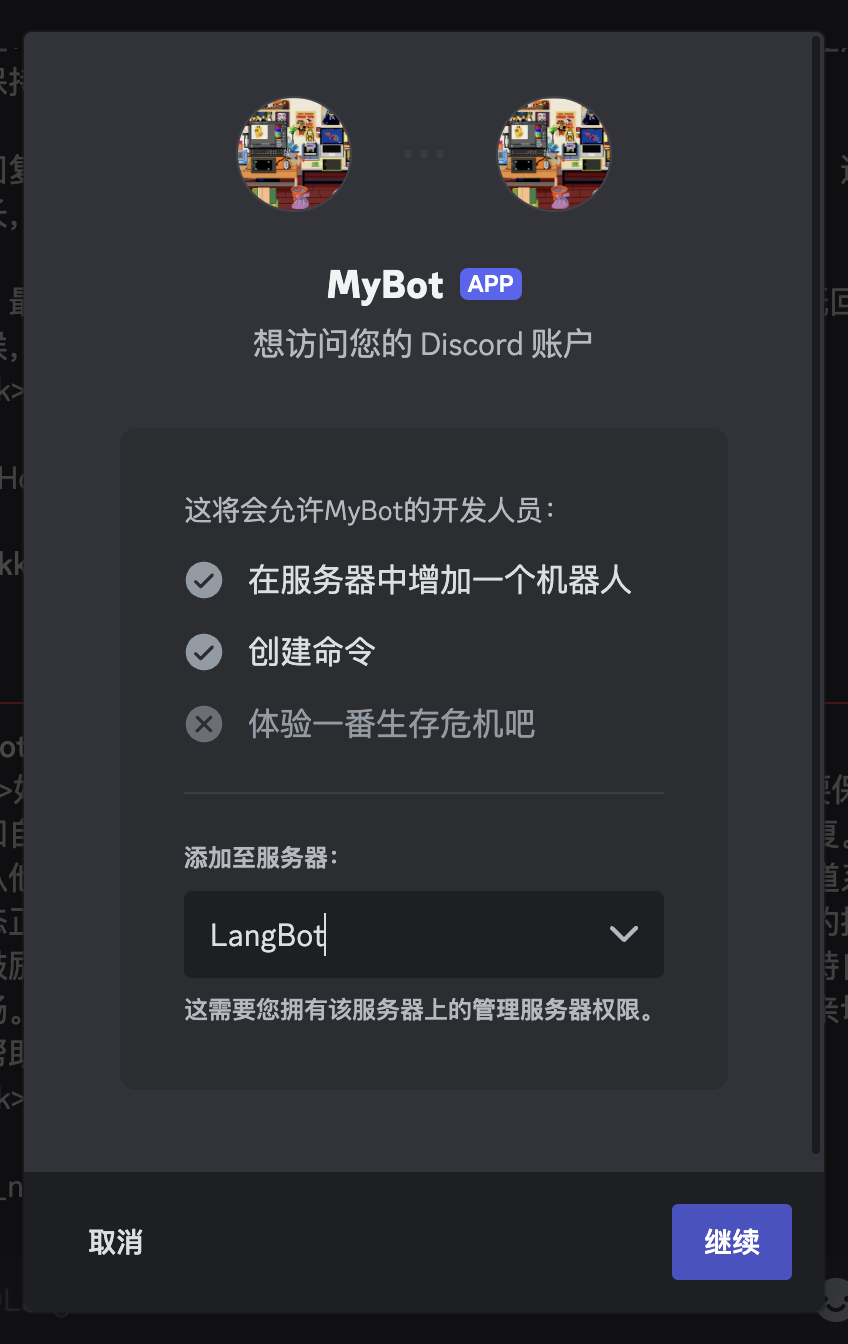
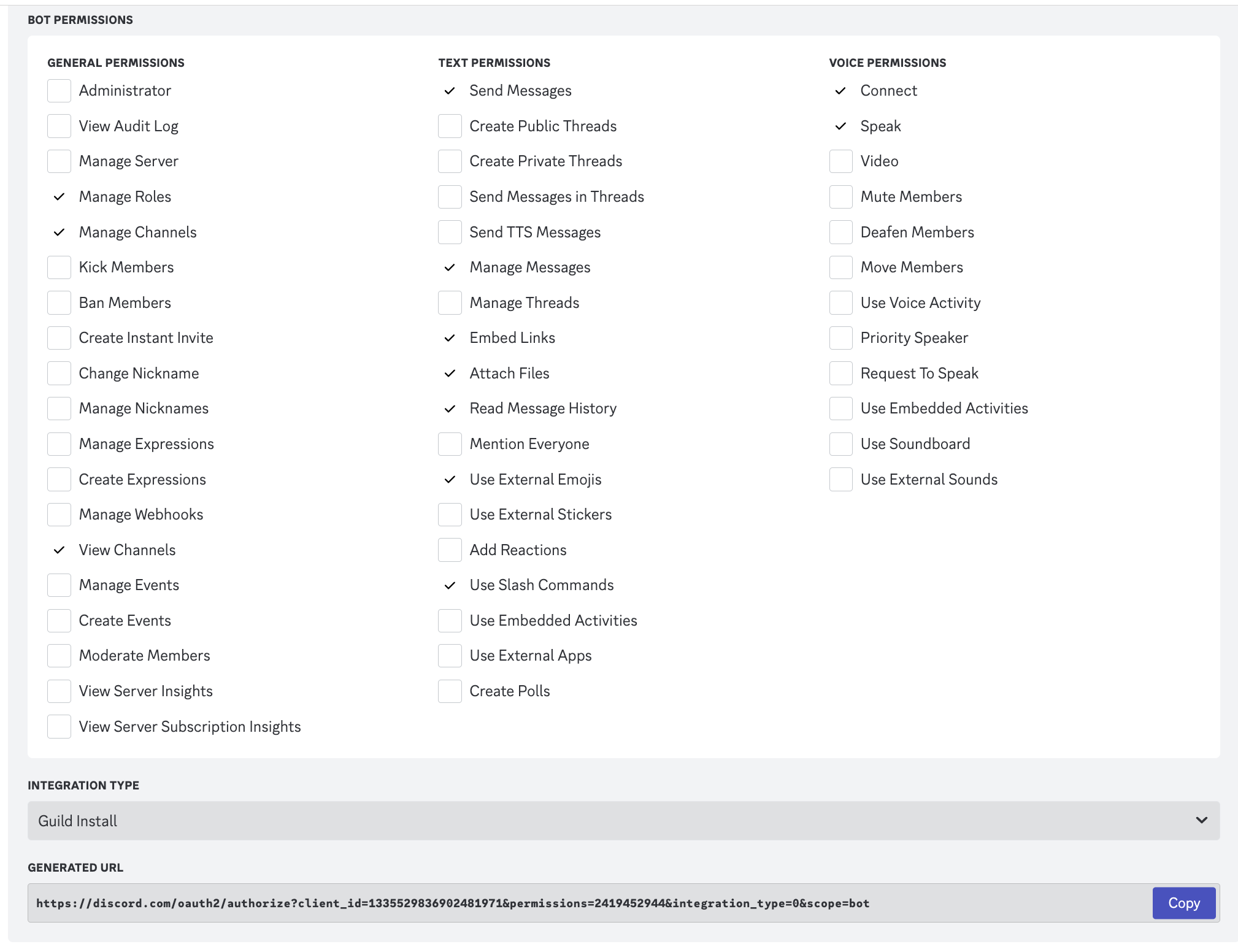 Click `Copy`, paste the generated URL into your browser to open it, and invite the bot to your server.
 ## Use Bot
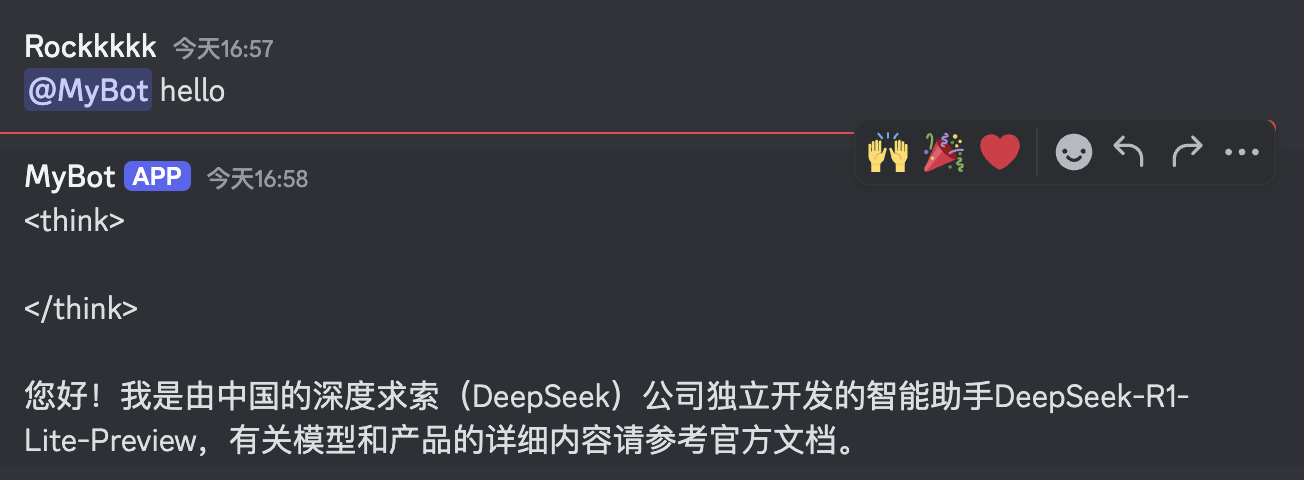
Now you can use the bot normally in groups or private messages.
## Use Bot
Now you can use the bot normally in groups or private messages.