> ## Documentation Index
> Fetch the complete documentation index at: https://docs.langbot.app/llms.txt
> Use this file to discover all available pages before exploring further.
# Pipelines
The pipeline controls the processing flow after receiving a message, as well as the information exchange with the large language model. Each bot can be bound to one pipeline, and the same pipeline can be bound to multiple bots.
LangBot automatically creates a default pipeline when first started. When creating a bot, it is automatically bound to the default pipeline. When creating the first model, it is automatically set as the model for the default pipeline.
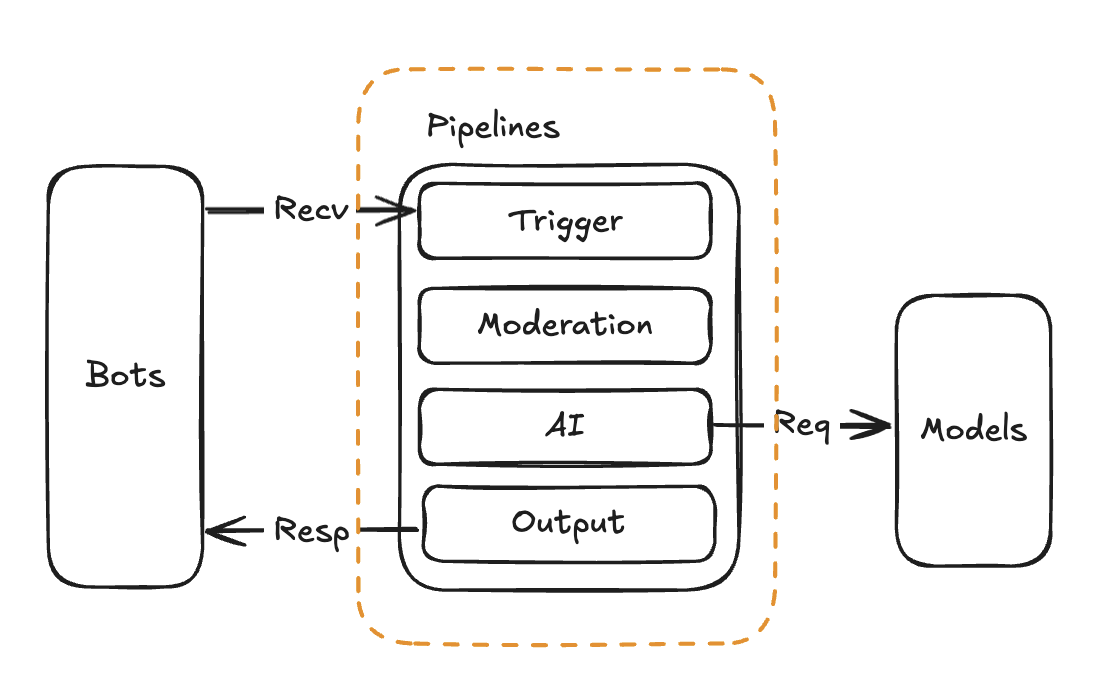 You can create multiple pipelines for different bots to adapt to different scenarios.
The current pipeline can be configured with the following features:
## AI Capabilities
You can choose to use: `Built-in Agent`, [`Dify`](https://dify.ai/), [`n8n`](https://n8n.io/)
AI capabilities are mainly divided into two parts: selecting the runner and configuring runner parameters.
The runner defines how to schedule the large model to process messages. The default is `Built-in Agent`, which is a multi-round Agent strategy implemented by LangBot. Only when this runner is selected will the models and tools configured internally in LangBot be used.
You can create multiple pipelines for different bots to adapt to different scenarios.
The current pipeline can be configured with the following features:
## AI Capabilities
You can choose to use: `Built-in Agent`, [`Dify`](https://dify.ai/), [`n8n`](https://n8n.io/)
AI capabilities are mainly divided into two parts: selecting the runner and configuring runner parameters.
The runner defines how to schedule the large model to process messages. The default is `Built-in Agent`, which is a multi-round Agent strategy implemented by LangBot. Only when this runner is selected will the models and tools configured internally in LangBot be used.
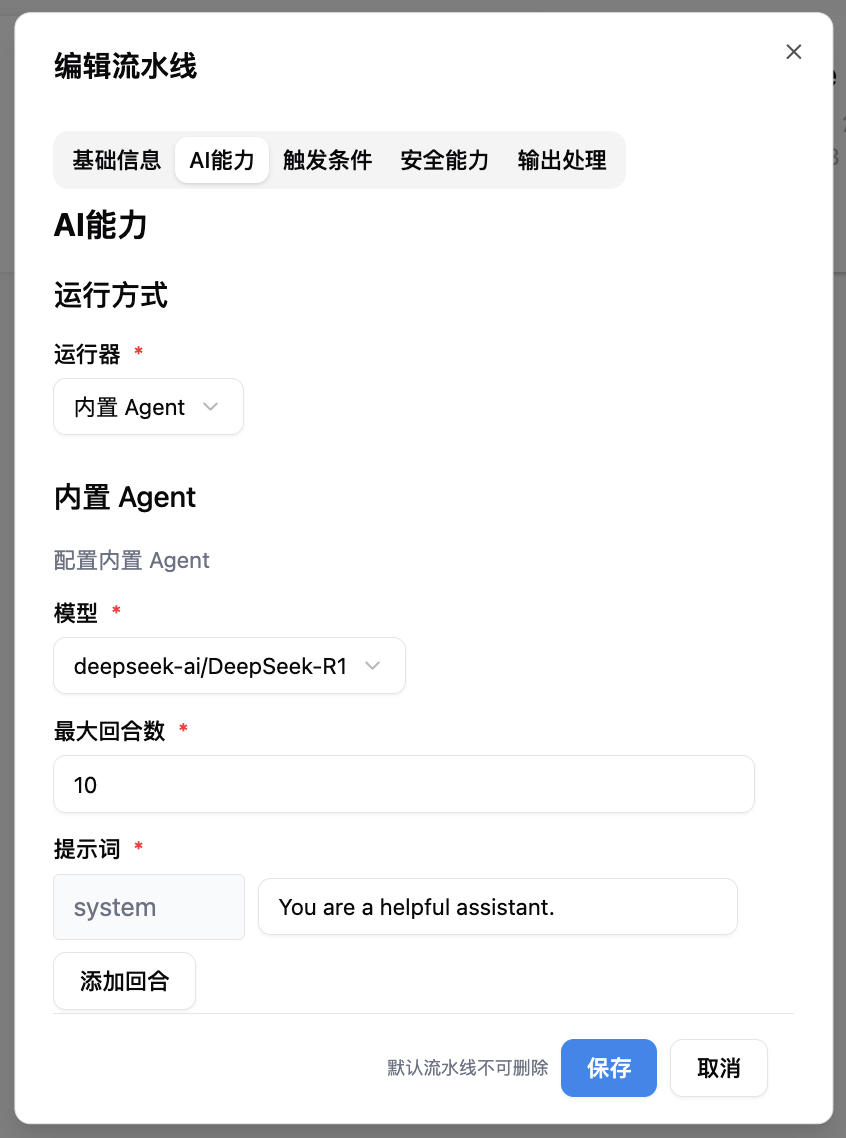 You can also choose to use external LLMOps platforms such as `Dify`, [`n8n`](https://n8n.io/). In this case, the models, prompts, tools, and other resources used will be provided by the LLMOps platform.
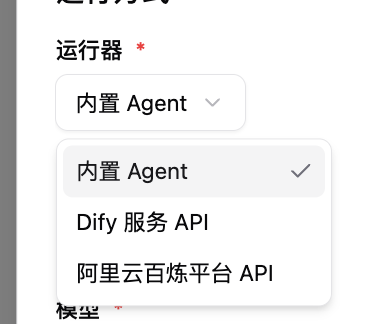 * For detailed steps on connecting to Dify, you can [refer to the tutorial](/en/usage/pipelines/dify.html).
* For detailed steps on connecting to n8n, you can [refer to the tutorial](/en/usage/pipelines/n8n.html).
### Conversation Variables
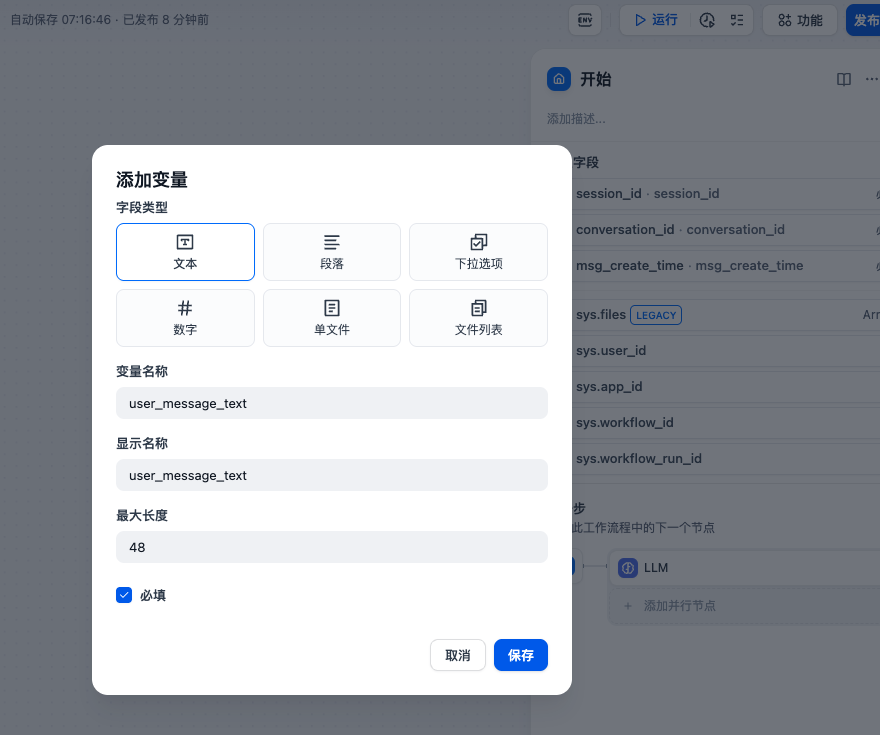
When using external LLMOps platforms, LangBot explicitly passes the following parameters, which you can add to the start node of the LLMOps platform workflow (the image below is an example of Dify):
* `launcher_type`: Launcher object type, `person` for private chat, `group` for group chat
* `launcher_id`: Launcher object ID, user ID for private chat, group ID for group chat
* `sender_id`: Sender ID
* `user_message_text`: The plain text of the user message
* `session_id`: User session ID, `person_` for private chat, `group_` for group chat
* `conversation_id`: String, user session ID, generated by LangBot. It will be regenerated after the user resets the session
* `msg_create_time`: Numeric type, timestamp (seconds) when this message was received
* `group_name`: Group name, only set when receiving group messages
* `sender_name`: Sender name
You can [customize any variable through plugins](/en/plugin/dev/apis/common.html#set-request-variables).
* For detailed steps on connecting to Dify, you can [refer to the tutorial](/en/usage/pipelines/dify.html).
* For detailed steps on connecting to n8n, you can [refer to the tutorial](/en/usage/pipelines/n8n.html).
### Conversation Variables
When using external LLMOps platforms, LangBot explicitly passes the following parameters, which you can add to the start node of the LLMOps platform workflow (the image below is an example of Dify):
* `launcher_type`: Launcher object type, `person` for private chat, `group` for group chat
* `launcher_id`: Launcher object ID, user ID for private chat, group ID for group chat
* `sender_id`: Sender ID
* `user_message_text`: The plain text of the user message
* `session_id`: User session ID, `person_` for private chat, `group_` for group chat
* `conversation_id`: String, user session ID, generated by LangBot. It will be regenerated after the user resets the session
* `msg_create_time`: Numeric type, timestamp (seconds) when this message was received
* `group_name`: Group name, only set when receiving group messages
* `sender_name`: Sender name
You can [customize any variable through plugins](/en/plugin/dev/apis/common.html#set-request-variables).
 ## Other Configurations
Please refer to the descriptions in the configuration form.
## Other Configurations
Please refer to the descriptions in the configuration form.