> ## Documentation Index
> Fetch the complete documentation index at: https://docs.langbot.app/llms.txt
> Use this file to discover all available pages before exploring further.
# Using Dify with LangBot
> Connect Dify to LangBot. Deploy your Dify apps and agents as AI bots on Discord, Telegram, WeChat, Slack and more.
[Dify](https://dify.ai) is an open-source large language model (LLM) application development platform. It combines the concepts of Backend as Service and LLMOps, enabling developers to quickly build production-grade generative AI applications.\
Dify can create chat assistants (including Chatflow), Agents, text generation applications, workflows, and other types of applications.
LangBot currently supports three types of Dify applications: `Chat Assistant` (including Chatflow), `Agent`, and `Workflow`.
## Creating an Application in Dify
Please follow the [Dify documentation](https://docs.dify.ai) to deploy Dify and create your application.
After publishing your application, go to the `Access API` page of your application to generate an API key.
 Save the API server and API key for configuring LangBot's pipeline `AI Capability`.
* If LangBot and Dify are deployed on the same host and both are deployed using Docker, you can refer to the article: [Network Configuration Details](/zh/workshop/network-details.html#langbot-%E5%92%8C%E6%B6%88%E6%81%AF%E5%B9%B3%E5%8F%B0%E5%9D%87%E8%BF%90%E8%A1%8C%E5%9C%A8-docker-%E5%AE%B9%E5%99%A8%E4%B8%AD). In this case, add `langbot-network` to the `networks` of all containers in the docker-compose.yaml file that starts Dify, add the container name `dify-nginx` to the `nginx` container, and finally set `base-url` to `http://dify-nginx/v1` in the LangBot configuration.
* For other cases, please consult your company's operations team.
## Configuring LangBot
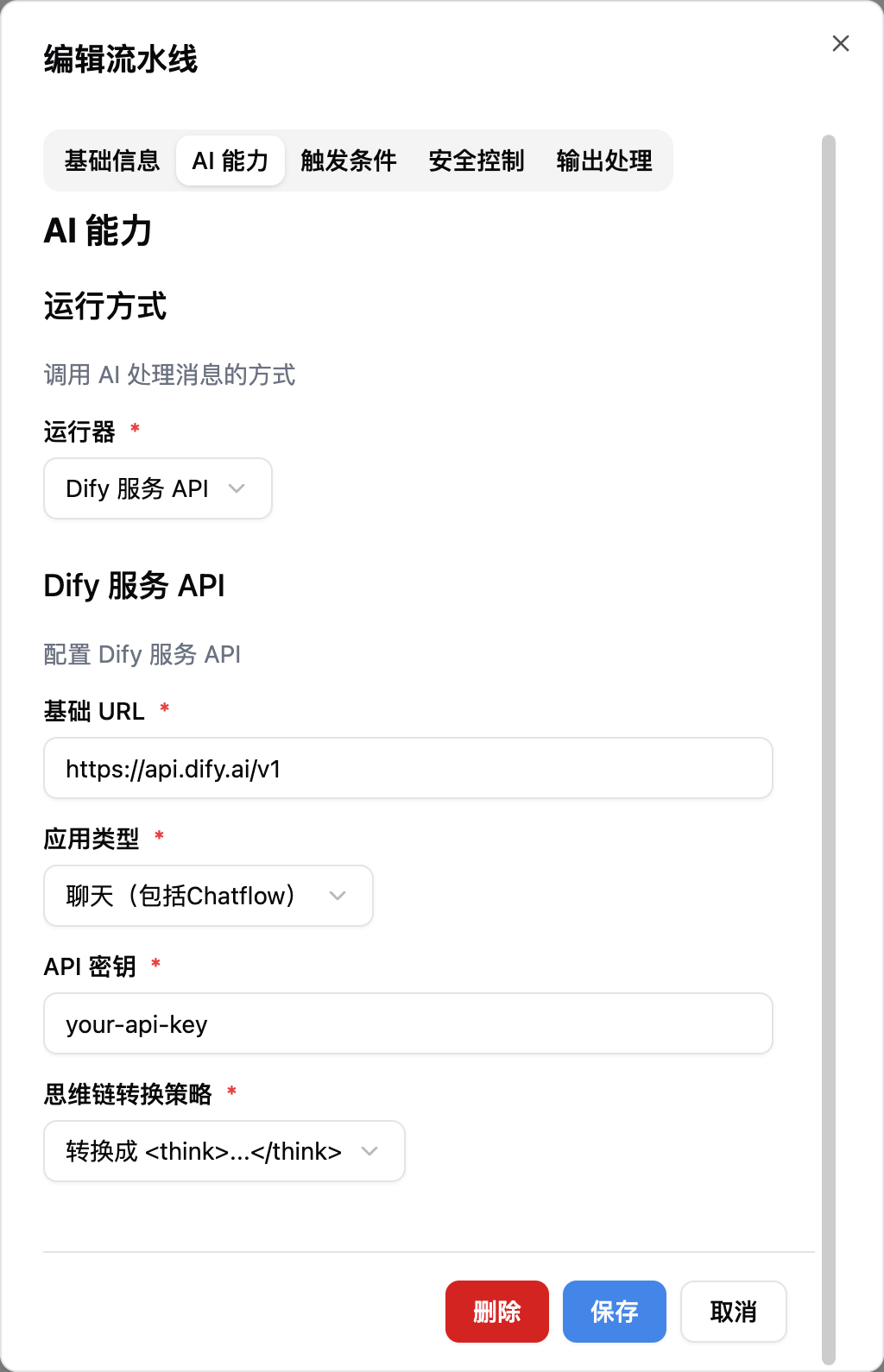
Open the LangBot WebUI page, add a new pipeline or switch to the AI capability configuration page in an existing pipeline.
Save the API server and API key for configuring LangBot's pipeline `AI Capability`.
* If LangBot and Dify are deployed on the same host and both are deployed using Docker, you can refer to the article: [Network Configuration Details](/zh/workshop/network-details.html#langbot-%E5%92%8C%E6%B6%88%E6%81%AF%E5%B9%B3%E5%8F%B0%E5%9D%87%E8%BF%90%E8%A1%8C%E5%9C%A8-docker-%E5%AE%B9%E5%99%A8%E4%B8%AD). In this case, add `langbot-network` to the `networks` of all containers in the docker-compose.yaml file that starts Dify, add the container name `dify-nginx` to the `nginx` container, and finally set `base-url` to `http://dify-nginx/v1` in the LangBot configuration.
* For other cases, please consult your company's operations team.
## Configuring LangBot
Open the LangBot WebUI page, add a new pipeline or switch to the AI capability configuration page in an existing pipeline.
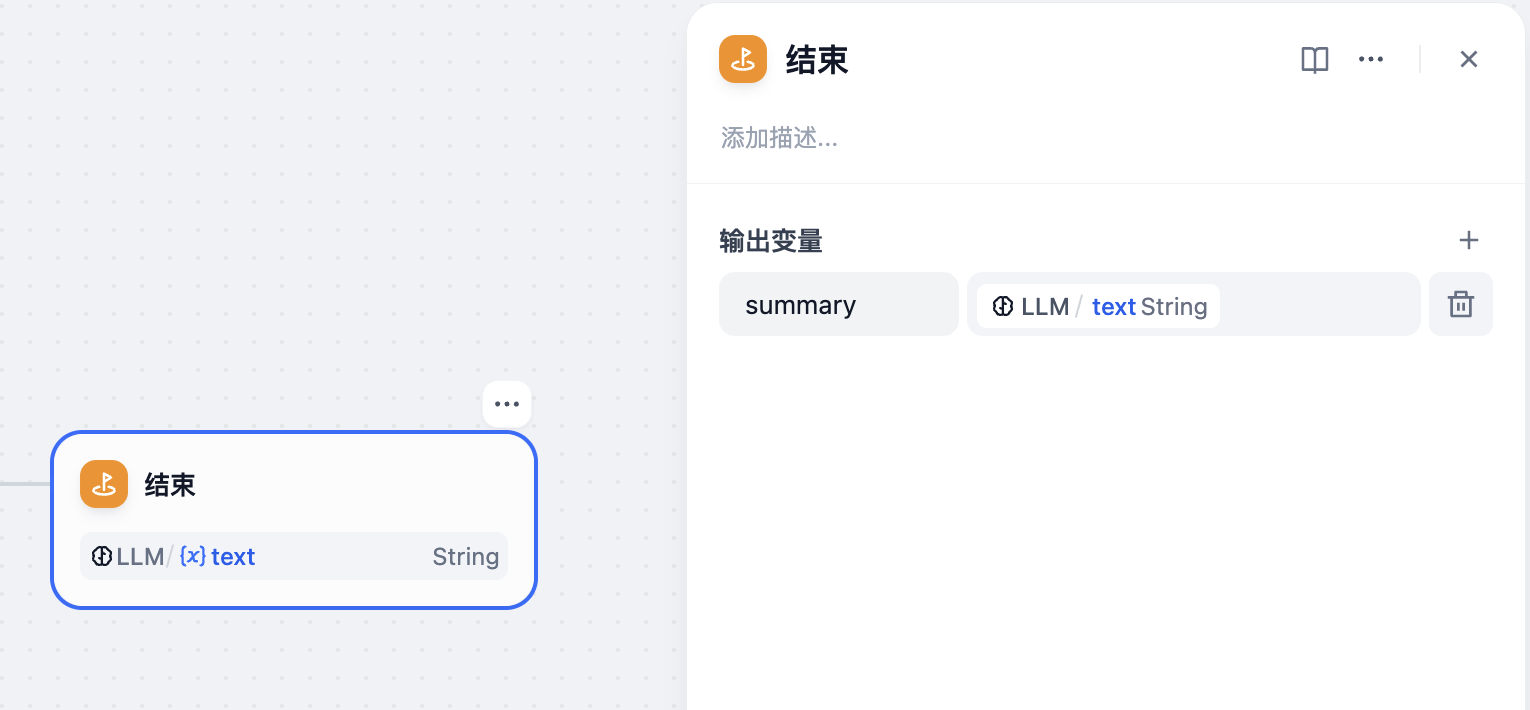
 If you are using a Dify workflow application, please use `summary` as the key to pass the output content.
 ## Output Processing
When using a workflow application or Agent application, if you enable `track-function-calls` in LangBot's pipeline `Output Processing`, a message of `calling function xxx` will be output to the user when Dify executes each tool call.\
However, if you are using `ChatFlow` under the `chat` application (Chat Assistant -> Workflow Orchestration), it will only output the text returned by the Answer (direct reply) node regardless of the settings.
## Output Processing
When using a workflow application or Agent application, if you enable `track-function-calls` in LangBot's pipeline `Output Processing`, a message of `calling function xxx` will be output to the user when Dify executes each tool call.\
However, if you are using `ChatFlow` under the `chat` application (Chat Assistant -> Workflow Orchestration), it will only output the text returned by the Answer (direct reply) node regardless of the settings.