> ## Documentation Index
> Fetch the complete documentation index at: https://docs.langbot.app/llms.txt
> Use this file to discover all available pages before exploring further.
# Integrating Coze API
> Integrate Coze with LangBot. Connect your Coze bots and agents to Discord, Telegram, WeChat and other messaging platforms.
This document explains how to obtain the Token and Bot ID from the Coze platform and enter them into the LangBot pipeline configuration.
## 1. Obtaining the Token and Bot ID
1. Log in to the Coze platform and enter your developer console.
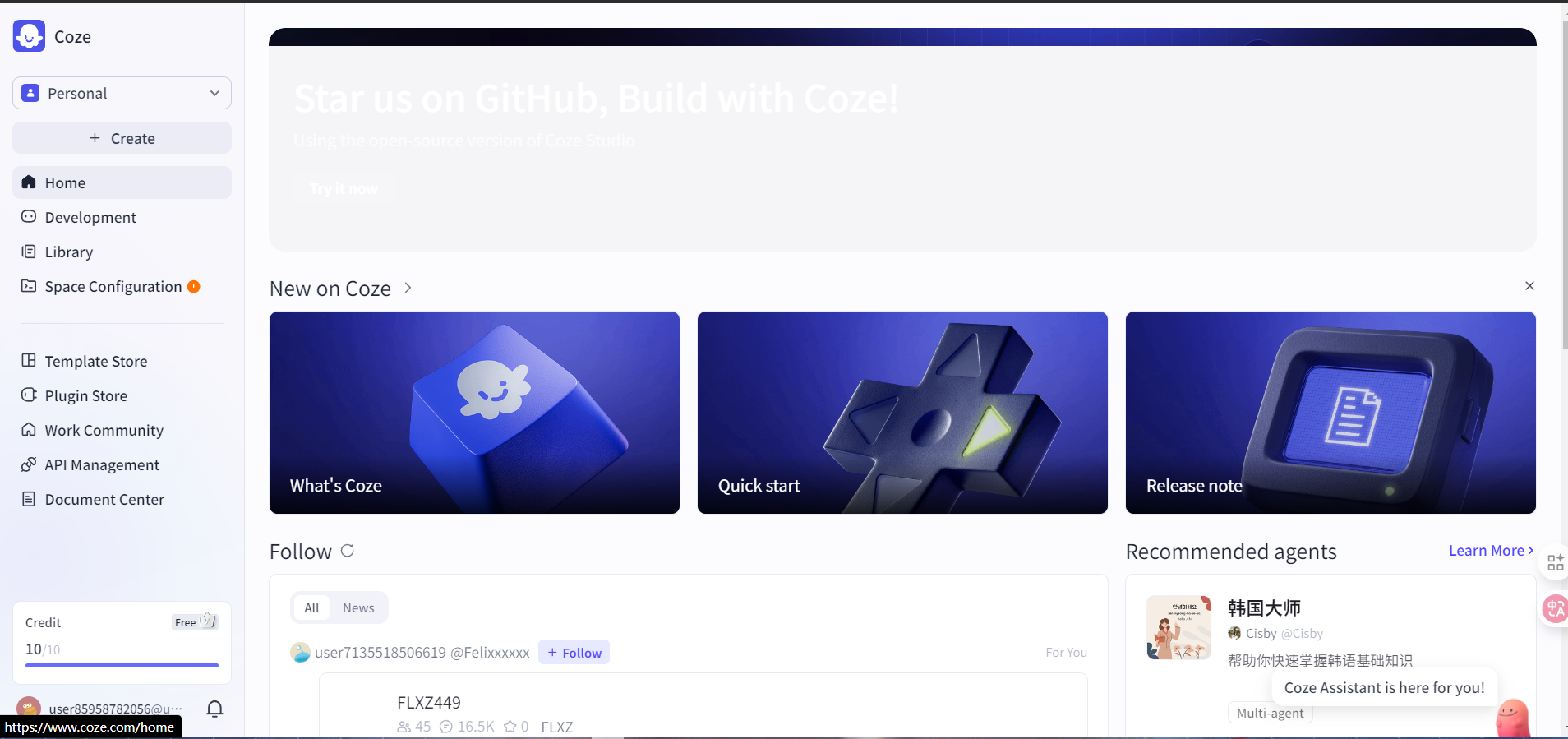 2. In "API Management", create and copy the token.
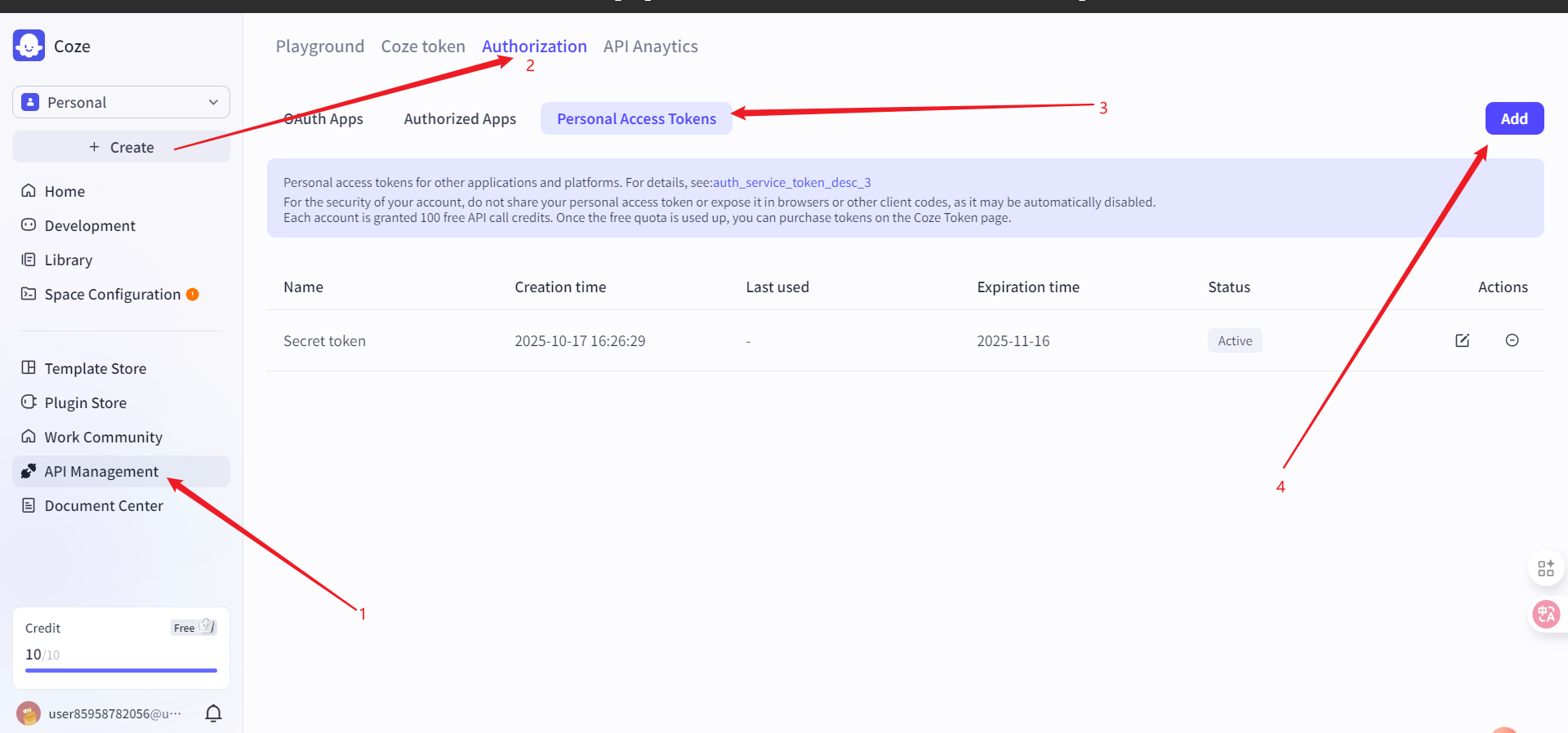 In Coze authorization, coze.cn supports long-term authorization through "Service Identities and Credentials", while coze.com only provides Personal Access Tokens.
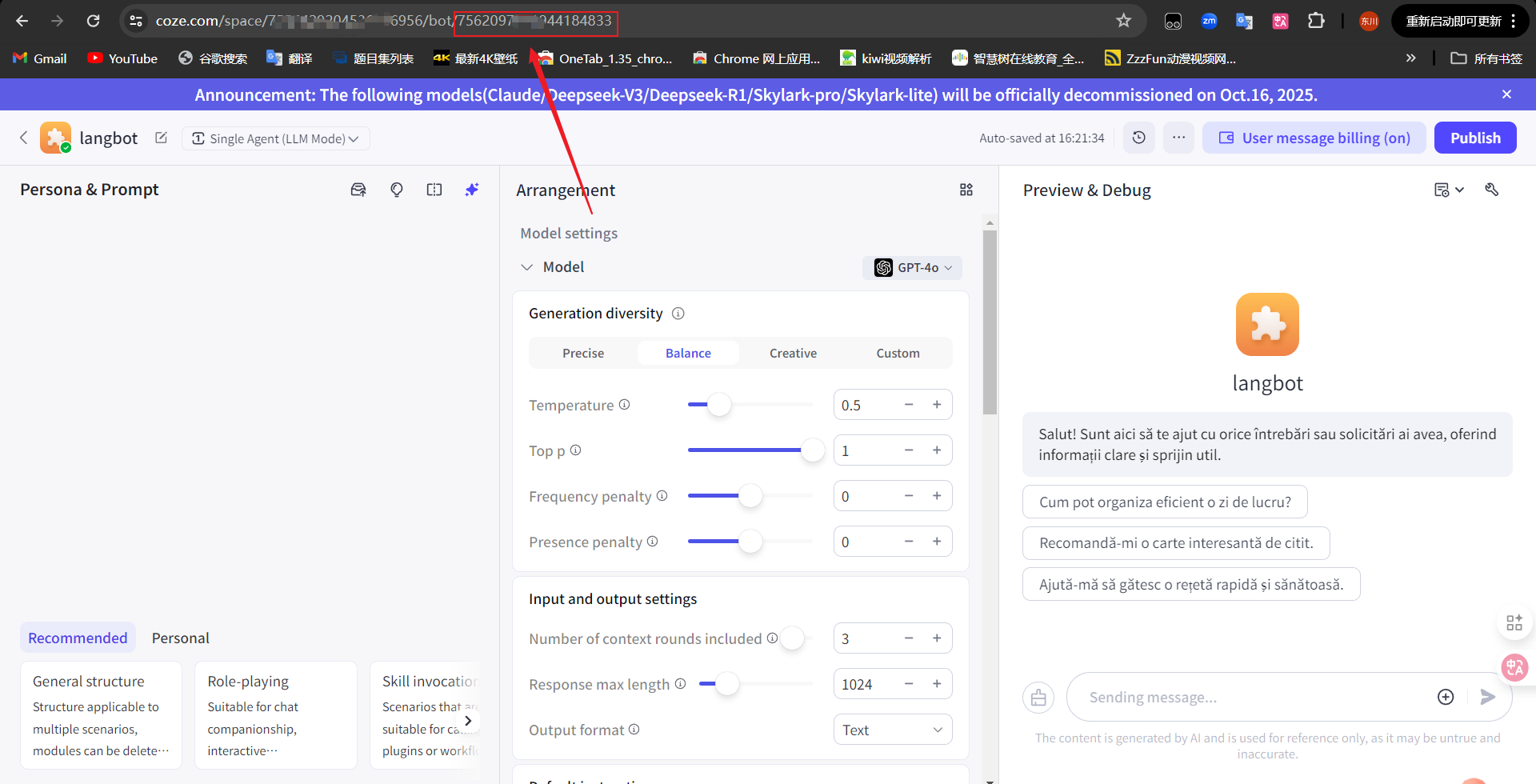
3. Select your own agent (or create a new one) from the project development section. The obtained ID is the `bot_id`.
In Coze authorization, coze.cn supports long-term authorization through "Service Identities and Credentials", while coze.com only provides Personal Access Tokens.
3. Select your own agent (or create a new one) from the project development section. The obtained ID is the `bot_id`.
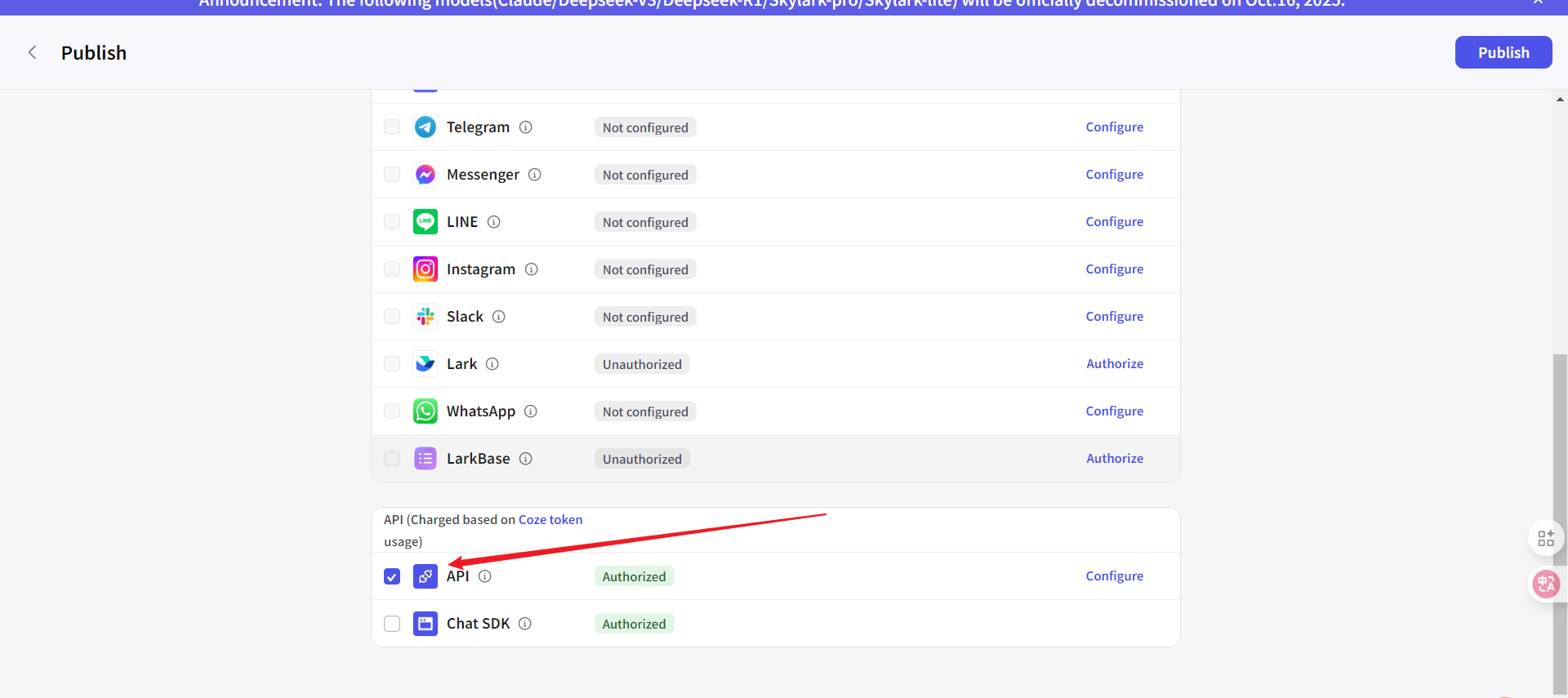
 * Make sure to select the API option when publishing the agent
 Please securely store the following two pieces of information:
* **token**: The token generated by the Coze platform
* **bot\_id**: The Bot ID
## 2. Entering the Configuration in LangBot
1. Open the LangBot WebUI and navigate to the configuration page of a pipeline (or create a new pipeline and enter its configuration page)
2. Under "AI Capabilities", select the runner as `Coze API`
3. In the runner's configuration items, enter:
* **token**: Paste the API Token you copied from the Coze platform
* **bot\_id**: Paste the corresponding Bot ID
* Please select the `API Base URL` according to the Coze site you are using: coze.cn please fill in `https://api.coze.cn`; coze.com please fill in `https://api.coze.com`
Please securely store the following two pieces of information:
* **token**: The token generated by the Coze platform
* **bot\_id**: The Bot ID
## 2. Entering the Configuration in LangBot
1. Open the LangBot WebUI and navigate to the configuration page of a pipeline (or create a new pipeline and enter its configuration page)
2. Under "AI Capabilities", select the runner as `Coze API`
3. In the runner's configuration items, enter:
* **token**: Paste the API Token you copied from the Coze platform
* **bot\_id**: Paste the corresponding Bot ID
* Please select the `API Base URL` according to the Coze site you are using: coze.cn please fill in `https://api.coze.cn`; coze.com please fill in `https://api.coze.com`
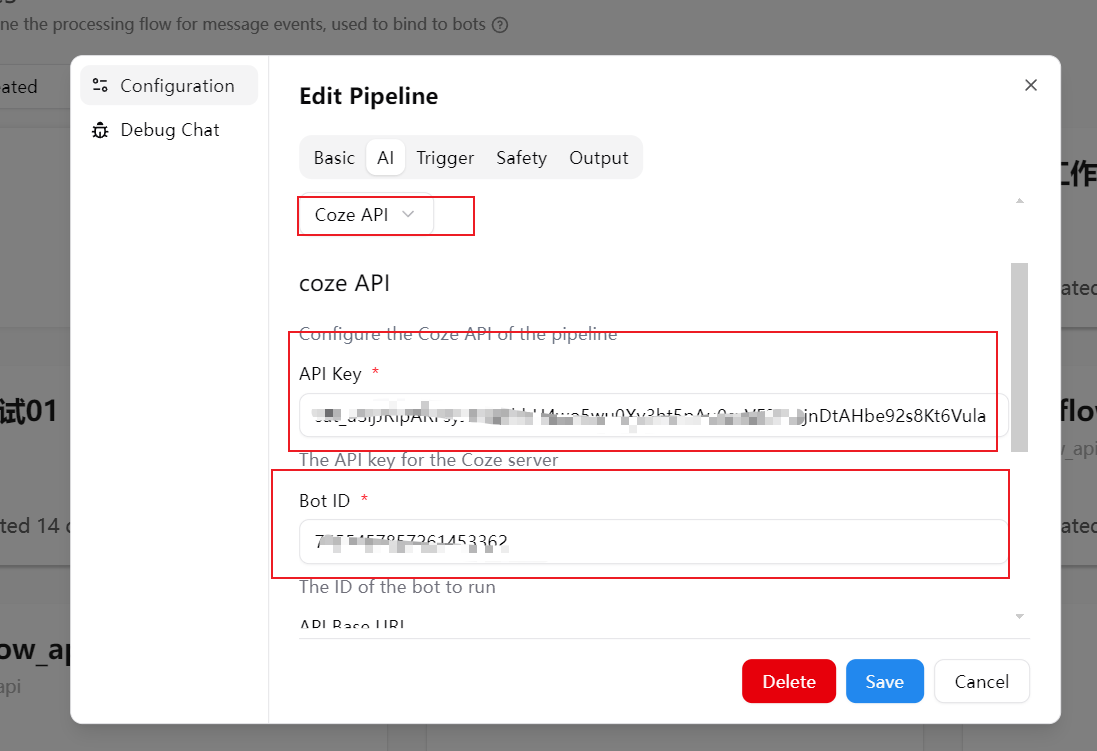 4. Click "Save" to complete the configuration
Once completed, you can invoke the Coze agent within this pipeline for dialogue processing
## Frequently Asked Questions (FAQ)
* **Save fails or invocation returns an error**: Please verify that the token and bot\_id are correct and do not contain extra spaces
* **Unable to select `Coze API`**: Please confirm whether the current version supports this runner. If not yet supported, please upgrade to a version that includes the Coze runner
For more general pipeline configuration instructions, please refer to [Modifying Dialogue Pipeline Configuration](/en/usage/pipelines/readme)
4. Click "Save" to complete the configuration
Once completed, you can invoke the Coze agent within this pipeline for dialogue processing
## Frequently Asked Questions (FAQ)
* **Save fails or invocation returns an error**: Please verify that the token and bot\_id are correct and do not contain extra spaces
* **Unable to select `Coze API`**: Please confirm whether the current version supports this runner. If not yet supported, please upgrade to a version that includes the Coze runner
For more general pipeline configuration instructions, please refer to [Modifying Dialogue Pipeline Configuration](/en/usage/pipelines/readme)